Stock balances, turnover and ledger
The Stock tab has three screens that read the same register, each for a different question. Stock Balances tells you how much you have, Stock Turnover how much came in and went out over a period, and Stock Ledger shows every movement, row by row.
None of them changes the stock. Stock moves only through documents: a receipt, a sale, a transfer or a write-off, an inventory count.
Where to find it: Nomenclature → Stock
Stock Balances — what you have
Where to find it: Nomenclature → Stock → Stock Balances
Each row is an item–warehouse pair, with the quantity, how much is reserved, how much is available and the value at cost. As long as you don't pick a day in As of date, the figures are the current ones. A click on a row opens the Stock card, with the item's movements in that warehouse.
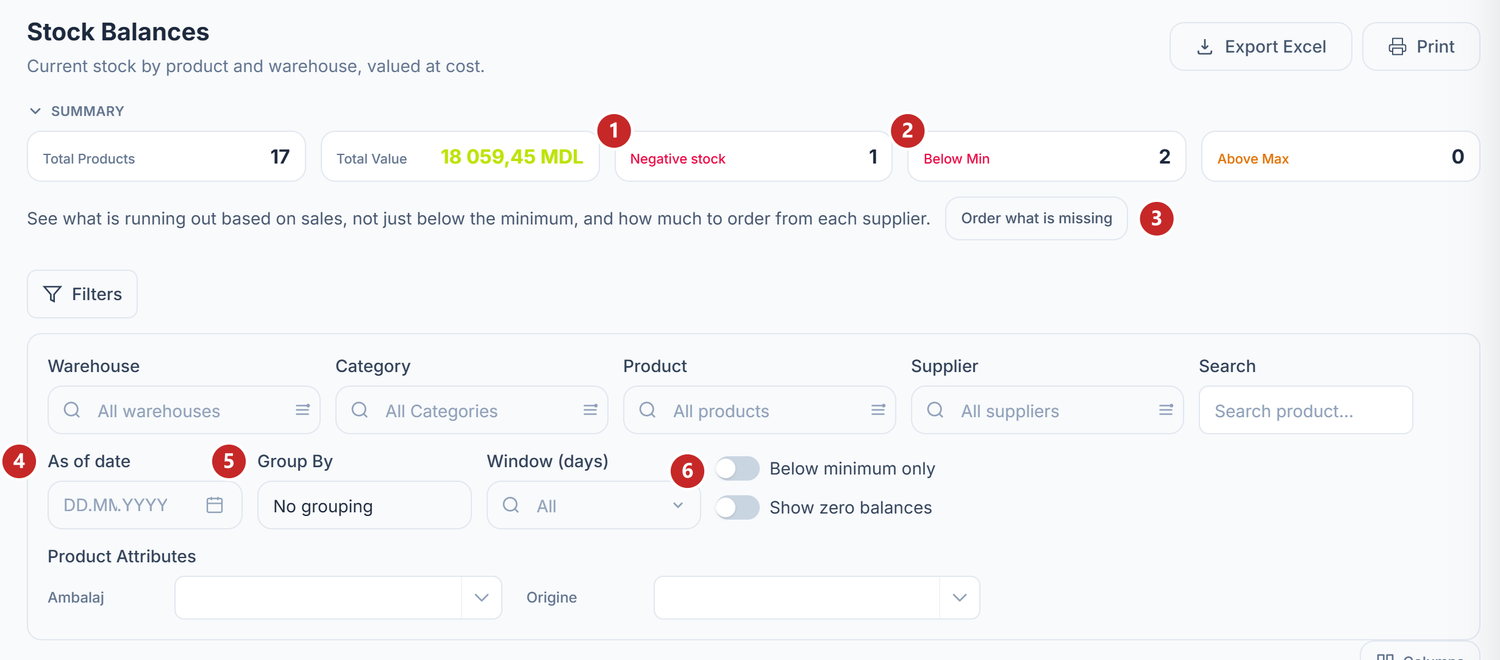
1 Negative stock · 2 Below Min · 3 Order what is missing · 4 As of date · 5 Group By · 6 Below minimum only and Show zero balances
The Negative stock card counts the items of which more was sold than was recorded. A click on it leaves only those items in the list, and a second click brings them all back. Below Min and Above Max compare the balance with the thresholds on the item card.
Order what is missing takes you to What to order, on the warehouse chosen in the filters. There you see what is running out at the pace of sales, not just what fell below the minimum.
The rest sits under Filters:
- As of date shows the balance at the end of a past day. The list of documents holding reserved goods opens only on the current balance.
- Group By gathers the rows by warehouse or by category, with the number of items and the value of each group.
- Window (days) keeps only the items with batches that expire within the number of days you choose.
- Below minimum only and Show zero balances are toggles; what each changes is in the table below.
- Product Attributes appears if you defined attributes on items (packaging, origin, colour) and filters by their values.
The figure in the Reserved column is a link: a click opens Reserved by, with the documents holding the goods. On a day picked in As of date, the link is off.
Under Avg. Cost a “+X% landed” badge sometimes appears. It shows how much of the cost comes from additional expenses spread over the goods, transport for instance. A click on it opens Cost composition, with the purchase base and the expenses by type.
Stock Turnover — what moved over a period
Where to find it: Nomenclature → Stock → Stock Turnover
The turnover shows, for each item–warehouse pair, the balance at the start of the period, the receipts, the issues and the balance at the end. The cards at the top add up the values over all the filtered rows, not just the page shown.
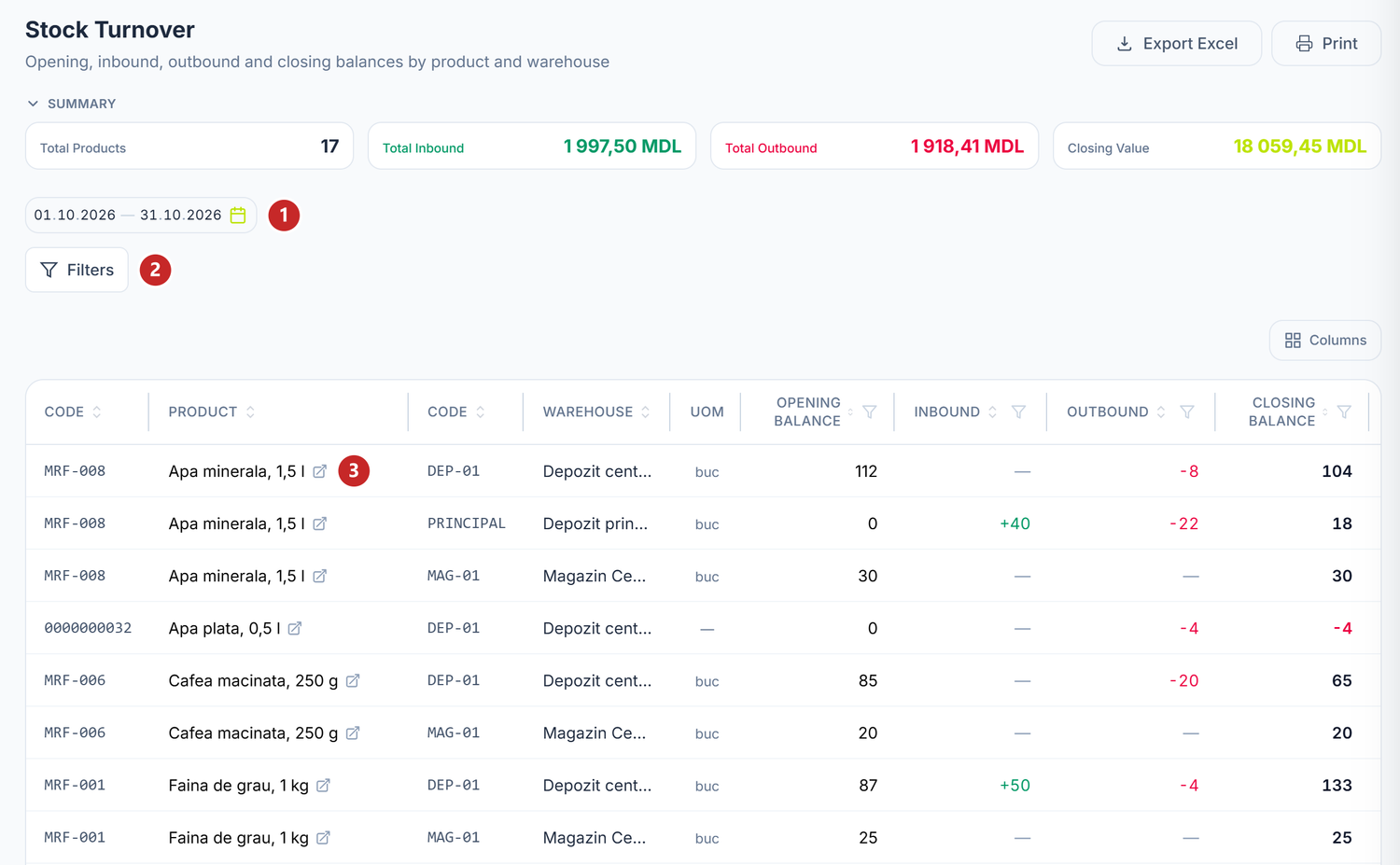
1 the period · 2 Filters · 3 View Product
The screen opens on This Month, and the period is always visible in the selector. You change it by typing the dates or from the calendar next to them.
Under Filters, Stock state keeps the items In stock, Out of stock or with a Negative balance at the end of the period. That's how you quickly find what went into the minus.
A click on a row opens the Stock card, with every movement of the item in that warehouse. The icon next to the name opens the item in the nomenclature.
To see only transfers, write-offs or another movement type:
- Nomenclature → Stock → Stock Turnover.
- Choose the period.
- Filters → Movement Type → the type you need, for example Transfer.
The list of types is built from the company's movements, so you see only the types you have.
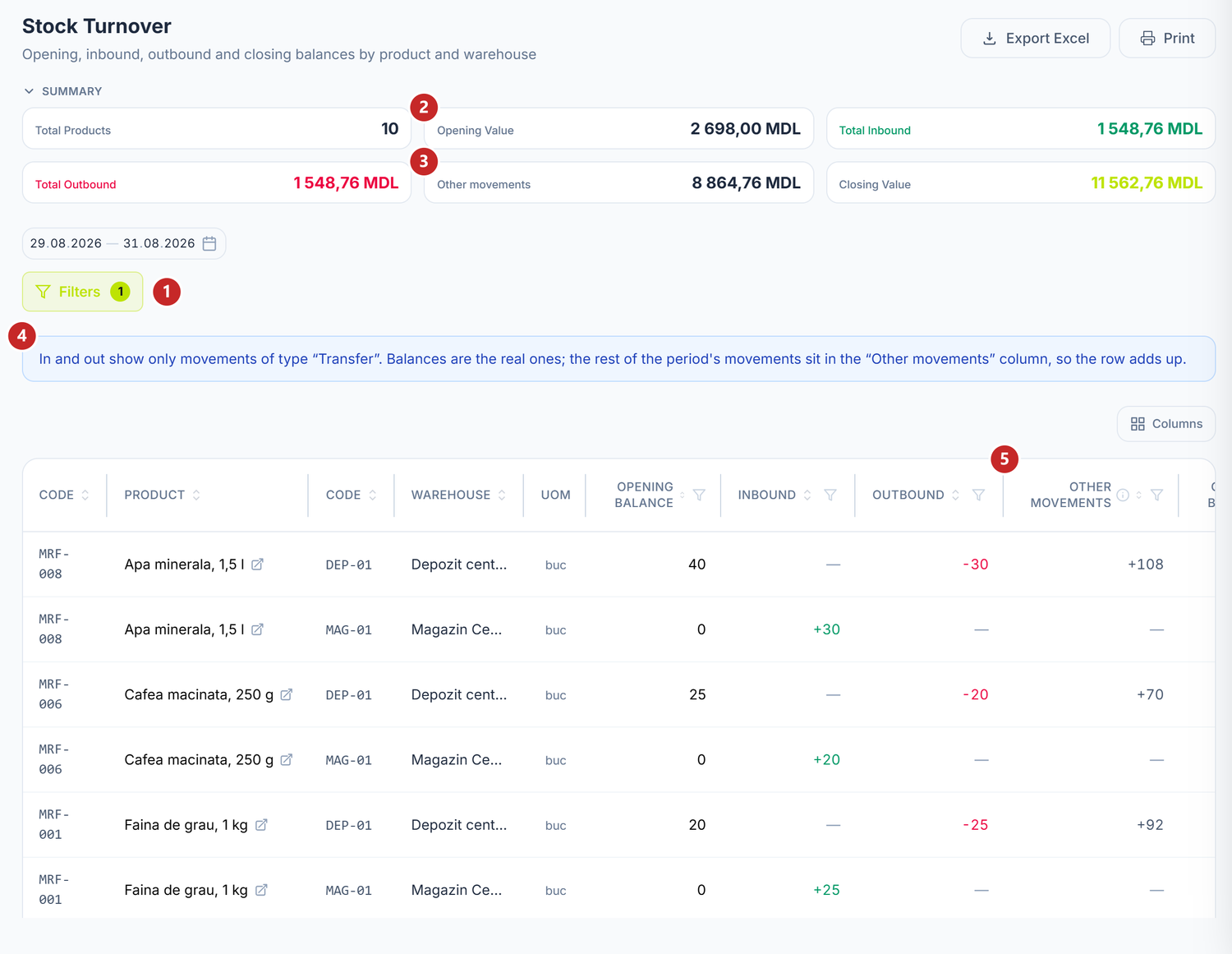
1 Filters, with one filter active · 2 Opening Value · 3 Other movements · 4 the note about the filter · 5 the Other movements column
With a type chosen, Inbound and Outbound count only the movements of that type. The balances stay the real ones, so the row doesn't lie about what you have in the warehouse. The blue note above the table reminds you of this while the filter is on.
Other movements
Other movements is everything that moved in the period but is of another type than the one chosen: receipts minus issues. The column and the card appear only with the type filter, because without it they would always be zero.
With it, every row adds up: opening balance + inbound − outbound + other movements = closing balance. In the screenshot, the mineral water in the central warehouse: 40 at the start, 30 out by transfer, 108 in by other routes, 118 at the end.
The cards do the same sum in money: Opening Value + Total Inbound − Total Outbound + Other movements = Closing Value. The Opening Value card appears only with the type filter. The money column is called Other movements value.
A row with “—” in the quantity but an amount in Other movements value is a value-only movement. Usually it's the cost set later for goods that came in or left without a cost, an additional expense spread over the goods or a price difference from the supplier invoice. Which document brought it you see in the Stock Ledger.
Stock Ledger — every movement
Where to find it: Nomenclature → Stock → Stock Ledger
The ledger has one row for every stock movement: the date, the type, the document, the item, the warehouse, the quantity and the value. The newest are on top. With no dates chosen, it covers the whole history.
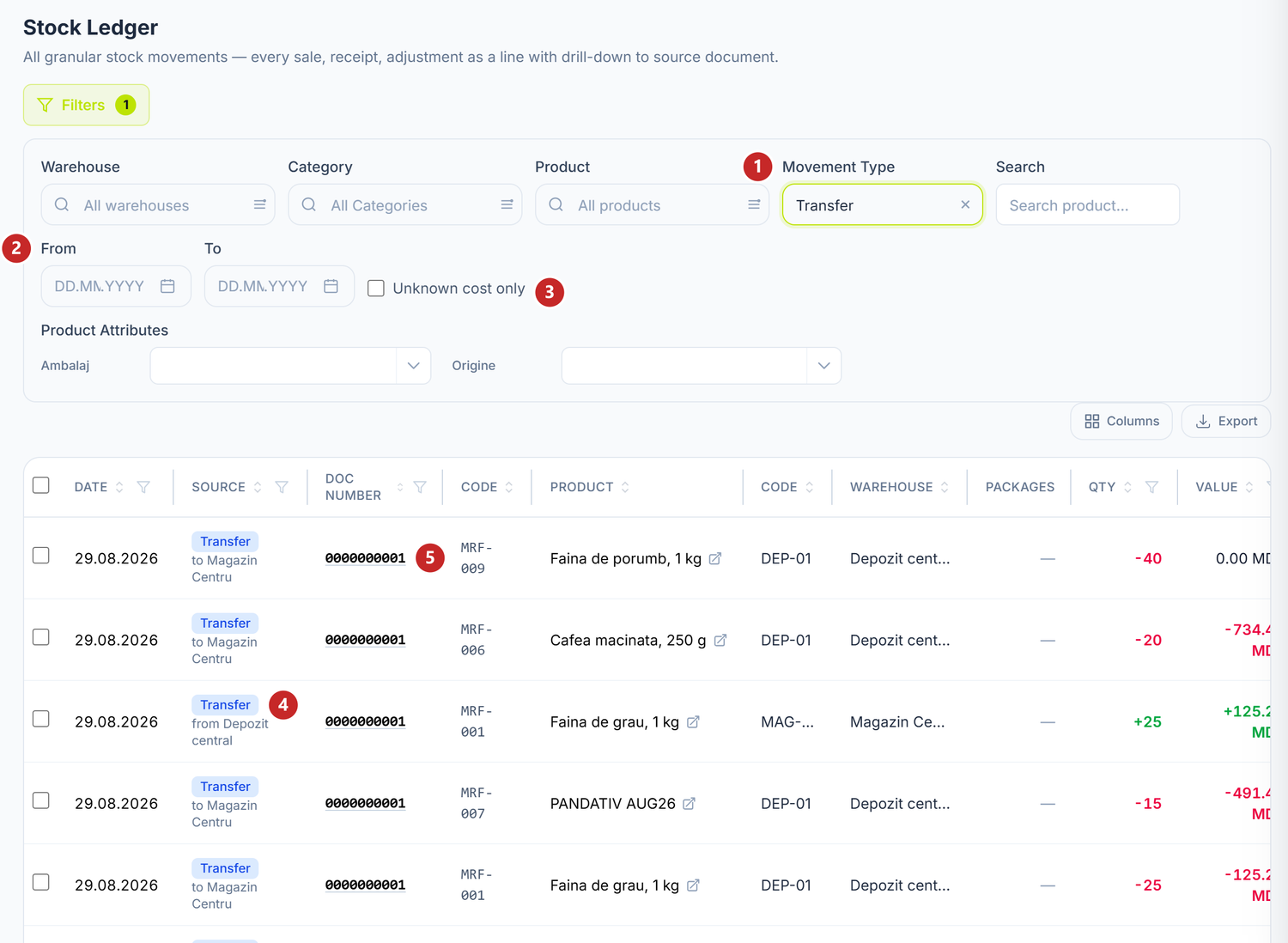
1 Movement Type · 2 From and To · 3 Unknown cost only · 4 the row's type and the other warehouse · 5 the document number
The Movement Type filter is the same as in the turnover. A transfer shows up twice, one row for each warehouse. Under the type, the row says where the goods went (“to …”) or where they came from (“from …”).
Usually the document number is a link: it takes you to the document that moved the stock. Under the table, the total row adds up the quantity and the value over the whole filtered ledger. When the rows have different units, the quantity isn't added up and stays “—”.
A sale made from negative stock, that is goods sold before their receipt was recorded, carries the unknown cost badge. Add the supplier invoice or the goods receipt, and the cost fills in by itself, through a Cost covered when goods arrived row for each sale. The quantity doesn't change, because the goods had already left.
On the Stock card, the rows of the same receipt are gathered into one, with a button such as “25 sales covered · 40 pcs”. Clicking it opens the list of sales: the day, the document, the quantity and the unit cost. If the receipt covered a single sale, you see it right on the row, with no button.
In the Stock Ledger the rows stay one per sale, with the covered sale written under the label. The MEV receipt column, on both screens, opens the till sale's receipt at SFS.
A “?” means the receipt couldn't be read right now. A “—” means the platform has no link for the receipt, not that the receipt didn't reach SFS.
The toggles
| Toggle | What changes when you turn it on | If you leave it off |
|---|---|---|
| Below minimum only (Stock Balances) | Only the items below the minimum stock on their card remain | You see all items |
| Show zero balances (Stock Balances) | Items that reached zero appear too | Items with a zero balance are hidden |
| Unknown cost only (Stock Ledger) | Only the sales from negative stock remain, with the unknown cost badge | You see all movements |
What can trip you up
“No movements of type “Transfer” between … and … — choose another period.” The turnover starts on the current month, and in it you have no movements of the chosen type. Widen the period or pick the month in which the movement took place.
In Stock Turnover, the cards show “—” instead of amounts. The figures didn't load, so “—” doesn't mean empty stock. The message in the table gives the reason. Reload the page in a minute.
The closing balance doesn't come out of the opening balance plus inbound minus outbound. You have a type filter on. The rest of the movements sits in Other movements, and with it the row adds up.
“… positions are waiting for cost recalculation — a document was recorded with a date earlier than issues already costed.” The amber box on Stock Balances appears when a back-dated document changes the cost of issues already calculated. The cost is redone by itself, in the background; Recalculate now redoes it right away.
Related pages
- Stock movements — the transfer, write-off and surplus that show up here as movement types.
- Physical inventory count — when the balance in the panel doesn't match the shelf.
- Product catalogue — the minimum and maximum stock thresholds.
- What to order — what is running out at the pace of sales and how much to order.