Floor and settings
Here you prepare the venue for the waiters: the rooms and the tables on the plan, the kitchen stations that receive the dishes, the pre-bill printer and the bill rules. What you save here goes to the venue's main register on its own, and from there to the registers and tablets on the floor.
The screen opens no bills and sells nothing. The waiters open bills on the register and on the tablet; here you only decide what the floor they work on looks like.
Where to find it: Sidebar → HoReCa → Floor and settings tab
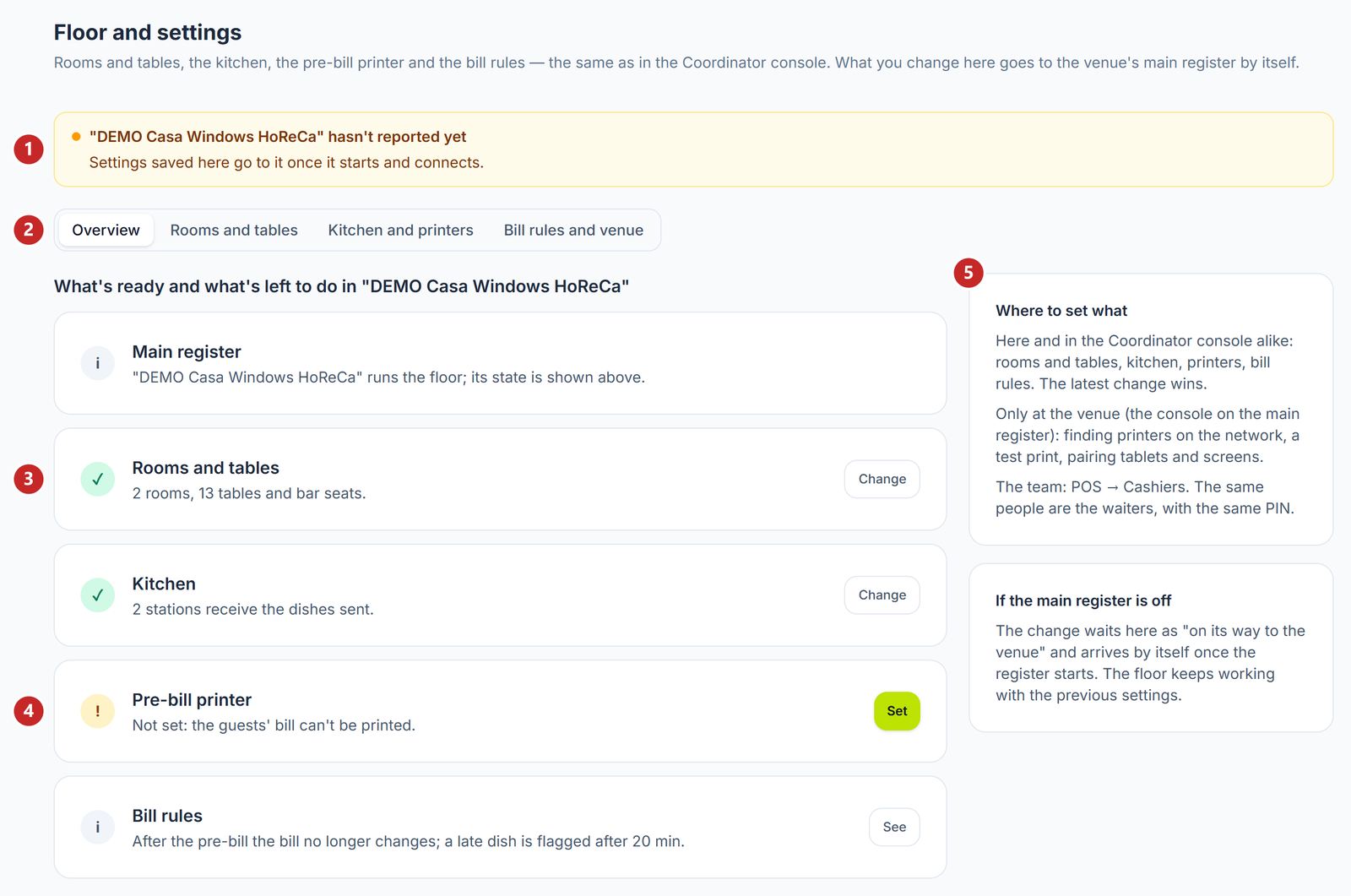
1 whether the venue already has the settings from here · 2 the four parts of the screen · 3 a step that is done, with Change · 4 a step still to do · 5 what is set here and what only at the venue
The main register
The rooms, the tables and the kitchen live on the venue's main register — the Windows till that runs the Coordinator, the program that keeps the floor. The screen works with it, not with each register separately.
The POSfix team sets the main register when it installs the till. Until then the screen says "The company has no HoReCa main register yet" and points to the list of registers. A venue has a single main register; if the company has several venues, you pick them in the page header.
The coloured row at the top says whether the venue has the settings from here:
- green — the main register has everything you saved;
- amber — something is on its way: the register is off, has not reported yet, or did not accept a change. The row says which and why.
While the main register is off, the change stays in the panel marked On its way to the venue and arrives on its own when the register starts. On the floor, people keep working with the previous settings.
Overview
The first part of the screen is a checklist: the main register, the rooms and tables, the kitchen, the pre-bill printer and the bill rules. A step that is done has a green tick and the Change button. A step still to do has an exclamation mark and the Set up or Set button, which takes you straight to the right part. The rows with an "i" are for information only; See opens the bill rules.
In the screenshot, the pre-bill printer is not set: without it, the guests' bill cannot be printed.
To set up the rooms and tables
- HoReCa → Floor and settings → Rooms and tables.
- + Room adds a room — for example "Main hall" or "Terrace". That is how the waiters see it on the tablet.
- Pick the room at the top and press + Table or + Bar seat. The table appears on the plan.
- Drag the table with the mouse to where it stands in the venue. The position is saved when you let go.
- Click the table and, on the right, write its name and how many seats it has, then Save.
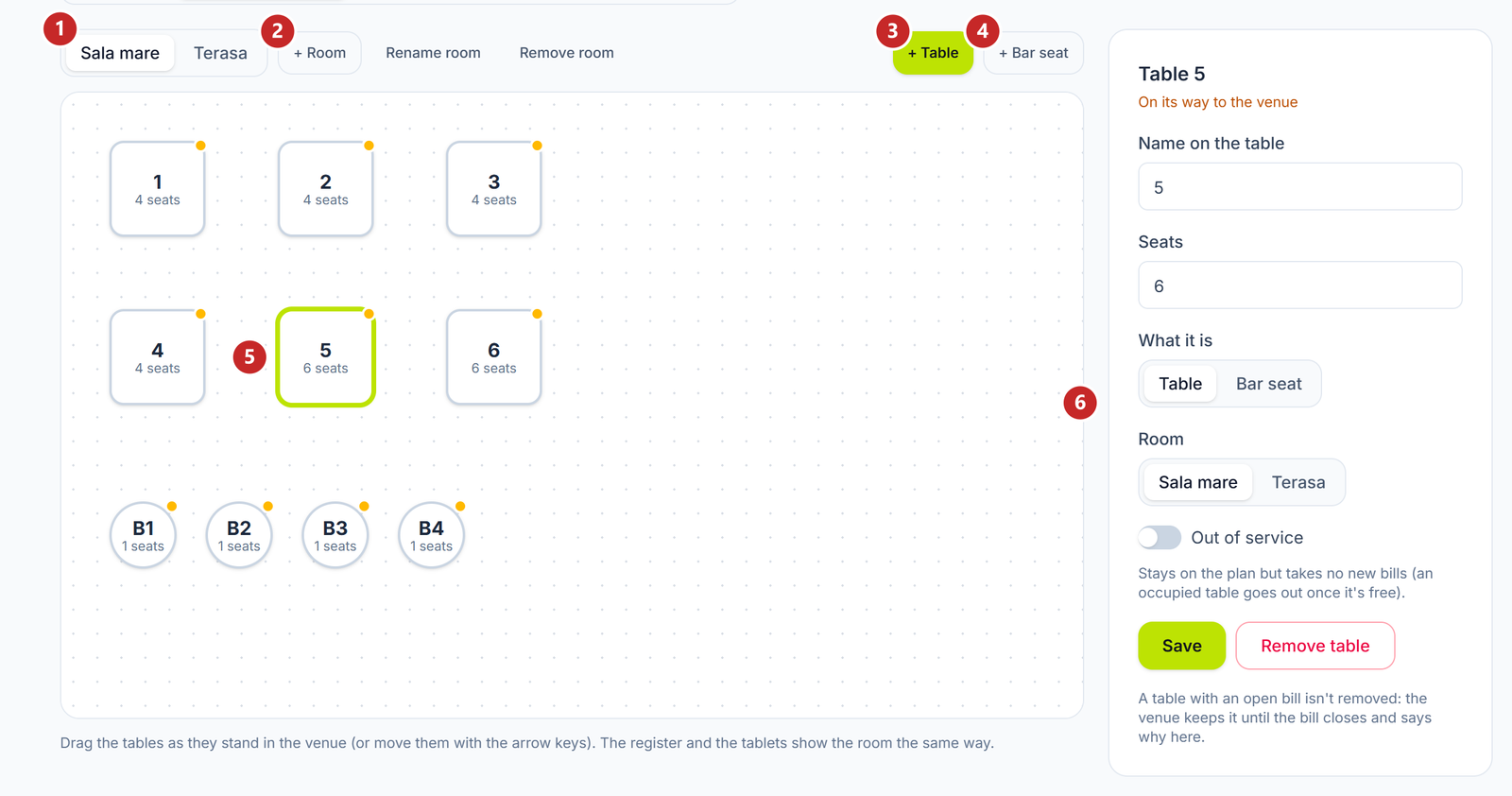
1 the venue's rooms · 2 you add a room · 3 you add a table · 4 you add a bar seat · 5 the picked table · 6 the table card
On the table card, What it is turns a table into a bar seat and back, and Room moves it to another room. The yellow dot in the corner of a table means the venue does not have its latest form yet: the change is on its way or was refused. The table card says which.
Tables also move with the arrow keys. A table that came from the register without a place on the plan has an orange dotted border: drag it to where it stands.
A table out of service
The Out of service switch keeps the table on the plan, but the waiters can no longer open new bills on it. It is for a table set aside for a while — the terrace closed in winter, a table under repair — without deleting it and drawing it again.
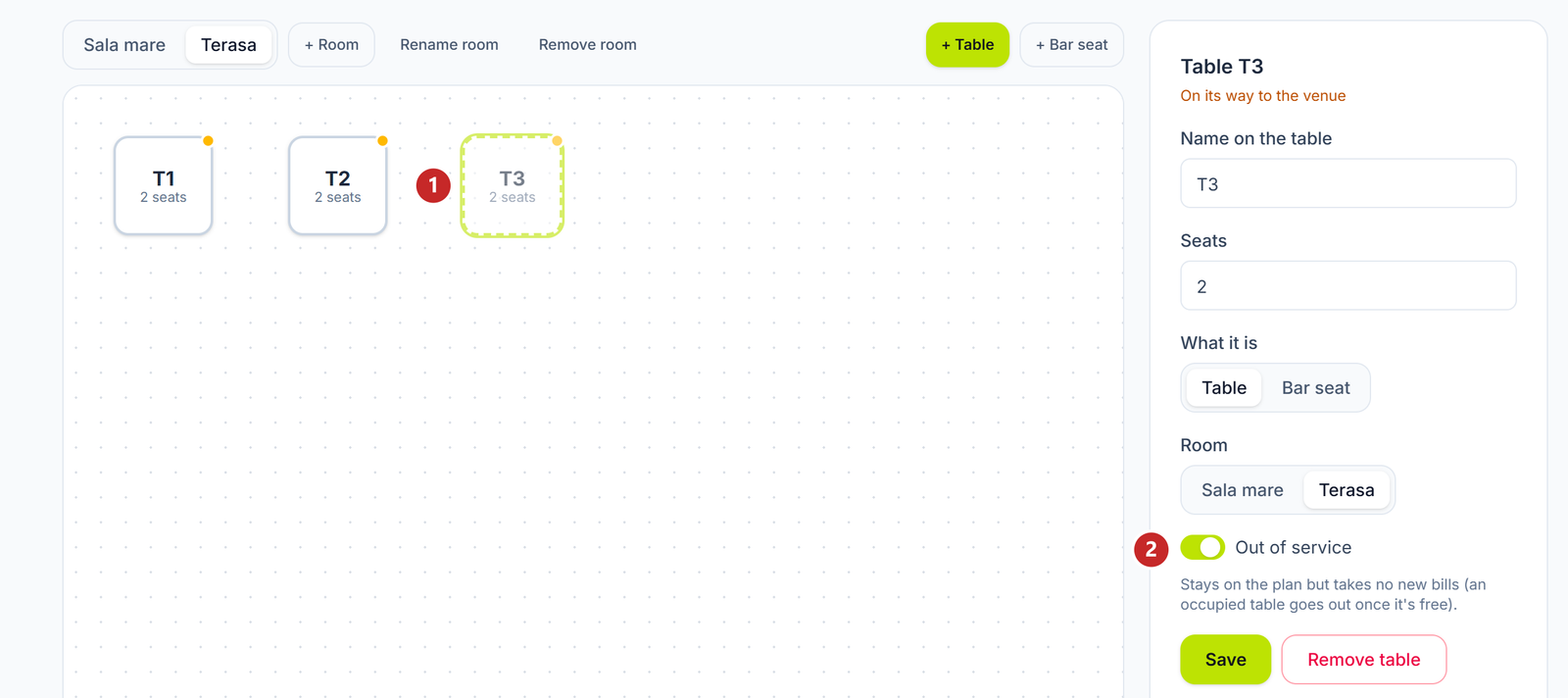
1 the table out of service, faded and with a dotted border · 2 the switch
A table in use is taken out of service only after it is free.
To send the dishes to the kitchen
When the waiter sends the order, each dish goes to the station that receives its category: a screen in the kitchen, a printer, or both.
- Floor and settings → Kitchen and printers → + Station.
- Write the station name, for example "Hot kitchen" or "Bar".
- Under Where it gets the dishes choose On a screen, On a printer or Both.
- Tick the menu categories that go to this station.
- If the station prints, fill in the printer, the paper and how many copies come out per ticket. Save.
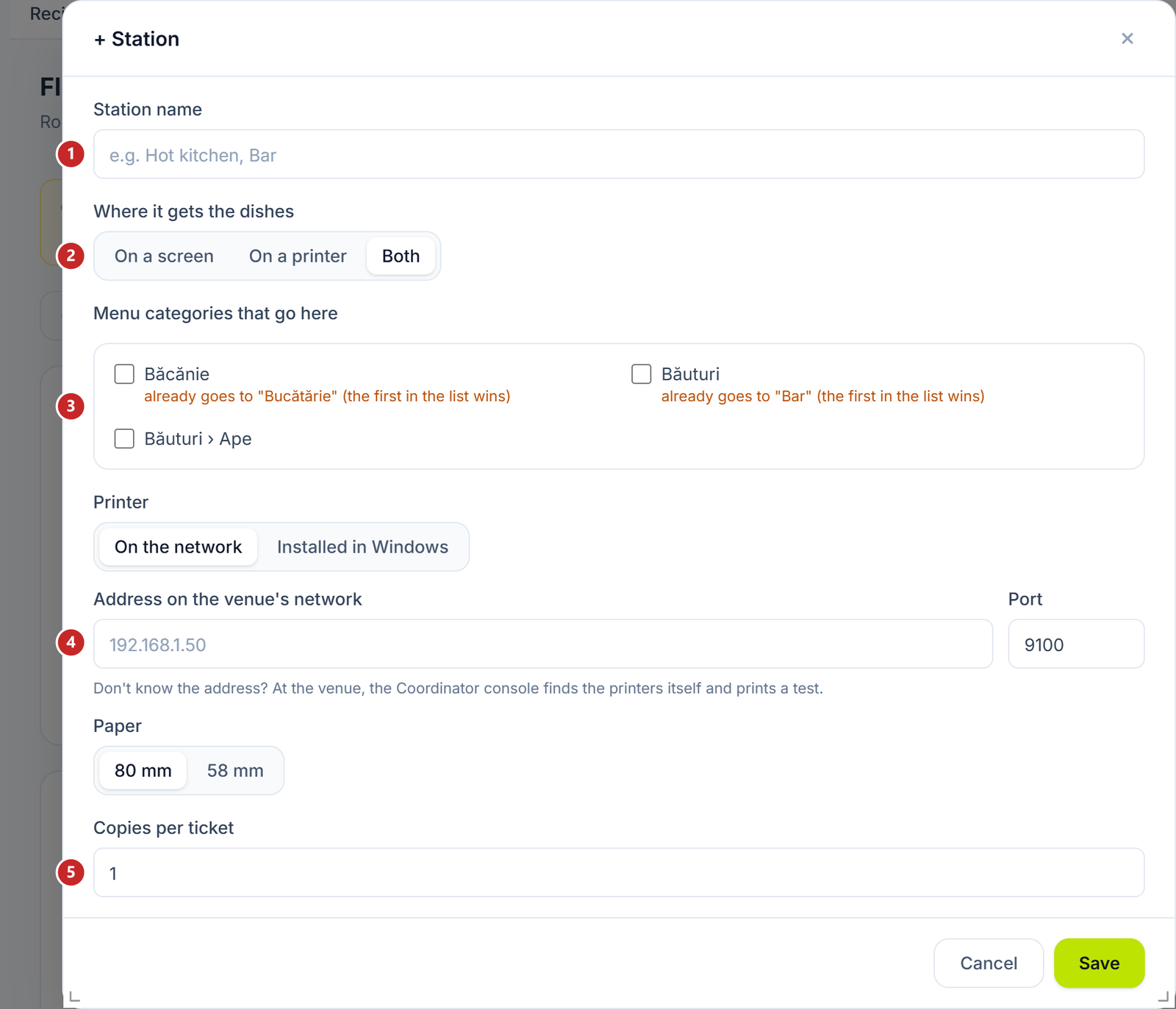
1 the station name · 2 where it gets the dishes · 3 the categories that go here · 4 the printer · 5 how many copies
The printer fields appear only for On a printer and Both. The printer is either On the network, with its address and port, or Installed in Windows, with the exact name from Windows on the main register's computer. If you do not know the address, the Coordinator console at the venue finds the printers on its own and prints a test page.
A category already ticked at another station carries the note "already goes to …". If you tick it here too, the dish goes to the first station in the list.
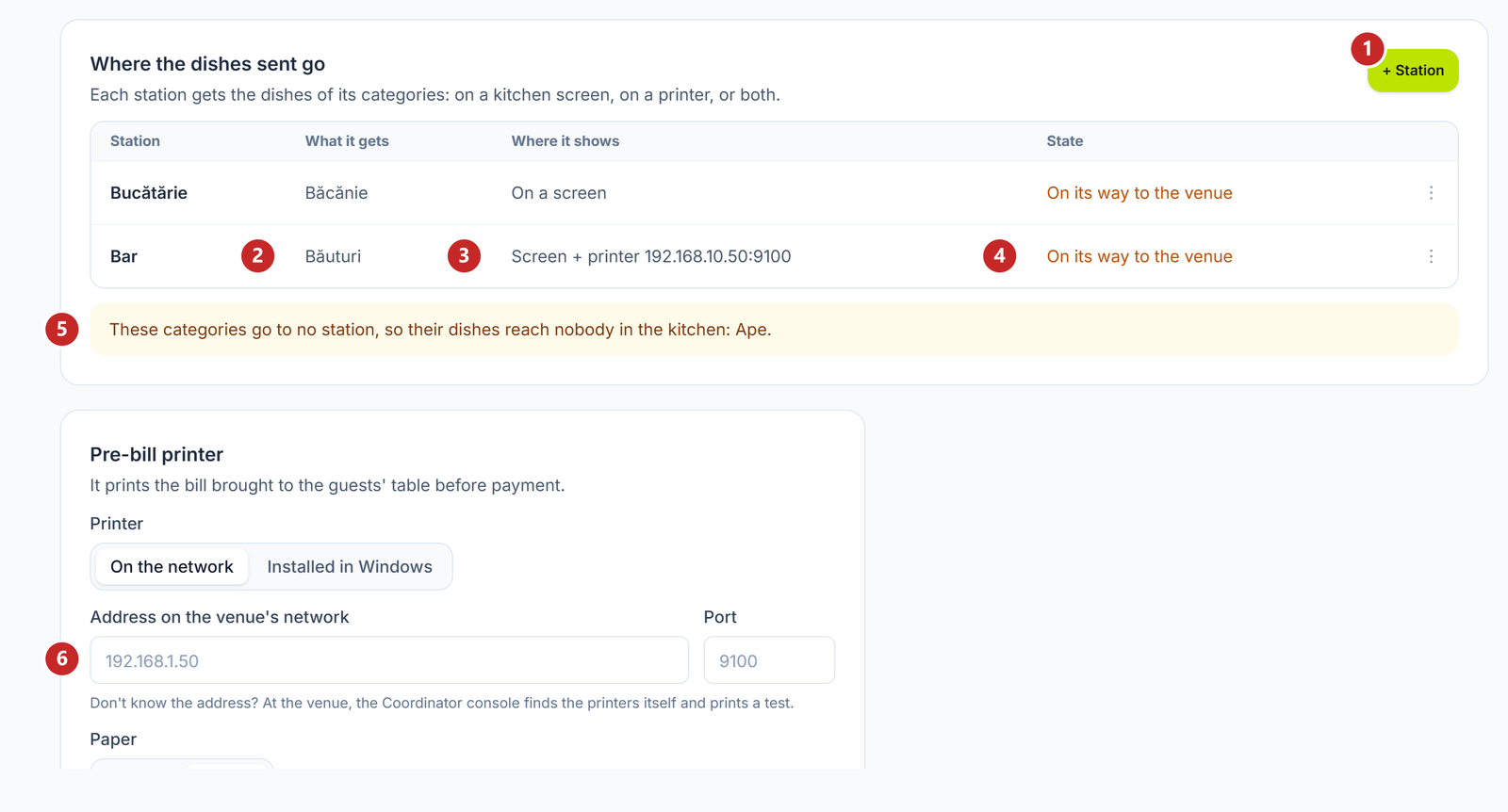
1 you add a station · 2 which categories it gets · 3 where the dishes show · 4 whether the station reached the venue · 5 the categories without a station · 6 the pre-bill printer
Watch the yellow box under the table. It names the categories that go to no station: their dishes, sent by the waiter, reach nobody in the kitchen. Add them to a station and the box disappears.
The pre-bill printer
The bill brought to the guests at the table, before payment, is printed on it. You set it under the stations table, the same way as a station printer, and choose 58 or 80 mm paper. No printer removes it.
The bill rules and the venue
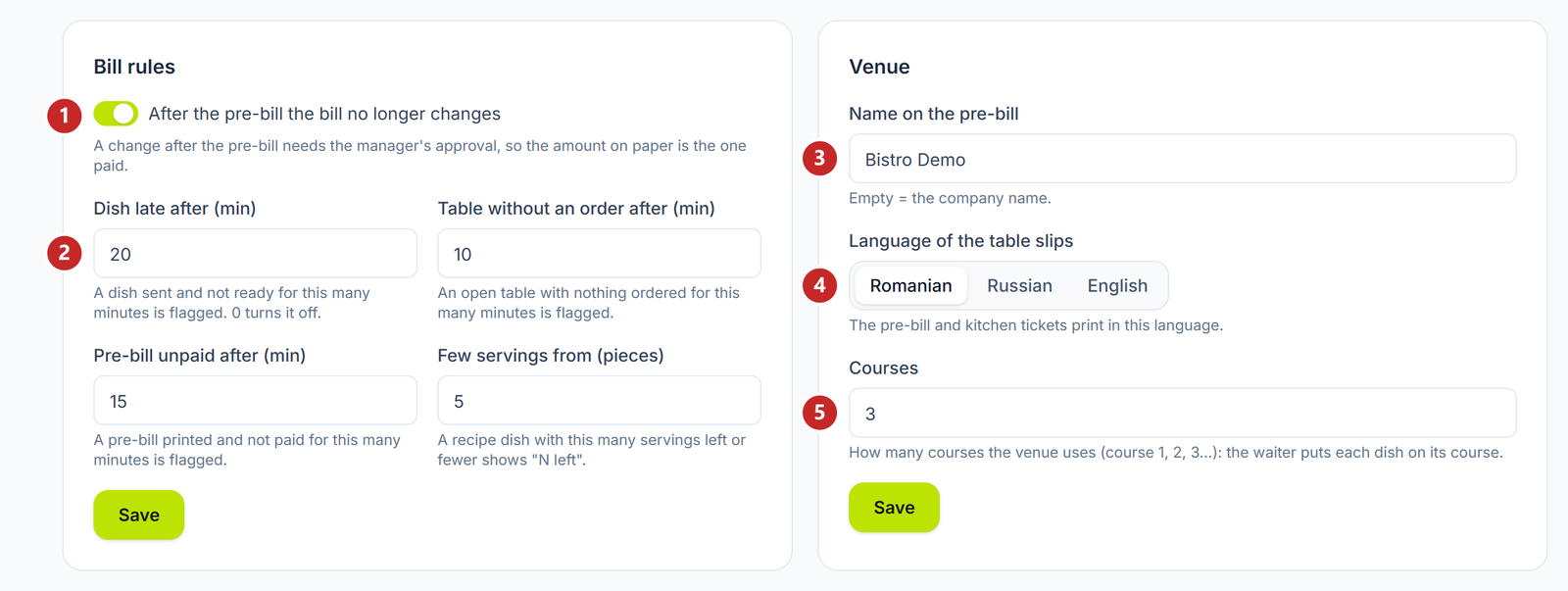
1 the bill frozen after the pre-bill · 2 the alert thresholds · 3 the name on the pre-bill · 4 the language of the slips · 5 how many courses the venue uses
The thresholds say after how many minutes three situations are flagged on the floor: a dish sent and not ready yet, an open table where nothing was ordered, a pre-bill printed and not paid. For the late dish, 0 turns the alert off. Few servings from puts "N left" on a dish with a recipe that can still make that many servings or fewer.
In the Venue card, an empty Name on the pre-bill means the company name. Courses says how many courses the venue uses — course 1, 2, 3 — so the waiter puts each dish on its course.
| Switch | What changes when you turn it on | If you leave it off |
|---|---|---|
| After the pre-bill the bill no longer changes | A change to the bill after the pre-bill is printed needs the manager's approval, so the amount on paper is the one paid | The waiter can change the bill after the pre-bill too |
| Out of service (on a table) | The table stays on the plan but gets no new bills | The table gets bills as usual |
What is set only at the venue
Some things depend on the venue's network and devices and are done from the Coordinator console, on the main register: searching for printers on the network, the test print, pairing the tablets and the screens.
Waiters are not added here. They are the company's cashiers, with the same PIN: you find them in Merchant Center → Cashiers.
What can confuse you
"The venue didn't remove the room: it still has tables." — a room is removed only when empty. Move or remove its tables first.
"The venue kept the table: it has an open bill." — a table with an open bill is not removed. It can be removed once the bill is closed.
"… hasn't reported yet" — the main register has not started since it got its role. The saved settings go to it when it starts and connects.
"… doesn't take settings from the panel yet" — the main register runs an older version of the program. What you save stays here and goes to the venue after the update; until then the floor is set from the Coordinator console.
Related pages
- Performance — how much was taken at the tables, once the floor is working
- Discounts and promotions at the till — the discounts the registers, the main one included, apply on their own
- How do I create categories and subcategories and put products in them? — the categories the kitchen stations receive