The orders screen for guests
The orders screen is the TV on the floor where counter guests see their number: which orders are being prepared and which are ready to pick up. The guest no longer stands at the counter asking, and the cashier no longer calls out numbers.
The screen doesn't take orders or payments: it only shows the numbers. The order is taken and paid at the register.
Where to find it: on the TV on the floor, at the link of a Queue for guests screen, made in the console → Registers, tablets, screens → Screens and links
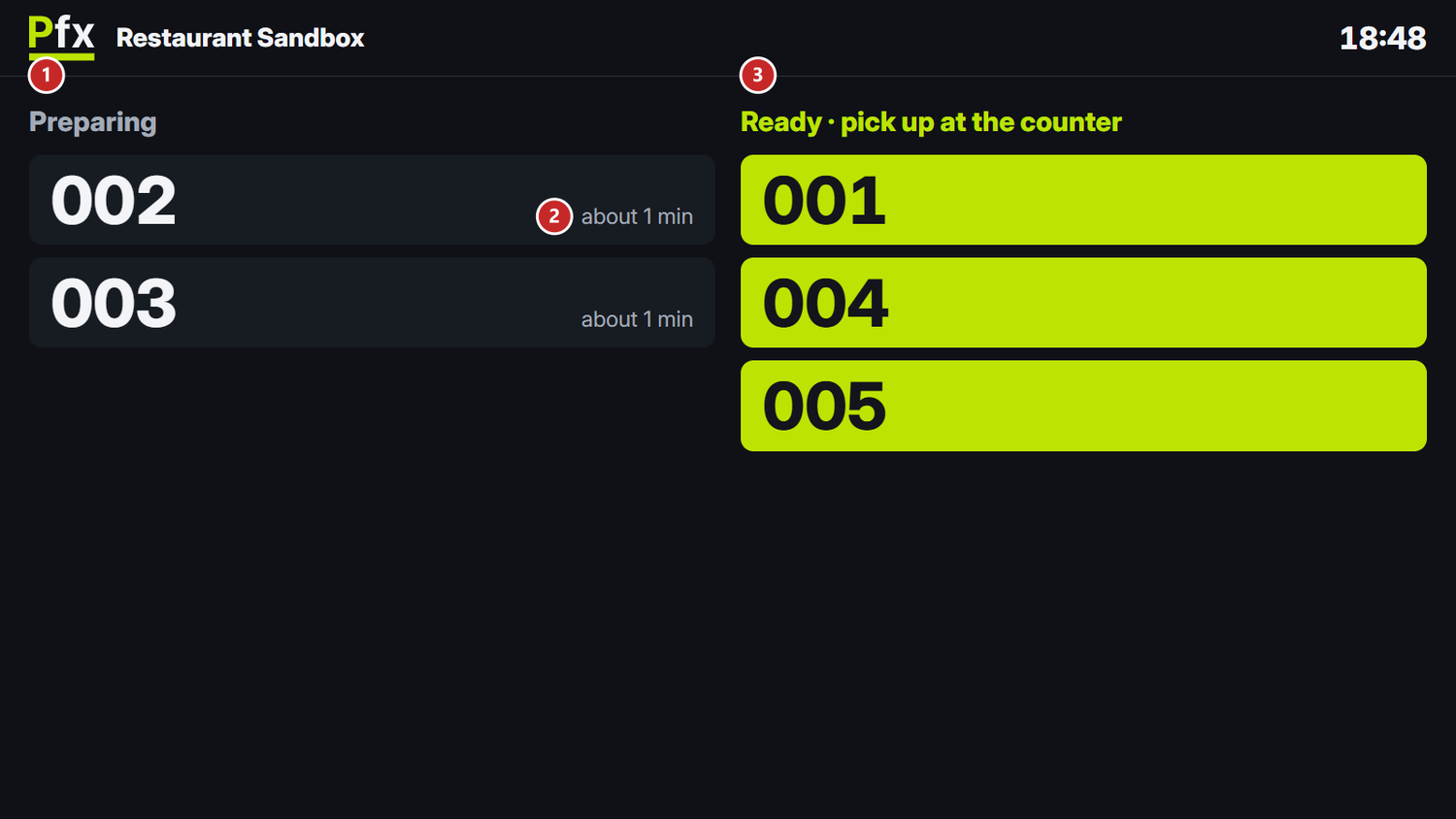
1 the orders being prepared · 2 about how long is left · 3 the orders ready to pick up
The order number
An order without a table, at the counter or to take away, gets a number when it first goes to the kitchen: 001, 002 and so on. The numbers start again from 001 every day, at 5 in the morning.
The number stays under Preparing while the kitchen works on the order. Next to it you see “about … min”: how long dishes have usually taken lately, minus the time already passed.
The number moves to Ready · pick up at the counter when the cook has pressed Ready on all its dishes, and disappears once the dishes were handed to the guest (Served on the kitchen screen).
Table orders don't appear on the screen, unless For every order is chosen in the console, under Waiting slip with a number: Settings in the console.
To put the screen on a TV
- In the console, make a Queue for guests screen: Registers, tablets and screens.
- On the TV, open the link in the browser. The venue name and the clock appear at the top.
When a number moves to “Ready”, the screen chimes briefly. If you add &tts=1 at the end of the link, it also announces it out loud: “Order 4 is ready”.
When there is no order
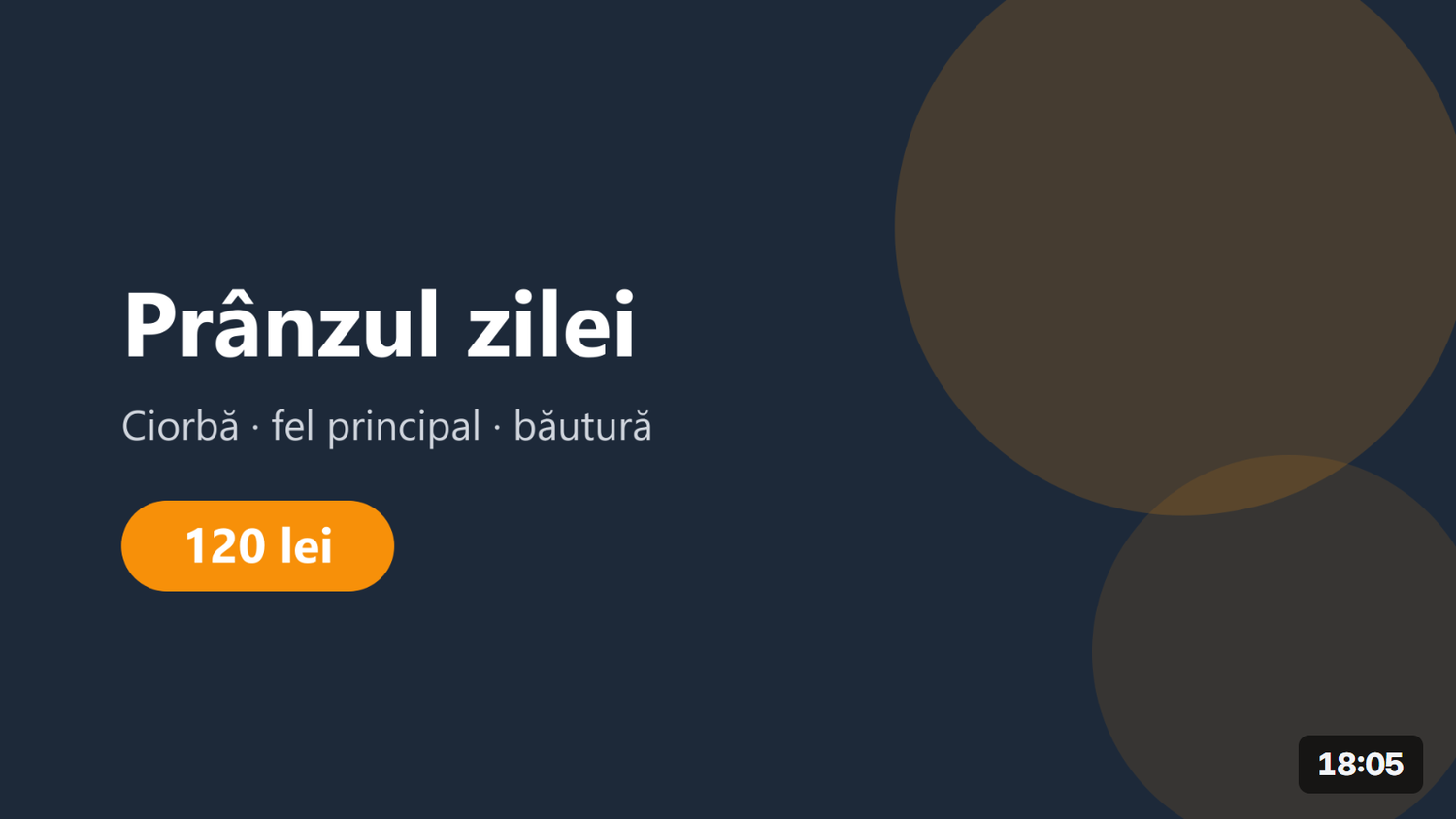
While nobody is waiting, the screen shows the pictures uploaded in the console in turn, with the clock in the corner: the menu of the day, an offer. Without pictures, it shows the venue name and “Welcome!”. The pictures are uploaded in the console → Venue → Queue screen for guests.
The waiting slip and “My order”
When the waiting slip is on in the console, the pre-bill printer prints, for every numbered order, a waiting slip: the number, about how long it takes and a QR code. The slip is printed in the language of the papers, Romanian (BON DE AȘTEPTARE) or Russian (ТАЛОН ОЖИДАНИЯ). The guest scans the code and the “My order” page opens on their phone.
The page shows the number, the order's state and about how long is left, and it updates by itself. The states are Preparing, Ready, you can pick it up, Picked up and Cancelled.
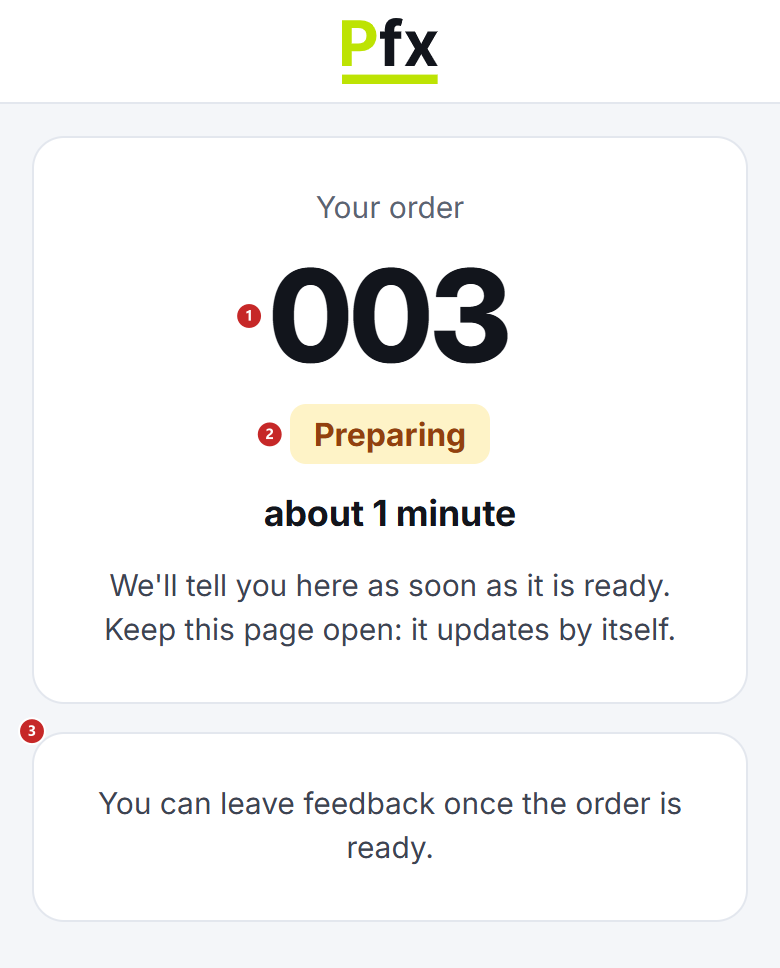
1 the order number · 2 the state · 3 feedback is left once the order is ready
The code on the slip leads to the Coordinator, on the venue's network. That is why the page opens only on a phone connected to the venue's Wi-Fi.
The guest's feedback
When the order is ready, the page asks “How was it?”, with 1 to 5 stars.
- At 4 or 5 stars, if the console has the link for Google reviews, the guest gets the Leave a Google review button.
- At 1–3 stars, or without a Google link, the guest writes “What could we do better?” and presses Send. Only the venue sees the text.
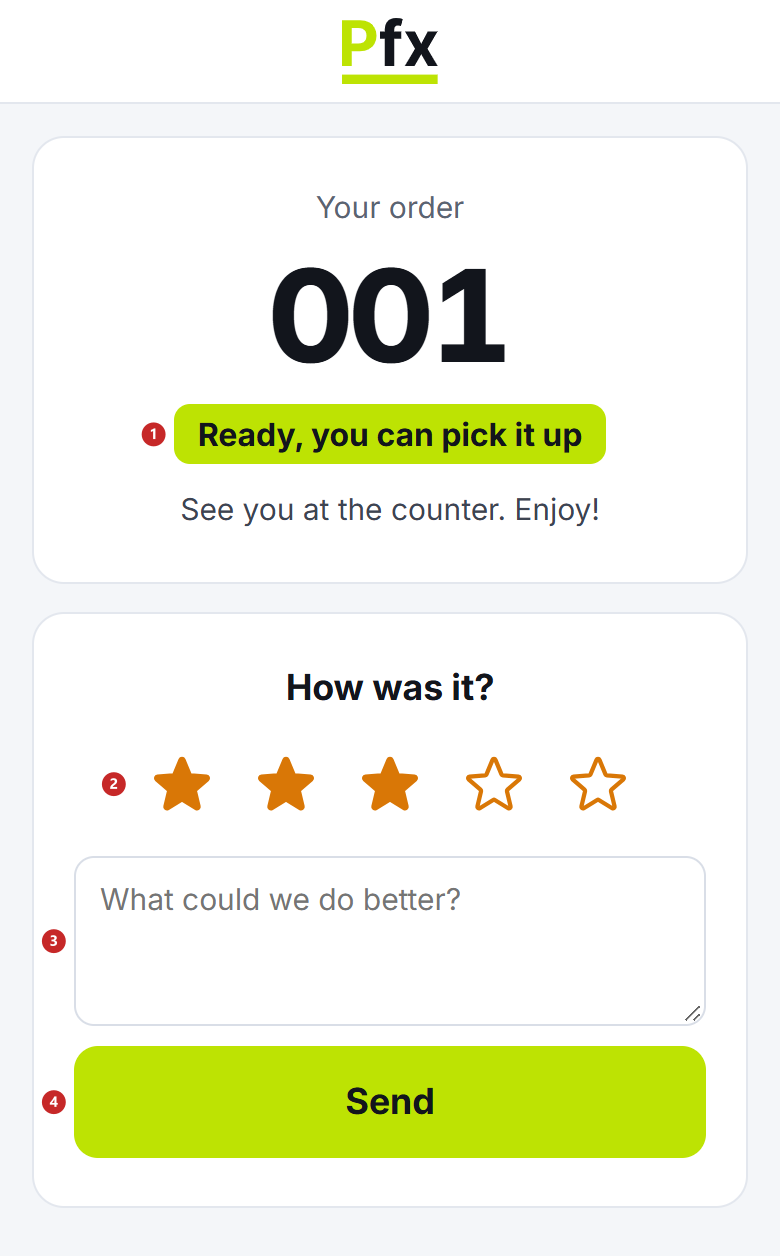
1 the order is ready · 2 the stars · 3 what could we do better · 4 Send
Each order gets one rating. The ratings are read in the console → Today and reviews: The Coordinator console.
What can confuse you
“This screen's link is no longer valid” — the screen was stopped in the console. Make a new screen and open its link on the TV.
“This is not a queue screen's link” — a kitchen screen's link was opened on the TV. Make a Queue for guests screen.
“The link to the Coordinator was lost. The screen reconnects by itself.” — the main register's computer is off or the TV dropped off the network. The screen comes back by itself.
“This TV's browser is too old for the order board.” — open the link in Chrome, on Android TV or Fire TV, or on another device with an up-to-date browser.
The guest can't open “My order” — their phone isn't on the venue's Wi-Fi. They connect to the Wi-Fi and scan the code again.
“Order not found” — the page doesn't recognise the code. The guest scans the code on the slip again.
Related pages
- The kitchen screen — where the cook presses Ready, and the number moves to “Ready”
- Settings in the console — the waiting slip, the Google link and the pictures
- Registers, tablets and screens — how to make the screen's link