The pre-bill and paying the bill
The pre-bill is the bill printed for the guests, before payment. It isn't a fiscal receipt: the receipt is issued only when you take payment. Payment is taken in the same payment window as any sale of the register.
Where to find it: on the register, with the table's bill open: Pre-bill on the left of the bottom bar, the payment buttons on the right
To print the pre-bill
Press Pre-bill. The pre-bill comes out on the venue's pre-bill printer, and the register says "The pre-bill was sent to the printer.". At the top, next to the table, "pre-bill printed 21:10" appears.
If you press it again, the pre-bill prints once more.
The frozen bill
Normally the bill no longer changes after the pre-bill: the guests have a total on paper, and the register keeps it. The band "The guests have the pre-bill: the bill can no longer change." sits on the bill.
While the bill is frozen, you can't add dishes, change portions or void lines. You can, however, send to the kitchen what was already on the bill and take payment.
To change the bill anyway, press Cancel the pre-bill (manager PIN), on the pre-bill band. A manager types their PIN (if the manager is the one signed in to the register, it isn't asked), and the register answers "The pre-bill was cancelled: the bill can change again.".
If the venue doesn't freeze the bill after the pre-bill, the band only says "The guests have the pre-bill.", and the bill can still be changed.
To take payment for the bill
- At the top of the bill, under Who pays now, choose:
- Whole table — the whole bill on one receipt;
- Pick dishes — tick the lines this customer pays for, and the rest stays on the table.
- Press the payment type: Cash, Card or Other. If you want to give a discount, press Discount first.
- In the payment window, take payment as for any sale and press Issue the receipt.
With Pick dishes, each line gets a tick box, and under them the register shows what stays on the table:
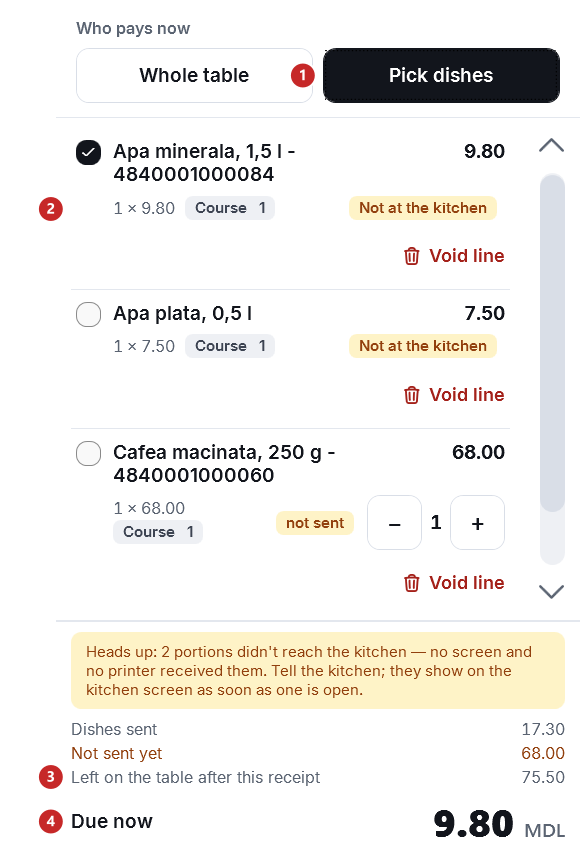
1 Pick dishes · 2 the ticked line, which goes on this receipt · 3 Left on the table after this receipt · 4 the amount of this receipt
If dishes not sent yet are left on the bill, the register asks before payment:

1 Send and pay — sends the dishes to the kitchen, then opens the payment · 2 Pay without it — the guests got the dish directly, for example a drink from the bar · 3 Back to the bill
The prepared payment
Once you press Discount or a payment button, the bill moves to payment. Under it sits the Payment prepared band, with what changed compared to the bill, in amounts:
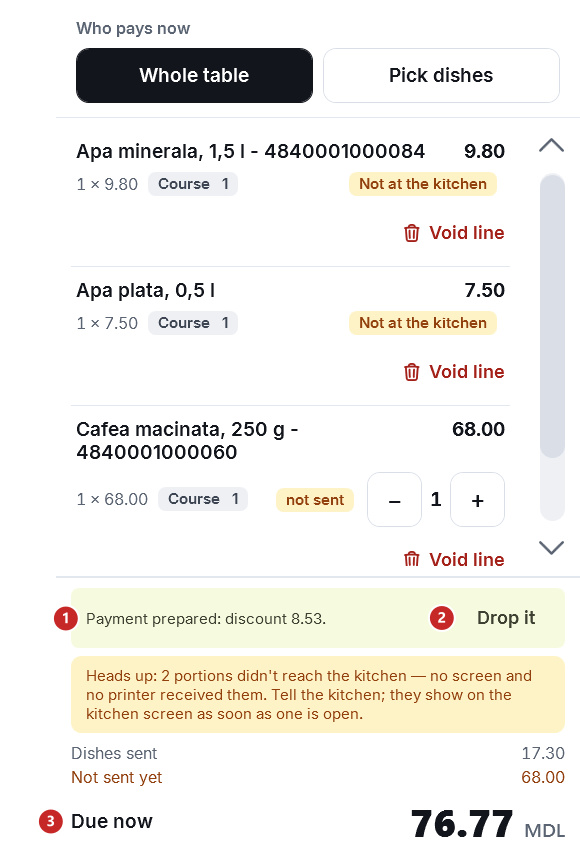
1 "Payment prepared: discount 8.53." — here, a 10% discount given by the cashier · 2 Drop it — the bill goes back to how it was · 3 the amount to pay, with the discount taken off
Under "discount" the band adds up your discount and the company's promotions; it may also name a markup or the tip. The promotions also show separately, above the amount, one line each: "Automatic discount: …".
While the payment is prepared, a product you tap no longer goes on the bill: the register tells you "The table’s payment is prepared. Finish it or press “Drop it” under the note.".
The payment window is the one from any sale. Under the title it says the table and who pays, and the button on the left takes you back to the bill:
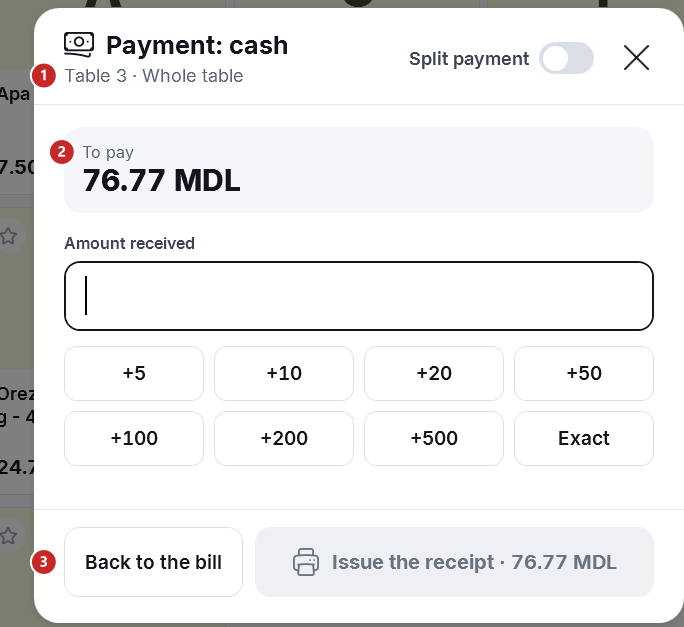
1 the table and who pays · 2 the amount to pay · 3 Back to the bill
The Split payment switch splits the payment over several payment types. How to take payment in the window, with the change and the split payment: Payment and the fiscal receipt. If you close the window with ×, without having added a discount or a tip, the prepared payment is cancelled by itself, and the bill goes back to how it was.
The tip
The tip is offered only when paying by Card, in the payment window, and only if the venue has turned it on. It isn't on the fiscal receipt: it's charged to the card together with the bill. The suggestions and the threshold above which the manager's PIN is asked are chosen in the panel, under The bill rules; how much was collected you see under Tips.
After the receipt
- If the whole table paid, the register says "Table 4: the bill is paid. The register goes back to the floor." and opens the tables screen by itself. The table becomes free again.
- If only part was paid, the register stays on the bill and says how much is left to pay: "Table 4: 42.50 MDL left to pay.".
What can trip you up
"The pre-bill was NOT printed: no bill printer is configured on the Coordinator." The venue has no pre-bill printer. Set it in the panel, under The pre-bill printer, or in the Coordinator console. Without a printed pre-bill, the bill isn't frozen.
"The bill printer is not responding." The pre-bill printer is off or out of paper. The pre-bill wasn't printed, and the bill stays as it was.
"Pick at least one line to start a split bon." You chose Pick dishes but didn't tick any line.
Related pages
- The table's bill — the dishes, sending and voiding.
- Payment and the fiscal receipt — the payment window, for any sale.
- Discounts and promotions at the till — the discounts the register applies by itself.
- Floor and settings — the bill rule after the pre-bill.