Cash Register Operations
Recording Payments
The PosFix system supports multiple payment methods. This section guides the operator through the process of transforming the product cart into a finalized transaction, explaining how to use the payment interface. You will find clear instructions for managing various accepted financial instruments (cash, bank card, meal tickets, or mixed methods), as well as automatic system functions such as change calculation and fiscal receipt issuance.
Cash Payment
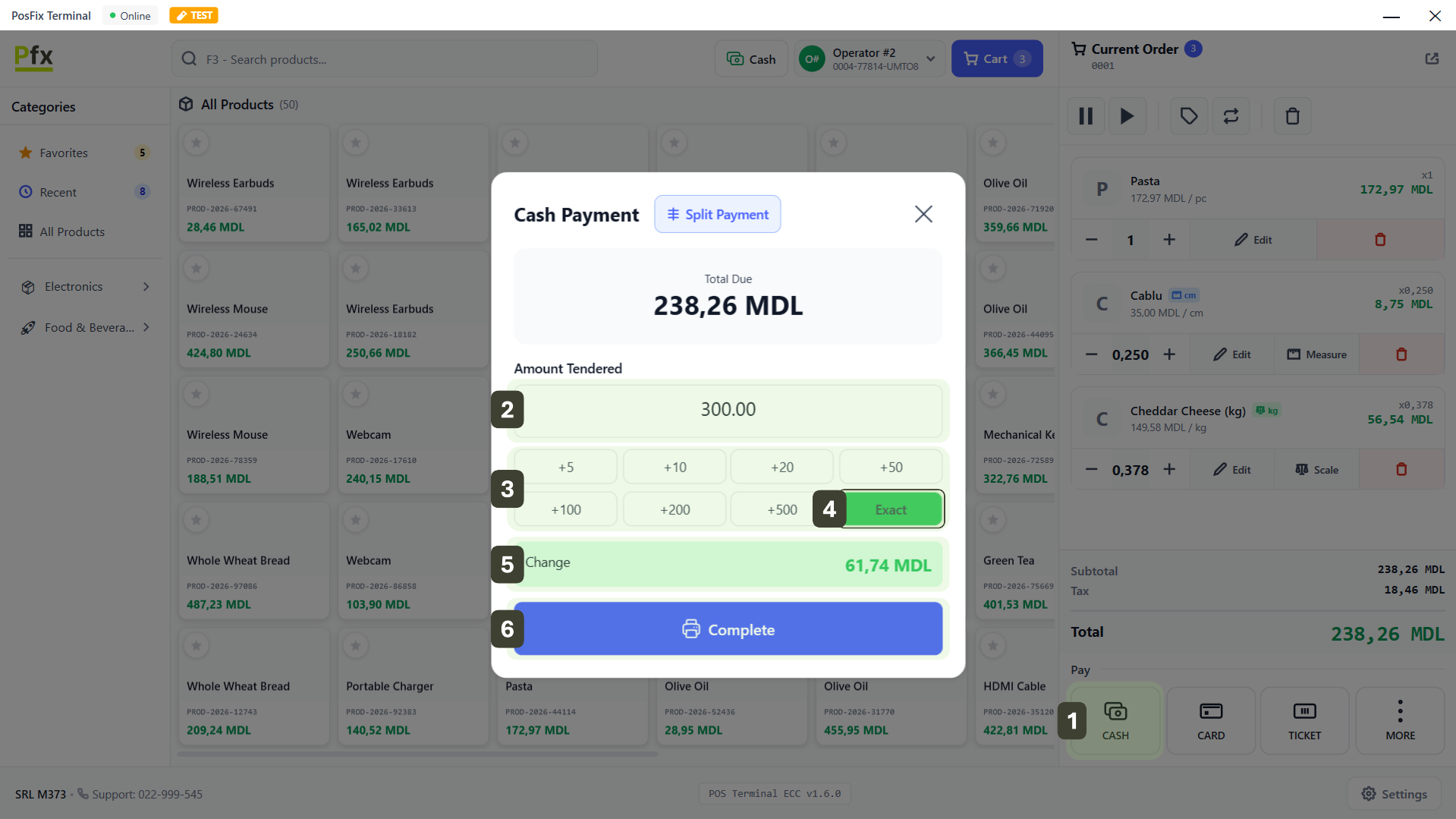
Cash payment is the most frequent operation at the cash register. The PosFix interface is optimized to process these transactions at maximum speed, providing the operator with assistive tools for quick amount entry (through preset buttons) and automatic change calculation, effectively eliminating human errors.
- Once products are scanned or selected, press the Cash button from the payment methods list.
- Enter the actual received amount from the customer using the numeric keypad.
- For increased speed, use the preset buttons (+5, +10, +20, +50, +100, +200, +500 MDL) to compose the received sum.
- Alternatively, press the Exact button if the customer provided the exact amount (change 0.00 MDL).
- Check the Change field – it is calculated automatically by the system.
- Press Complete to print the fiscal receipt and trigger the cash drawer to open.
Double-check the entered amount before pressing the Complete button. Once the fiscal receipt has been printed, the transaction is recorded in the fiscal memory and can no longer be cancelled from the sales interface (requires administrative cancellation/storno procedures).
If the customer offers the exact amount (no change needed), always use the Exact button. This reduces transaction time by a few seconds, eliminating the need to manually type the amount.
Card Payment
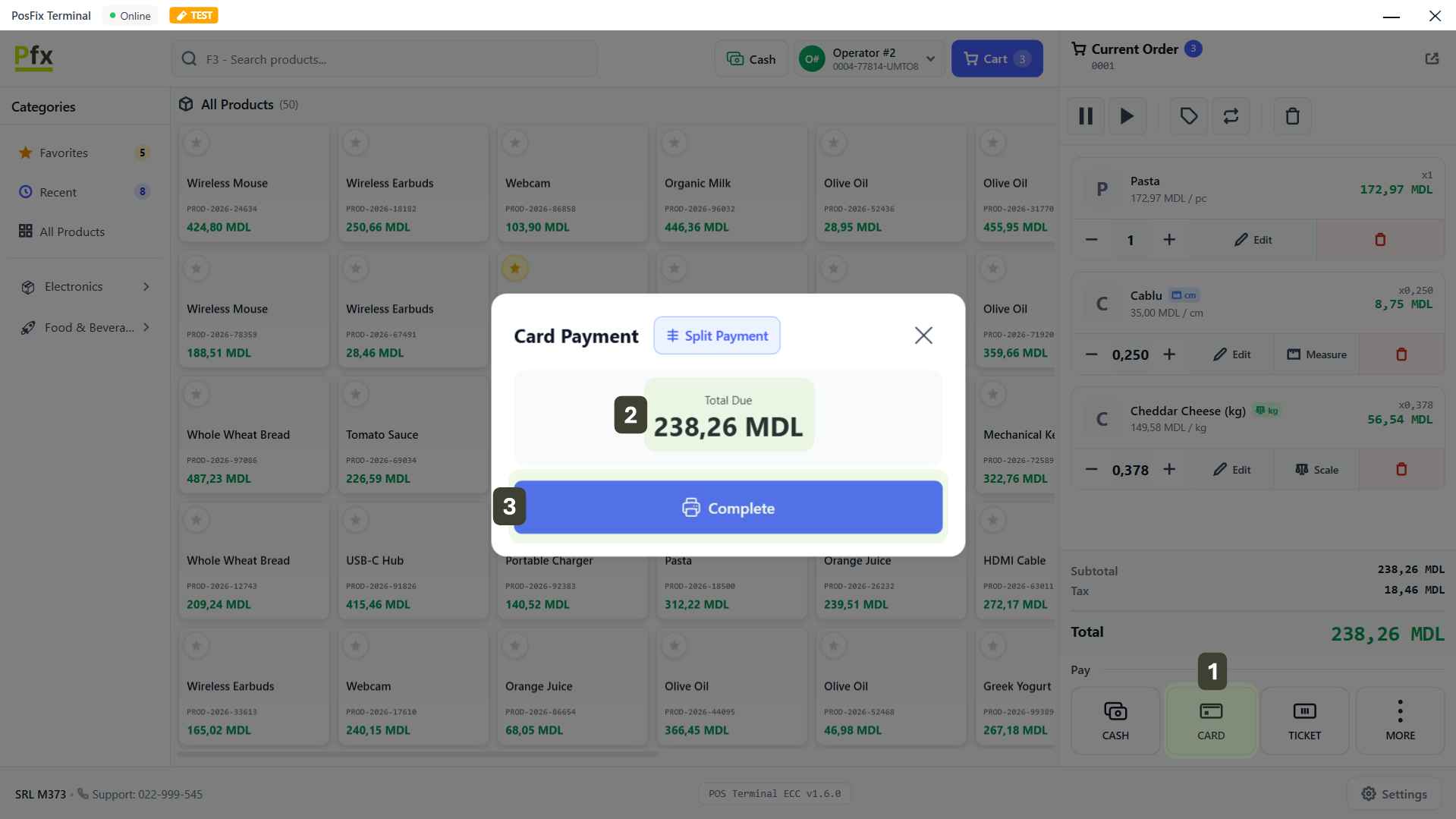
- Press the Card button from the payment methods list
- Verify the amount displayed on the screen (it is automatically pre-filled with the receipt total)
- If the bank terminal is integrated: The amount is automatically transmitted to the bank POS. Invite the customer to tap their card/phone.
- If the bank terminal is NOT integrated: Enter the amount on the external terminal, invite the customer to tap their card and wait for the receipt confirming Transaction Approved
- As soon as you have bank confirmation, press the Complete button in the PosFix application to issue the fiscal receipt
Order of Operations: Do not press "Complete" in the application before seeing the "Success" message on the bank terminal, to avoid accidental printing of a fiscal receipt without a confirmed payment.
Amount Verification: For non-integrated terminals, double-check the amount typed on the bank POS before presenting it to the customer. A single wrong digit can lead to an incorrect charge.
Two Receipts: The customer should generally receive two documents: the Fiscal Receipt (issued by PosFix) and the Payment Receipt (issued by the bank terminal).
Meal Ticket Payment
Payment with Electronic Meal Tickets TME is a method strictly intended for the purchase of food products. The PosFix interface manages these payments similarly to bank payments but applies specific restrictions to comply with current legislation (no cash change is given).
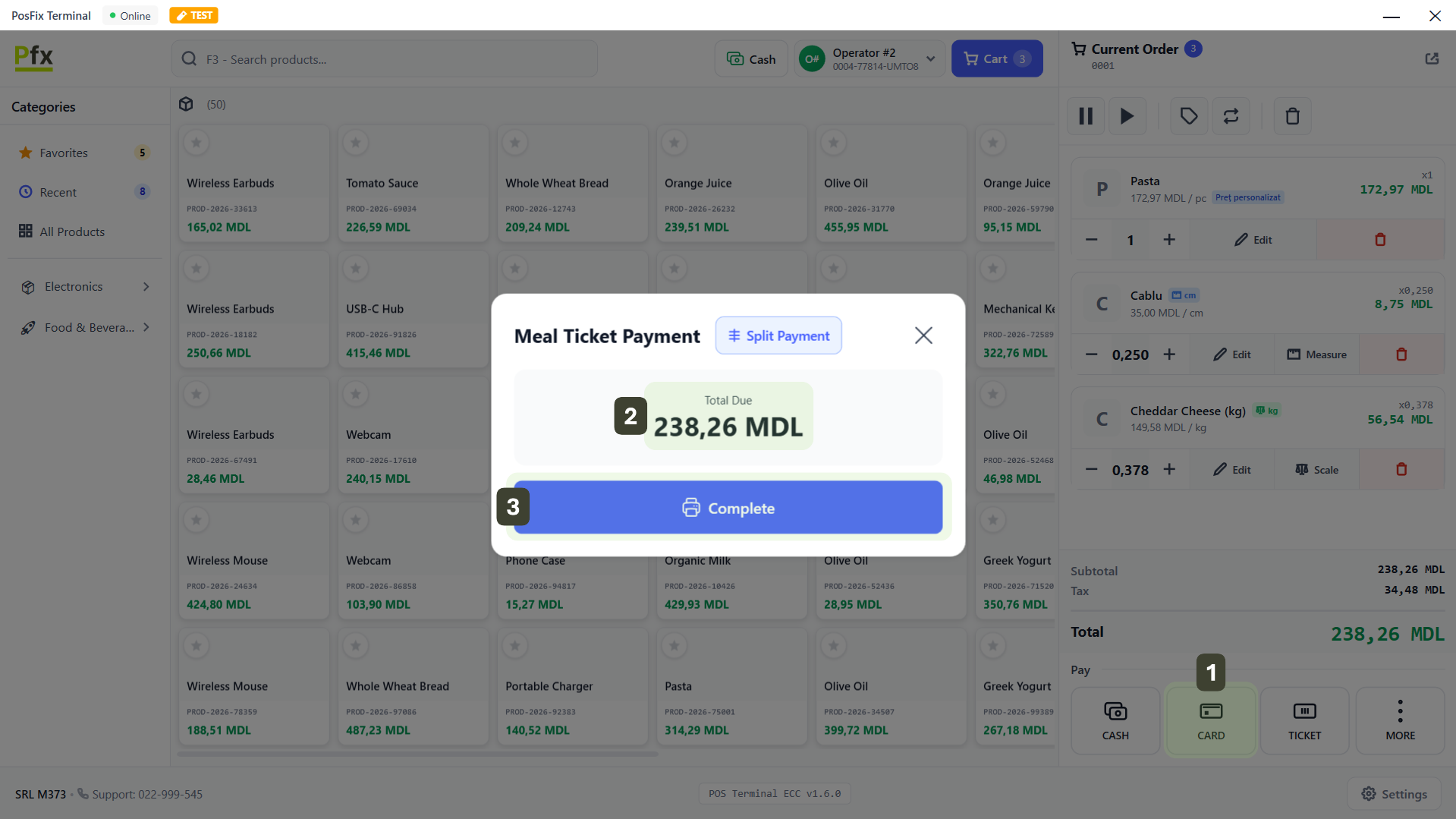
- Press the TICKET button from the payment methods list
- Verify the amount displayed on the screen (it is automatically pre-filled with the receipt total)
- If the bank terminal is integrated: The amount is automatically transmitted to the bank POS. Invite the customer to tap their card.
- If the bank terminal is NOT integrated: Enter the amount on the external terminal, invite the customer to tap their card and wait for the receipt confirming Transaction Approved
- As soon as you have bank confirmation, press the Complete button in the PosFix application to issue the fiscal receipt
Giving Change: According to the law, when paying with meal tickets, no cash change is given.
If the meal card has insufficient funds to cover the full amount, use the Split Payment (Mixed Payment) feature.
Split Payment (Mixed)
A split payment is used when a customer wishes to pay the receipt value using multiple payment methods simultaneously (e.g., part Cash and the rest Card). The PosFix interface allows managing these payments by adding payments sequentially.
-
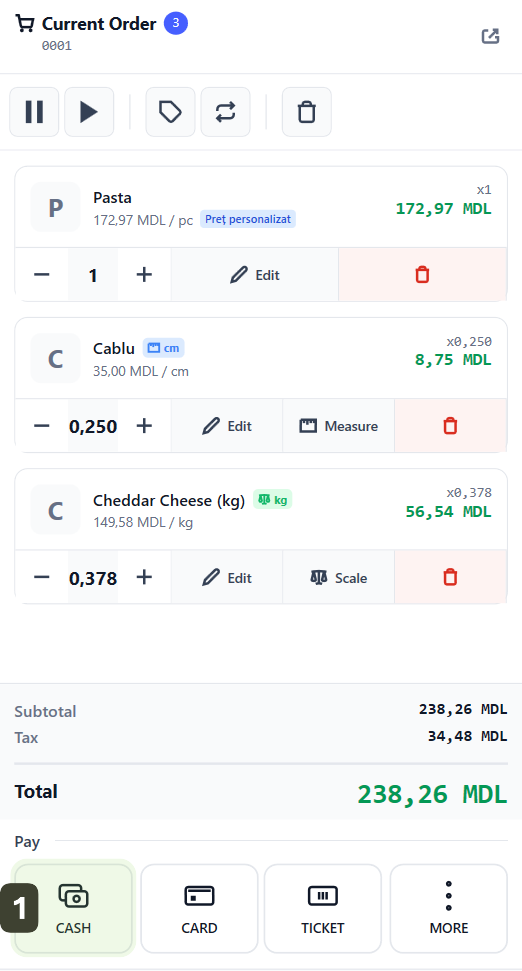
Select an initial payment method (e.g., CASH)
-
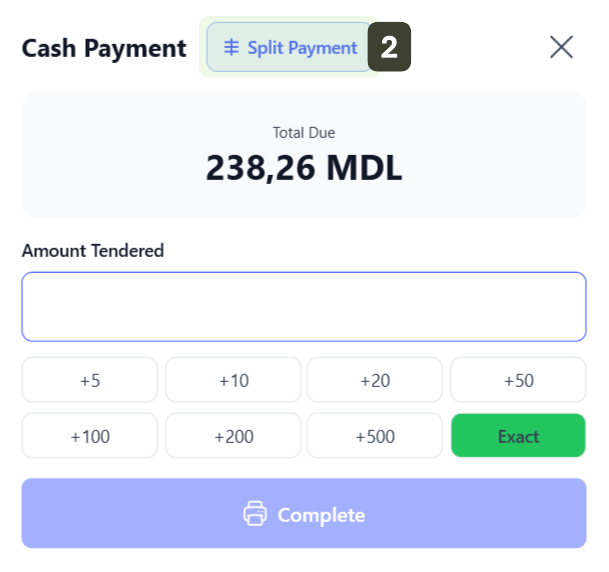
The payment window will open. Press the Split Payment button
-
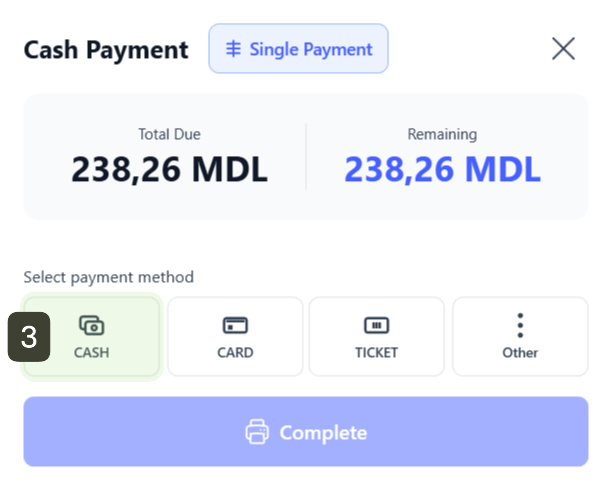
Select the first payment method CASH
-
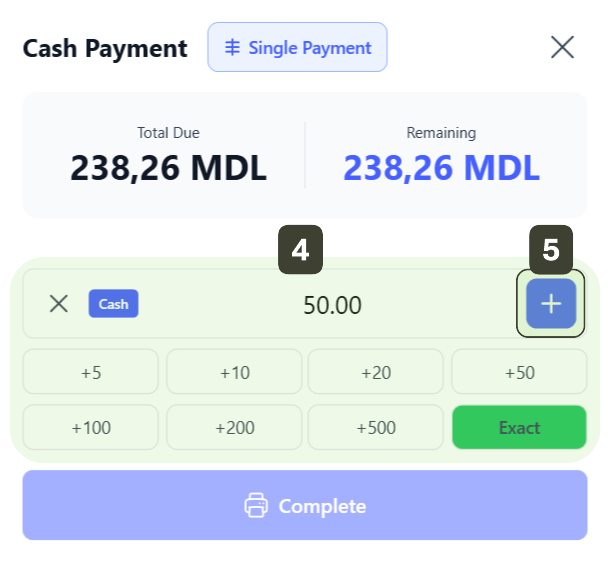
Manually enter the partial amount you are receiving (before entering, delete the total amount displayed by default)
-
Click the + Add Payment button
 Note
NoteThe system will confirm the first payment and the Remaining field will automatically update, indicating the remaining difference to pay.
-
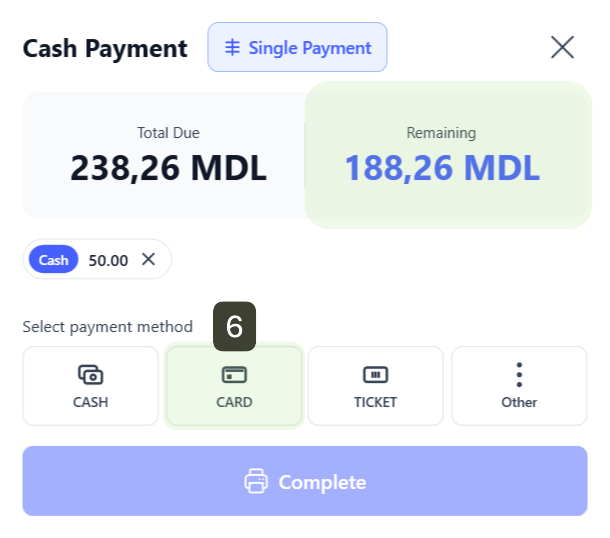
Select the second payment method for the remaining amount. Press the CARD button
-
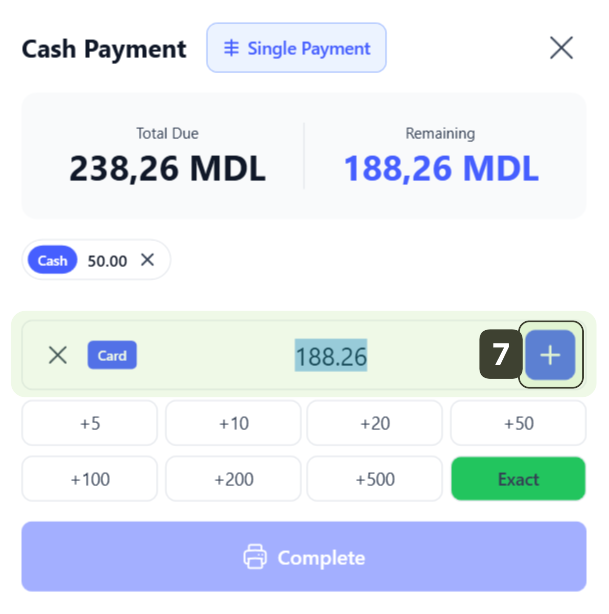
The system will automatically fill in the remaining amount. Press the + Add Payment button to confirm this amount as well
-
Press Complete to print the fiscal receipt and close the order
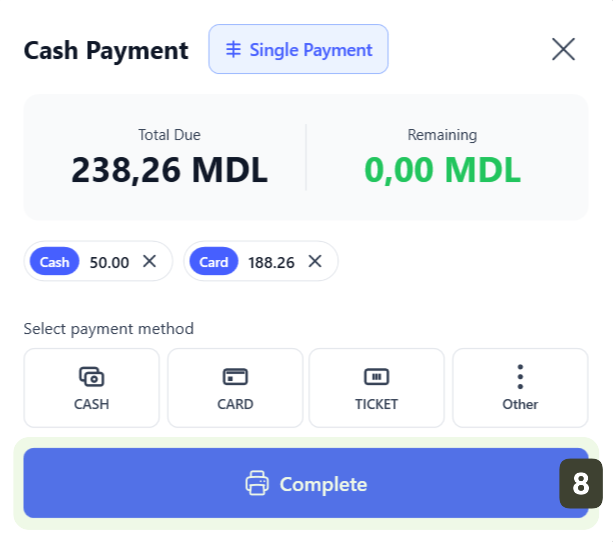
If for the last payment method (e.g., Cash) the customer provides a banknote with a value higher than the remaining difference, the system will calculate the change as usual for that specific amount.
Voucher Payment
This method is used for transactions involving prepaid payment instruments (Gift Cards, Discount Vouchers).
Full Payment
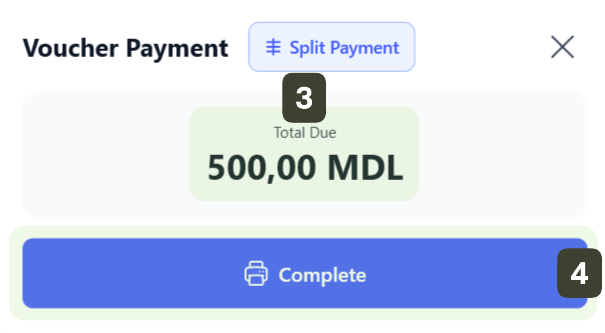
Use this method if the voucher covers the full receipt total:
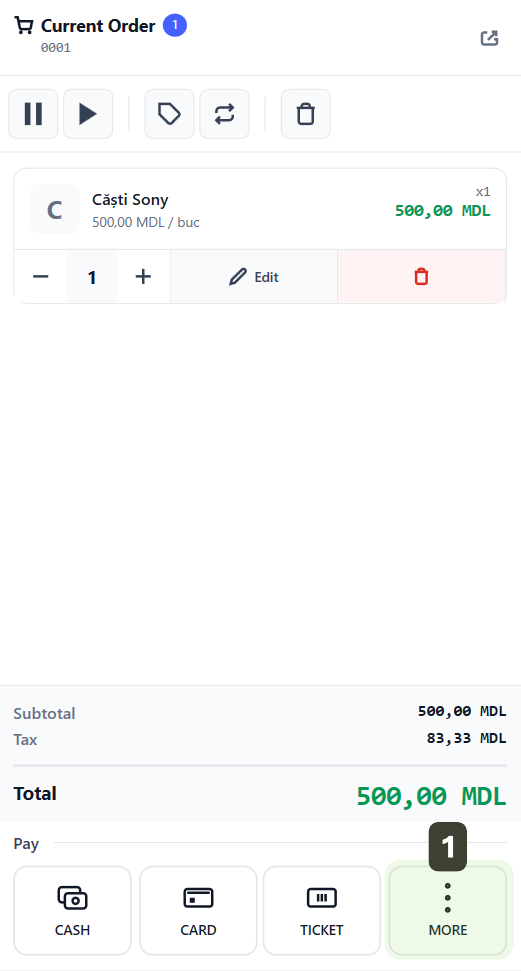
- In the payment methods area, press the MORE button
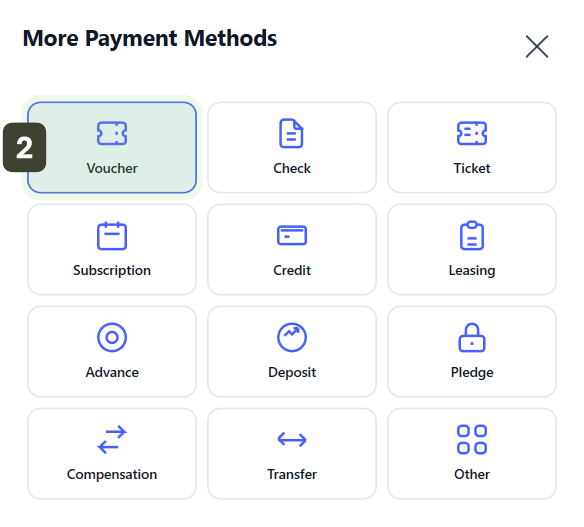
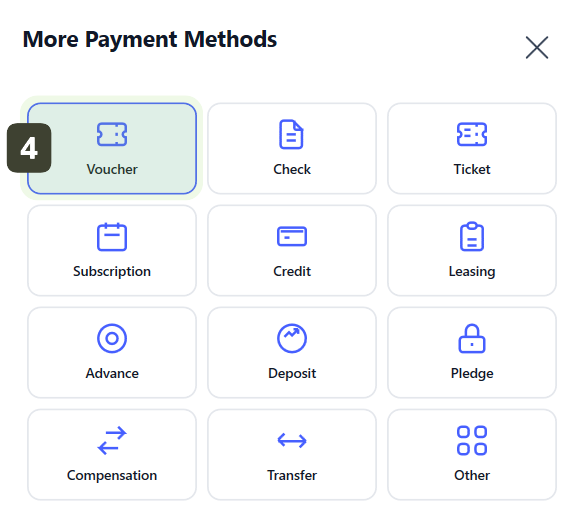
- The More Payment Methods window will open. From the options grid, select Voucher
- The system will automatically register the total amount of the receipt as being paid through this method
- Depending on the store configuration, you may be asked to scan the customer's voucher for validation
- Press Complete to print the fiscal receipt and close the order
Partial Payment
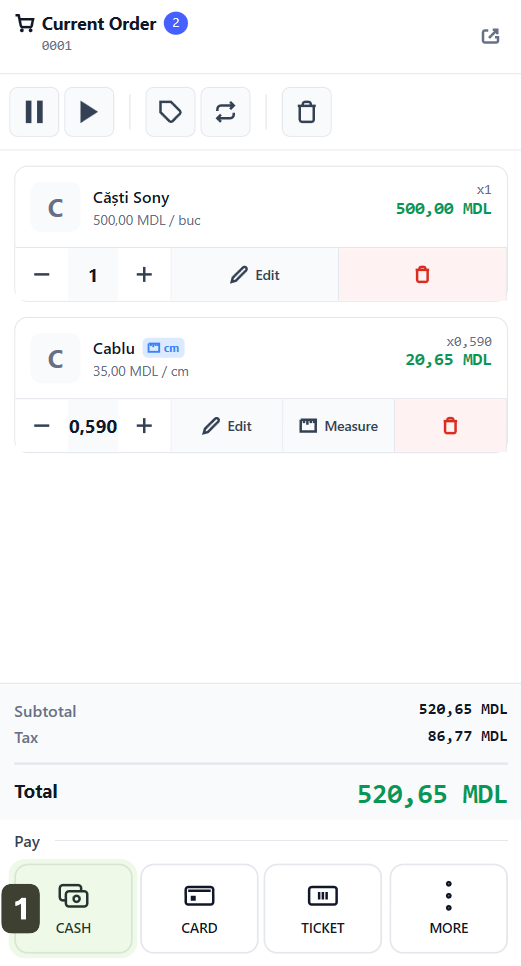
When the voucher does not cover the full amount due, use the Split Payment function:
-
Select an initial payment method (e.g., CASH)
-
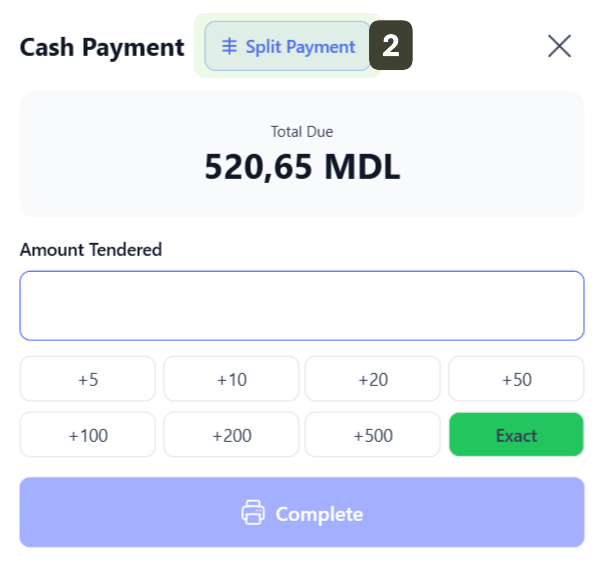
The payment window will open. Press the Split Payment button
-
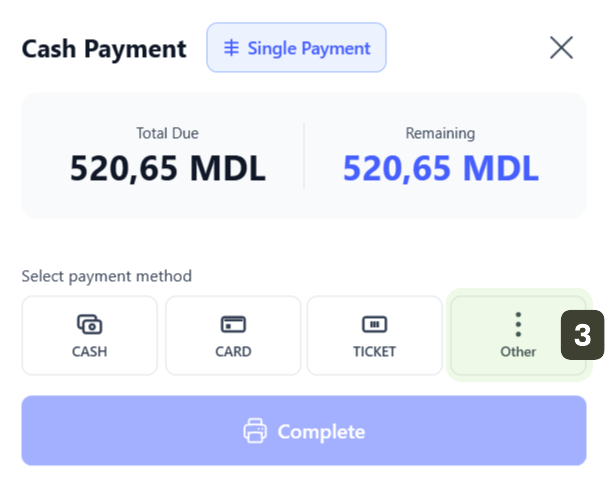
Press the MORE button
-
In the More Payment Methods window, select the Voucher option
-
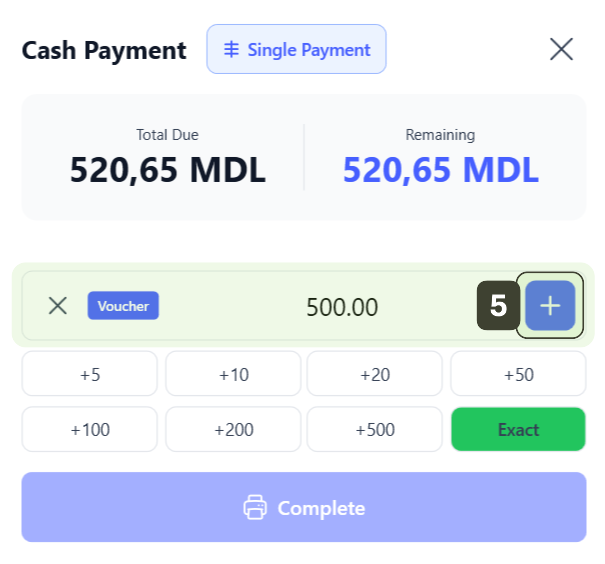
Manually enter the voucher value. Click the + Add Payment button
-
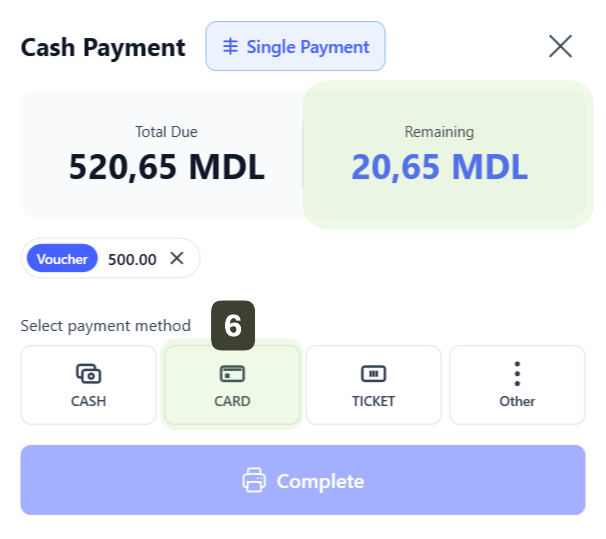
Select the second payment method for the remaining amount. Press the CARD button
 Note
NoteThe system will confirm the first payment and the Remaining field will automatically update, indicating the remaining difference to pay.
-
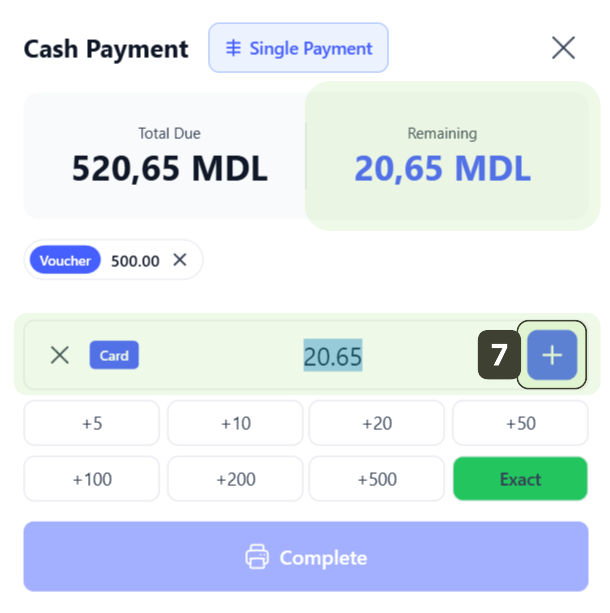
The system will automatically fill in the remaining amount. Click the + Add Payment button to confirm this amount as well
-
Press Complete to print the fiscal receipt and close the order
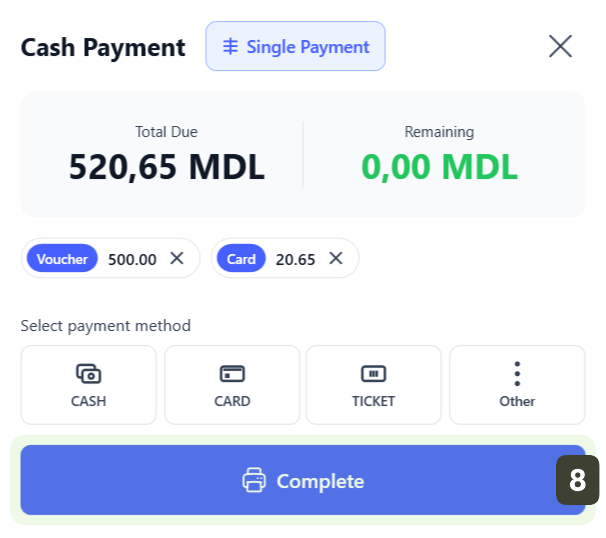
- No Cash Change: According to Republic of Moldova legislation, it is strictly forbidden to provide cash change for transactions paid via vouchers or gift cards.
- Validation: Ensure the voucher is valid and all security features are intact before processing the payment.
- Fiscalization: On the final fiscal receipt, this amount will be highlighted separately under the VOUCHER category.
If the voucher value is less than the total due, the system will automatically display the difference in the Remaining field. You will need to select a second method (e.g., Cash or Card) to collect the difference and close the receipt.
Subscription Payment
This method is used for loyal customers who have an active membership or subscription. Use this option to deduct the value of products from the customer's subscription balance, without collecting cash at the time of sale.
Full Payment
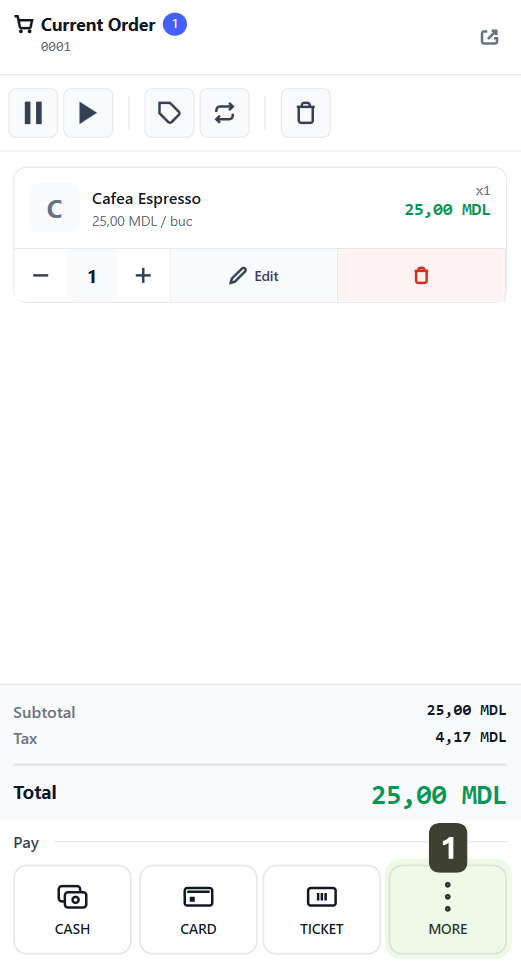
- In the payment methods area, press the MORE button
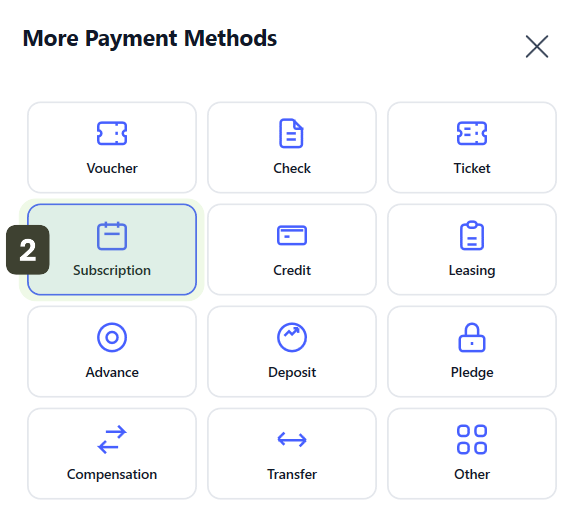
- The Other Payment Methods window will open. From the options grid, select Subscription
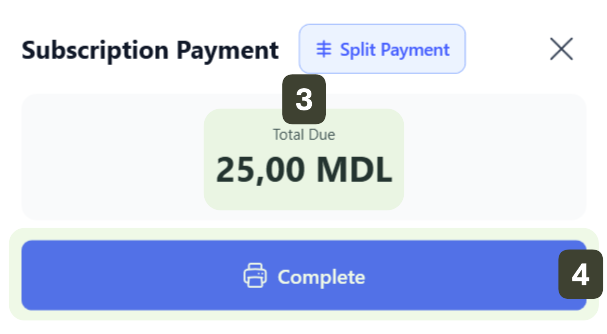
- The system will automatically register the total amount of the receipt as being paid through this method
- Depending on the store configuration, you may be asked to scan the customer's subscription for validation.
- Press Complete to print the fiscal receipt and close the order
Partial Payment
When the subscription includes a limited number of products or services and does not fully cover the entire receipt, use the Split Payment function:
-
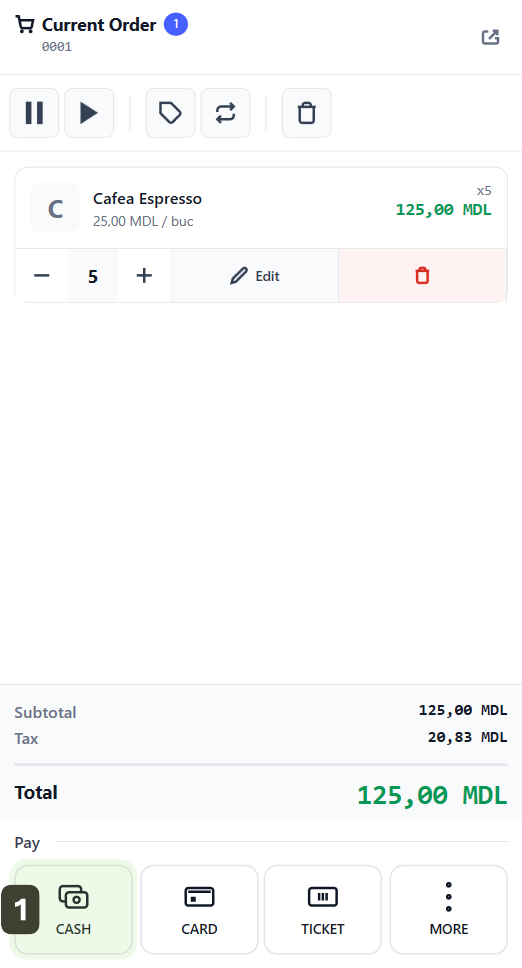
Select an initial payment method (e.g., CASH)
-
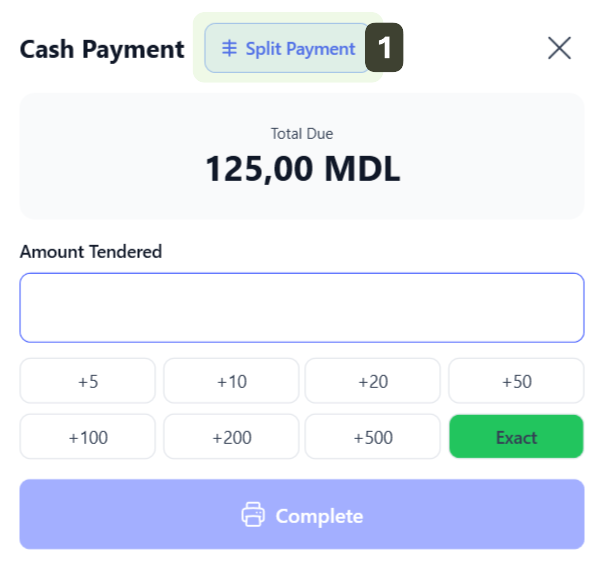
The payment window will open. Press the Split Payment button
-
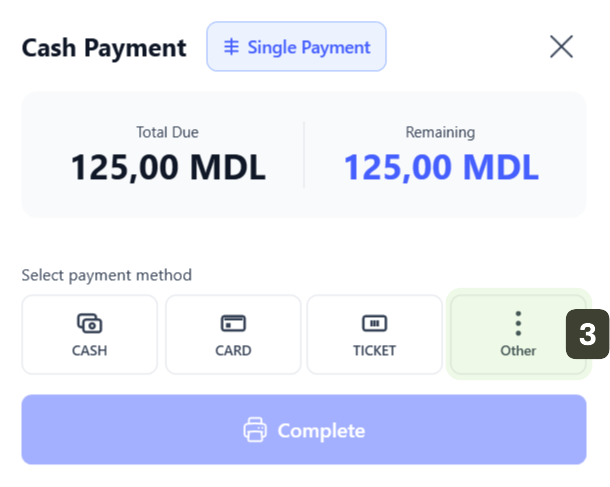
Press the MORE button
-
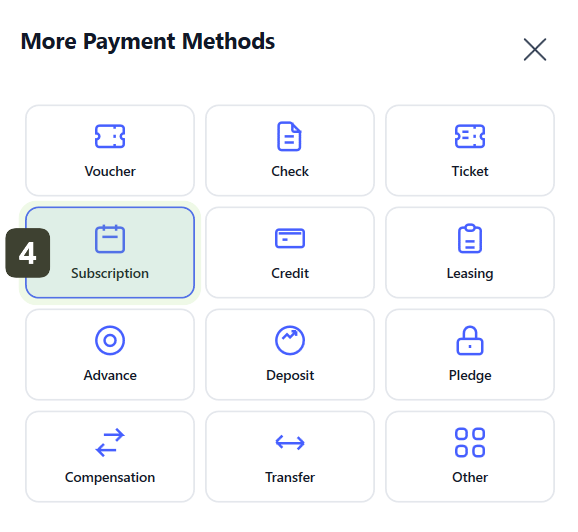
In the More Payment Methods window, select the Subscription option
-
Manually enter the subscription value. Press the + Add Payment button
-
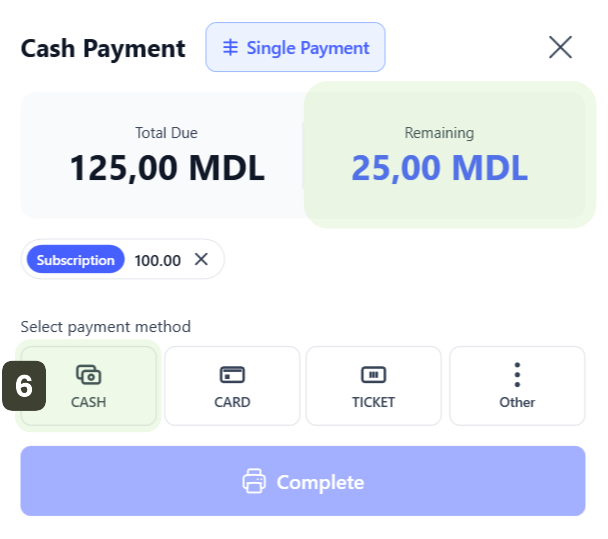
Select the second payment method for the remaining amount. Press the CASH button
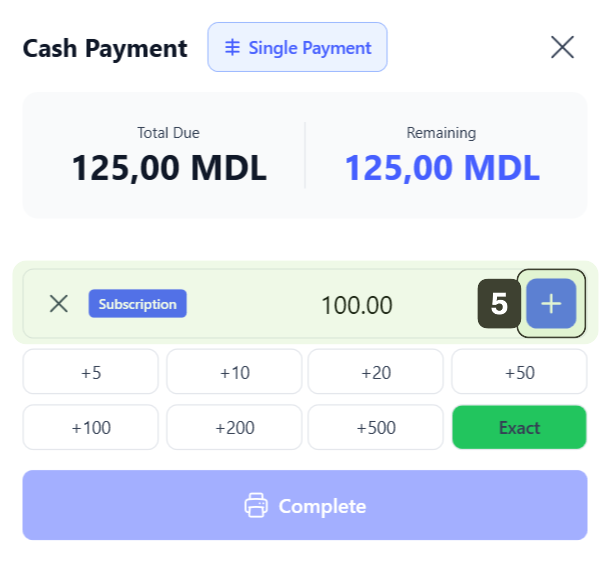
 Note
NoteThe system will confirm the first payment and the Remaining field will automatically update, indicating the remaining difference to pay.
-
Enter the amount received from the customer. Press the + Add Payment button to confirm this amount as well
-
Press Complete to print the fiscal receipt and close the order
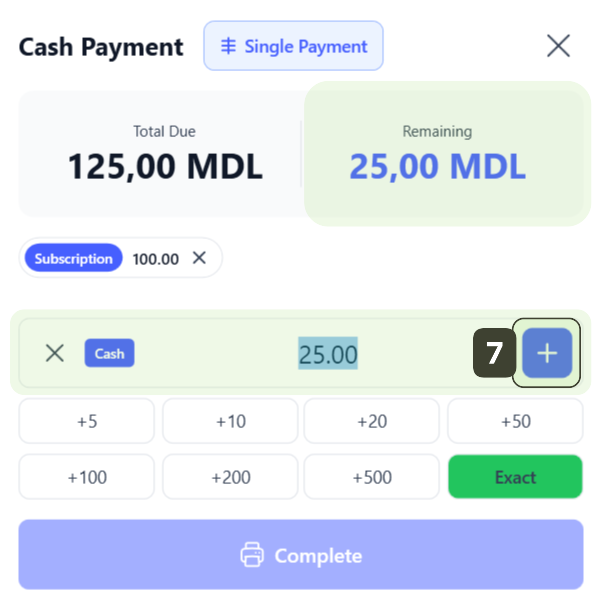
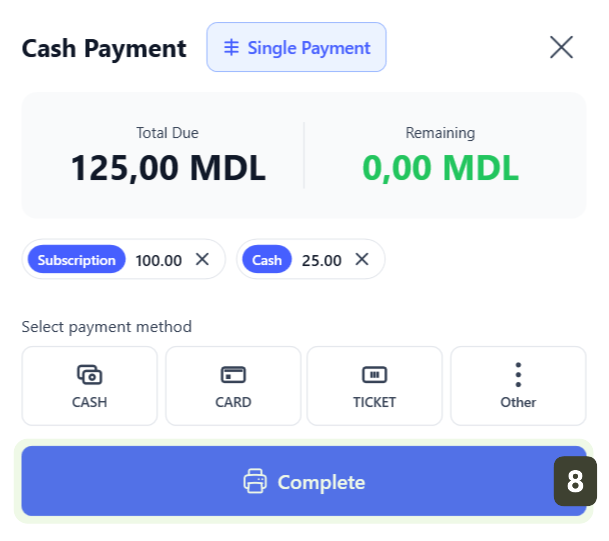
- Balance Check: Before processing the payment, make sure the customer's subscription is active and has sufficient balance to cover the consumption.
- Identification: If the subscription is registered to a name, ask the customer for an identification document or the physical membership card.
- Fiscalization: On the final fiscal receipt, this amount will be highlighted separately under the SUBSCRIPTION category.
It is important to mention that, from an accounting perspective, the actual cash collection (and the issuance of the fiscal receipt with VAT) usually takes place at the time of selling the subscription. Using the Subscription button at the time of consumption serves as inventory management (reduces stock), but the payment value at that moment is zero.
Other Payment Methods
PosFix supports complex payment forms, usually used in transactions with legal entities (companies) or for specific financial operations.
- In the payment methods area, press the MORE button
- The More Payment Methods window will open, displaying all available options
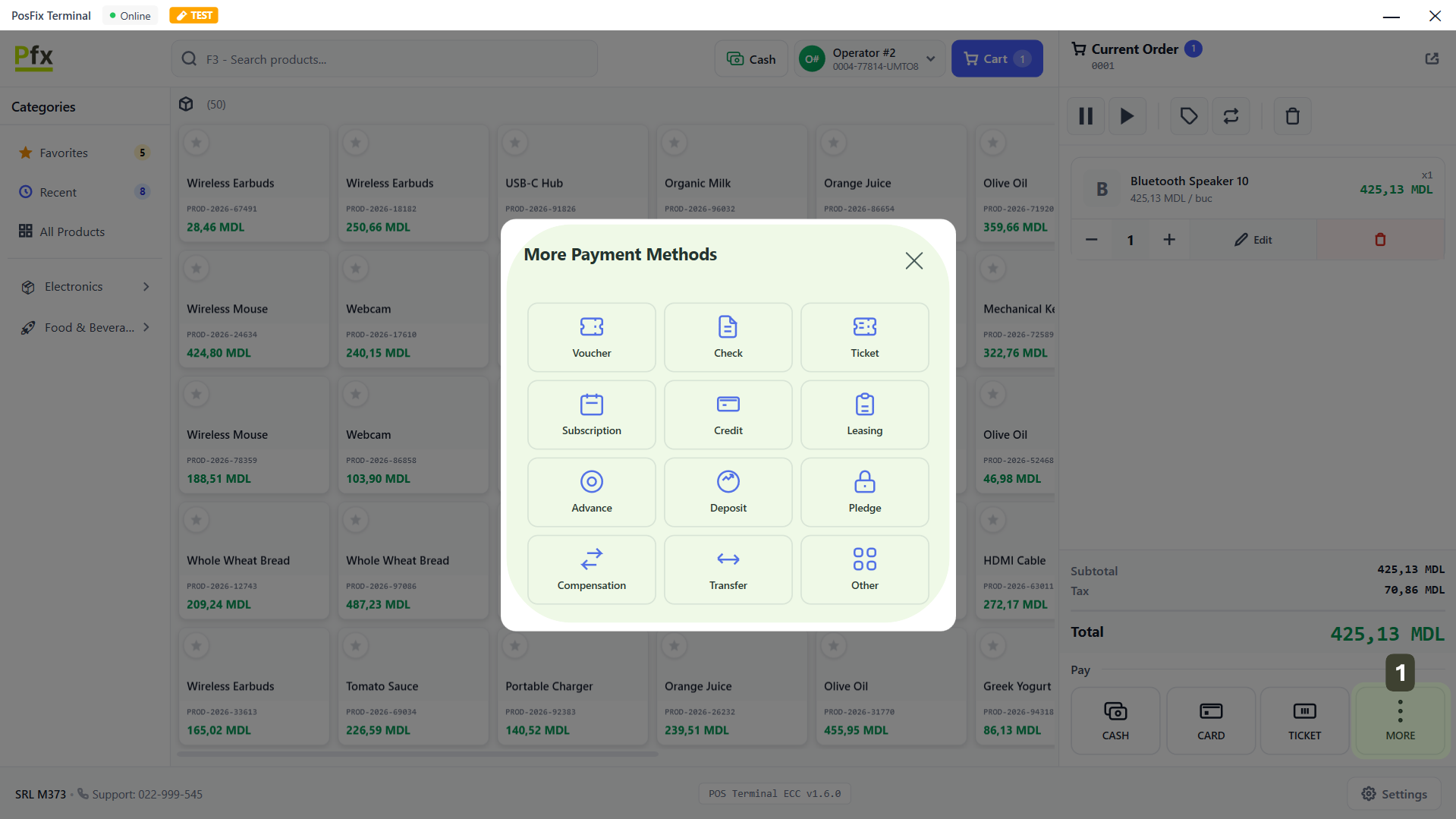
| Payment Method | Description and Usage |
|---|---|
| Check | Bank Instruments. The customer pays with a CHECK that will be cleared at the bank. |
| Ticket | Meal Tickets. Payment with meal vouchers on paper (if the store accepts them). |
| Credit | Customer Credit. The goods are delivered now, payment is made at the contractually established term. |
| Leasing | Installment Sales. Used for high-value goods (appliances, furniture) purchased through leasing contract or external credit. |
| Advance | Reservations. Collecting a partial amount for a future order or closing a receipt using a previously paid advance. |
| Deposit | Cash Guarantees. Collecting an amount as a returnable guarantee (e.g., for packaging, equipment rental) or funding a customer account. |
| Pledge | Pawn / Collateral. Specific to pawn shops (Lombard). Used when the transaction involves an item left as material guarantee. |
| Offset | Debt Settlement. Exchange of goods/services between two companies without money transfer (barter), to settle a mutual debt. |
| Transfer | B2B Sales. The customer (company) pays later by payment order (bank transfer) based on the invoice. The receipt is issued for stock reduction. |
| Other | Various. Internal payment methods that do not fall into the standard categories above. |
Finalizing the Sale
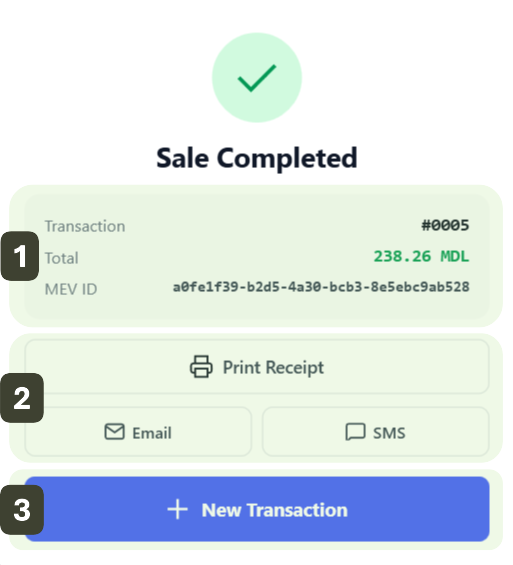
Immediately after the payment is processed, the system displays the Sale Completed screen. This is the moment when the transaction is officially saved in the fiscal memory.
- Transaction Details:
- Transaction: Unique receipt number
- Total: Final collected amount
- MEV ID: This is the Unique Fiscal Identifier (Electronic Sales Monitoring)
- Receipt Options (Post-Sale):
- Print Receipt: Reprint the physical receipt
- Email: Send digital receipt
- SMS: Send link to electronic receipt via text message
- Press the ➕ New Transaction button to return to the main screen and serve the next customer
Print Receipt
Although the system is usually configured to print automatically, this button is essential in exceptional situations. This function manually commands the printer to issue the paper receipt for the transaction that was just finalized.
To reprint the receipt, on the Sale Completed screen, press the Print Receipt button.
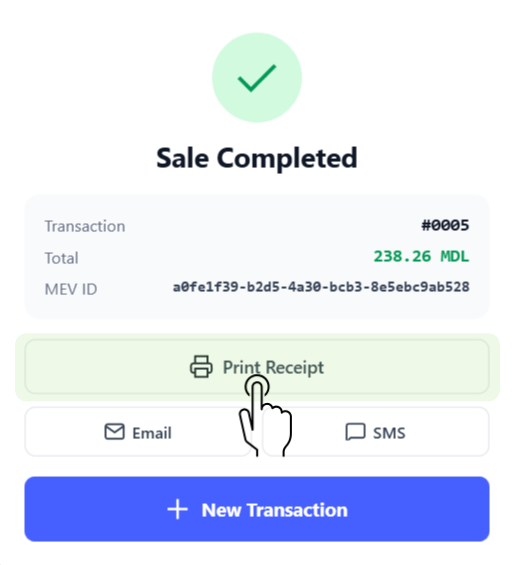
Use this option if the paper roll ran out during automatic printing. After replacing the paper, press Print Receipt to reprint the receipt.
Send by Email
This option is ideal for customers who want a digital record of their expenses or to save paper (Eco-Friendly solution).
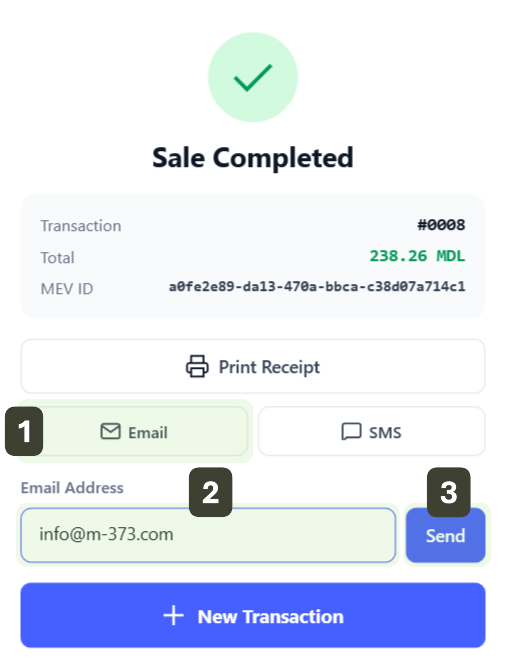
- On the Sale Completed screen, press the Email button
- In the new field labeled Email Address enter the address provided by the customer
- Press Send
Remind customers to check their Spam/Junk folder if they don't receive the receipt within a few minutes.
Send by SMS
This function allows sending a secure link to the fiscal receipt directly to the customer's mobile phone.
- On the Sale Completed screen, press the SMS button
- In the new field labeled Phone Number enter the customer's mobile number
- Press Send
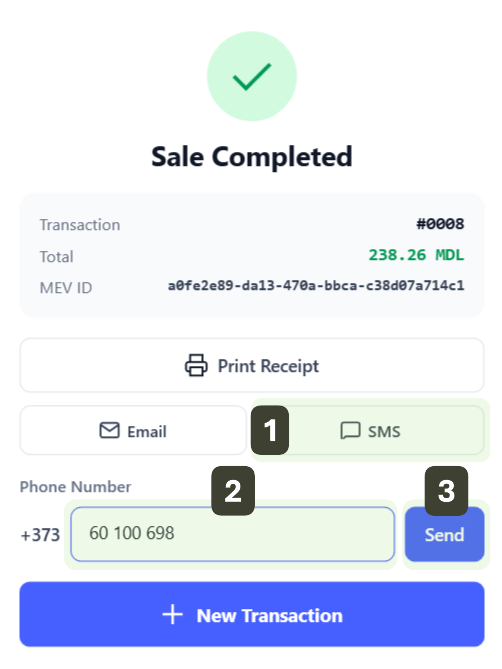
Enter only the 8 digits of the mobile number, excluding the first zero. Start directly with digit 6 or 7 and avoid doubling the country prefix.
The SMS contains a link to the electronic receipt on the fiscal portal. To view the details, click on the link.