Working with Products and Prices
Adding Products
The system offers several quick ways to add items to the sales list, adapted to your workflow.
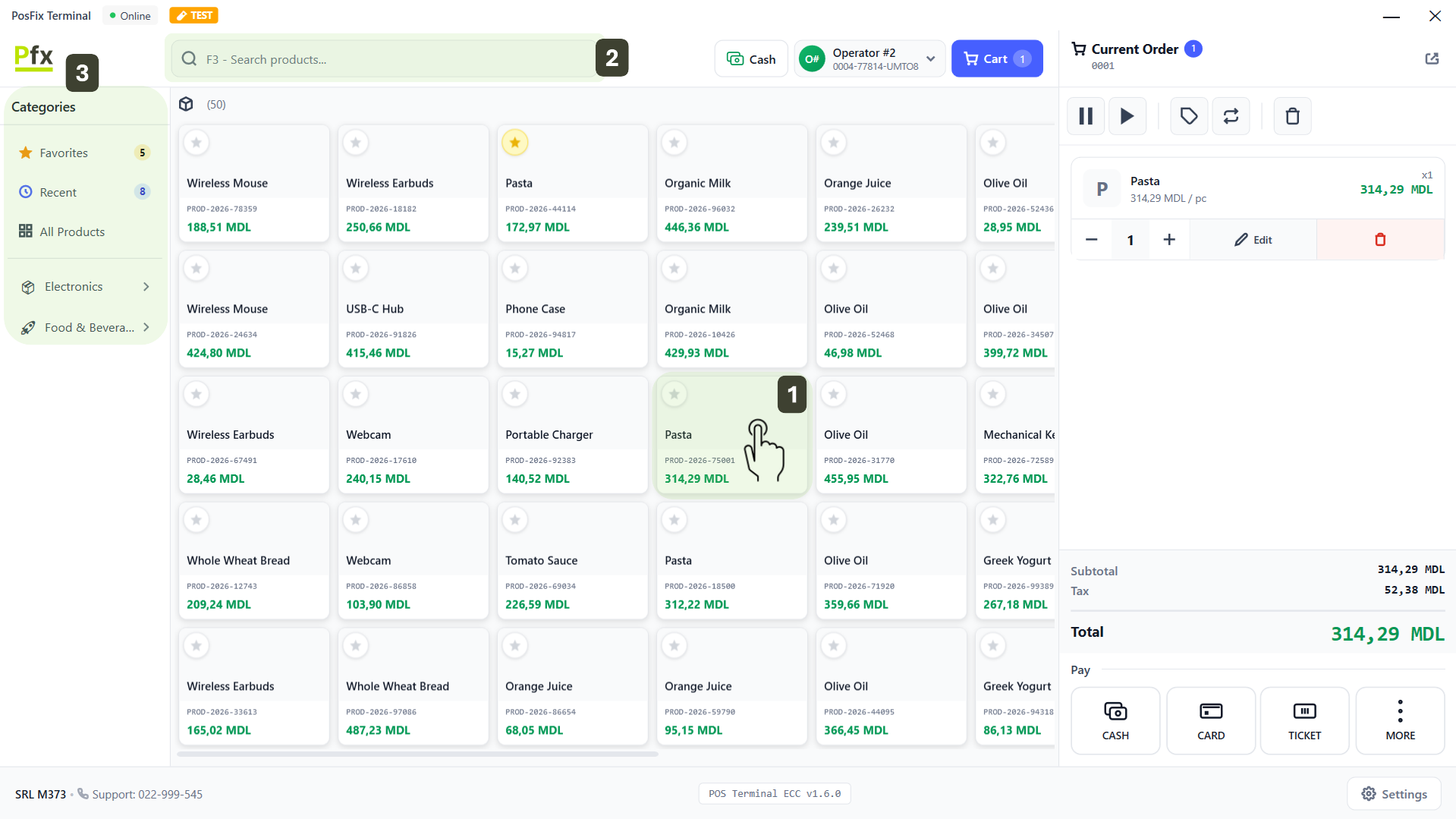
- Grid Selection - this is the visual method, ideal for products without a barcode.
- Adding: Tap once on the desired product card from the central list. The product will instantly appear in the shopping cart
- Quick Multiplication: Tap repeatedly on the same product to increase the quantity (Ex: 3 clicks = 3 units)
- Search by Name / Code - if you cannot find the product visually, use the search bar at the top of the screen.
- How it works: Enter the first letters of the name or type the code manually
- Shortcut: You can press the F3 key on the physical keyboard to quickly access the search bar
- Quick Navigation - to find products in the grid more easily, use the menu on the left side.
- Favorites: Here you find the best-selling products, for instant access
- Recent: Shows the last used products
- Categories: Explore all products
- Barcode Scanning - this is the fastest method.
- Action: Scan the product label using the connected scanner.
- Result: The product is automatically added to the list with quantity 1. For more units, scan the product multiple times.
Add frequently used products that don't have a barcode to the Favorites category. This ensures quick access for the cashier, eliminating manual searches for each customer.
Modifying Quantity
After adding a product, you have two methods to adjust the quantity, depending on your needs.
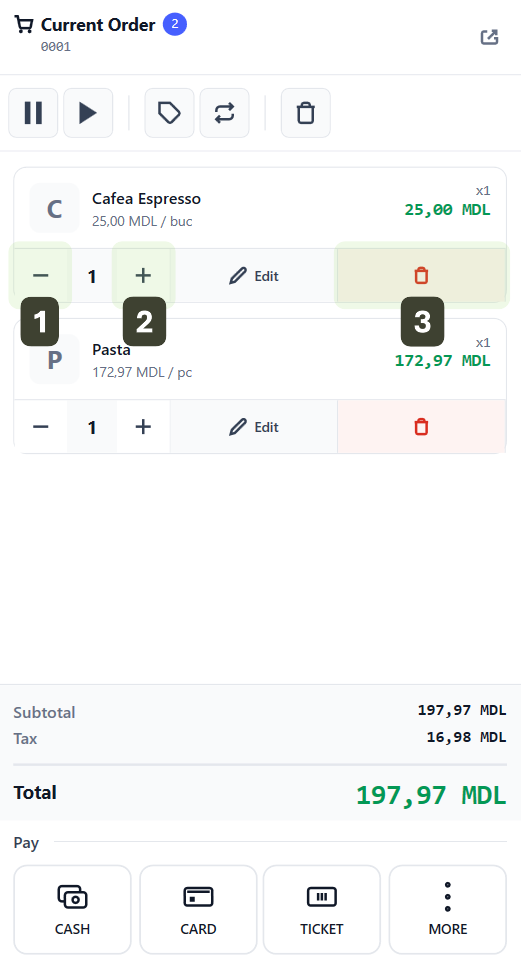
Quick Adjustment
- Increase: Press the [+] button to add one unit
- Decrease: Press the [-] button to subtract one unit
- Delete: Press the Trash Bin icon to completely remove the product
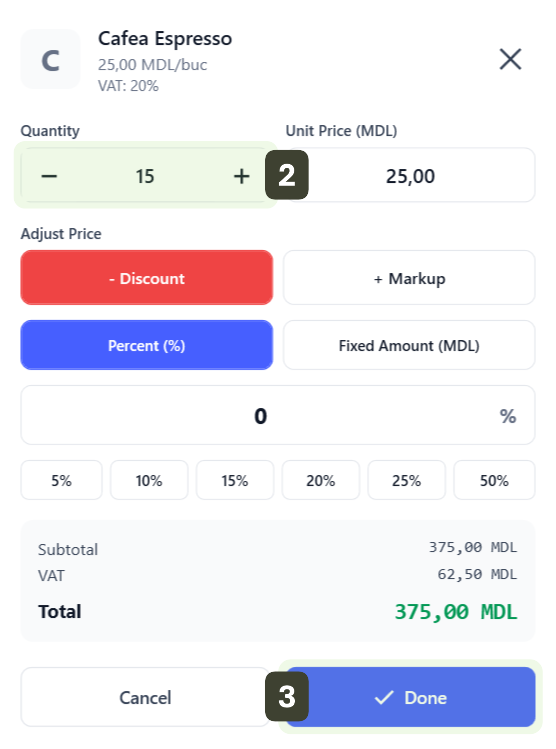
Manual Entry
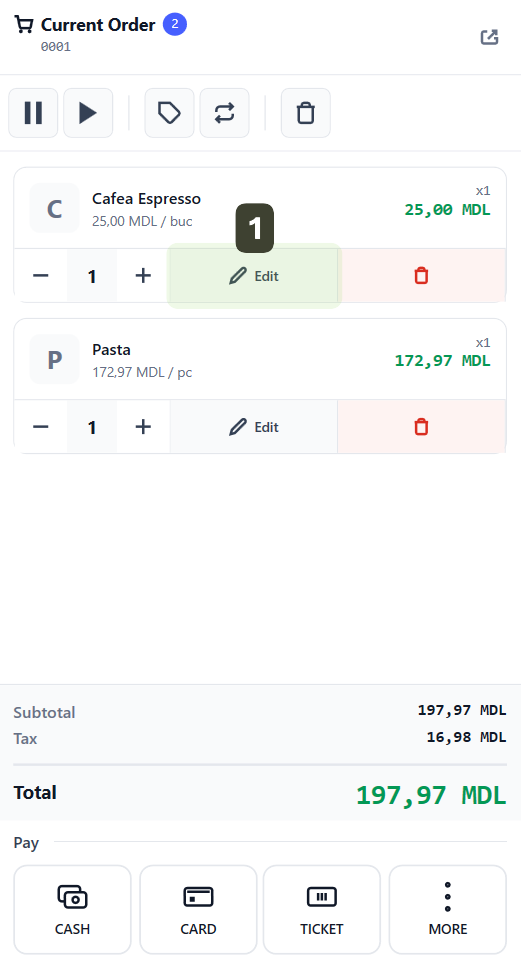
- Press the Edit button
- A detailed window will open. In the Quantity field, enter the desired number using the numeric keypad
- Press the Done button to save the change
Fractional Quantities
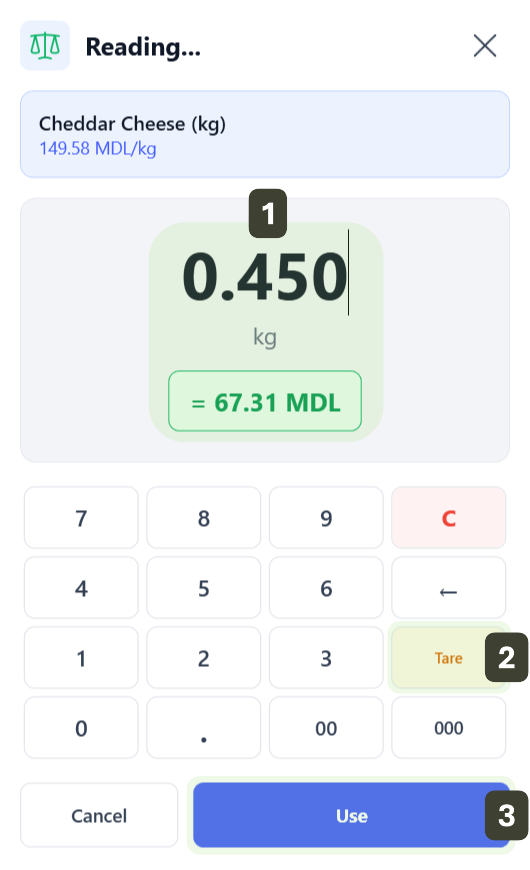
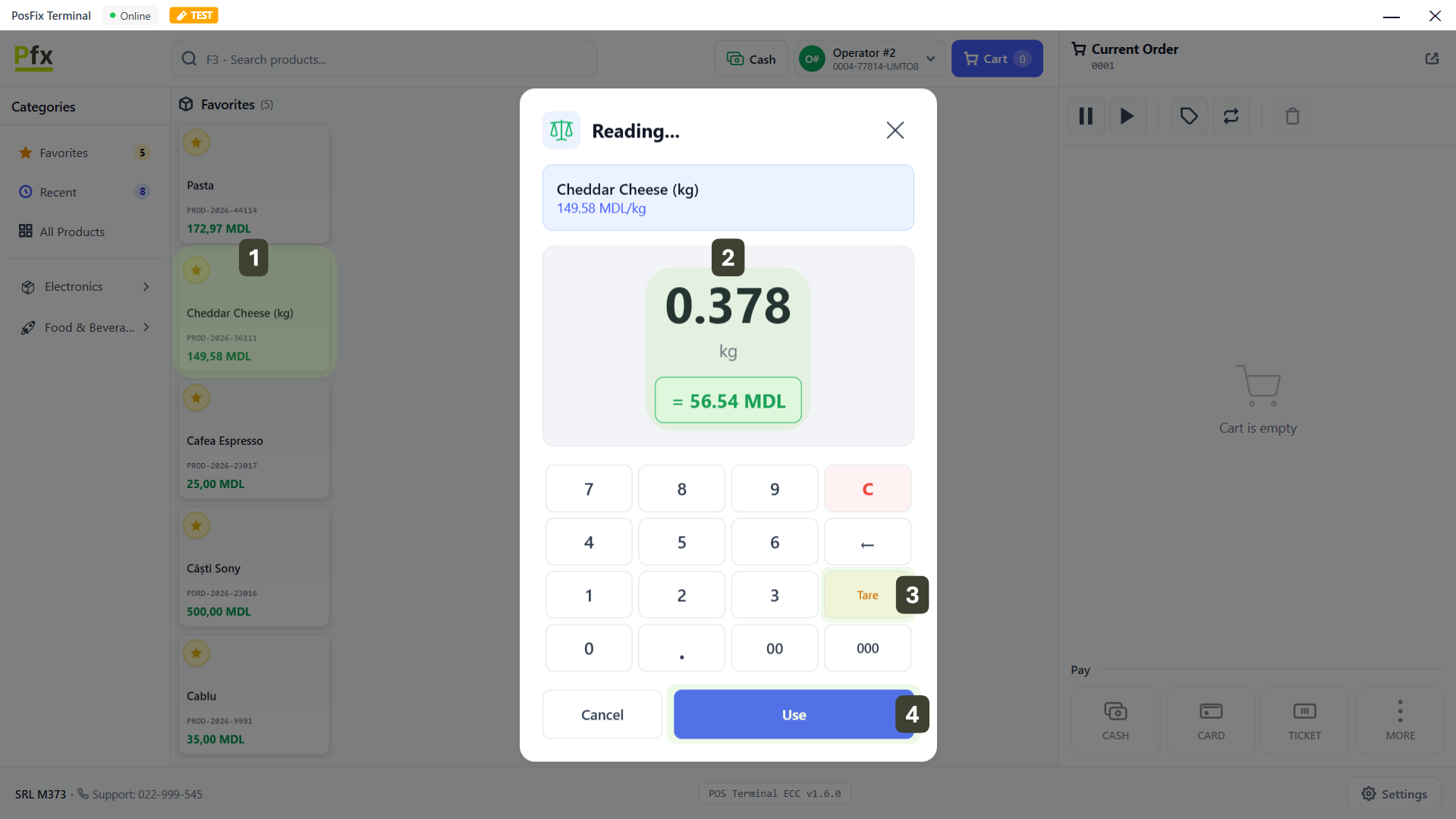
The PosFix system is configured to automatically detect products that require precise measurement (products sold by weight, length, or volume). Unlike standard products (by unit), these are not added directly to the receipt, but open an intermediate measurement screen. The system supports quantities with up to 3 decimal places (e.g., 1.500 kg or 0.450 m).
Entering Fractional Quantity
When you press on a product configured with a fractional unit of measure, the Quantity Entry window opens automatically
- Enter the measured quantity (e.g., for 450 grams, type
0.450) - Use the Tare button to deduct the packaging weight (if an electronic scale is connected)
- Press the Use button to confirm the quantity
Later Modification
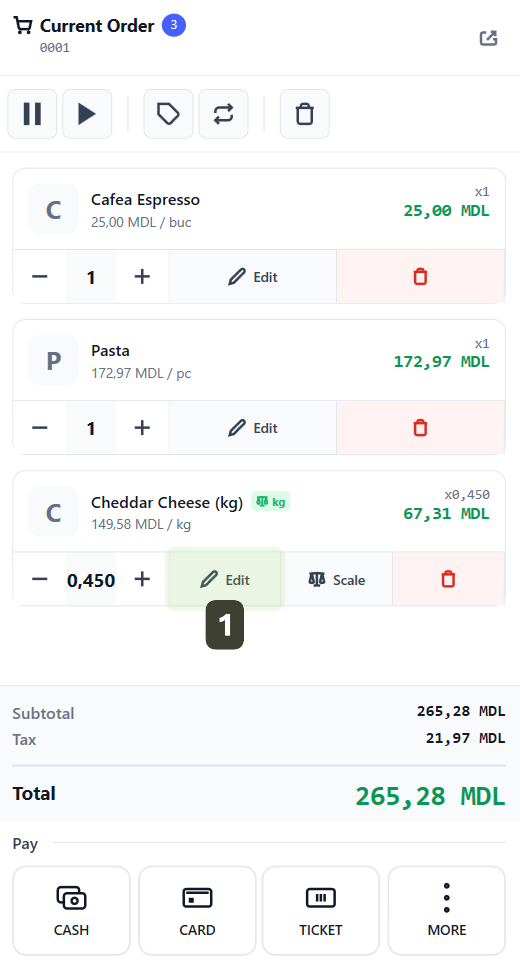
If you entered the wrong quantity after adding the product to the receipt:
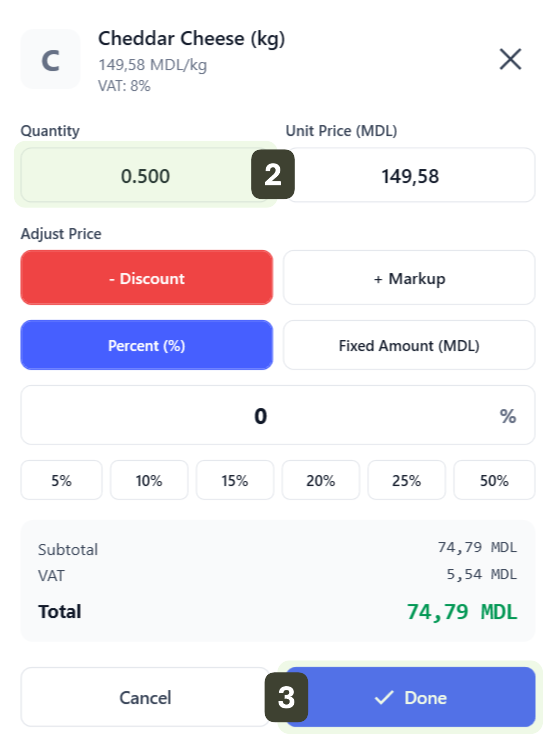
- Press the Edit button on the product in the list
- Modify the value in the Quantity field (e.g., from 0.450 to 0.500)
- Press Done
Calculation examples:
| Product | Price/kg | Quantity | Total |
|---|---|---|---|
| Apples | 15.00 MDL | 1.500 kg | 22.50 MDL |
| Cheese | 85.00 MDL | 0.350 kg | 29.75 MDL |
| Meat | 120.00 MDL | 2.175 kg | 261.00 MDL |
Using the Electronic Scale
This process automates sales, eliminating weight typing errors.
This feature is available if you have an electronic scale connected. The system takes the weight directly from the device, ensuring maximum precision.
- Select the product from the sales list
- The Measurement Screen opens automatically. Place the product on the scale platform, the quantity will update automatically
- Use the Tare button to deduct the packaging weight
- Press Use
Applying Discounts
You can offer specific discounts for a particular product directly from the sales interface.
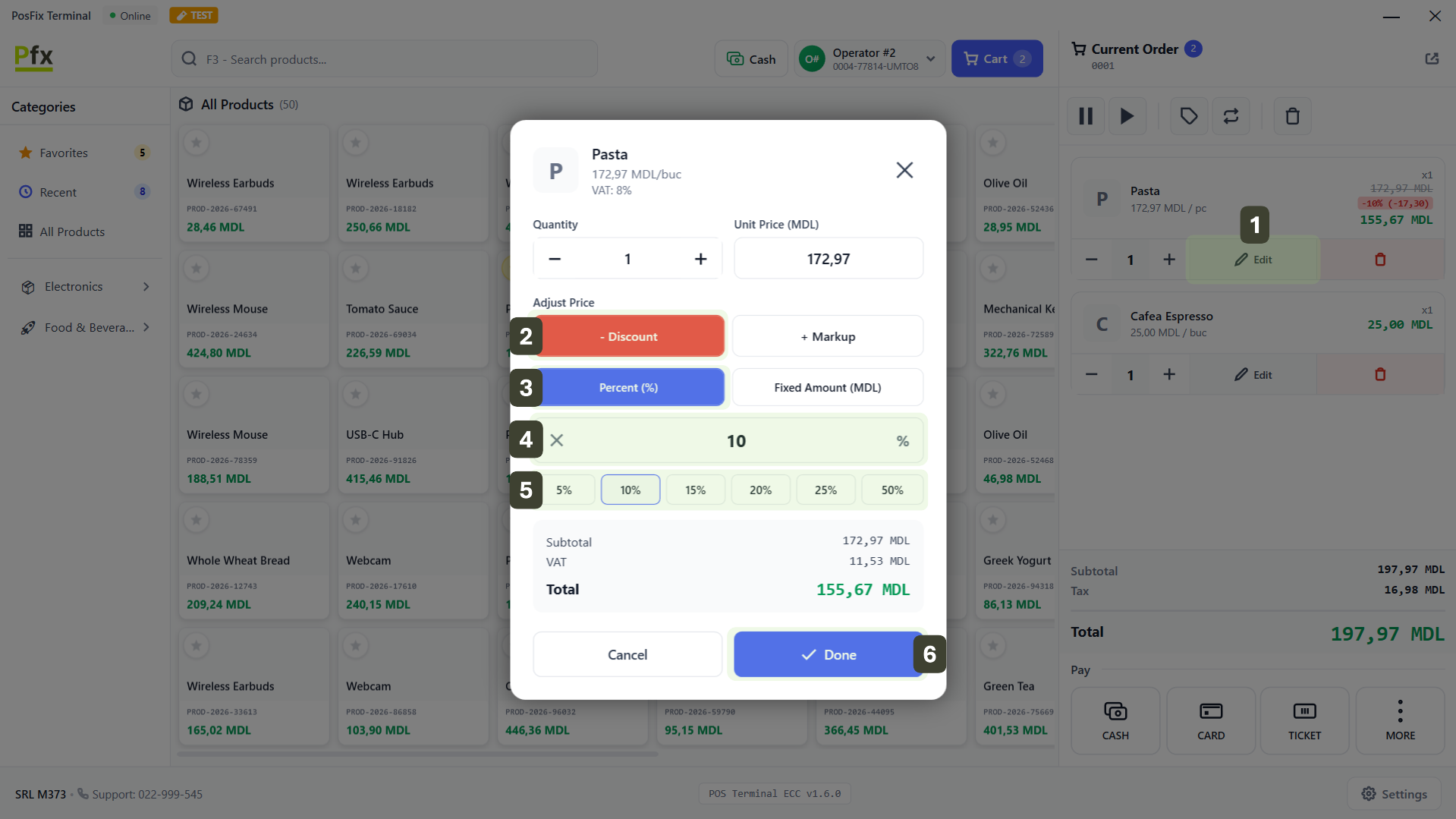
Item Discount - Percentage (%)
- Select the item from the cart to which you want to apply the discount and press the Edit button
- In the product details window, select - Discount
- Then select Percentage (%)
- Enter a custom discount value
- Or choose from the preset quick buttons
- Confirm with the Done button
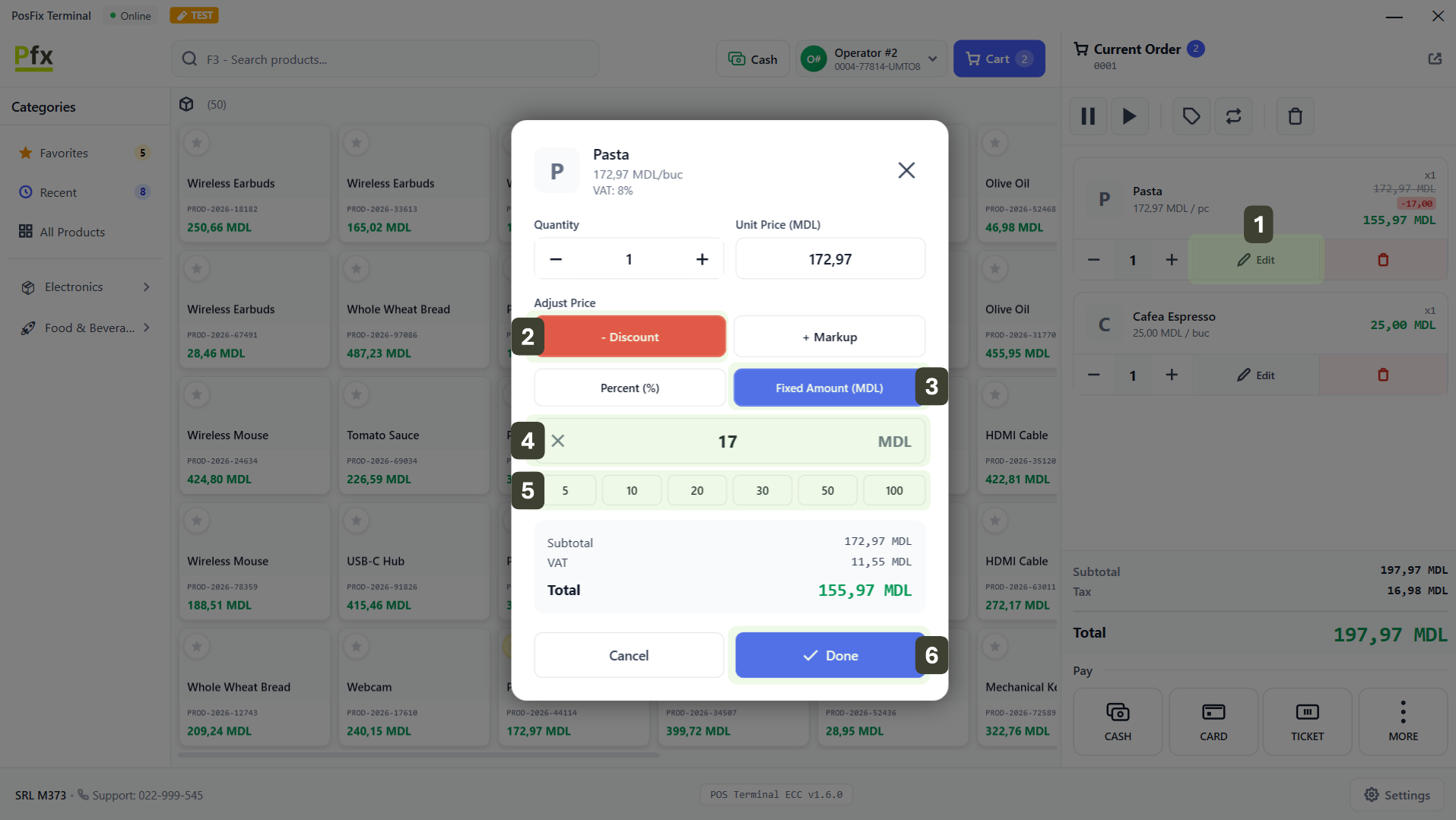
Item Discount - Fixed Amount
- Select the item from the cart to which you want to apply the discount and press the Edit button
- In the product details window, select - Discount
- Then select Fixed Amount (MDL)
- Enter the discount value
- Or choose from the preset quick buttons
- Confirm with the Done button
Formula:
Discount = Price × Percentage / 100
Final Price = Price - Discount
Example: Product 100 MDL with 15% discount
- Discount = 100 × 15 / 100 = 15 MDL
- Final Price = 85 MDL
Applying Markups
This function allows increasing the price of a product by a specific value.
Item Markup - Percentage (%)
- Select the item from the cart to which you want to apply the markup and press the Edit button
- In the product details window, select + Markup
- Then select Percentage (%)
- Enter a custom value
- Or choose from the preset quick buttons
- Confirm with the Done button

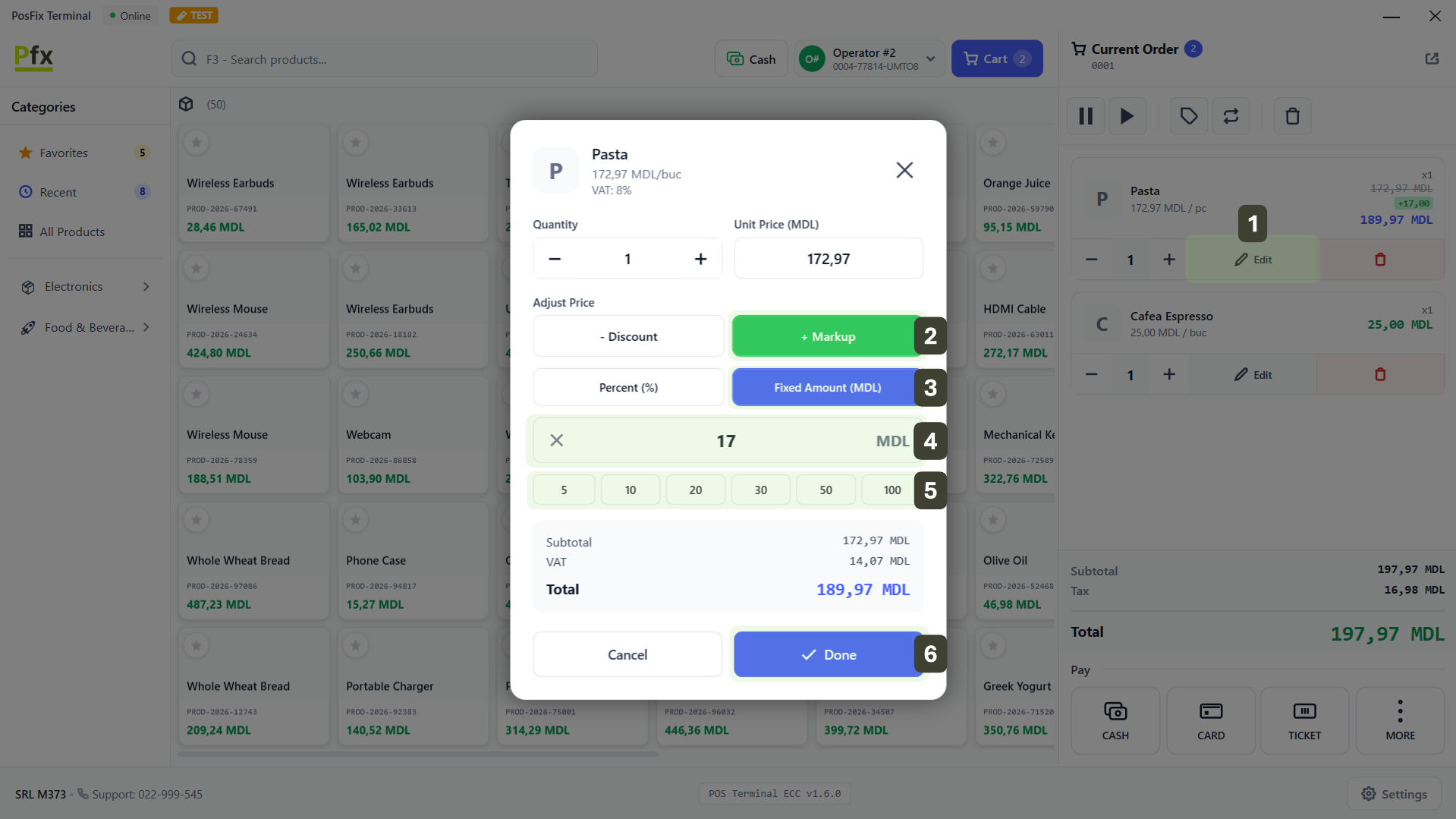
Item Markup - Fixed Amount
- Select the item from the cart to which you want to apply the markup and press the Edit button
- In the product details window, select + Markup
- Then select Fixed Amount (MDL)
- Enter markup value
- Or choose from the preset quick buttons
- Confirm with the Done button
Formula:
Markup = Price × Percentage / 100
Final Price = Price + Markup
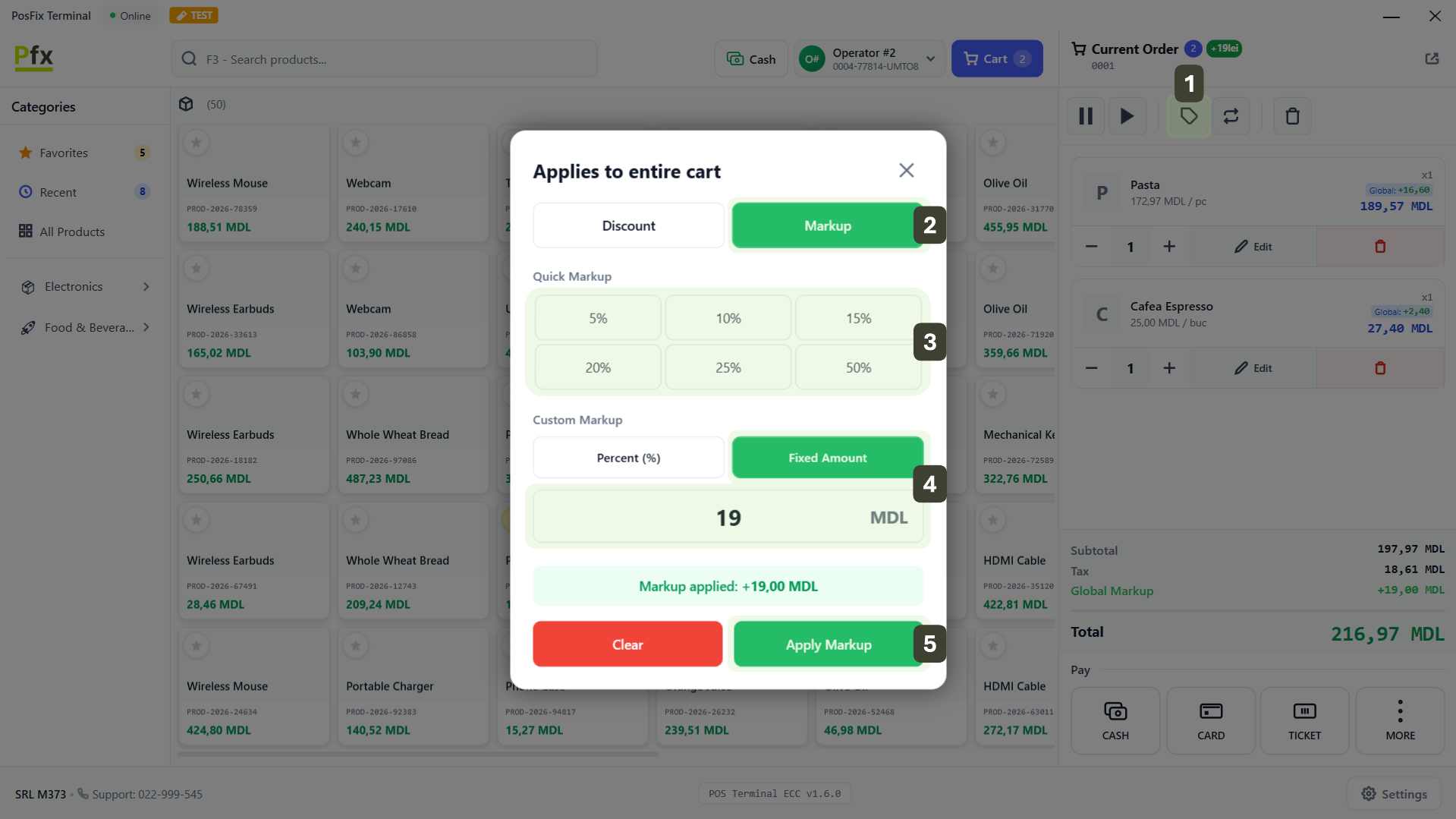
Applying Adjustments to the Entire Order
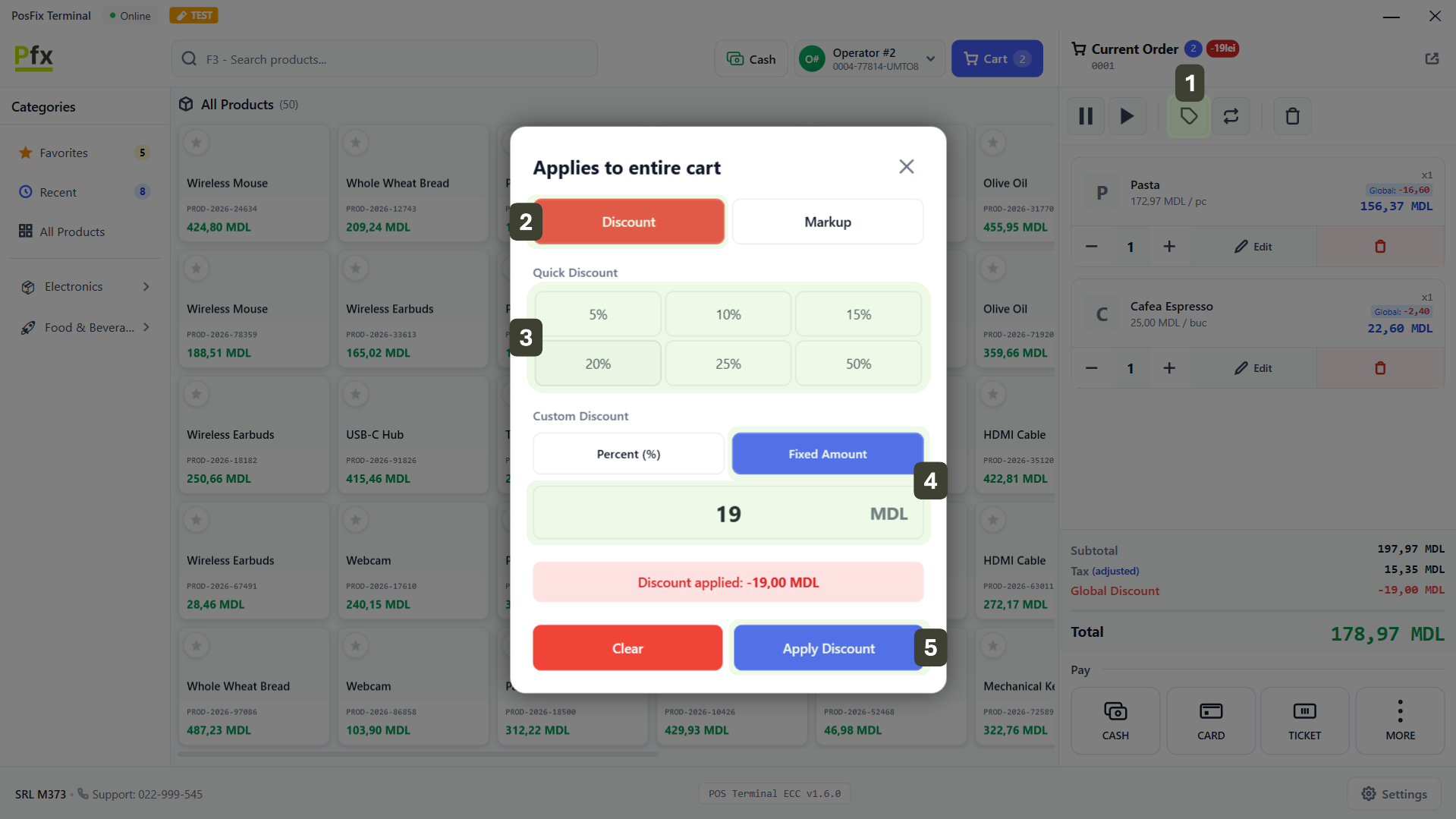
This is a very useful feature for general promotions. Use this option when you want to modify the final price of the entire order without editing each product individually.
Order Discount - Percentage (%)
- In the order controls bar of the shopping cart, press the Price Adjustment button
- In the Applies to entire cart window, select Discount
- Choose from the preset quick buttons
- Or enter a custom value by selecting Percentage (%)
- Confirm with the Apply Discount button

Order Discount - Fixed Amount
- In the order controls bar of the shopping cart, press the Price Adjustment button
- In the Applies to entire cart window, select Discount
- Choose from the preset quick buttons
- Or enter a custom value by selecting Fixed Amount
- Confirm with the Apply Discount button
Order Markup - Percentage (%)
- In the order controls bar of the shopping cart, press the Price Adjustment button
- In the Applies to entire cart window, select Markup
- Choose from the preset quick buttons
- Or enter a custom value by selecting Percentage (%)
- Confirm with the Apply Markup button

Order Markup - Fixed Amount
- In the order controls bar of the shopping cart, press the Price Adjustment button
- In the Applies to entire cart window, select Markup
- Choose from the preset quick buttons
- Or enter a custom value by selecting Fixed Amount
- Confirm with the Apply Markup button