Special Operations
Repeating the Previous Order
To repeat the last order:
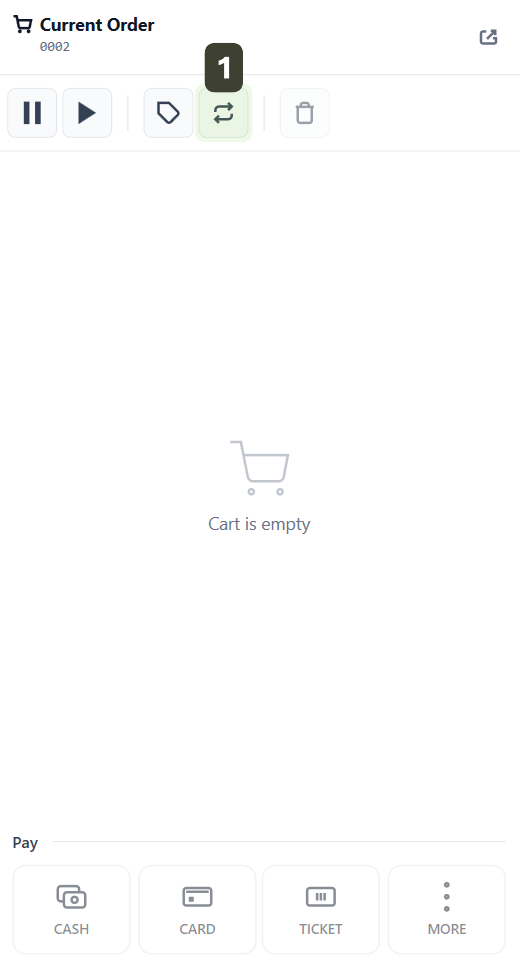
- Immediately after completing the receipt for the first customer, press the Repeat button from the order controls bar
- The system will automatically add all products from the previous receipt to the current cart, with the same quantities and prices
- Verify the order and finalize with Payment Method
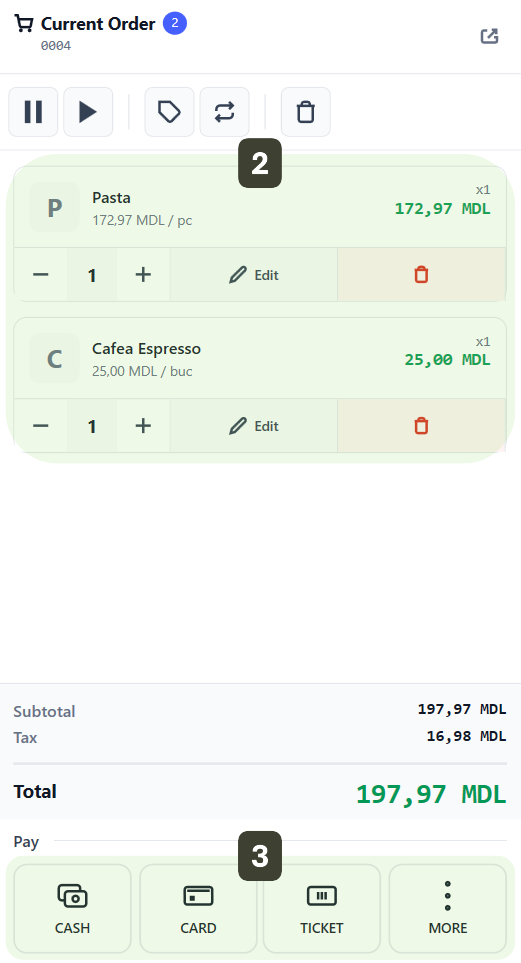
Adjustment (Optional):
- If Customer B wants something extra, you can add a new product.
- If they want one item less, you can delete it.
This function is a speed tool, designed to eliminate repetitive scanning of products when you have customers who want exactly the same products as the previously served customer.
Usage scenarios:
| Use Case | Action |
|---|---|
| Customer A bought: 1 Coffee, 1 Croissant and 1 Still Water | Issue the receipt |
| Customer B (standing in line behind them) wants exactly the same 3 products | Press Repeat |
| Repeat with different quantity | Manually add or delete products |
Cart Correction and Cancellation
Deleting a Product from the Cart
If you scanned a wrong product or the customer no longer wants it:
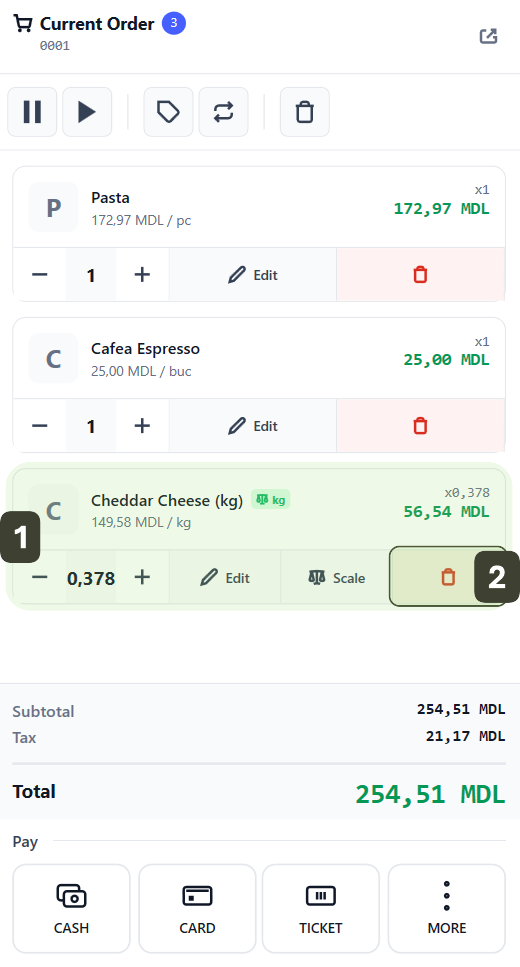
- Visually identify the wrong product in the current list (Shopping Cart)
- Press the Delete button (directly on the trash bin icon)
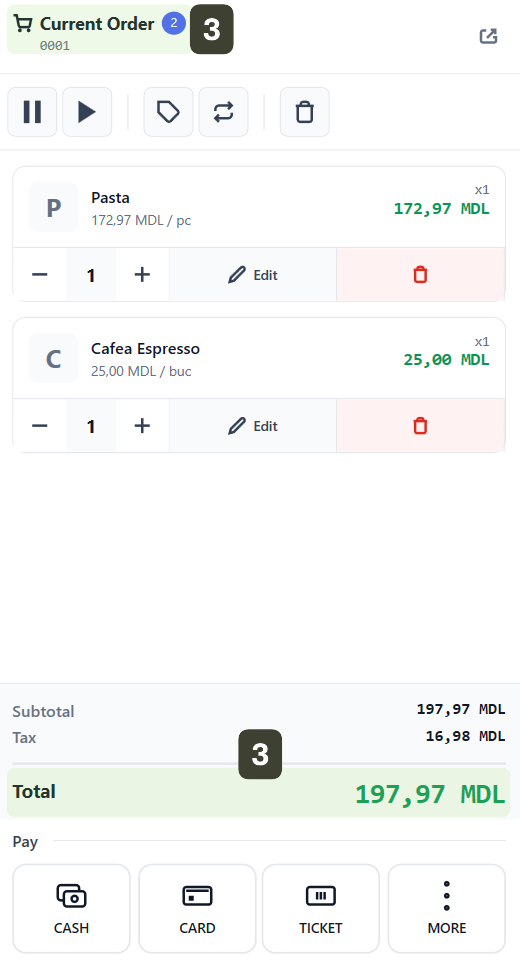
- The item is removed, and the Total updates automatically
Canceling the Current Order (Clear Cart)
Use this function if the customer decides not to proceed with the purchase before making the payment or if you want to quickly delete all scanned items to start a new sale.
- Press the Clear Cart button
- Confirmation: The system will ask: Are you sure you want to empty the cart? Select YES
The cart empties completely instantly, and the application is ready for the next customer.
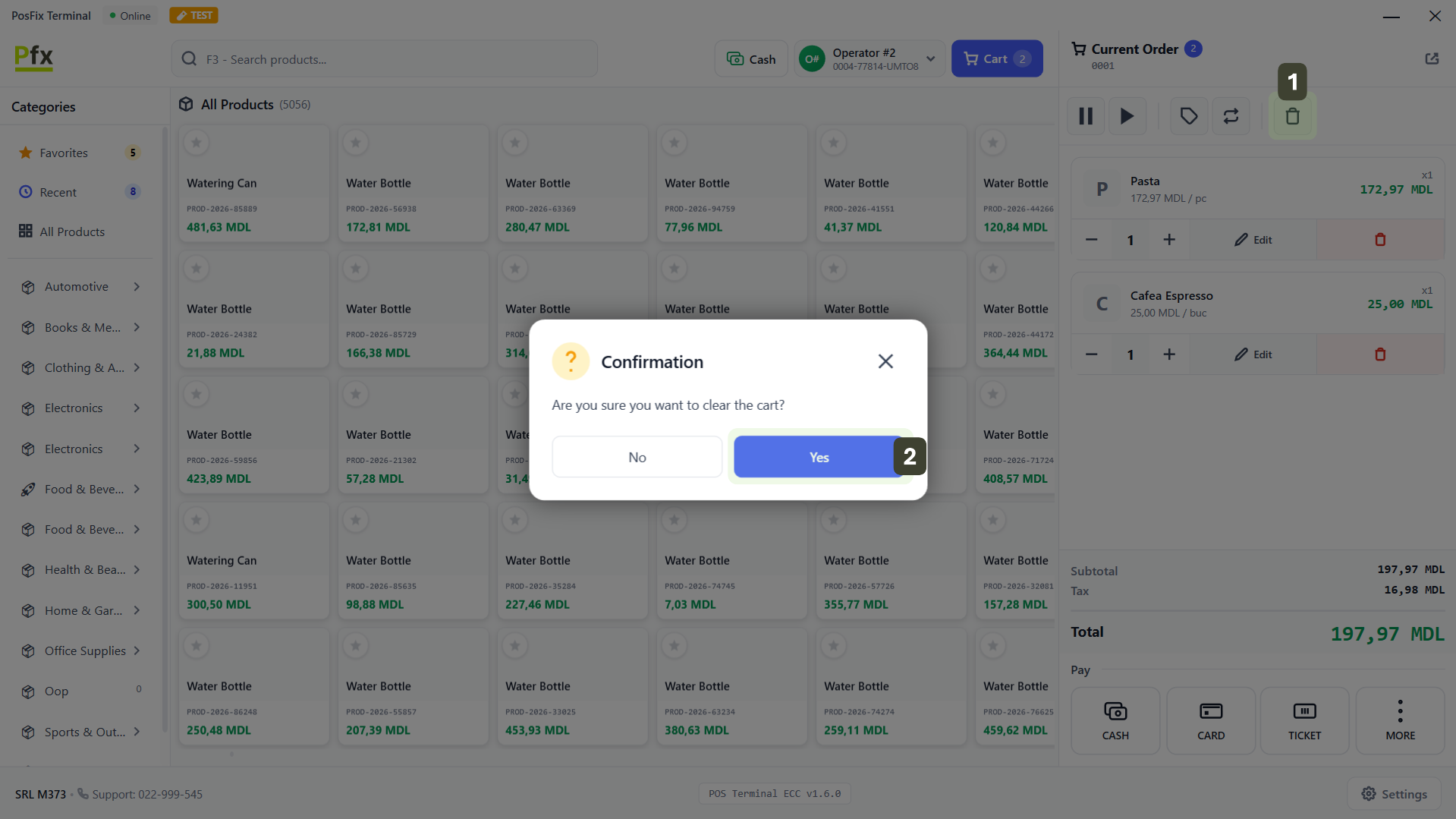
Canceling the current order deletes ALL items from the cart. This action is irreversible.
Editing and Adjusting the Cart
Modifying the Quantity
If you want to change the number of items (e.g., the customer wants 5 pieces of the same product):
- Identify the product in the shopping list
- Press the Edit button (directly on the icon)
- Adjust the new quantity using the numeric keypad or use the [+] and [-] buttons for fine adjustments
- Confirm the modification by pressing the Done button
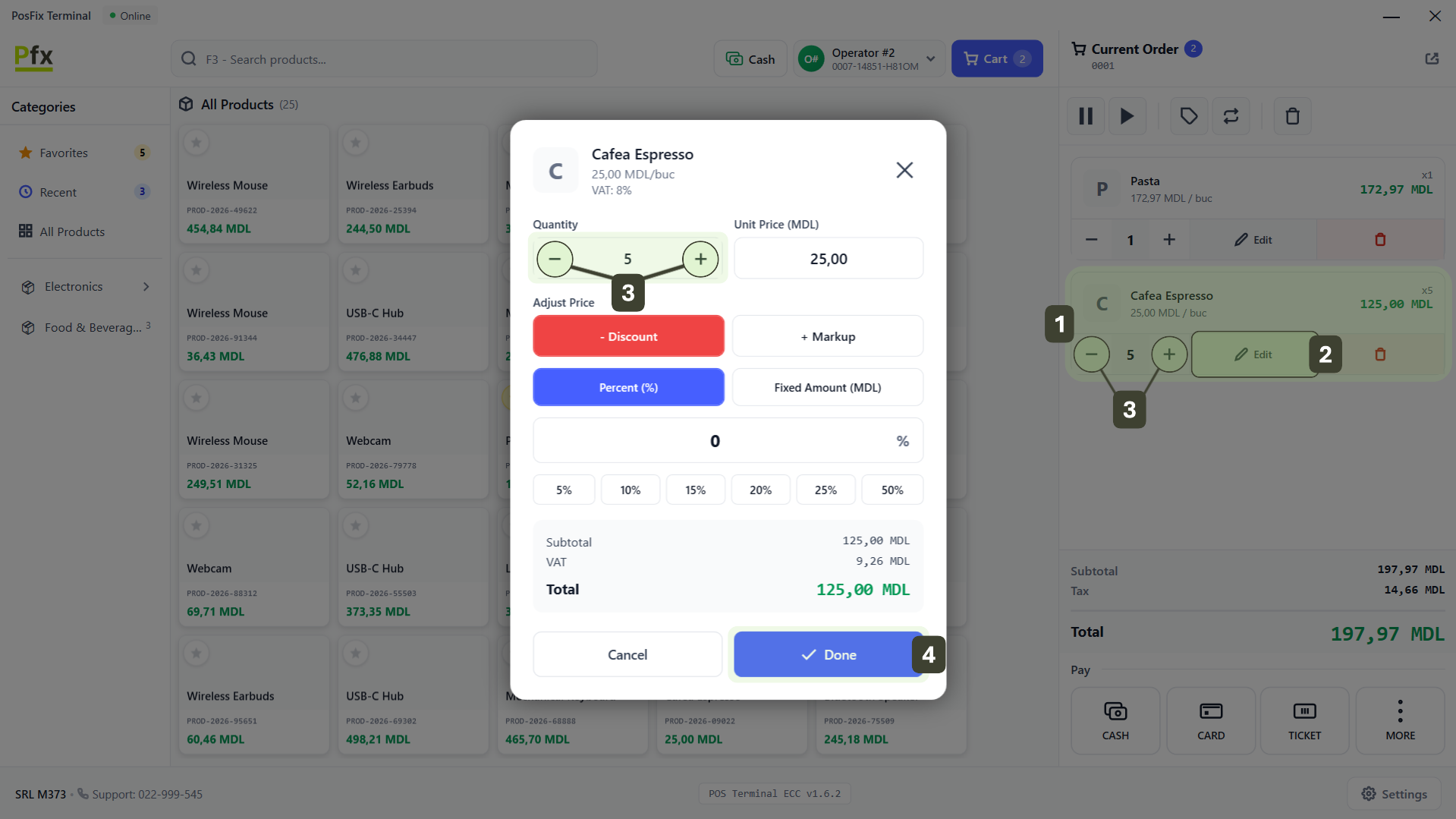
Quick Method: You can increase the quantity by scanning the product's barcode multiple times consecutively. Each scan adds +1 to the quantity.
Manual Price Modification (Manager Access)
This function allows changing the unit price for the current transaction. Requires Administrator rights.
- Identify the product in the shopping cart
- Press the Edit icon
- In the product details window, enter the new price
- The product appears in the cart with the updated price and the Custom Price label
- Press the Done button
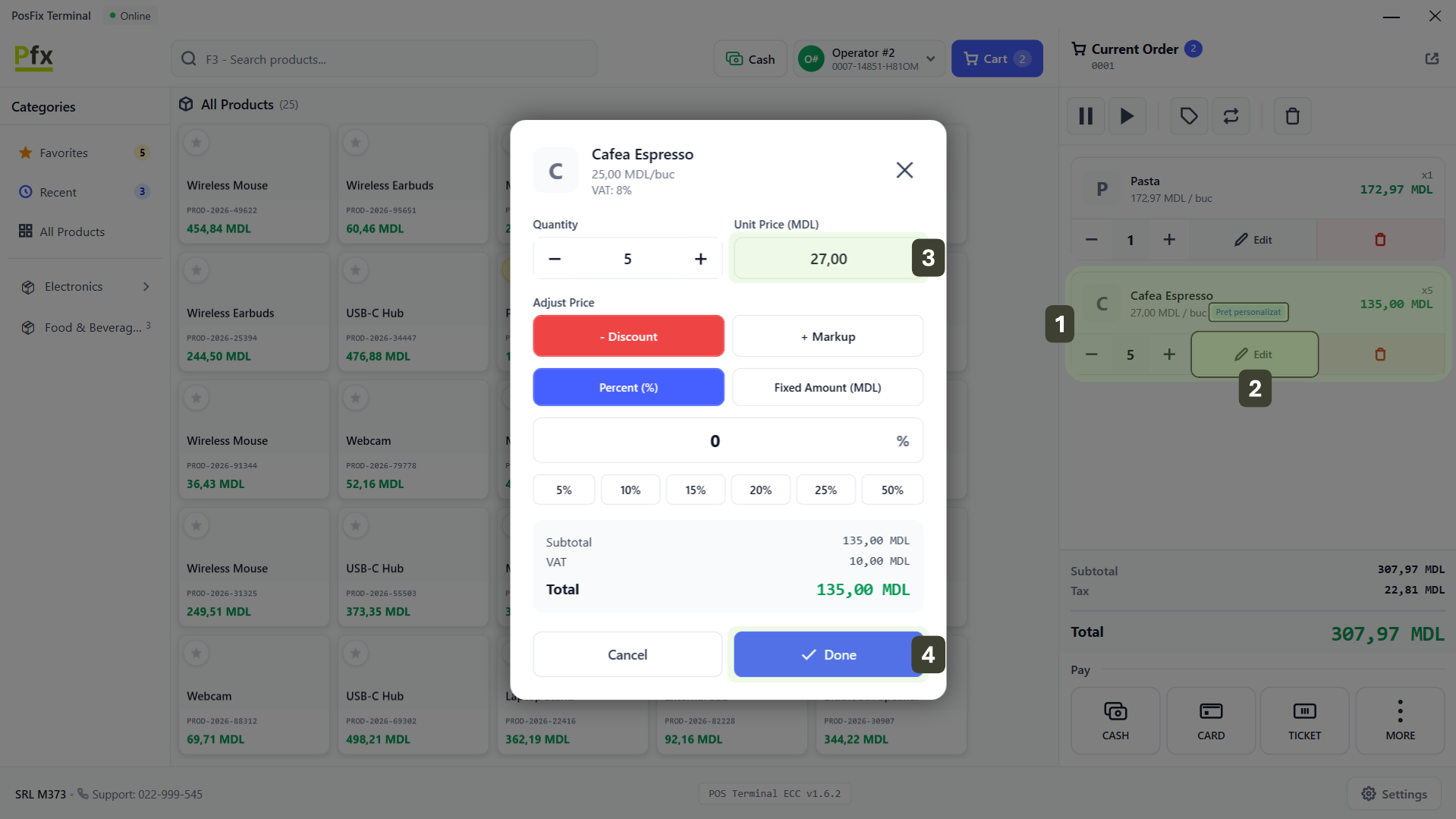
Price modification requires manager authorization and is recorded in the audit log.
Error Types and Solutions
| Error | Solution |
|---|---|
| Wrong product | Press the Delete button (trash bin) and add the correct item |
| Wrong quantity | Press Edit -> Modify quantity |
| Wrong price | Press Edit -> Modify price (requires administrator rights) |
| Wrong discount | Press Edit -> Delete discount and reapply |
| Purchase refusal | Press Clear Cart |
Correction Flow
Step 1: Visually identify the product that needs modification in the shopping cart
Step 2: Depending on the desired action, press the corresponding icon:
- To Delete: Press the Delete button (trash bin)
- For Quantity / Price / Discount / Markup: Access Edit
Step 3: Apply the modification:
- For quantity: use the [+] and [-] buttons
- To delete: press the Delete button (trash bin)
- For discount: press - Discount then Percent (%) and modify
- For markup: press + Markup then Percent (%) and modify
- Press Done to save
Step 4: Verify that the Total has been updated accordingly
Step 5: Continue with processing the transaction