Fiscal Reports
Fiscal reports are essential documents for accounting records and compliance with fiscal requirements. PosFix generates three types of reports.
Accessing Reports
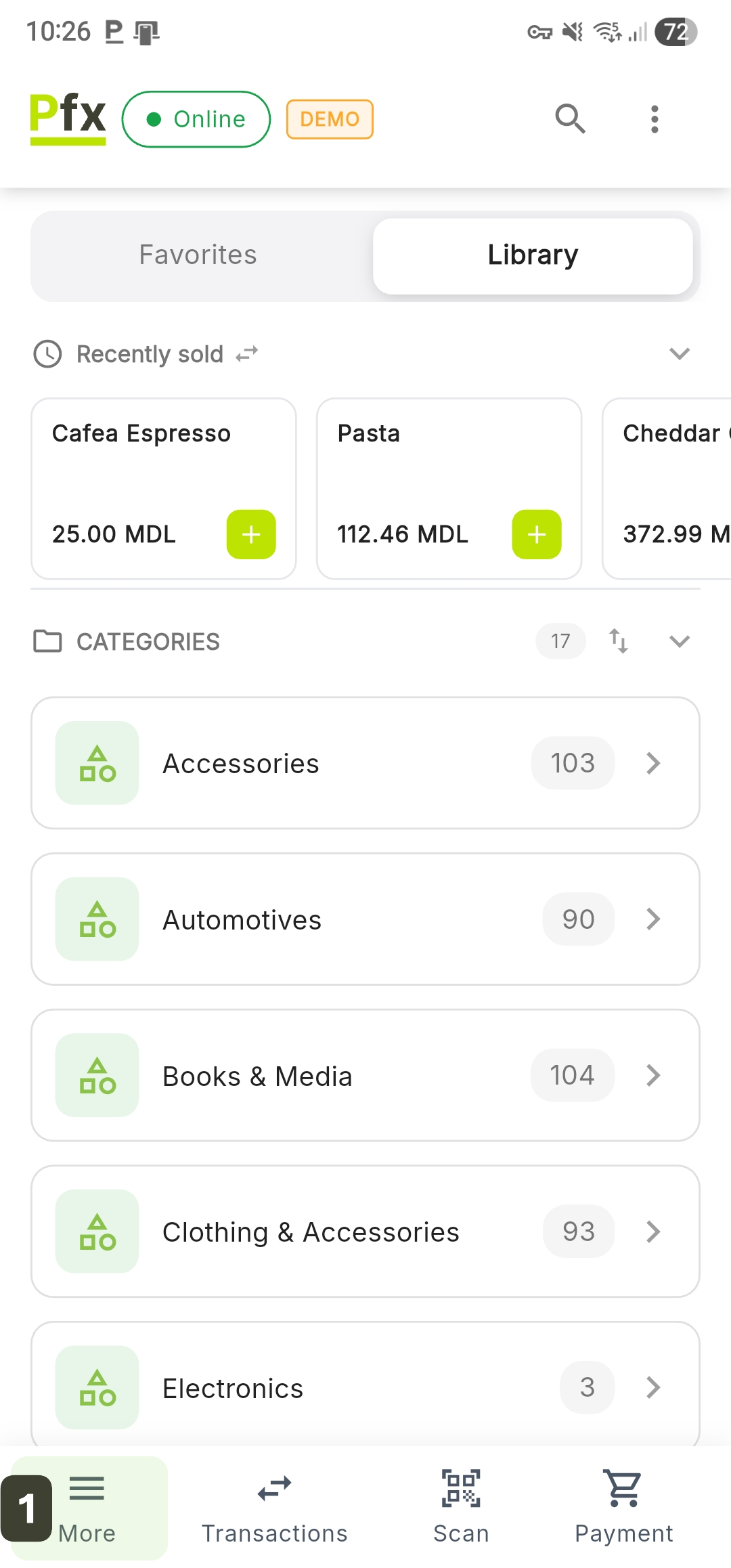
All reports are centralized in the application's administrative panel:
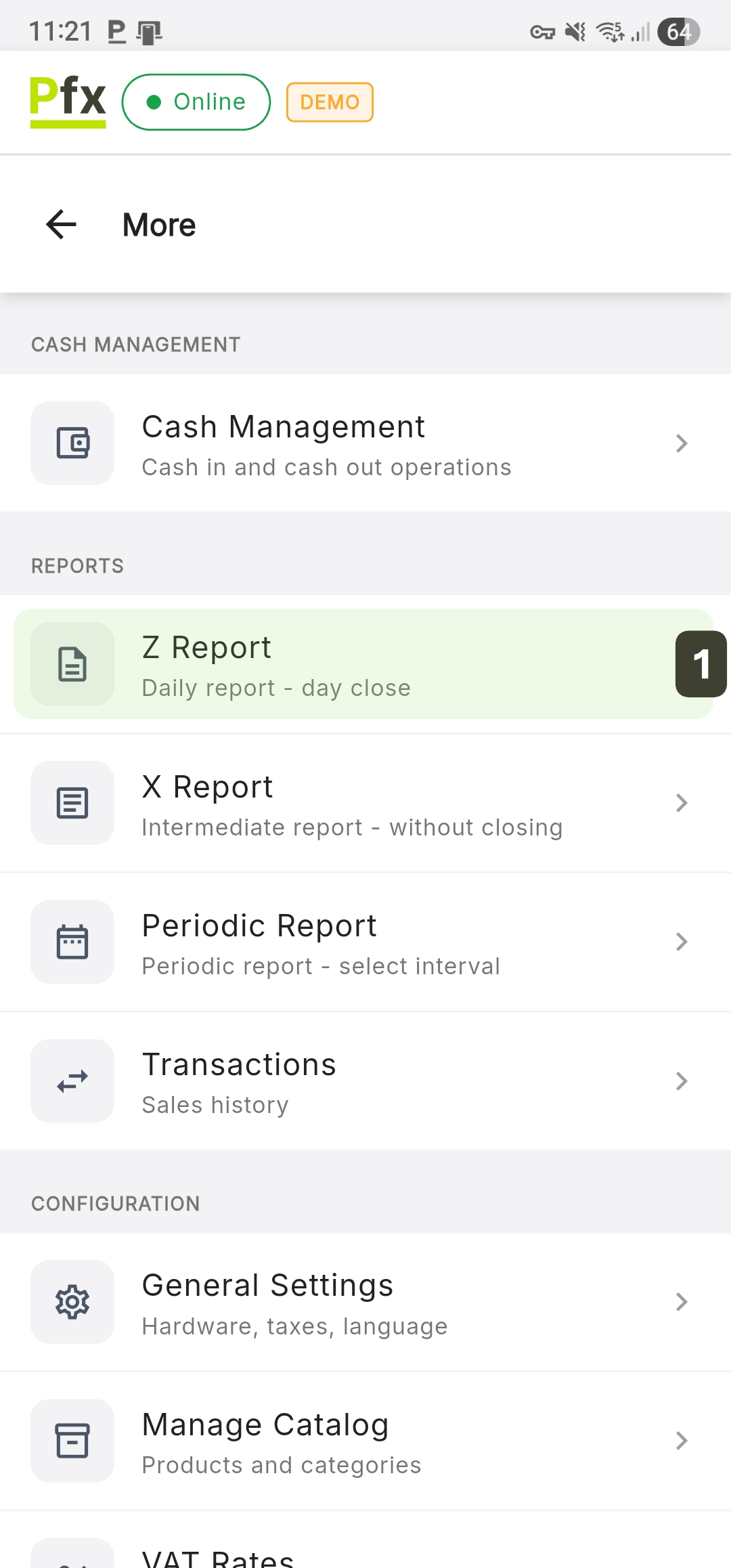
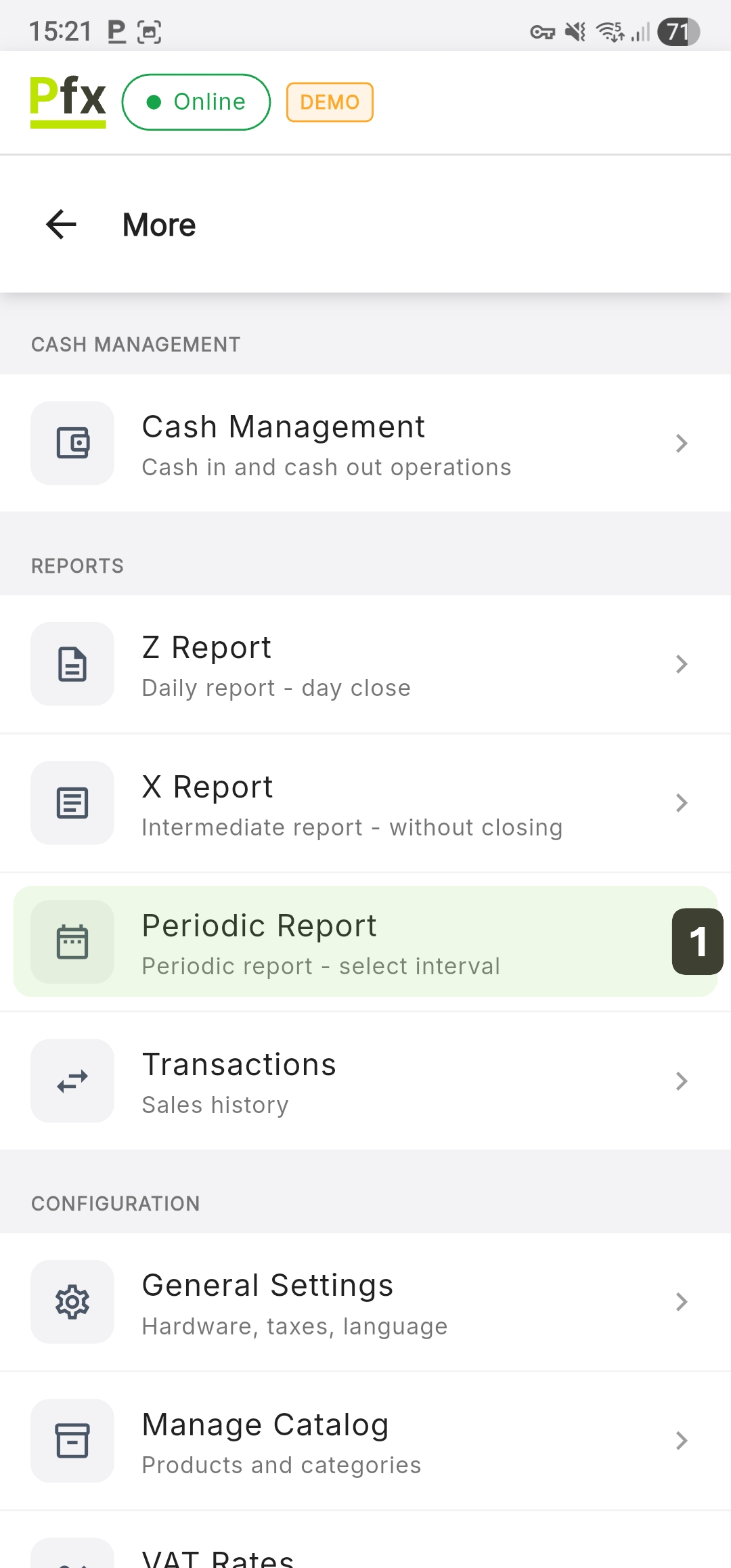
- Press the More button in the bottom navigation bar
- Select the desired report type: X Report, Z Report, or Periodic Report
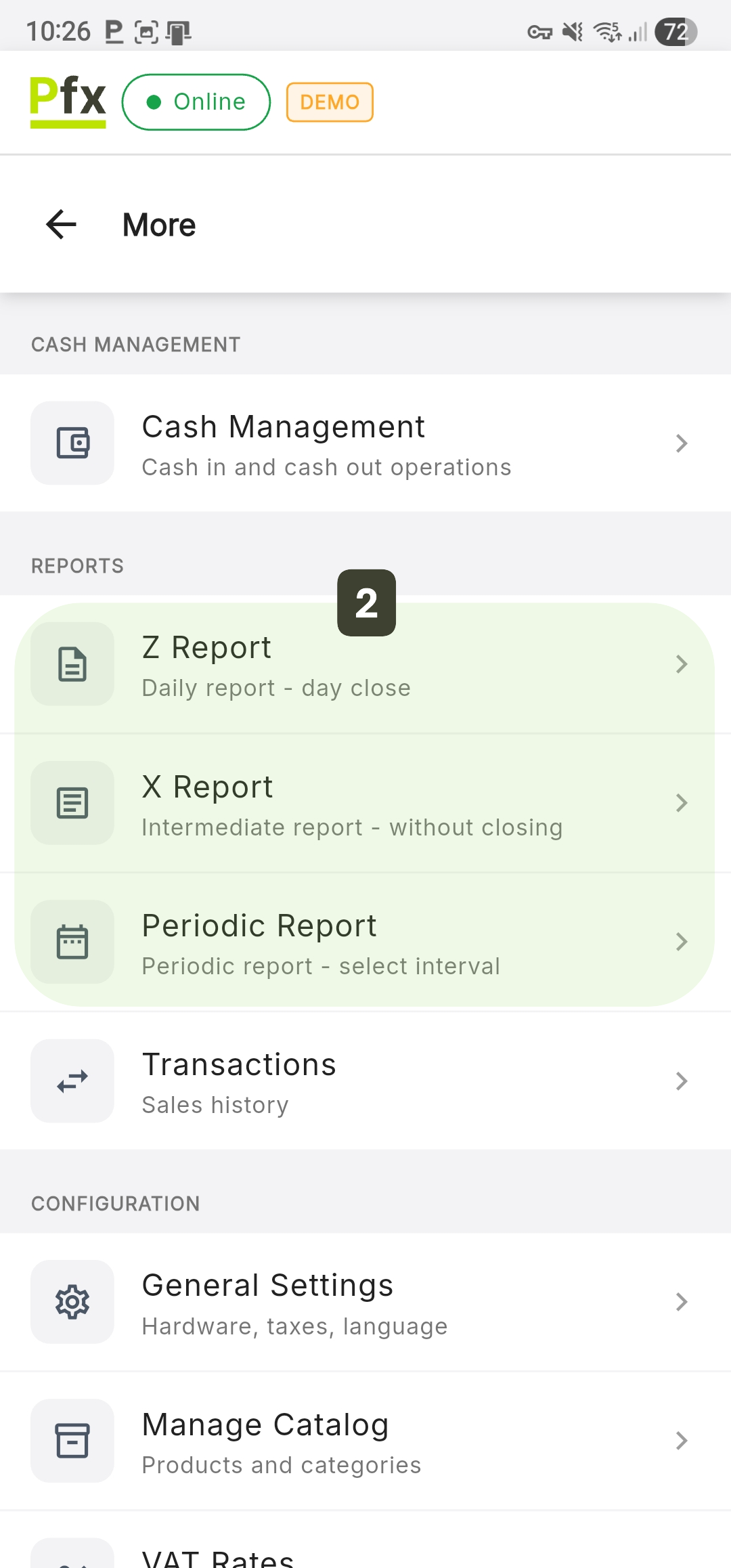
X Report (Intermediate)
The X Report is an informative verification report that can be generated at any time during the day, without closing the fiscal day.
When Is It Used?
- Checking collections at shift change
- Cash control in the drawer
- Verification before the Z Report
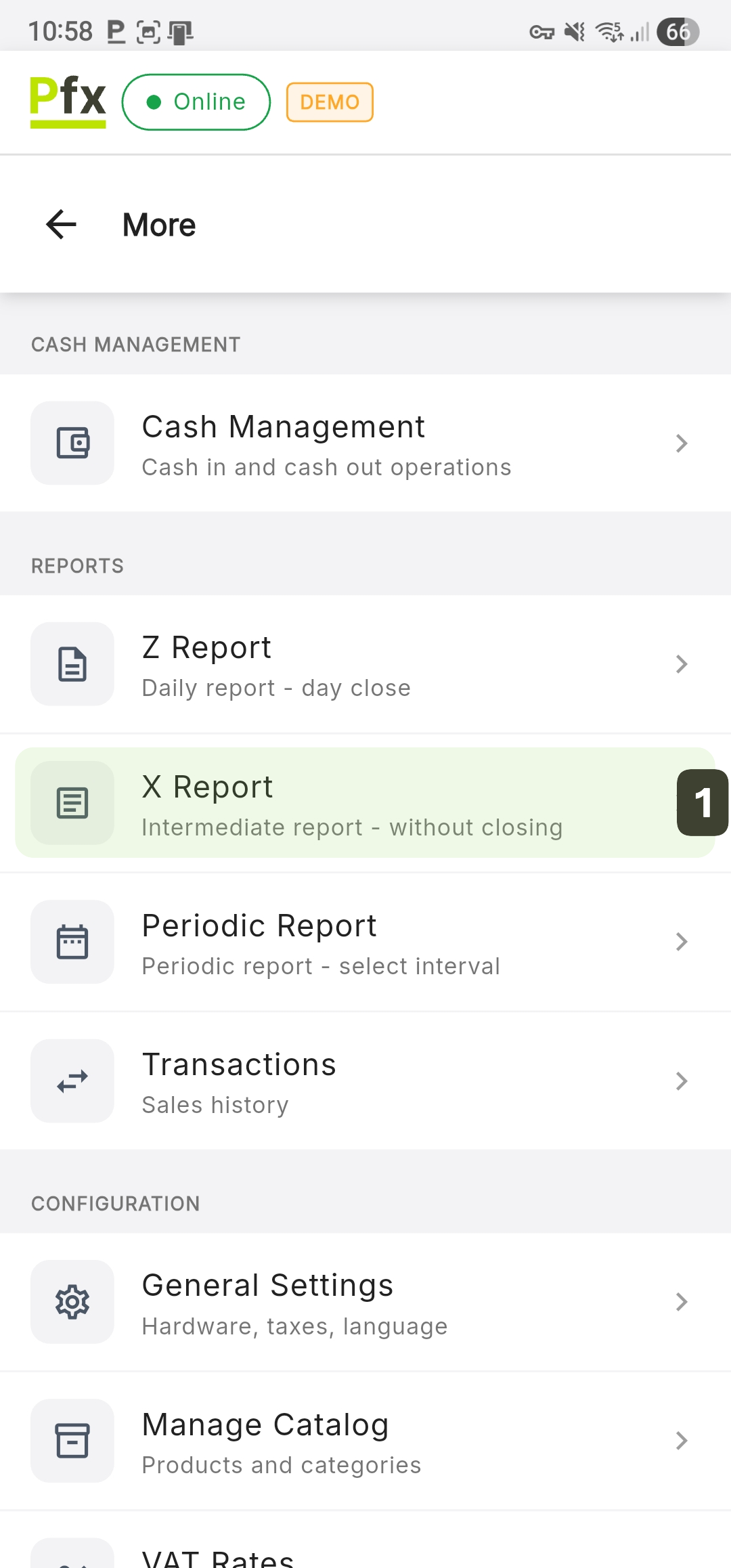
Generating an X Report
- Press the X Report button
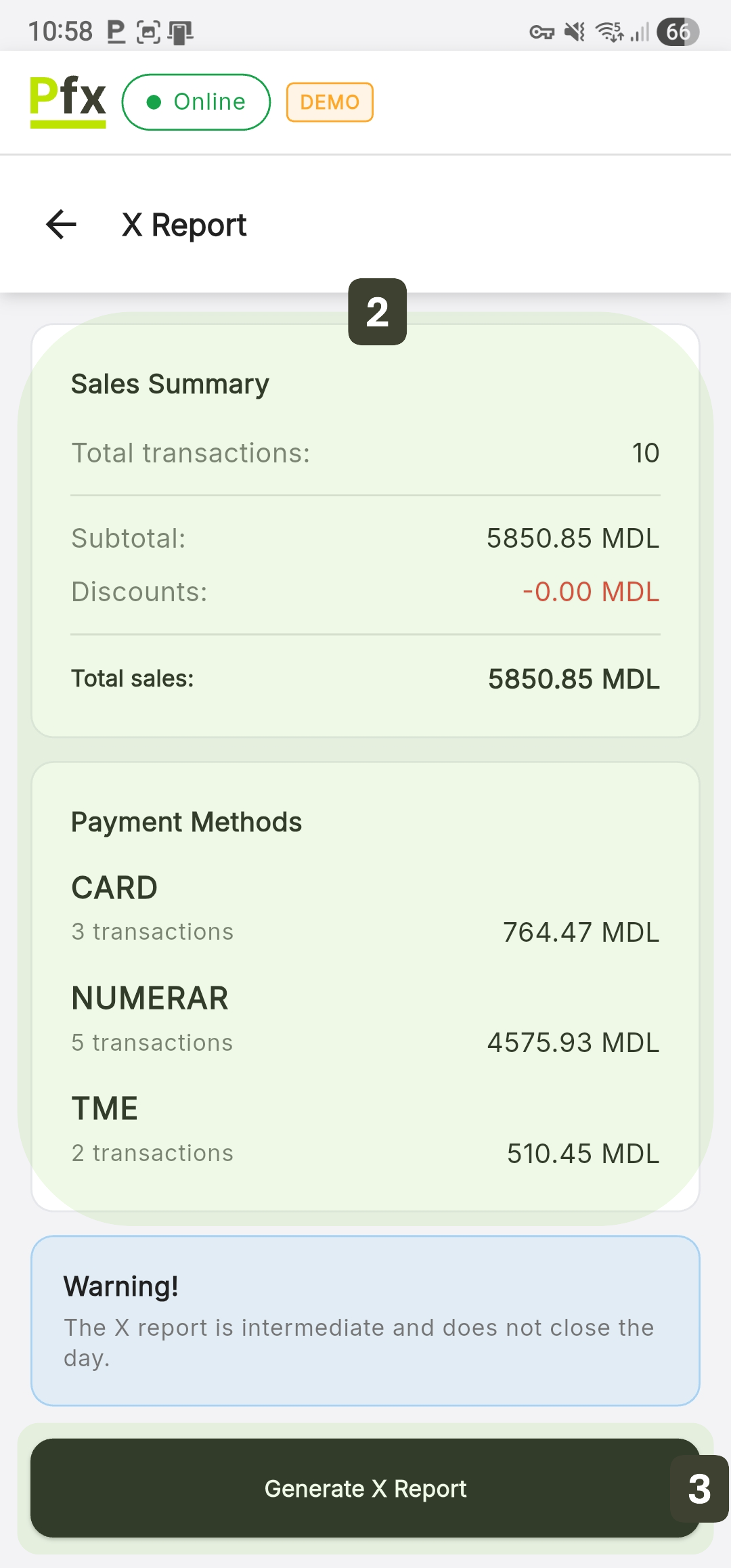
- The system displays a summary with the main indicators
- Press Generate X Report to print
Print an X Report before the Z Report to make sure the cash in the drawer matches the amount in the system. If there are discrepancies, now is the time to identify them.
Z Report (End-of-Day Closing)
The Z Report is the final command for closing the fiscal day. This action resets the counters and transmits the data to MEV (Electronic Sales Monitoring).
Generating a Z Report
- Press the Z Report button
- The system displays a summary with the main indicators
- Press Generate Z Report to print
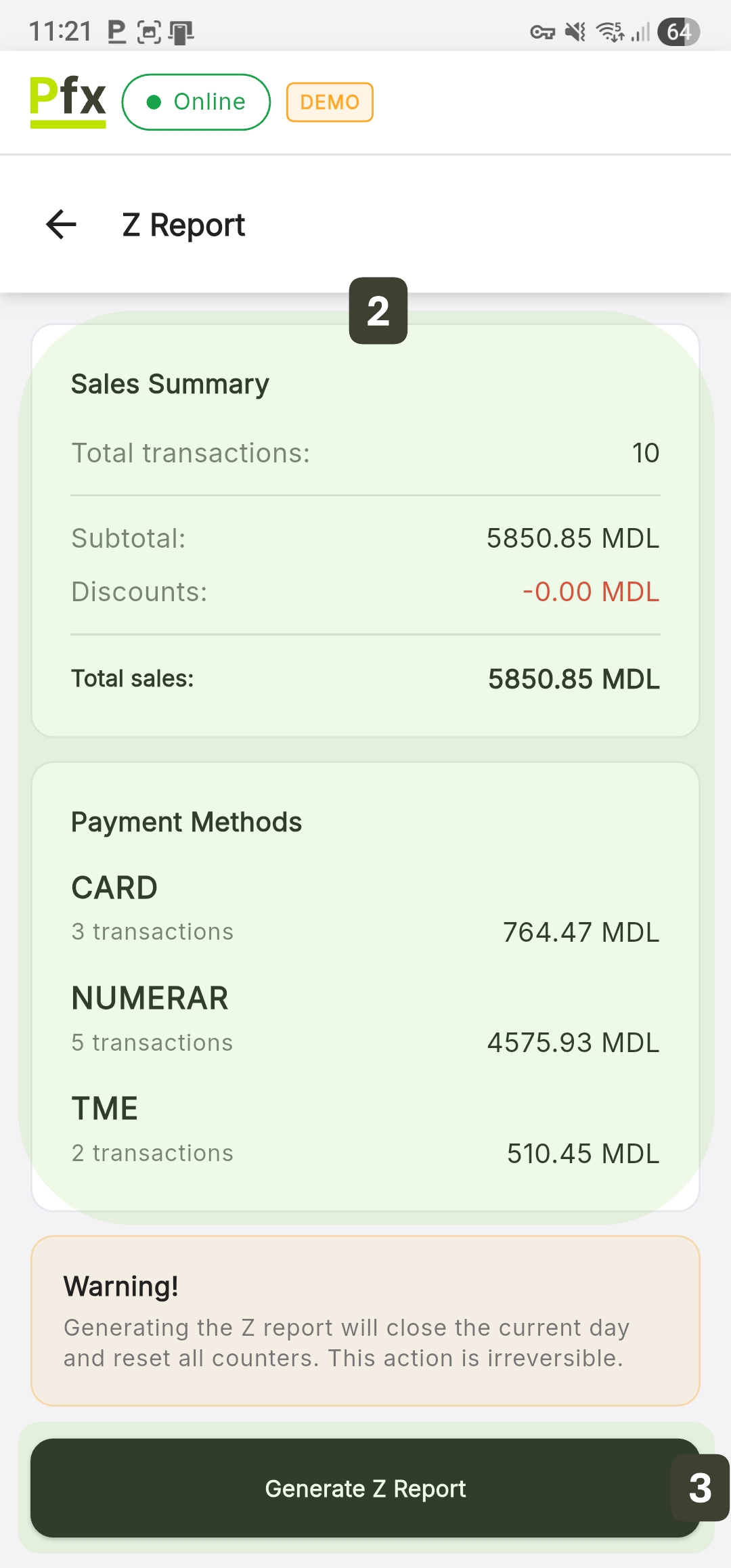
- Once a day only: Do not generate the Z Report at lunch or during a shift change. For intermediate checks, use only the X Report.
- Irrevocable: Once confirmed, sales are reset to zero. You can no longer issue fiscal receipts for that day.
Checks Before Z Report
Before generating the Z Report, go through these steps:
- ✅ Check the cash: Make sure the money in the drawer matches the system (use the X Report)
- ✅ Process withdrawals: If company policy requires you not to leave cash in the drawer, execute Cash Out
Periodic Report
The Periodic Report is an advanced audit tool that allows the extraction and printing of fiscal history for a customized time range. It is essential for accounting and performance analysis over long periods, such as weekly, monthly, or quarterly.
Filtering and Visualization Options
The PosFix system interface allows for combining two types of visualization with two interval selection criteria, providing full flexibility in reporting:
Report Type (Visualization):
- Summary: Displays aggregated information (cumulative totals) for the entire selected period.
- Detailed: Provides a daily breakdown, showing the fiscal totals for each day within the selected range.
Selection Criteria (Filtering):
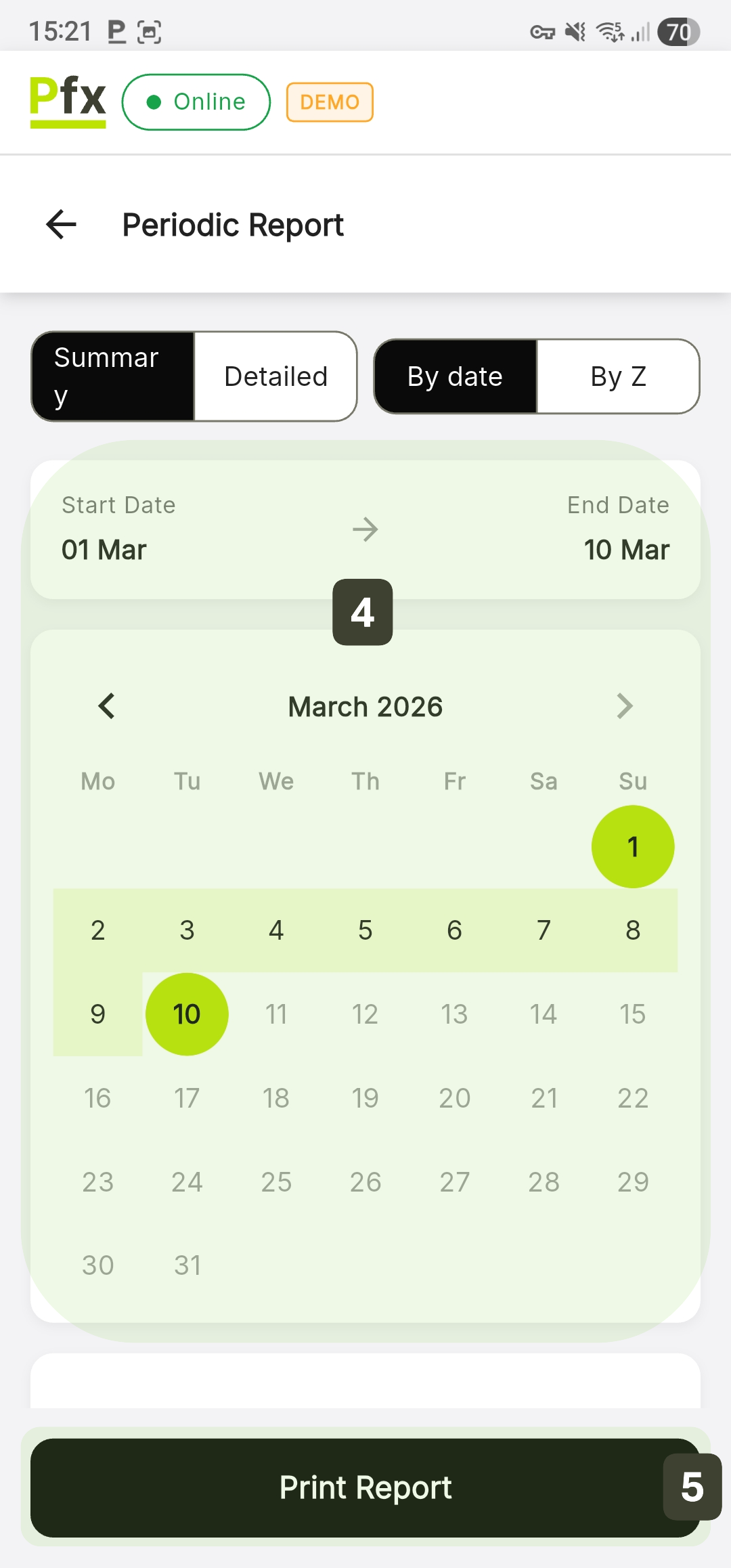
- By date: Allows interval selection using a calendar (Start Date -> End Date).
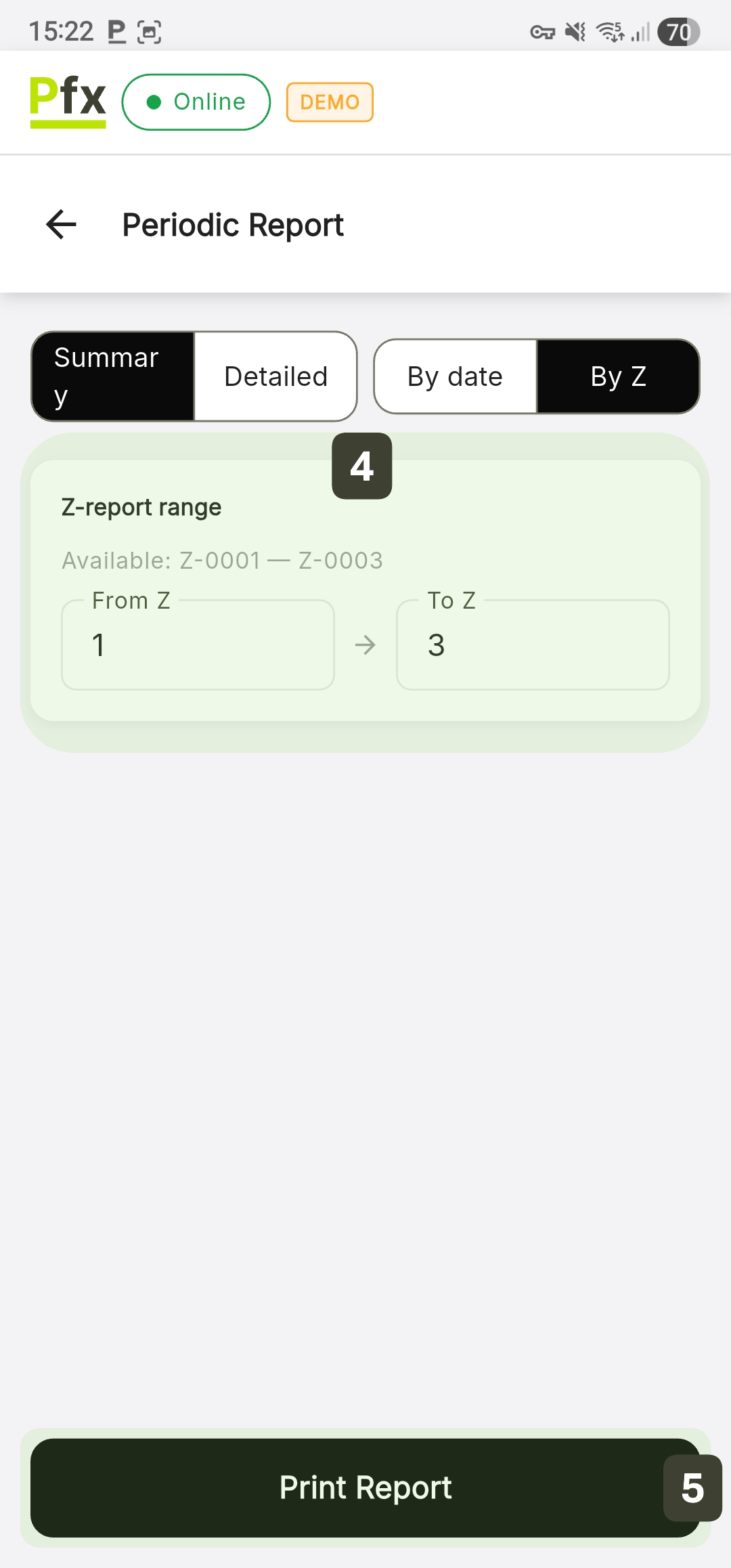
- By Z: Allows you to select the range based on the daily closing report numbers (From Z -> To Z).
The system automatically sets the Start Date field as the Fiscalization Date. This represents the exact date the device was registered and put into operation from a fiscal perspective.
Generating a Periodic Report
Regardless of the chosen combination, the steps for obtaining the report are as follows:
- Press the Periodic Report button
- Select between Summary or Detailed
- Choose By date or By Z
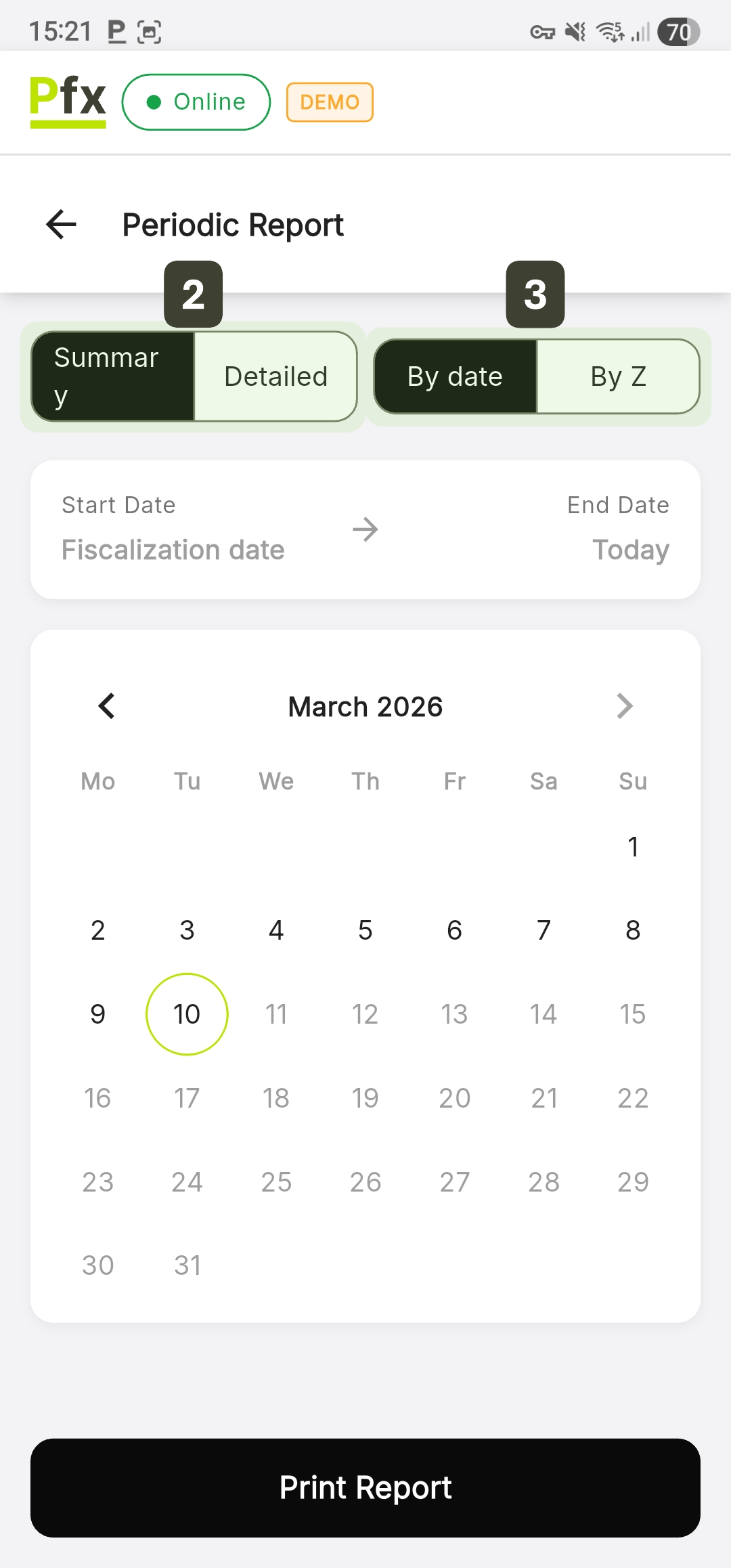
- Selecting the range:
- If you chose By date, use the calendar to mark the first and last day of the period.
- If you chose By Z, enter the identification numbers of the targeted Z reports.
- Press the Print Report button
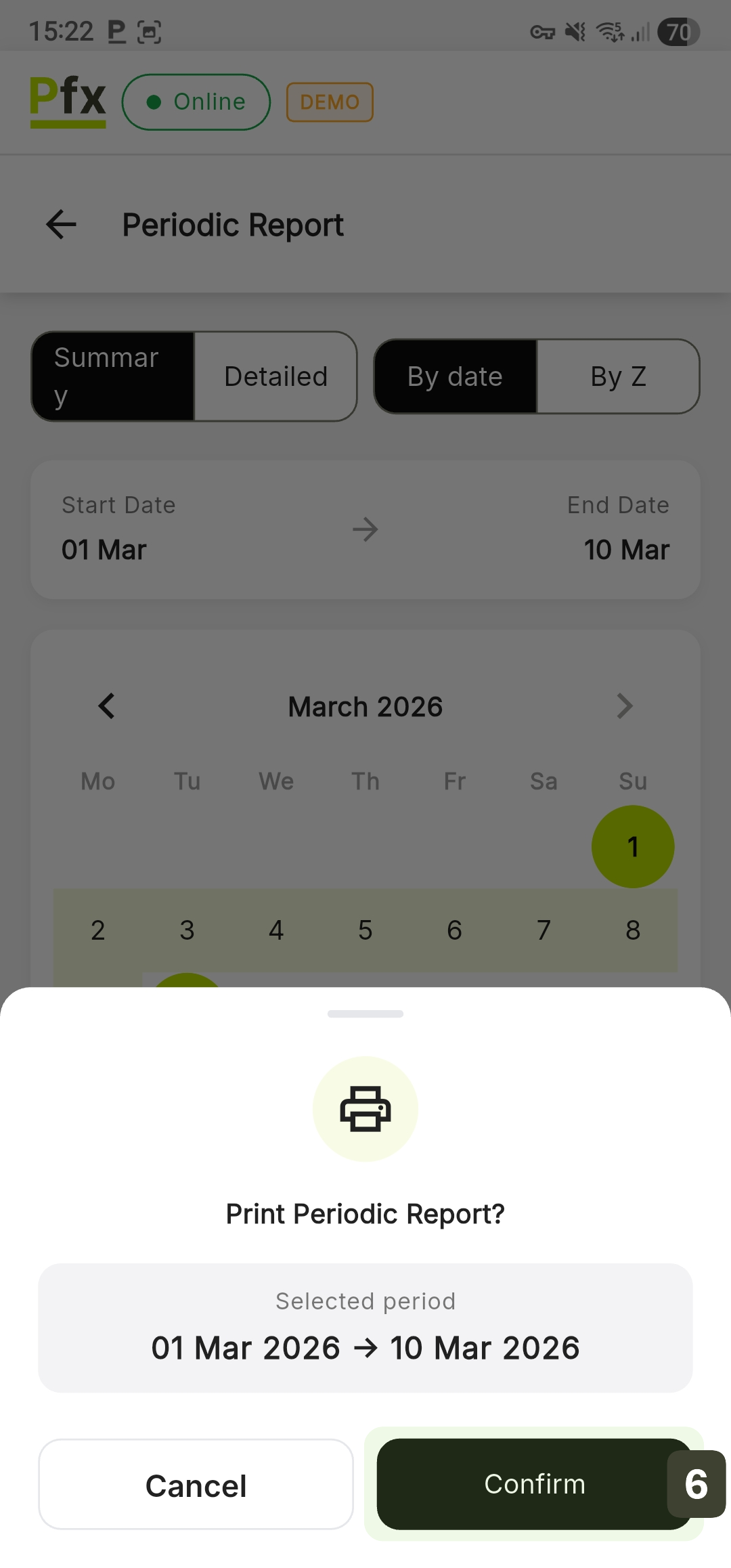
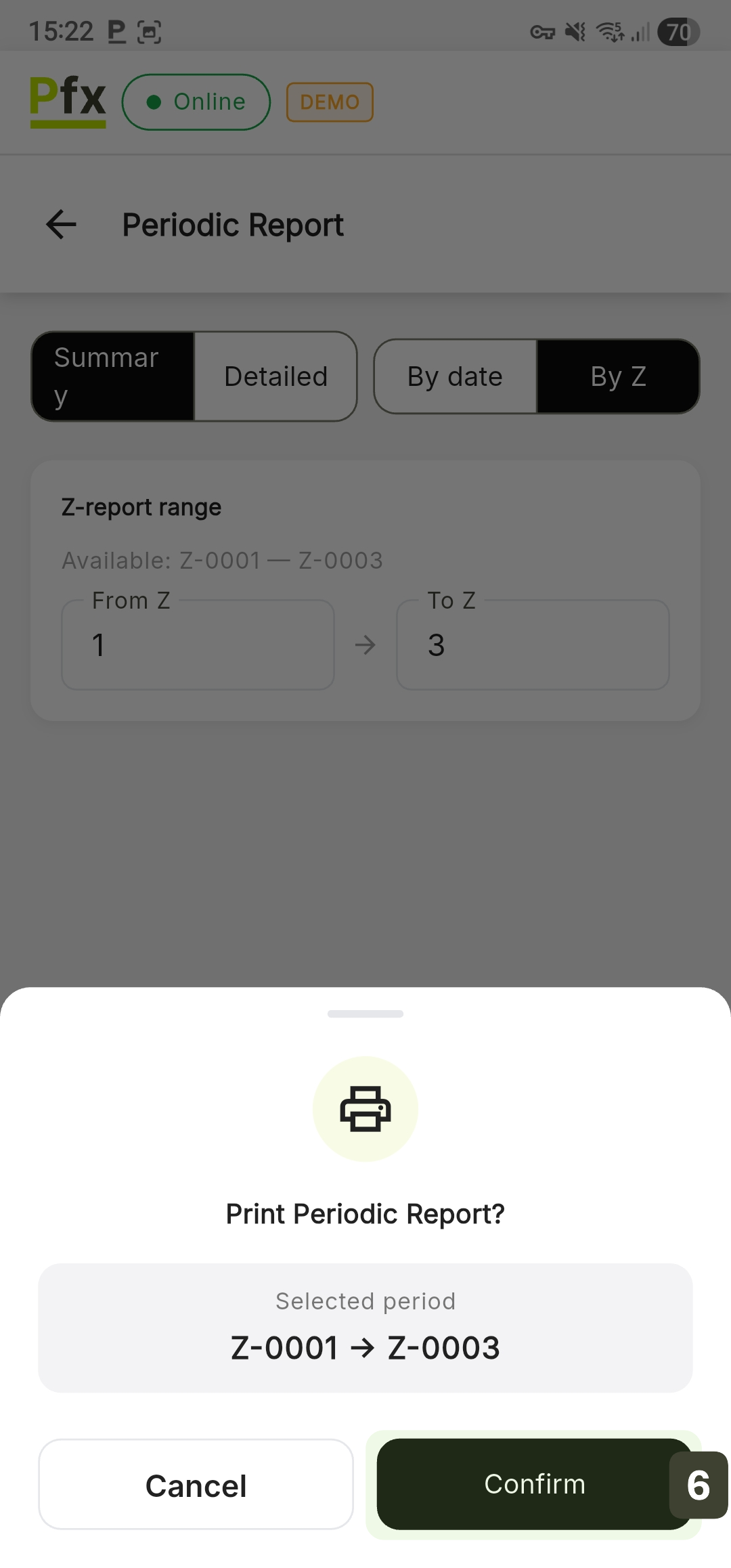
- Verify the data in the pop-up window, then press Confirm to start printing
Verify Usually, the accountant requests this report at the beginning of each month (for the previous month) to verify whether the sum of the daily Z Reports matches the fiscal memory.
Printing Reports
All reports can be printed on the configured thermal printer:
- Built-in printer (on POS terminals)
- Network printer (connected via WiFi/LAN)
- Bluetooth printer (mobile)
If the printer is not available, reports remain saved in the system and can be reprinted later.