Installation
POS Terminals (Pre-installed)
For dedicated POS terminals (PAX, Senraise, Sunmi, iMin), the PosFix application comes pre-installed by the provider. No additional installation steps are required.
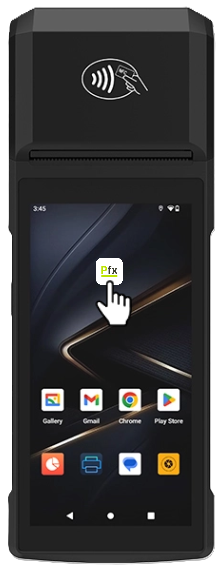
- Turn on the POS terminal
- Locate the PosFix icon on the home screen
- Tap to open the application
Install from Google Play (Recommended)
Whether you are using a dedicated POS terminal or a generic Android device (tablet/phone), the installation process is quick and adapted to your mobility needs. The simplest way to access the application on tablets or phones is through the official store, ensuring you automatically receive security updates and new features.
Downloading the App
- Open
 on your Android device (tablet, phone, or POS terminal with Play Store access)
 - Search for PosFix in the search bar
- Tap Install and wait for the download to complete
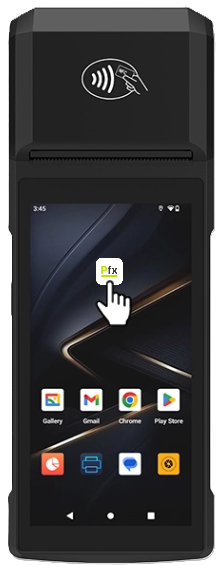
- Tap Open or locate the PosFix icon on the home screen
Manual Installation (APK)
If the device does not have access to the Google Play Store (e.g., certain dedicated POS terminals), the application can be installed manually using the APK file.
Downloading the APK:
- Contact your provider to receive the download link
- Download the PosFix.apk file to the device
Enabling Unknown Sources
Before installation, you need to allow installation from external sources:
- Open Android Settings → Security
- Enable the Unknown sources option (or Install unknown apps)
- Select the browser or file manager from which you are installing
This setting may have different names depending on the Android version and device manufacturer.
Installing the Application
- Navigate to the downloaded PosFix.apk file
- Tap on the file to initiate the installation
- Confirm the installation by tapping Install
- Wait for the process to complete
- Tap Open or locate the PosFix icon on the home screen
Updates
Automatic Update (Google Play)
If the app was installed from Google Play, updates are applied automatically through the store, just like any other app. To ensure you receive updates as soon as they are available, check if automatic updates are enabled in the Google Play settings.
Automatic Update (APK)
For manual installations, the app automatically checks at startup if a newer version is available on the server. If an update is detected, you will be notified.
Manual Update (APK)
If you prefer to update manually:
- Download the new version of the APK file
- Install it over the existing version (local data is preserved)
During an update, existing data (products, transactions, settings) is preserved intact. No reconfiguration of the application is required.
Make sure the device battery is at least 30% charged before installing an update, to prevent the process from being interrupted.