Stocktake
You count the goods in a warehouse, and the register compares what you counted with what the records show (the Expected stock). At the end you get a report with the differences, on paper or by email. A stocktake on the register doesn't change the stock: the accountant uses the report to make the corrections in the panel.
Where to find it: More → Stocktake. Only the manager sees this screen, and only if the company keeps stock records.
To start
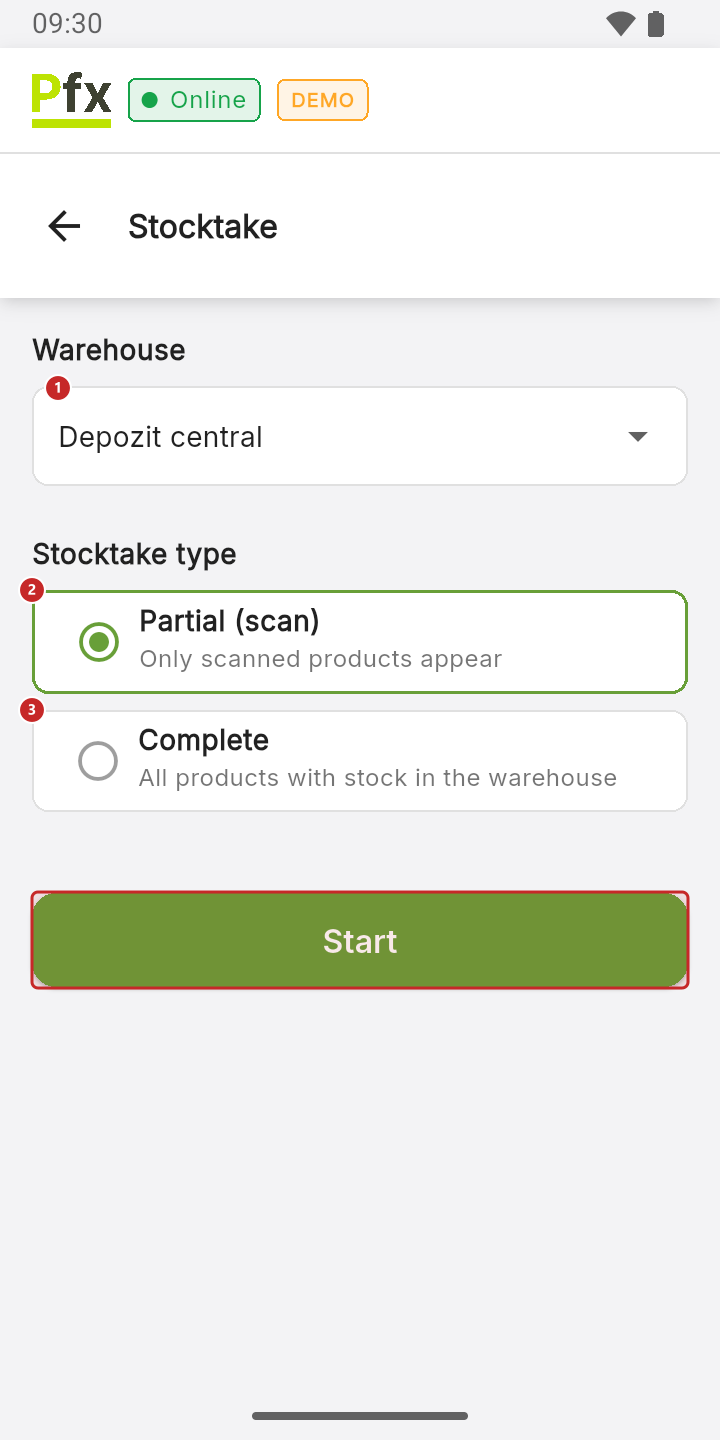
1 the warehouse you're counting · 2 Partial (scan) — only the products you scan appear · 3 Complete — all products with stock in the warehouse appear
Choose the warehouse and the kind of stocktake, then tap Start. Partial suits a shelf or a category: you start from an empty list and fill it by scanning. Complete is for the whole warehouse: you also see what you haven't counted yet, and whatever stays at 0 shows in the report as missing.
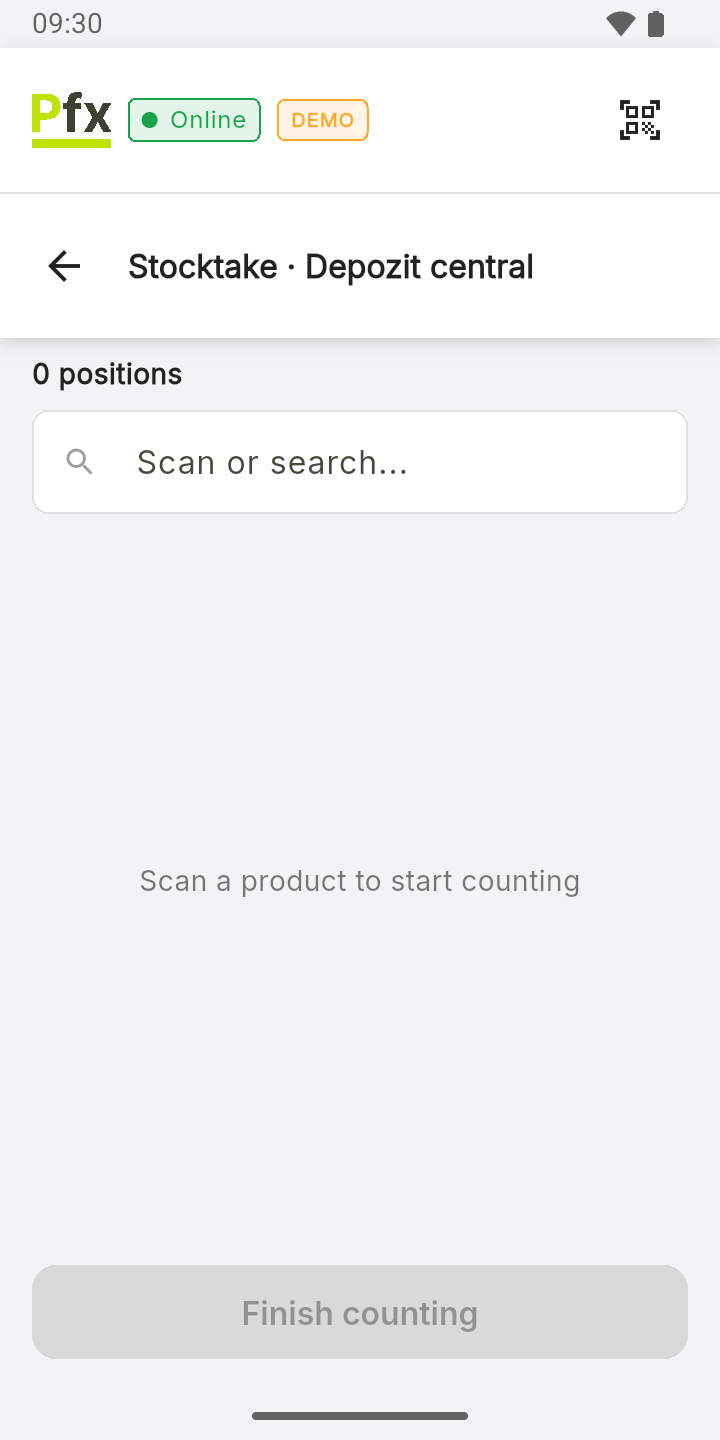
In Partial mode the list starts empty and fills up as you scan.
To count
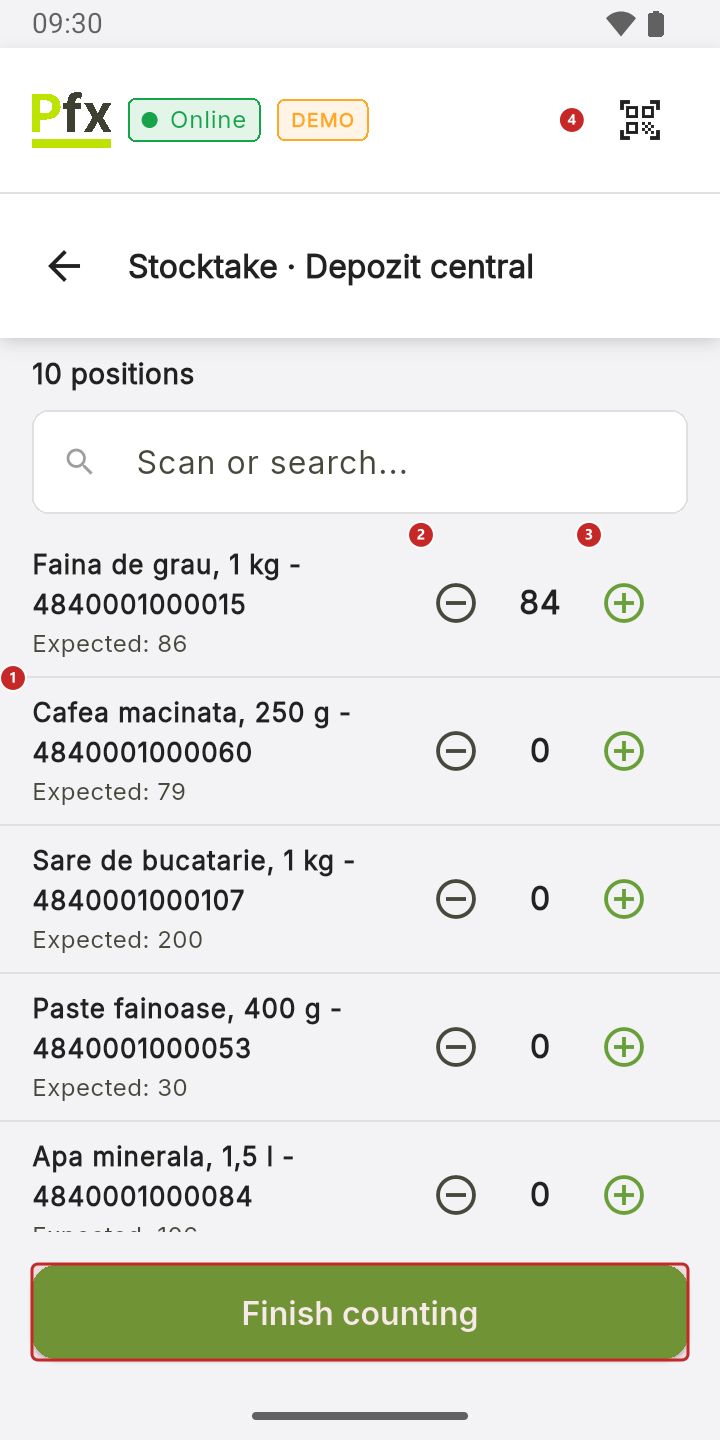
1 a product, with the expected stock underneath · 2 subtract one · 3 add one · 4 scan with the camera
- Scan the product with the register's scanner or with the button at the top, using the camera: each scan adds one unit.
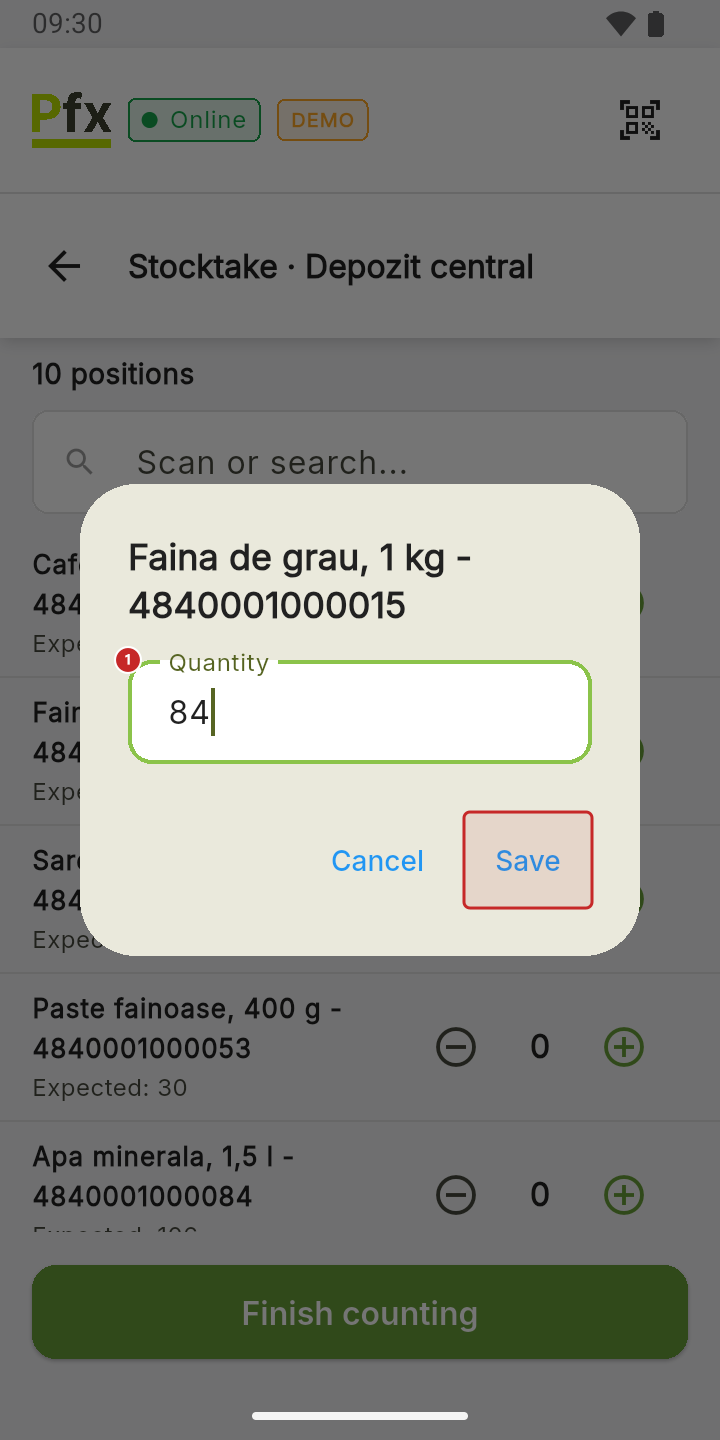
- For a large quantity, tap the counted number and type the quantity:
In Partial mode, on a phone without a scanner, use the button at the top, with the camera.
If you scan a code the register doesn't know, the badge ⚠ … unknown appears at the top, and the product goes under Unknown. From the three dots on the row you choose Add name, so whoever reads the report recognises it, or Create product, which adds it to the catalog with the scanned code. The new product has no expected stock yet, so it shows in the report with “—”.
Finish counting and send or print the report before you leave the screen: the next time you come in, the stocktake starts from zero.
The report
When you've finished, tap Finish counting.
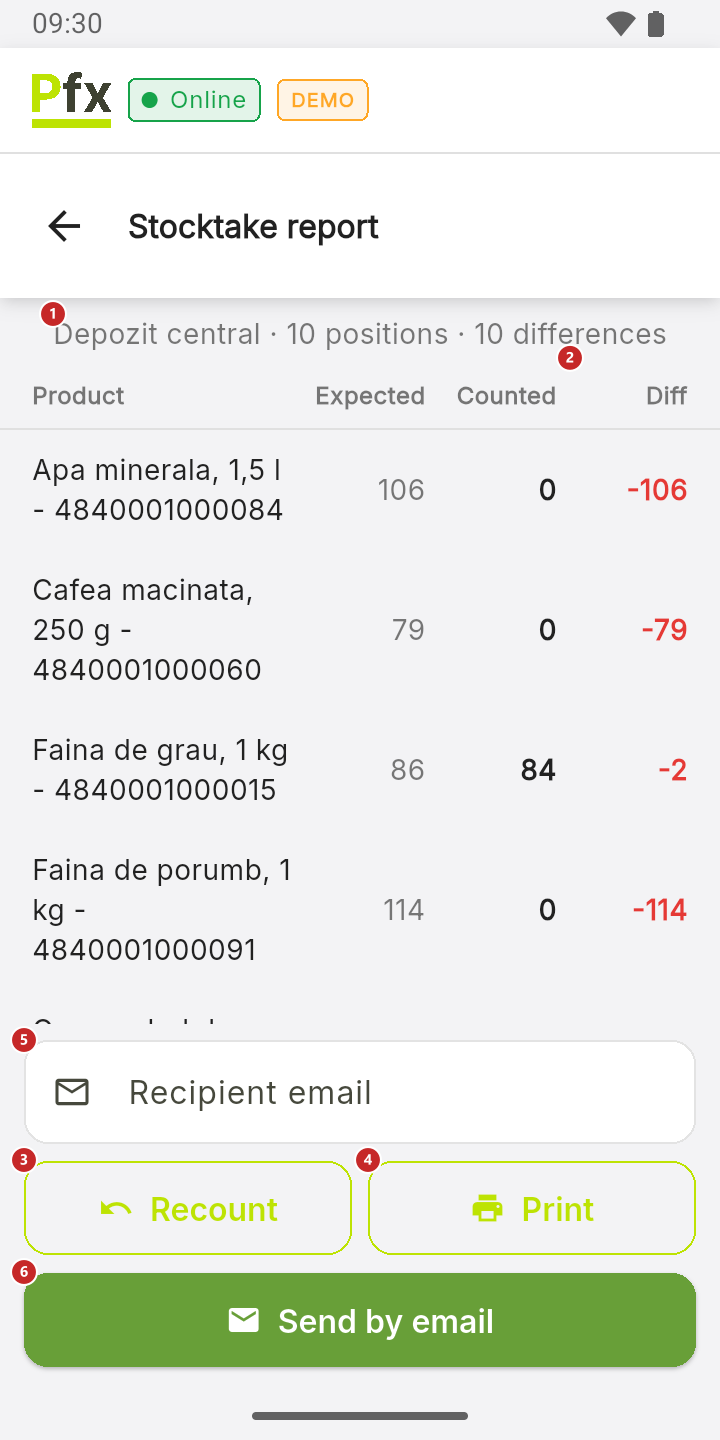
1 the warehouse, how many items you counted and how many have differences · 2 for each product: the expected stock, what you counted and the difference · 3 Recount — takes you back to counting · 4 print the report · 5 the email the report goes to (empty = the company's email) · 6 send the report by email
The report isn't kept in the panel: print it or send it before you leave. An Excel file goes by email.
What can trip you up
I scanned three times, but it counted once. The register ignores the same code scanned twice within the same second. For a big stack, tap the number and type the quantity.
I typed the code into the search and nothing was added. The search only finds products already in the list. Scan the product, with the scanner or with the camera.
Related pages
- Stock by warehouse — the expected stock, before you count.
- Price check — a single product, by barcode.