Transaction History
This section functions as a digital archive of all transactions performed through the terminal. Here you can view previous receipts, verify collected amounts, and reprint duplicates.
Access Methods
There are two ways to access the transaction archive:
- Quick Access (Recommended): Press the Transactions button located in the bottom navigation bar
- Administrative Access: Press the More button in the navigation bar
- Select the Transactions option
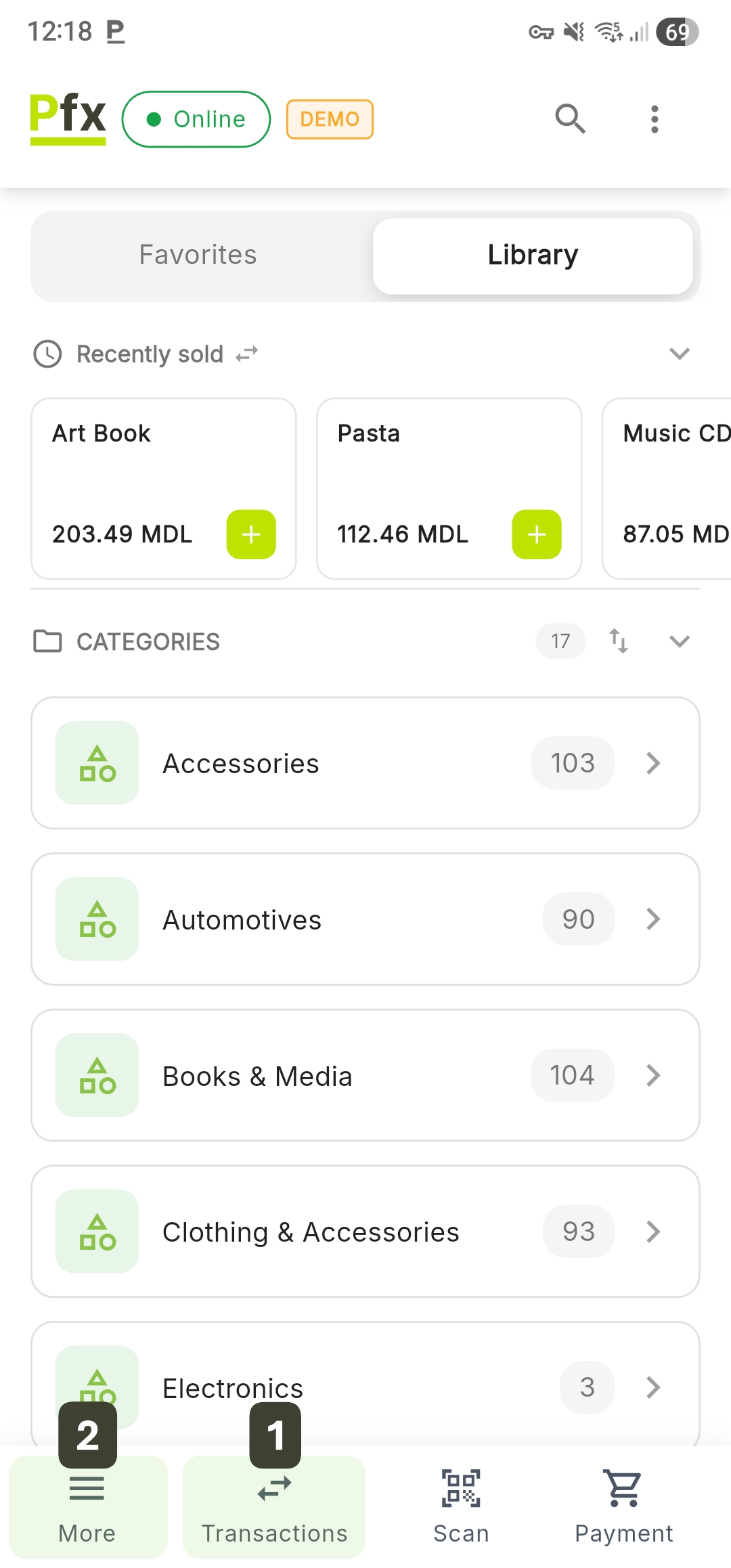
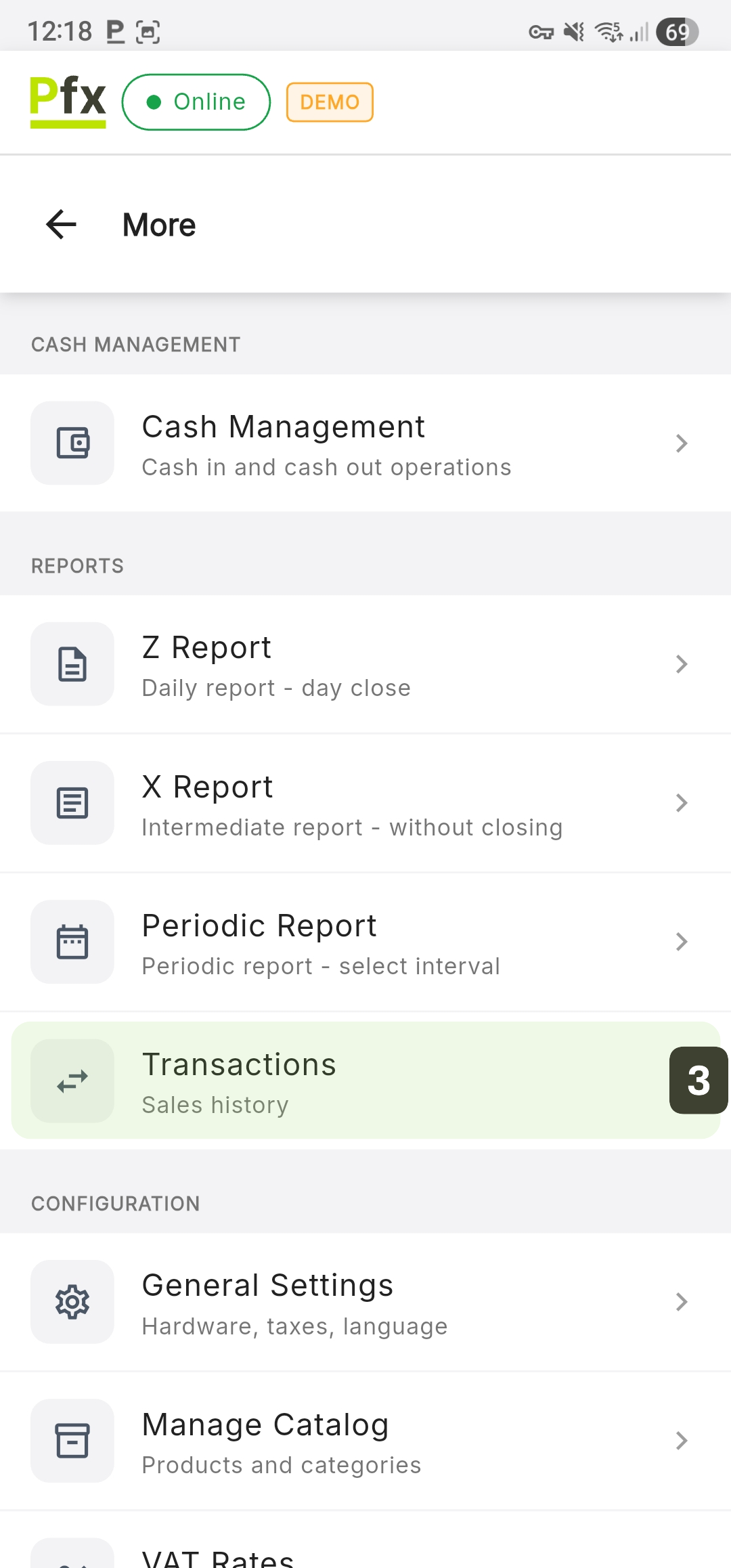
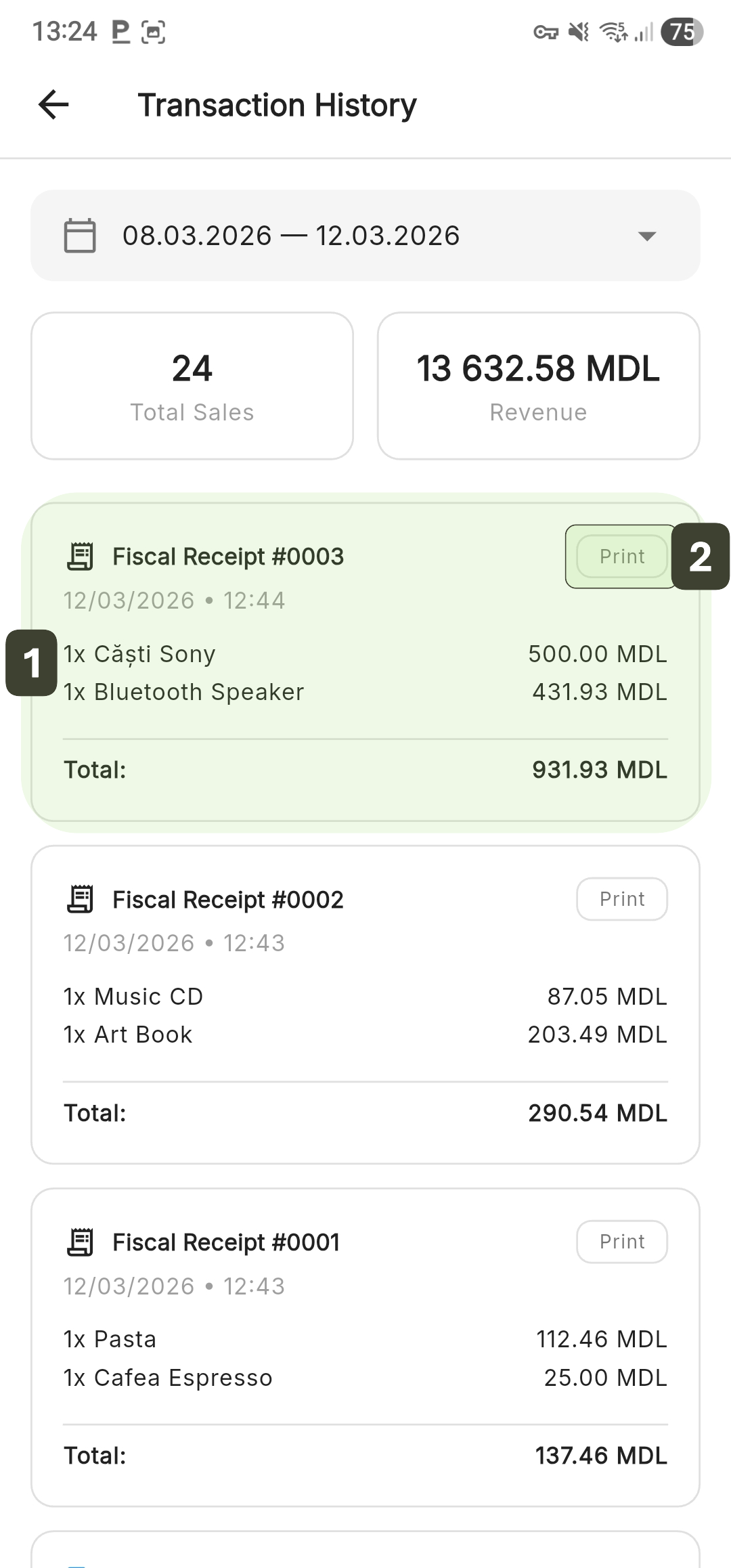
Transaction History Interface
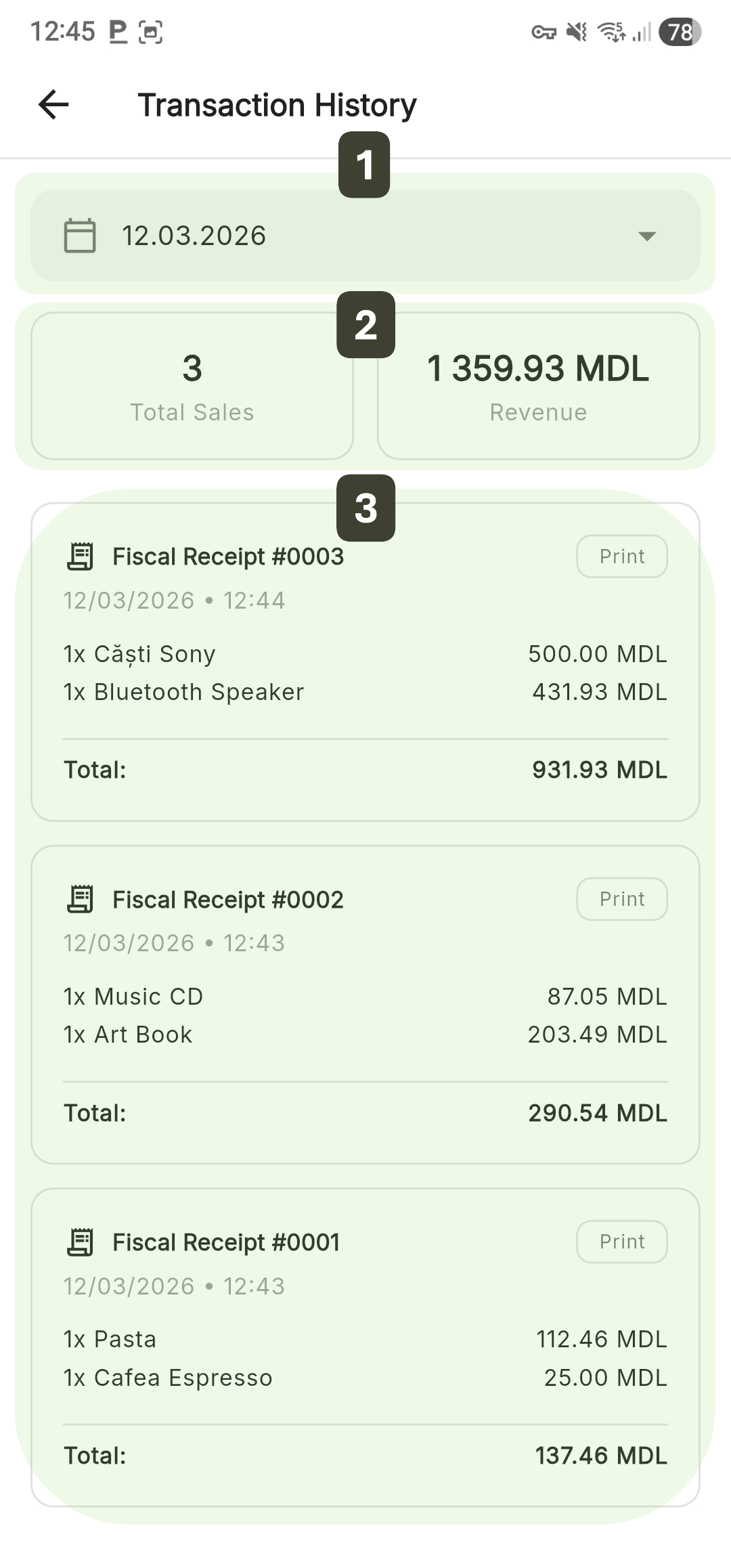
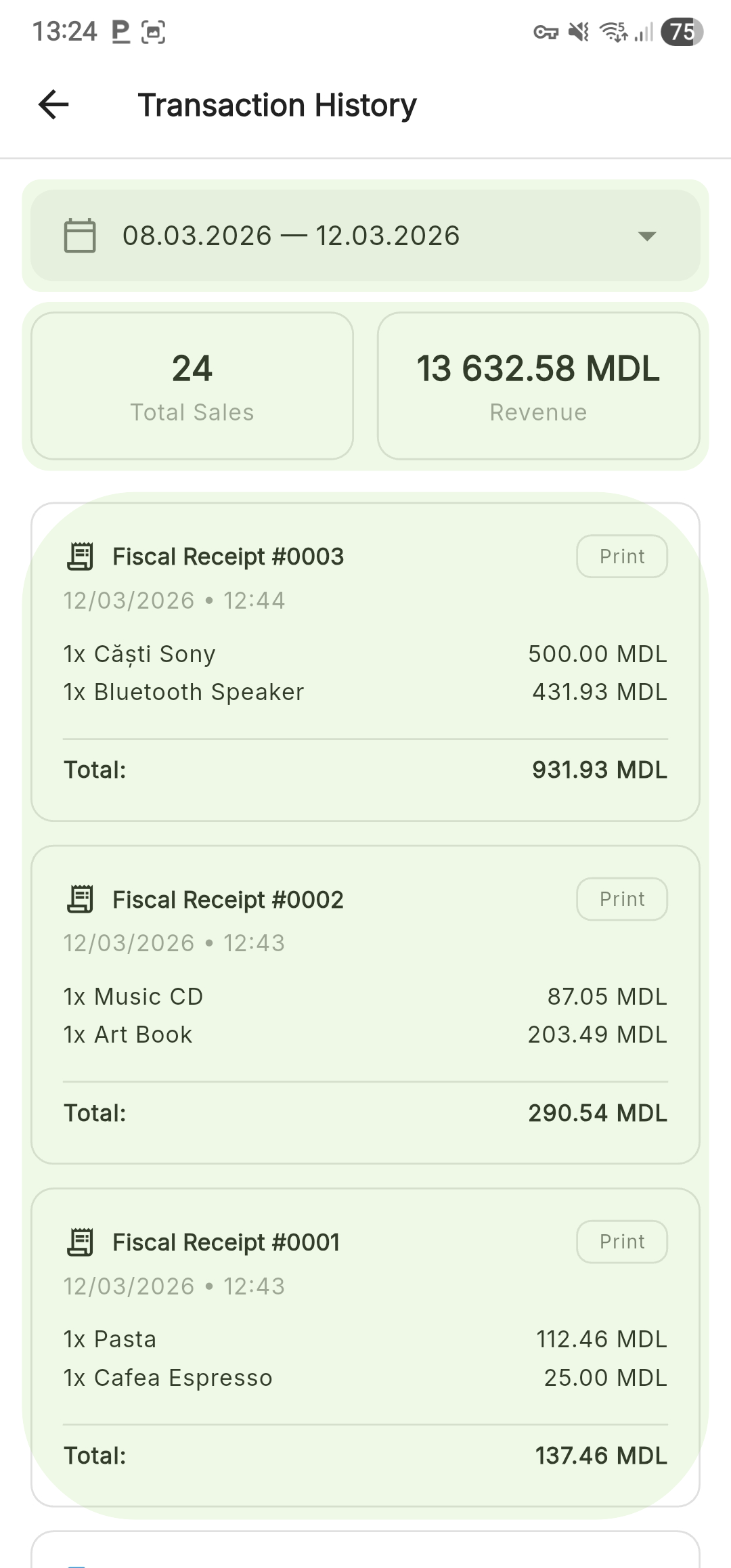
The screen is designed to provide complete sales traceability, organized into three distinct functional zones:
| Zone | Description |
|---|---|
| 1. Period Filter | Date range selection |
| 2. Summary | Cards with totals (number of sales, revenue) |
| 3. Transaction List | All sales from the selected period |
Period Filtering
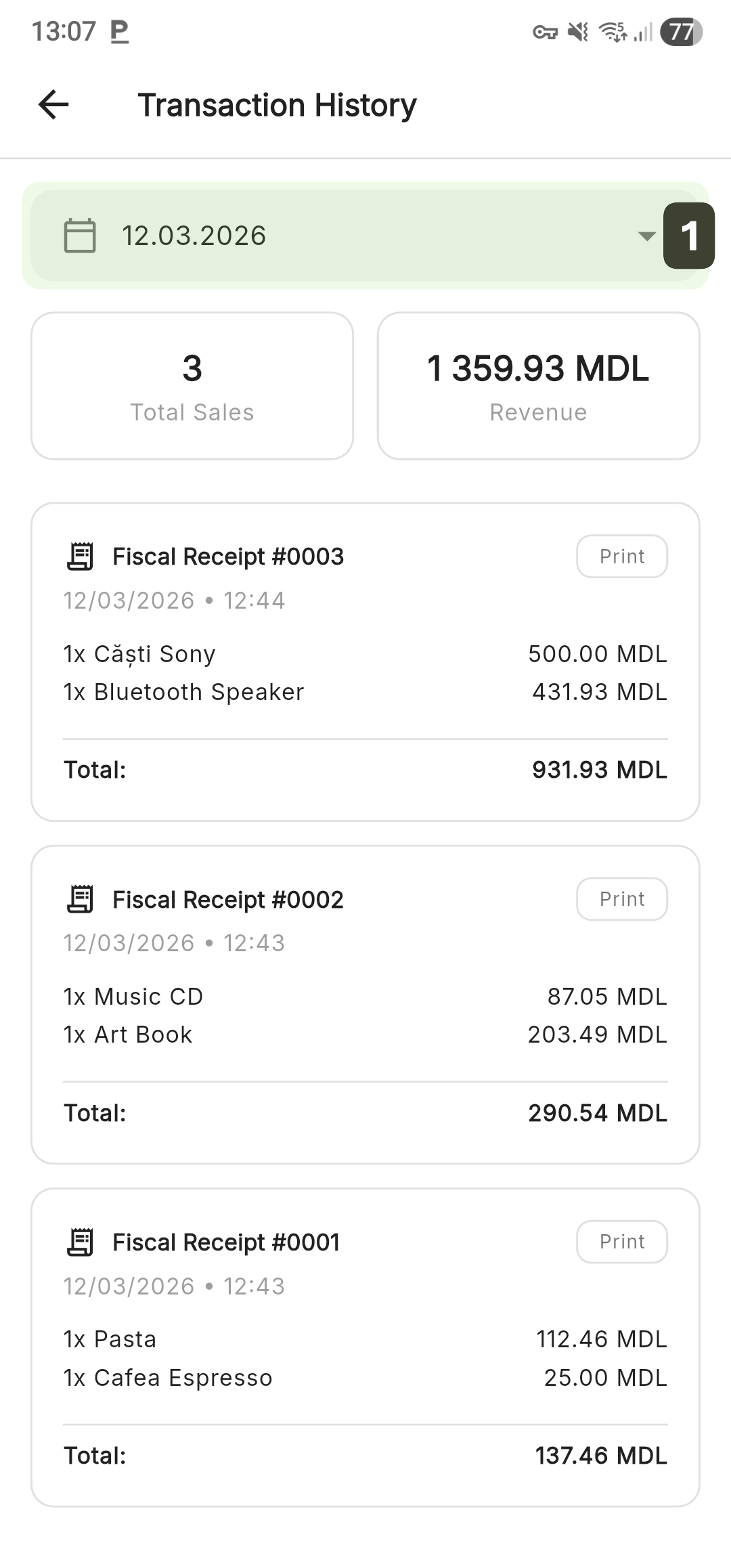
To view sales from a period other than the current one, use the date selector located at the top of the screen:
- Tap on the date field to open the selection interface
- Select the Start Date and End Date
The system will highlight the selected days and the period between them. - Press the Save button
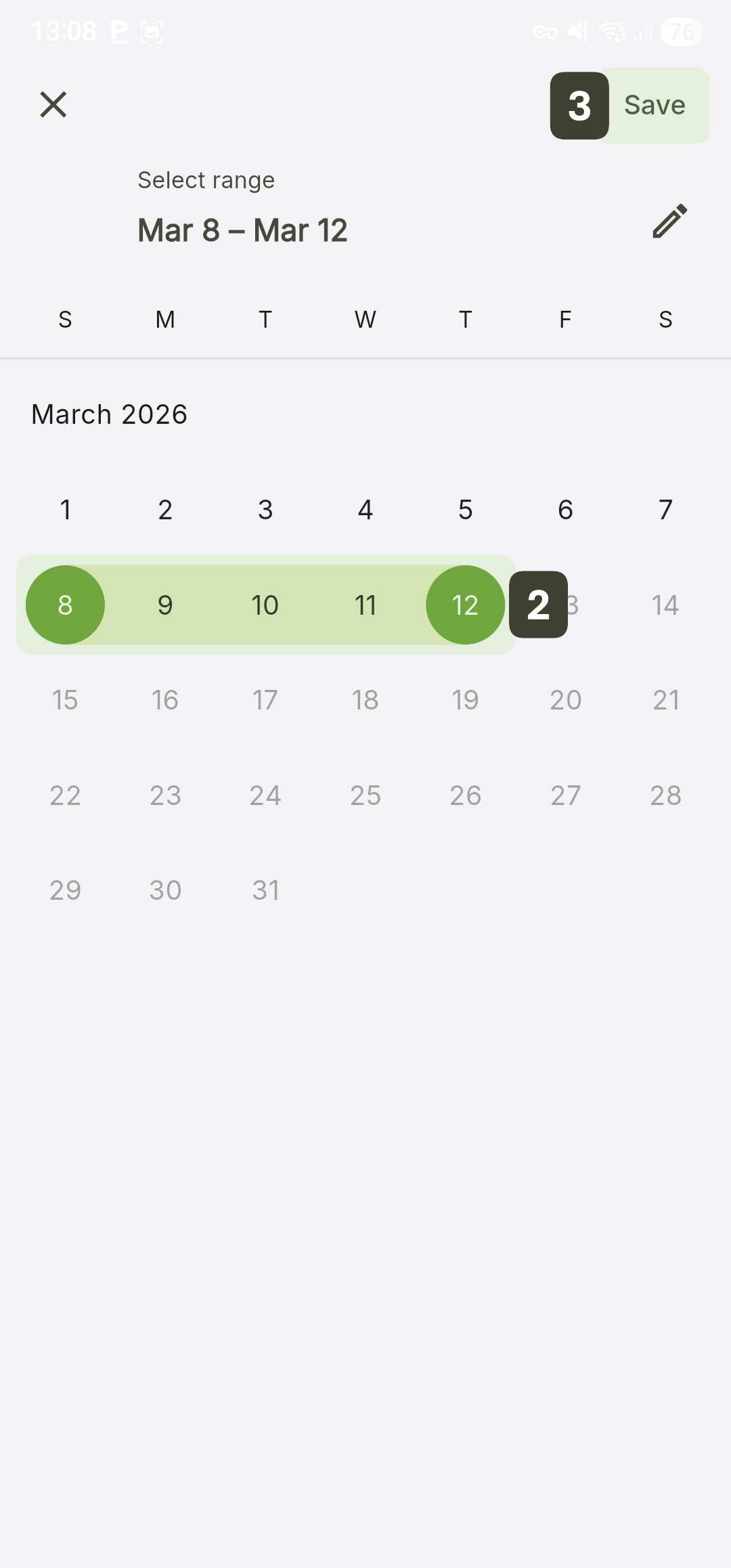
Use the pencil icon to change the default monthly range to any other period. This option allows you to manually modify dates to quickly access information from previous months or years, without being limited by the standard display settings.
Updating Results: After saving, the system automatically returns to the transaction list, updating the summary cards and history according to the new period.
Summary Cards
Just below the period filter, the system displays two informational cards that provide an overview of financial performance for the selected interval:
| Card | Information |
|---|---|
| 1. Total Sales | Total number of completed transactions/fiscal receipts |
| 2. Revenue | Total amount collected |
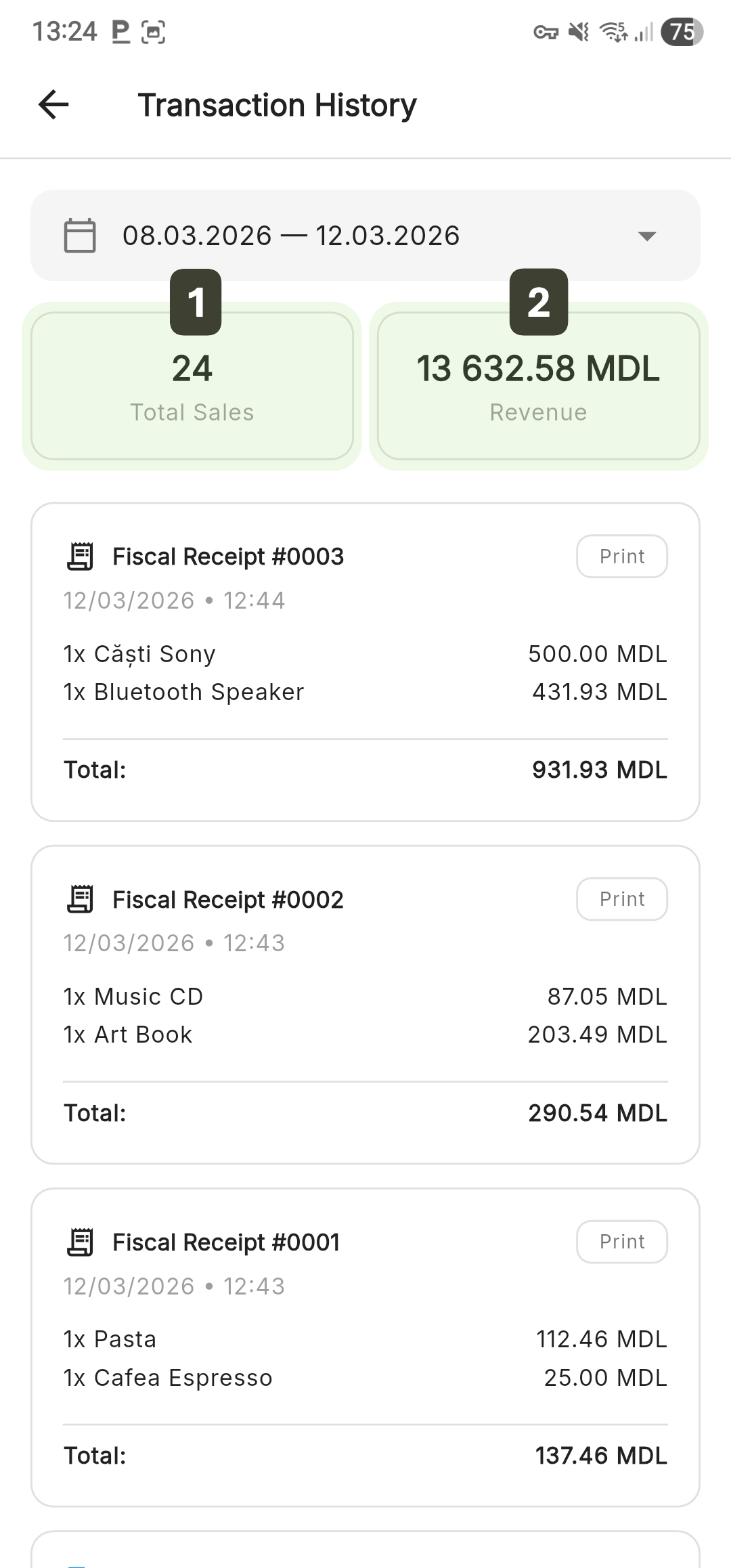
The values on these cards are automatically recalculated every time you change the time interval in the calendar and press the Save button.
Transaction List
All sales are displayed as individual cards, organized chronologically and automatically grouped by day for quick visual identification. Each transaction displays:
- Receipt number
- Exact Date/Time of issuance
- Product list in the transaction, indicating quantity, name, and price
- Total value
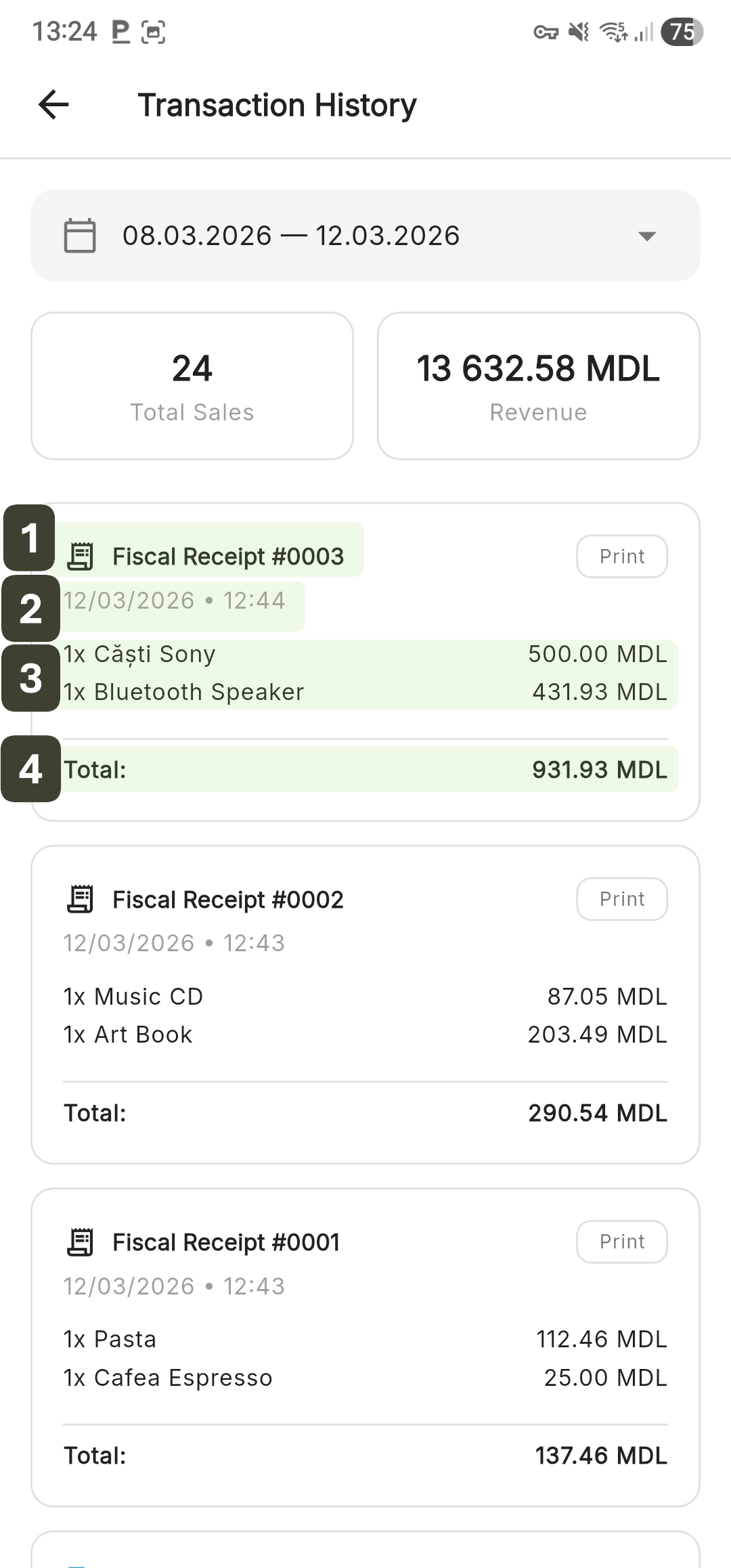
Transactions from the current day are displayed first, to see sales from previous days you need to scroll down in the list or modify the period filter.
Reprint Receipt (Duplicate)
The reprint function allows to obtain a copy of any previously issued fiscal receipt, directly from the history screen. To reprint a receipt from a previous transaction:
- Locate the transaction in the list
- Press the Print button
The duplicate receipt is sent to the configured printer - Immediately after the print command is completed, the button changes its state to Duplicate printed
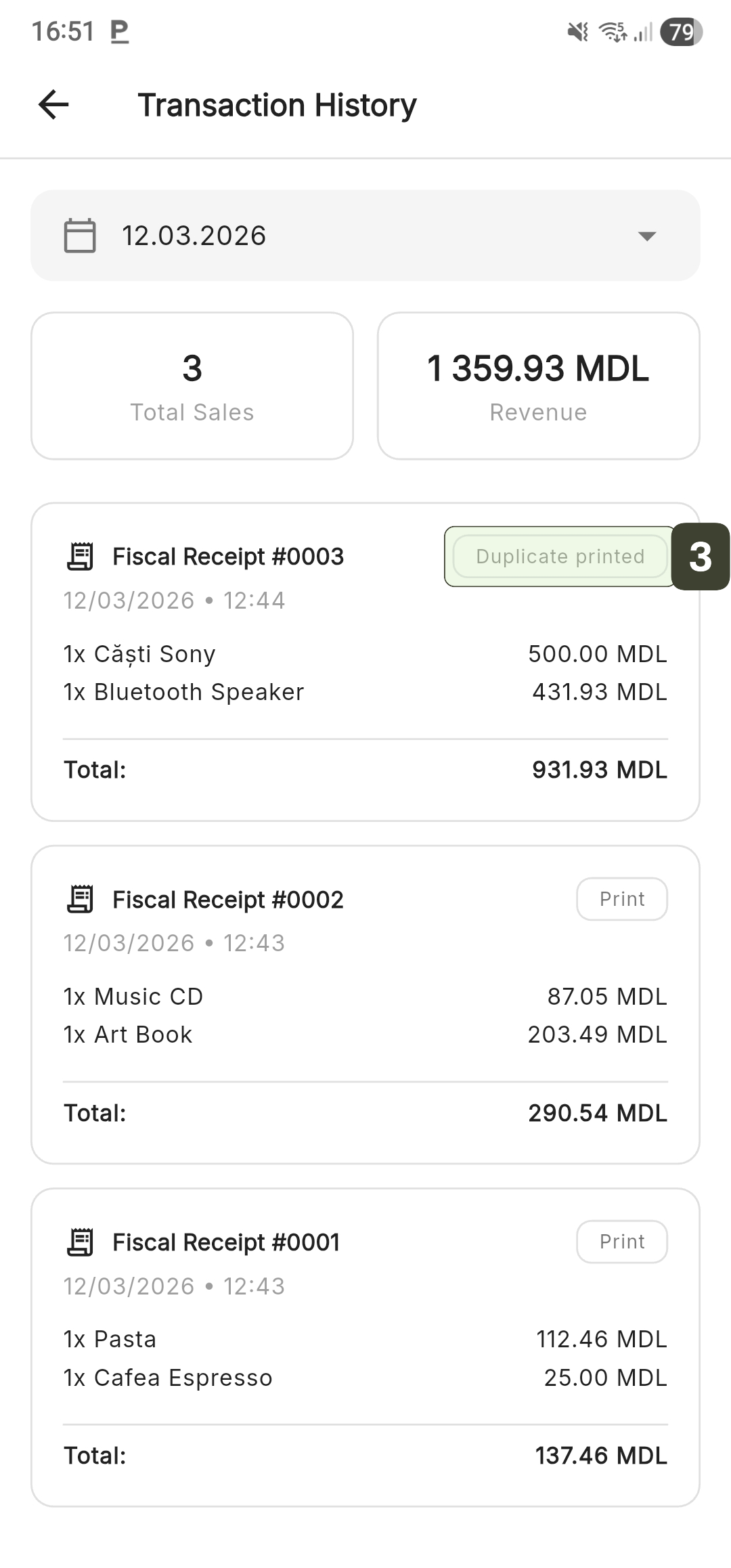
The receipt reprinted from the history is a DUPLICATE, not an original fiscal receipt. It will be marked accordingly on paper.
Manual Synchronization (Pull-to-Refresh)
This function allows forcing an update of the local database with information stored on the central server, ensuring data consistency between multiple terminals. To manually synchronize transactions with the server:
- Performing the gesture: Place your finger in the list area and pull the screen from top to bottom (pull-to-refresh)
- Synchronization: The system synchronizes data with the server
A circular icon (refresh arrow) indicates that the system is actively communicating with the server.
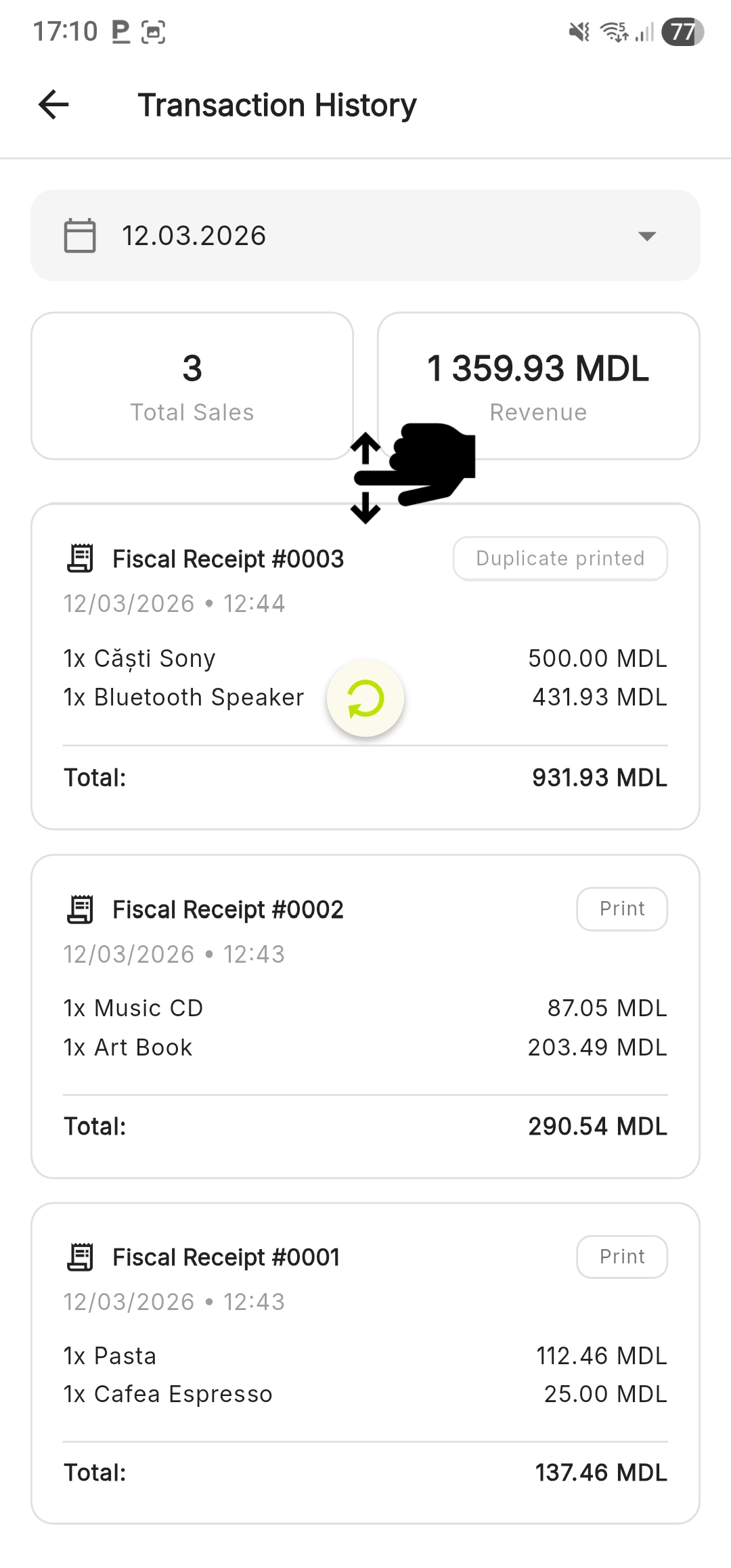
Use pull-to-refresh if you have made sales on another terminal and want to see the updated data.