Price check
The customer asks how much something costs, or whether you still have it in the warehouse. Instead of putting the product in the cart and taking it out again, you check it here: you see the price, the VAT rate and how much is in each warehouse. The check doesn't put anything in the cart and doesn't change anything.
Where to find it: More → Price check.
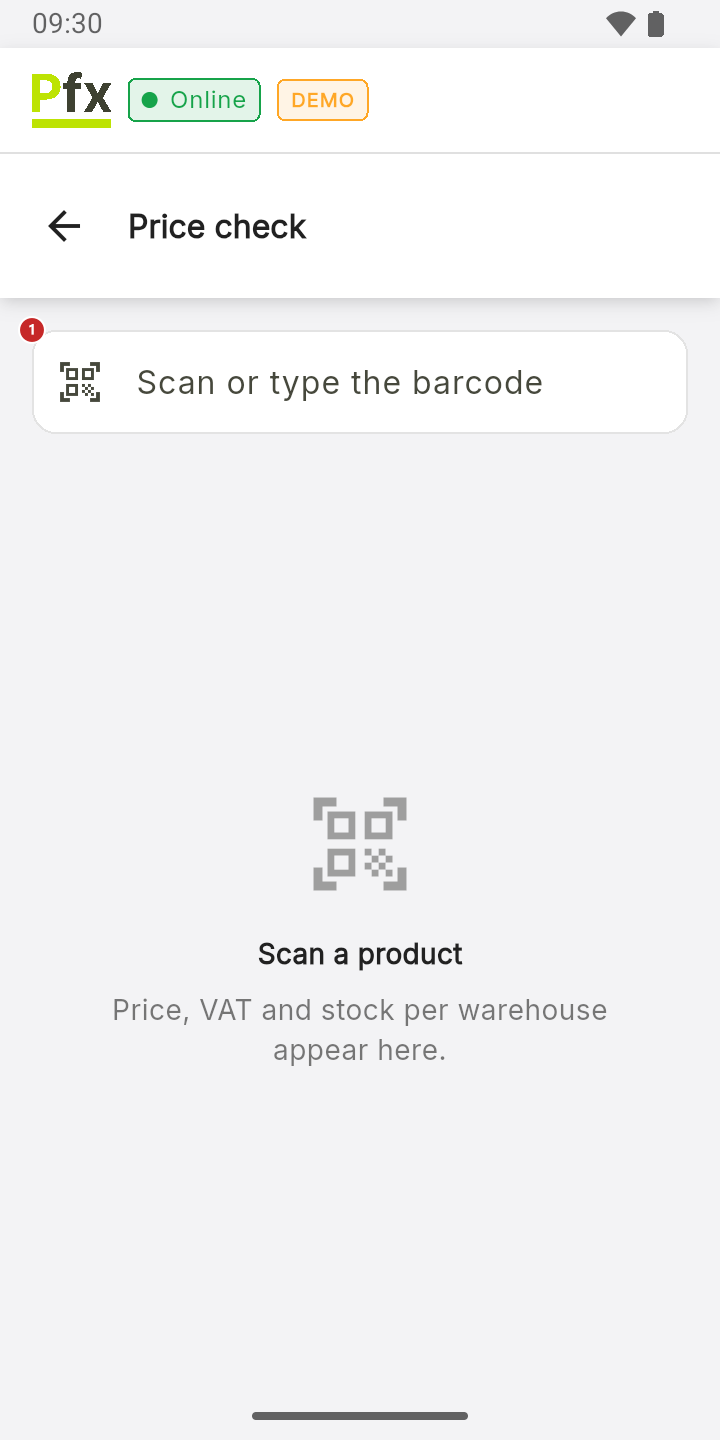
1 here you scan or type the barcode
To check a product
Scan the barcode with the register's scanner, or tap the field, type the code and tap the magnifier on the keyboard. The field clears by itself, so you go straight on to the next product.
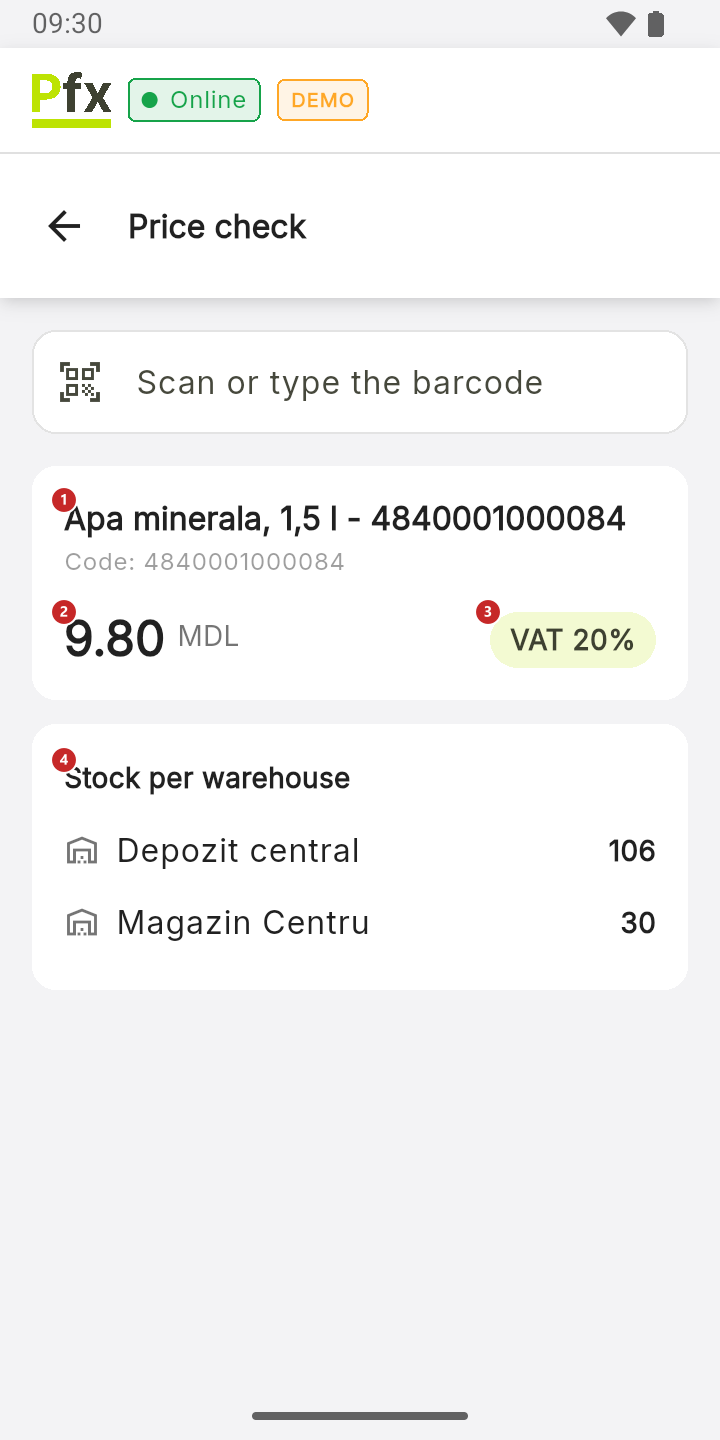
1 the product and its code · 2 the selling price · 3 the VAT rate · 4 how much is in each warehouse — in red, where there's nothing left
What can trip you up
“Product not found”. The register searches only by the whole barcode, not by name, SKU or PLU. The message also appears for a product taken off sale: check in Catalog whether it shows Inactive. If the product is missing altogether, check in the panel that its barcode is filled in; after a sync it shows up on the register too.
“Product without stock tracking.” The company doesn't keep stock for this product, so the register has no figure to show.
“No stock in warehouses.” The product is tracked, but right now it isn't in any warehouse.
Related pages
- Catalog and VAT rates — the products on the register.
- The cart — the stock warning on the cart rows.