Special Operations
Selecting and Deleting Products from the Cart
Managing entry errors or a customer's decision to drop certain products is done through quick swipe gesture or multiple selection.
Individual Deletion
To efficiently remove a single product from the current list:
- Identify the product in the Cart screen list
- Swipe the product row from right to left
No additional button press is required; the swipe action completes the removal process.
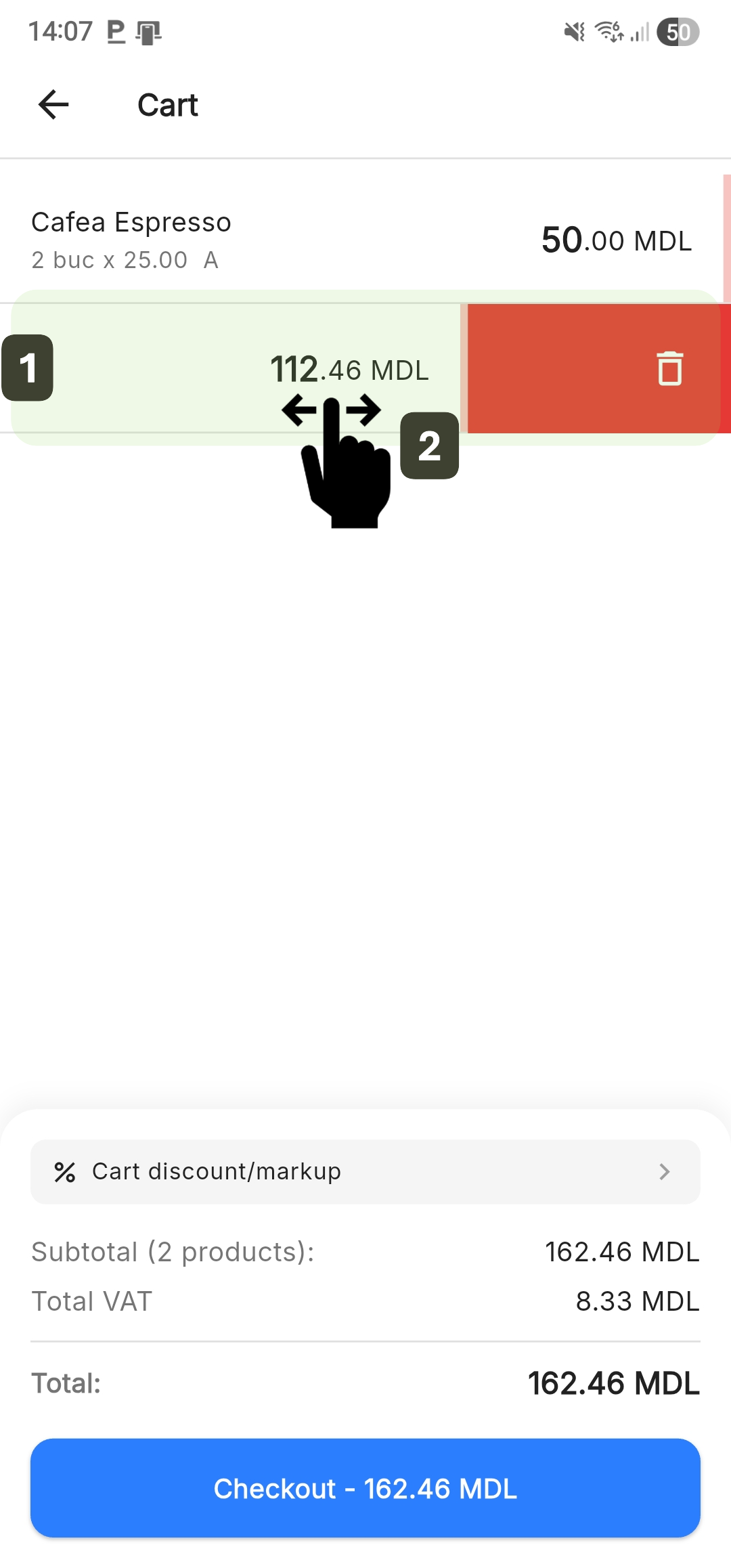
If a product was accidentally deleted by swiping, it must be manually re-added from the product catalog.
Deleting by Selection
This function is useful for partially clearing the cart without emptying it completely:
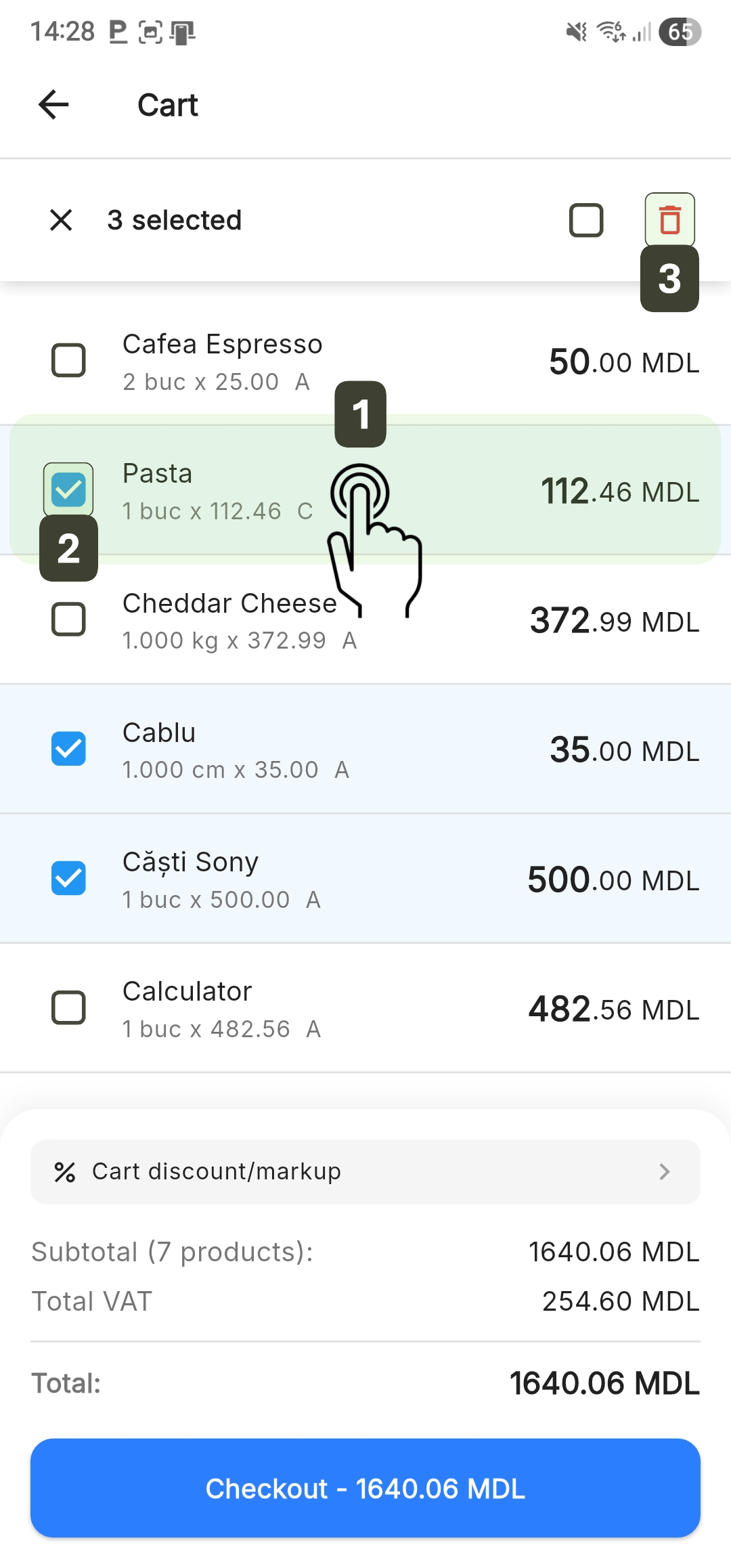
- Activate selection mode by long pressing on an item
- Checkboxes will appear. Select the items you wish to remove
- Press the Delete button to remove the selected products
Emptying the Cart
Use this feature if the customer abandons the purchase before payment:
- Activate selection mode by long pressing on an item
- Press the Select All checkbox located in the top bar
All products in the list will be automatically selected - Press the Delete button to empty the cart
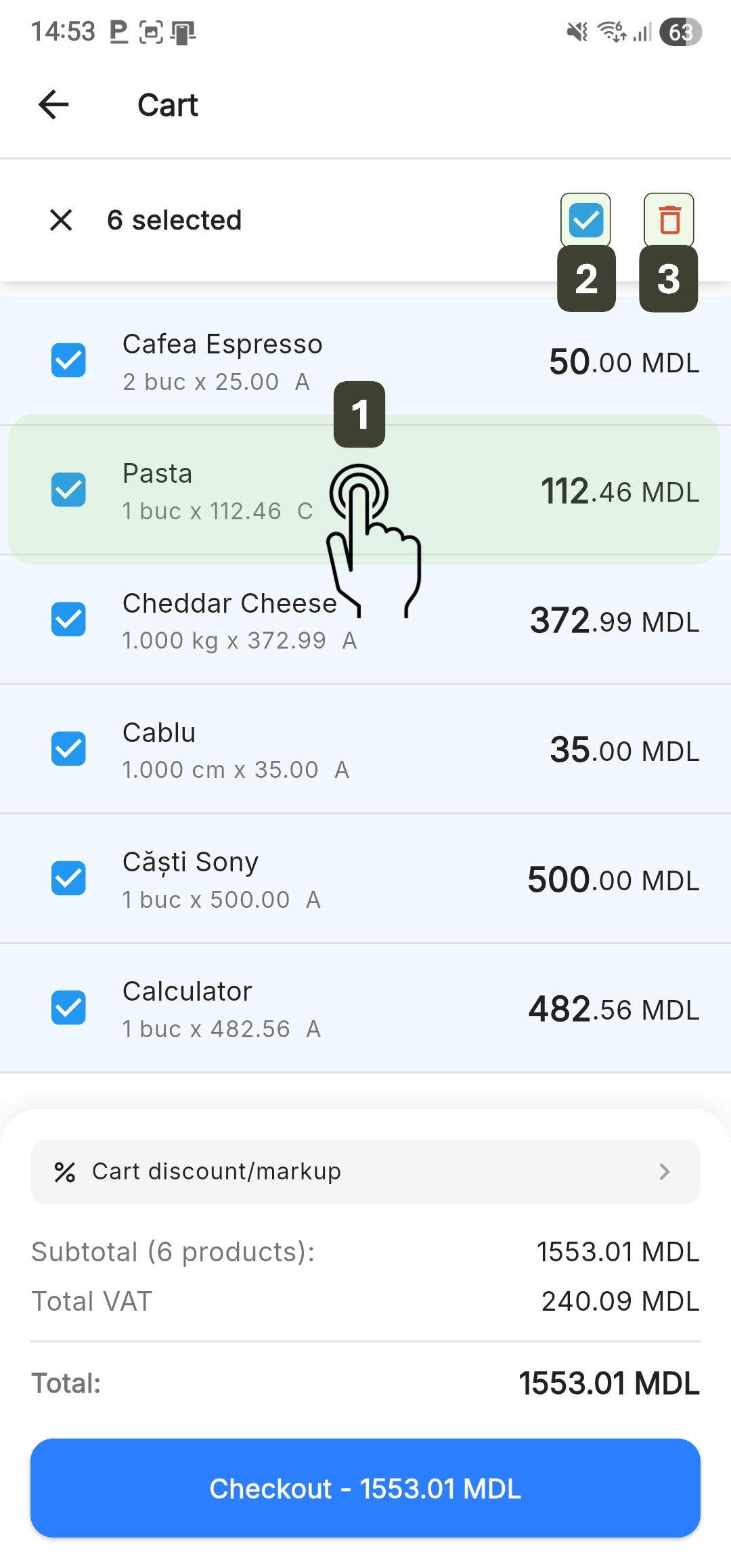
Emptying the cart deletes ALL items. This action is irreversible.
Modifying the Quantity
Use this method to enter an exact number or large quantities without repeated tapping:
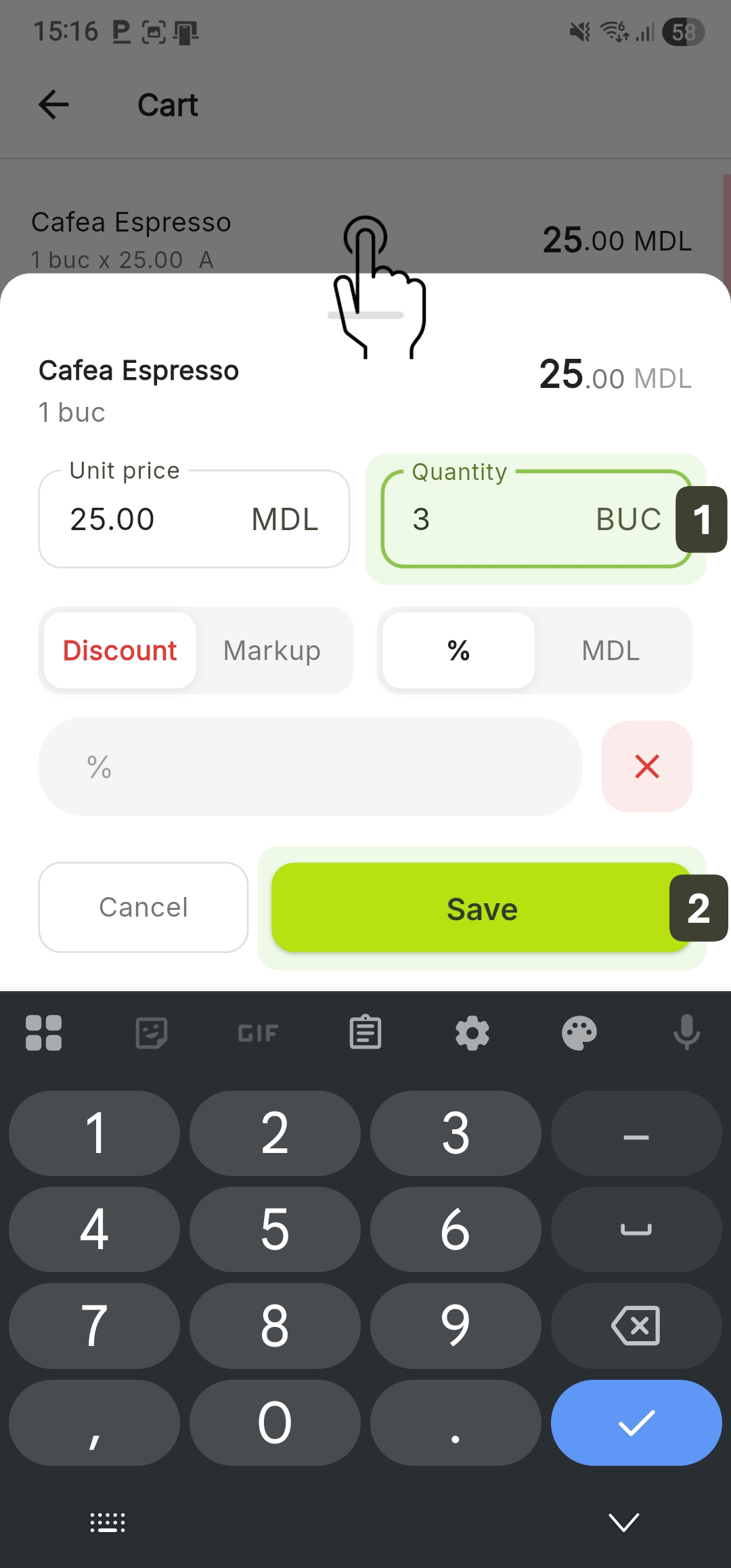
- On the Cart screen, tap directly on the desired item in the list
- In the editing window, type the desired value in the Quantity field
- Press Save to update
After saving, the product will appear in the list with the new quantity and recalculated price
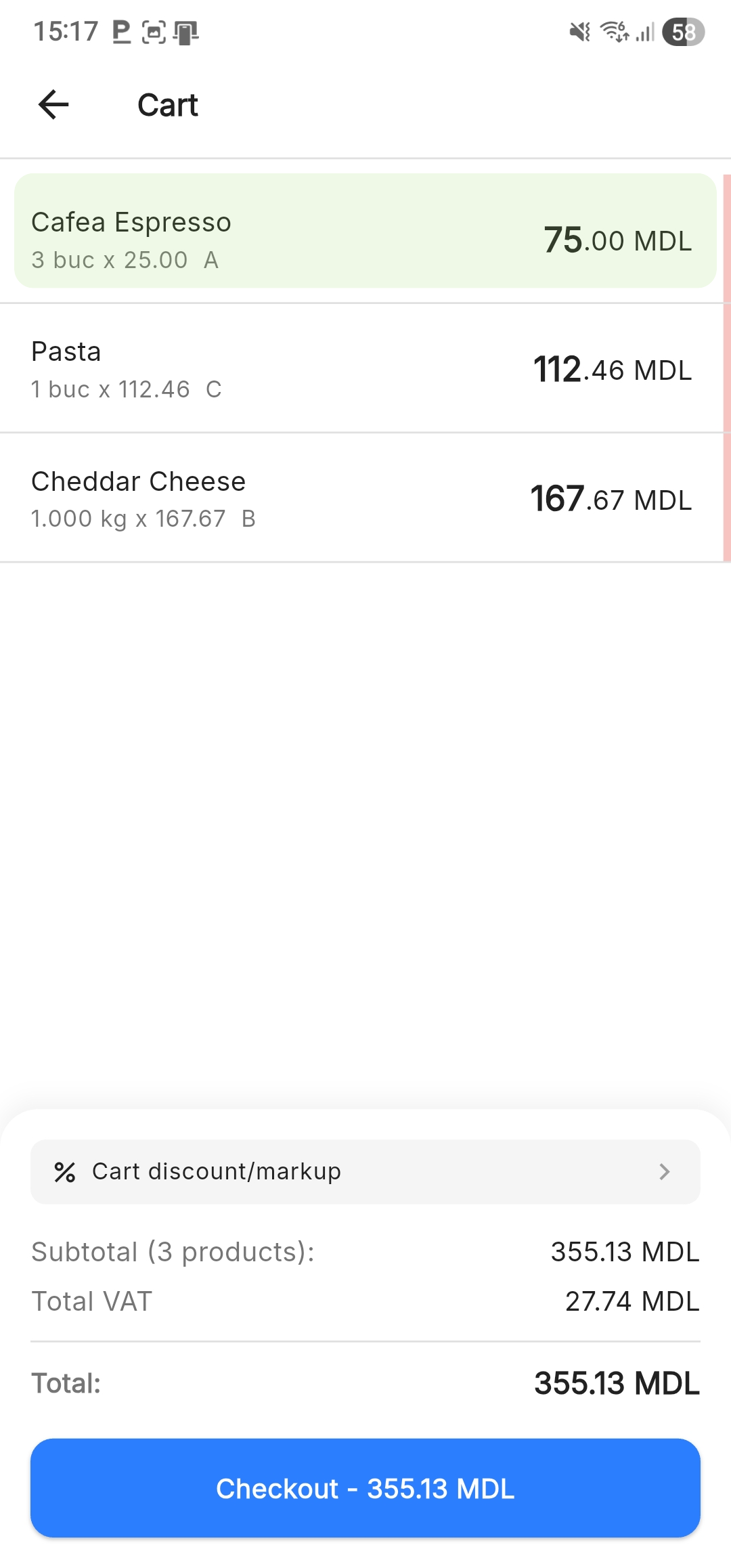
You can increase the quantity by scanning the product's barcode multiple times consecutively. Each scan adds +1 to the quantity.
Price Modification
This function allows adjusting the selling price for a specific product, strictly for the current transaction, without modifying the base price in the general catalog.
- On the Cart screen, tap directly on the desired item in the list
- In the editing window, type the desired value in the Unit price field
- Press Save to update
After saving, the product will appear in the list with the modified price and recalculated total
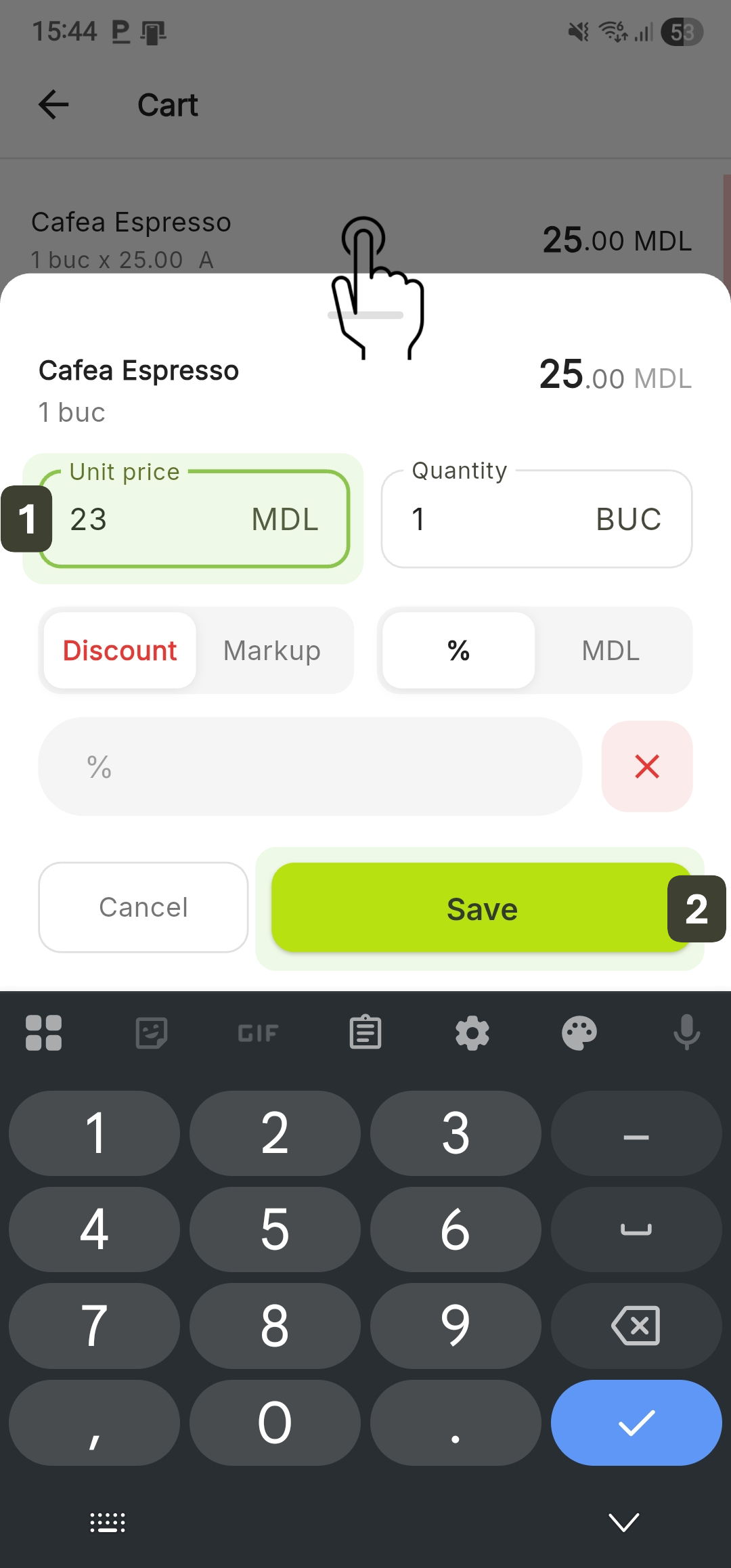
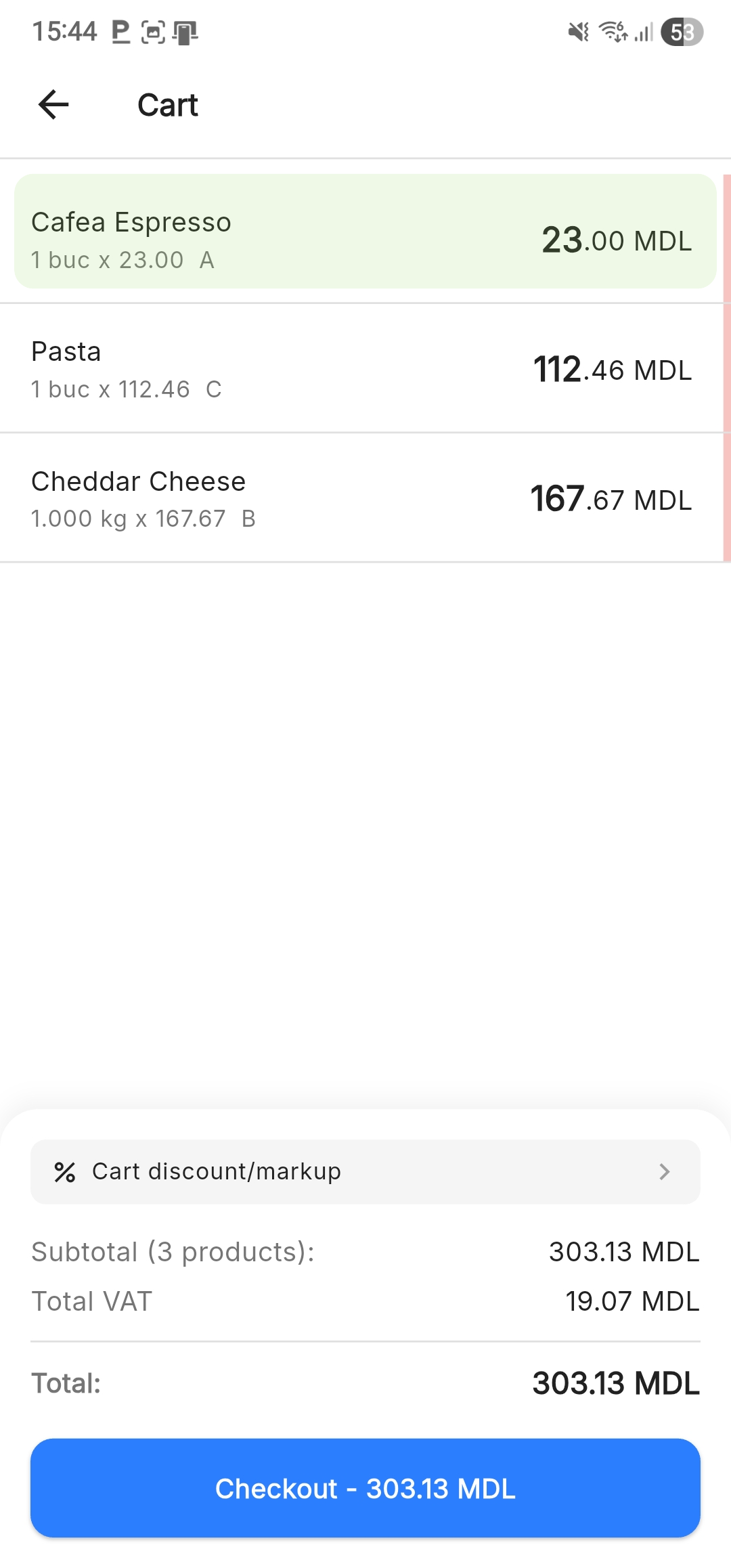
Depending on your system configuration, this operation may require Administrator rights or an authorization code.
Error Types and Solutions
| Error | Solution |
|---|---|
| Wrong product in cart | Swipe the item to the left to delete it individually or use Select All (Long press on product -> Delete) |
| Wrong quantity | Tap on the product name in the cart, enter the correct value in the Quantity field, and press Save |
| Wrong price | Tap on the product -> Modify the Unit price field -> Save |
| Incorrect discount/murkup | Tap on the product and use the [X] button to remove the adjustment |
| Purchase refusal | Use Select All -> Mark checkbox in the top bar -> press the Trash icon to empty the entire cart |
Correction Flow
If you notice an error before issuing the fiscal receipt, follow this structured procedure to correct the data without restarting the entire sale.
Step 1: Identify the product that needs modification directly in the Cart screen
Step 2: Choose the appropriate action:
- For deletion: Activate selection mode via Long Press on the product, check the items, and press the red Trash icon
- For editing: Tap on the product to open the editing window
Step 3: Make the modification:
- Quantity: Modify the value
- Price: Modify the unit price
- Discount/Markup: Enter the percentage or fixed value, or press the [X] button to remove an existing adjustment
- Press Save to update
Step 4: Check at the bottom of the screen that the Subtotal, Total VAT, and especially the Total values have been correctly updated according to the changes made
Step 5: Once the data is correct, press the Checkout button. The system will automatically redirect you to the payment screen