Authentication
Login Screen
After terminal activation, each time the application starts you will see the authentication screen. Access is granted by entering your personal PIN code.
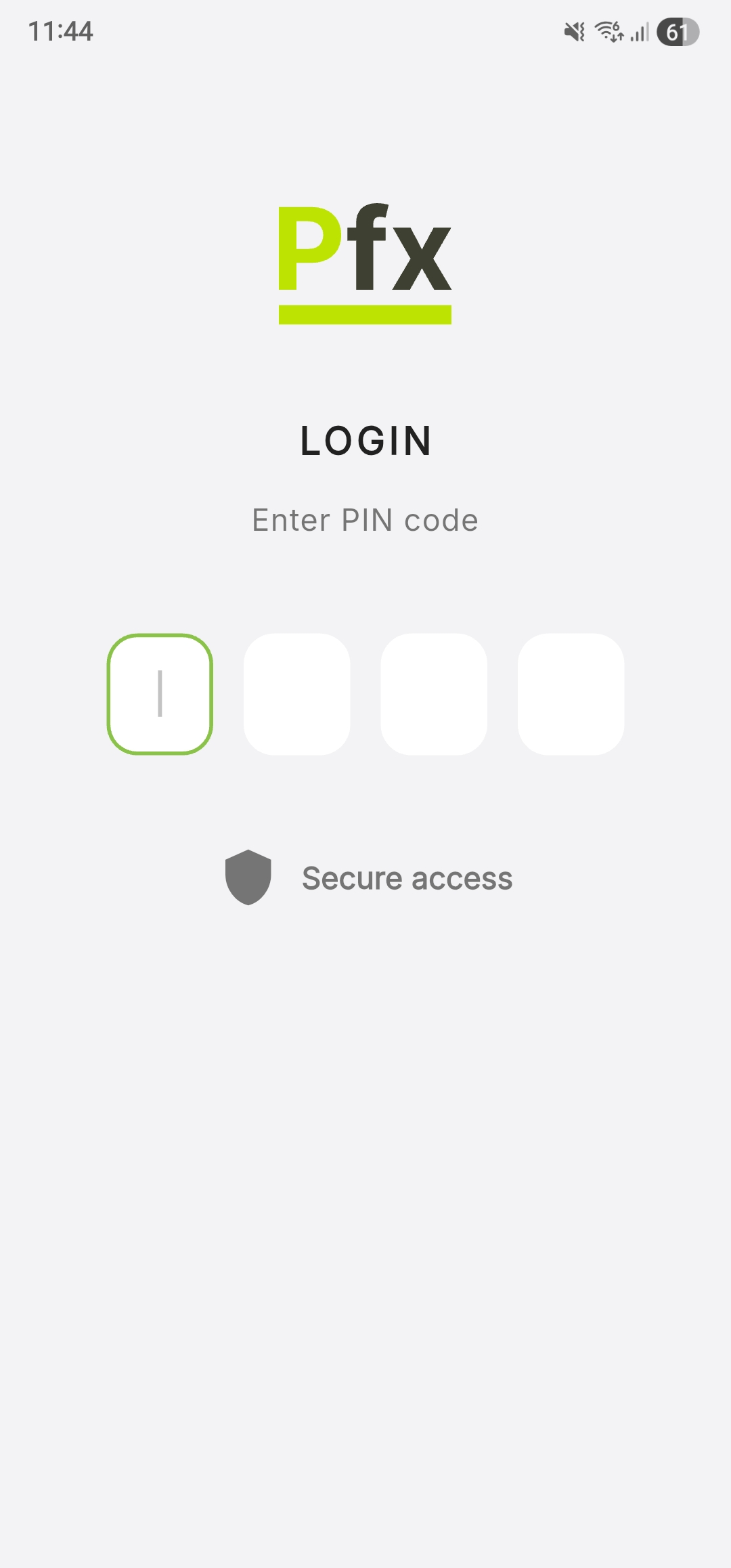
User Identification
System access is granted exclusively via PIN code:
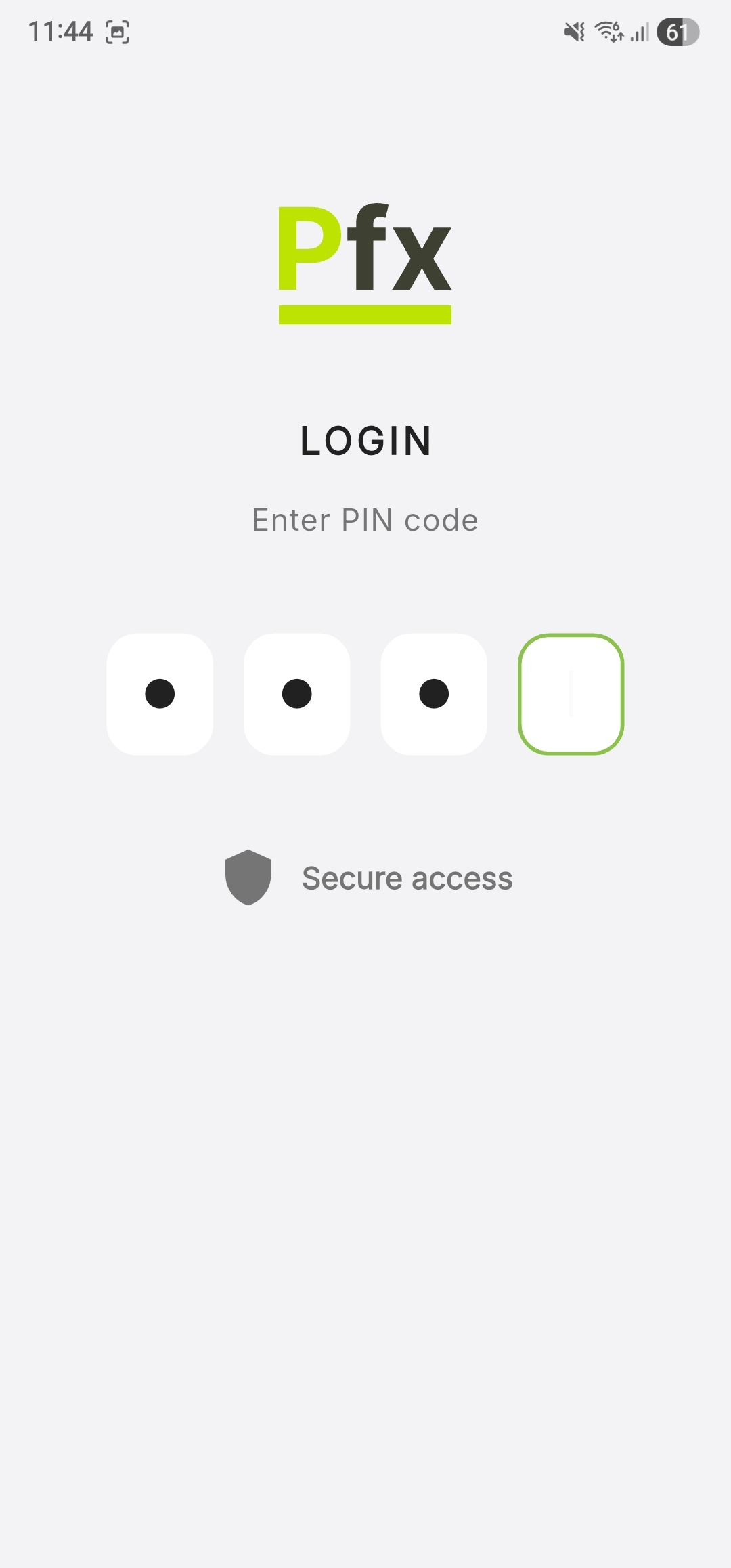
- Enter the PIN code (4 digits) using the on-screen numeric keypad
The system logs you in automatically after the last digit is entered, without requiring additional confirmation. - If the PIN is incorrect, an error message appears, and you can re-enter it correctly
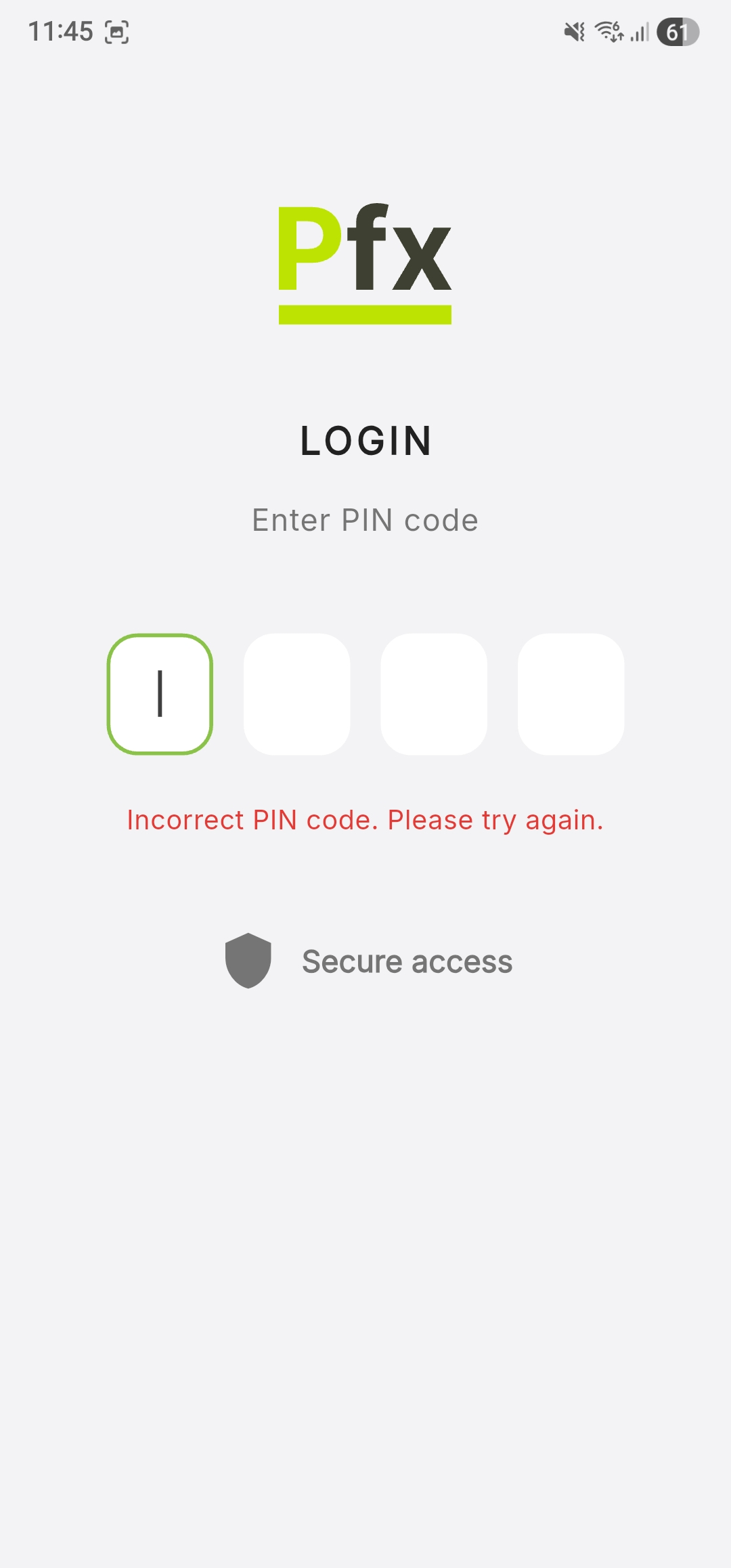
Make sure you enter the PIN correctly. If you have forgotten your PIN, contact the manager for a reset.
Granting Android Permissions
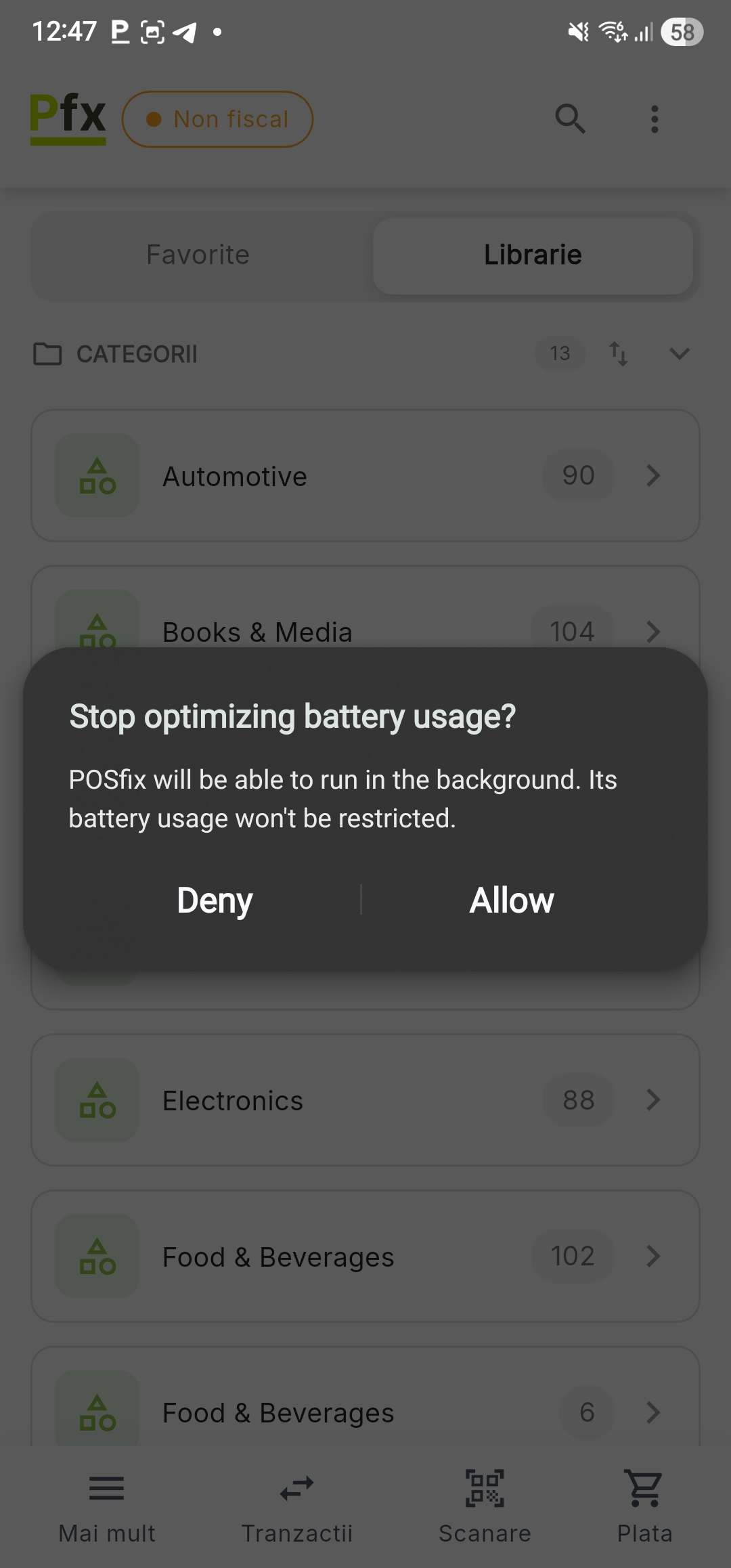
At the first launch, you need to manually grant the permissions requested by the operating system to allow the application to interact with the POS hardware:
Battery Optimization: Select Allow to prevent the system from automatically closing the application.
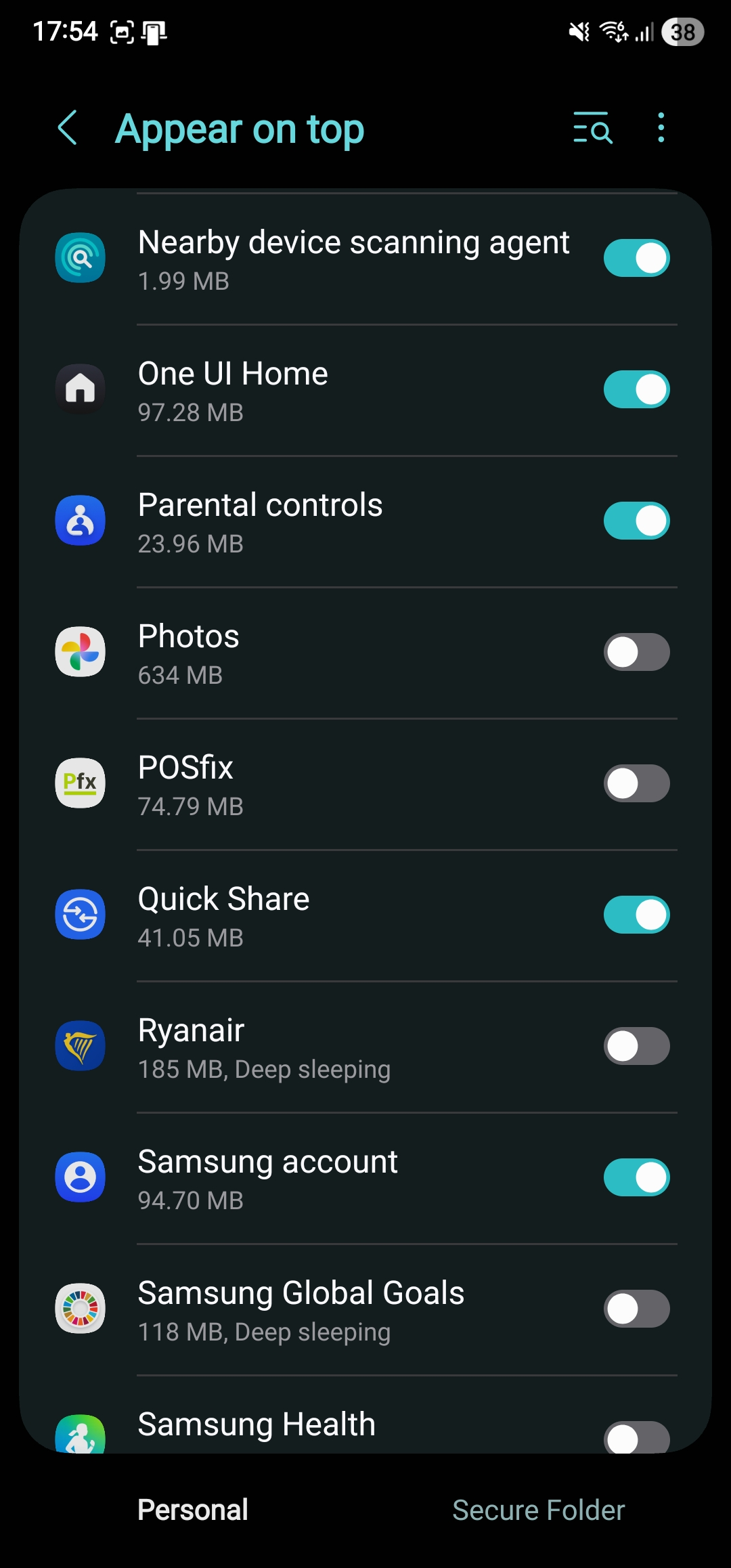
Appear on Top: Locate POSfix in the settings list and enable the toggle.
This permission is required to keep the sales interface active.
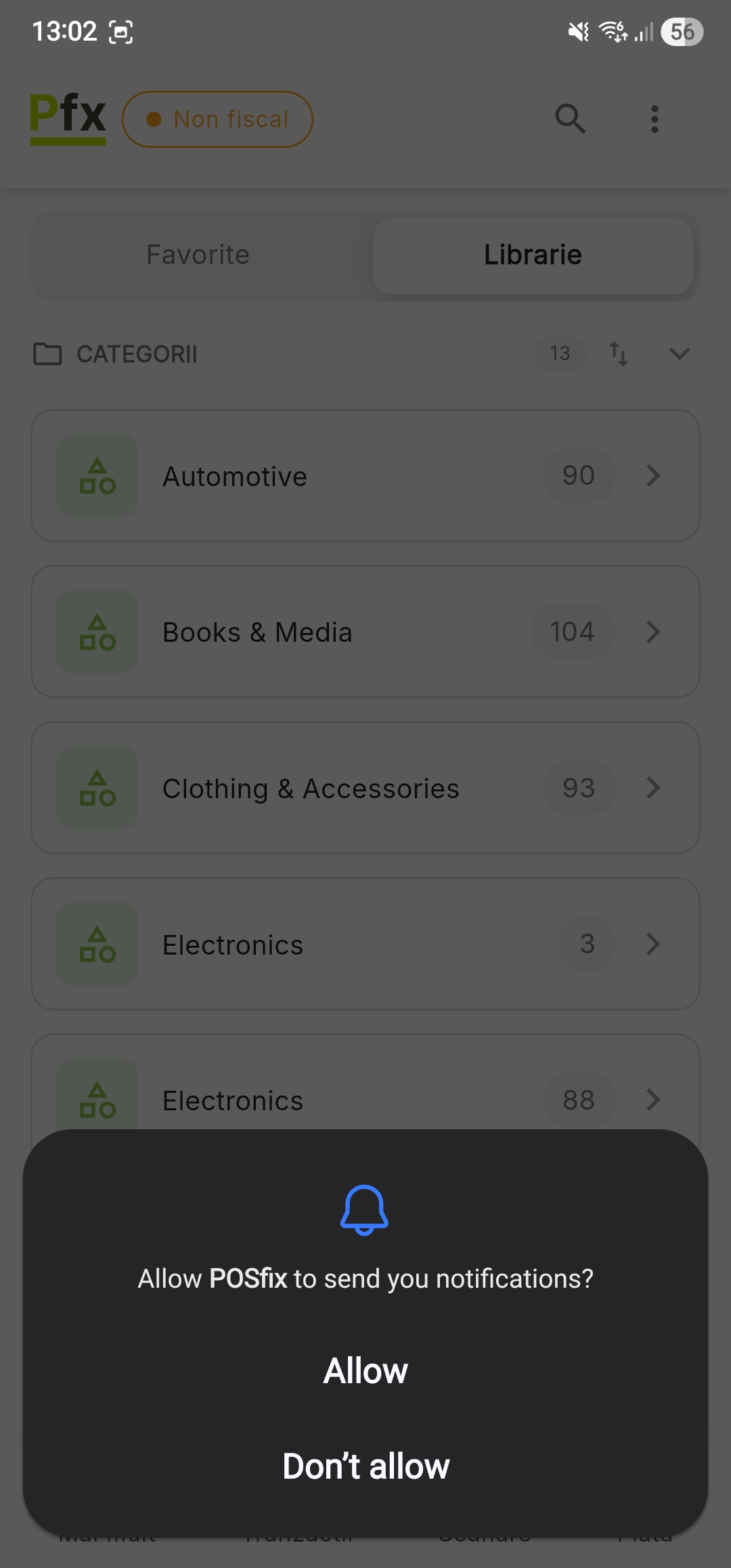
Notifications: Select Allow to ensure you receive fiscal and system alerts.
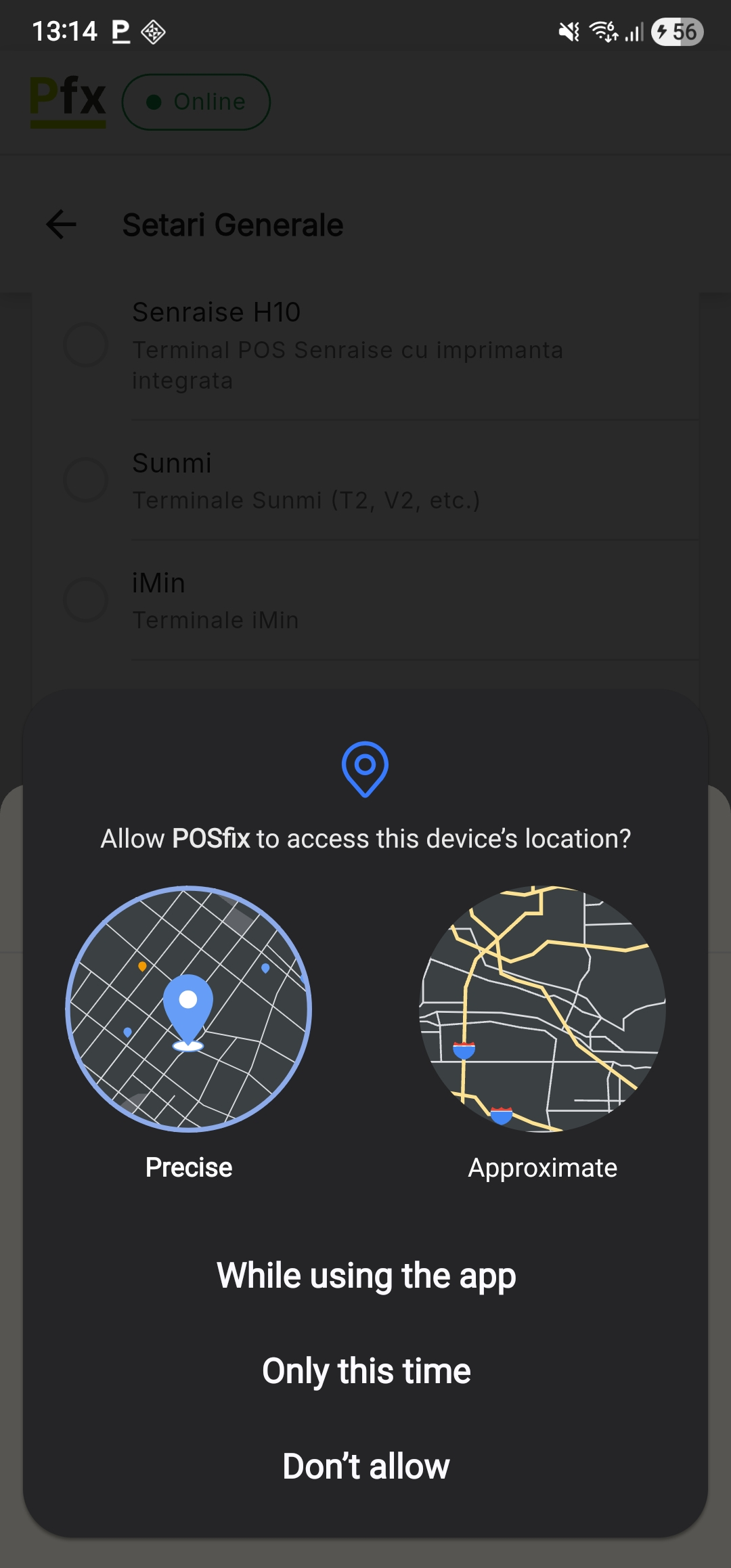
Location: Select Precise and then choose the While using the app option.
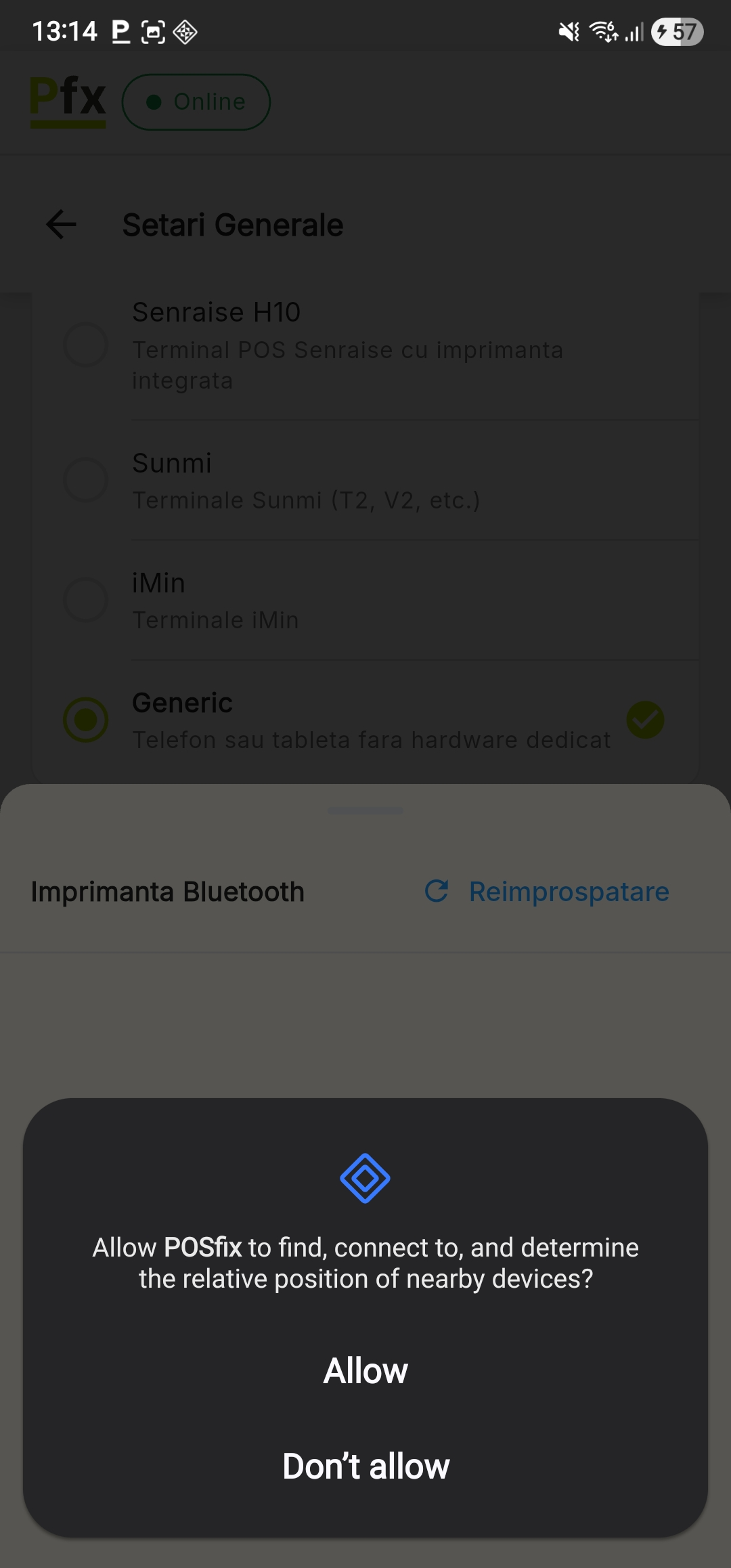
Nearby Devices: Select Allow to enable Bluetooth peripheral connections (printers/scanners).
Checking the Fiscalization Status
After authentication, it is mandatory to check the status indicator in the upper left corner:
Non fiscal: Indicates that the terminal is activated but has not yet received fiscalization confirmation from SFS (State Fiscal Service).
Wait for the indicator to turn green before starting official sales.
Online: The terminal is fiscalized and ready for operation.
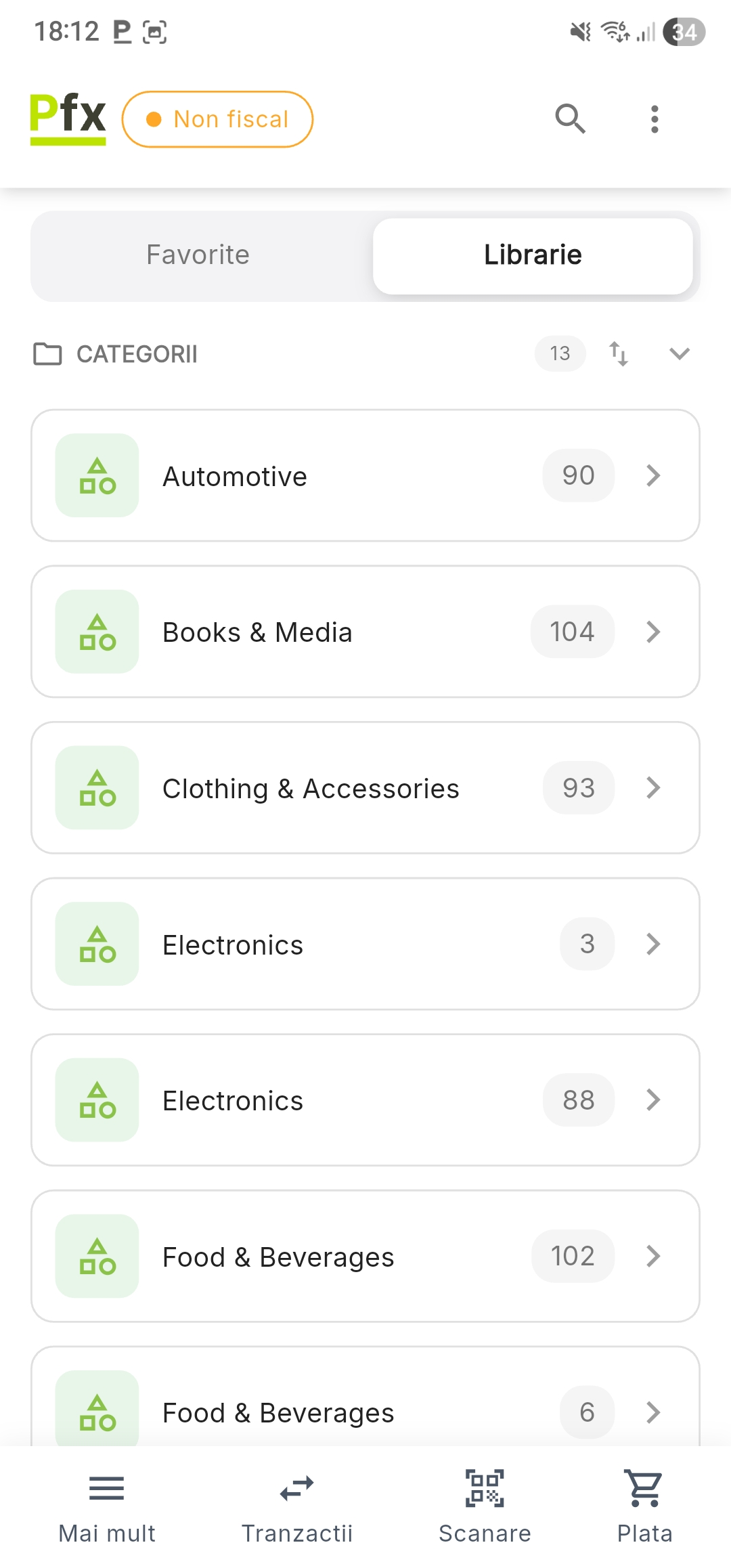
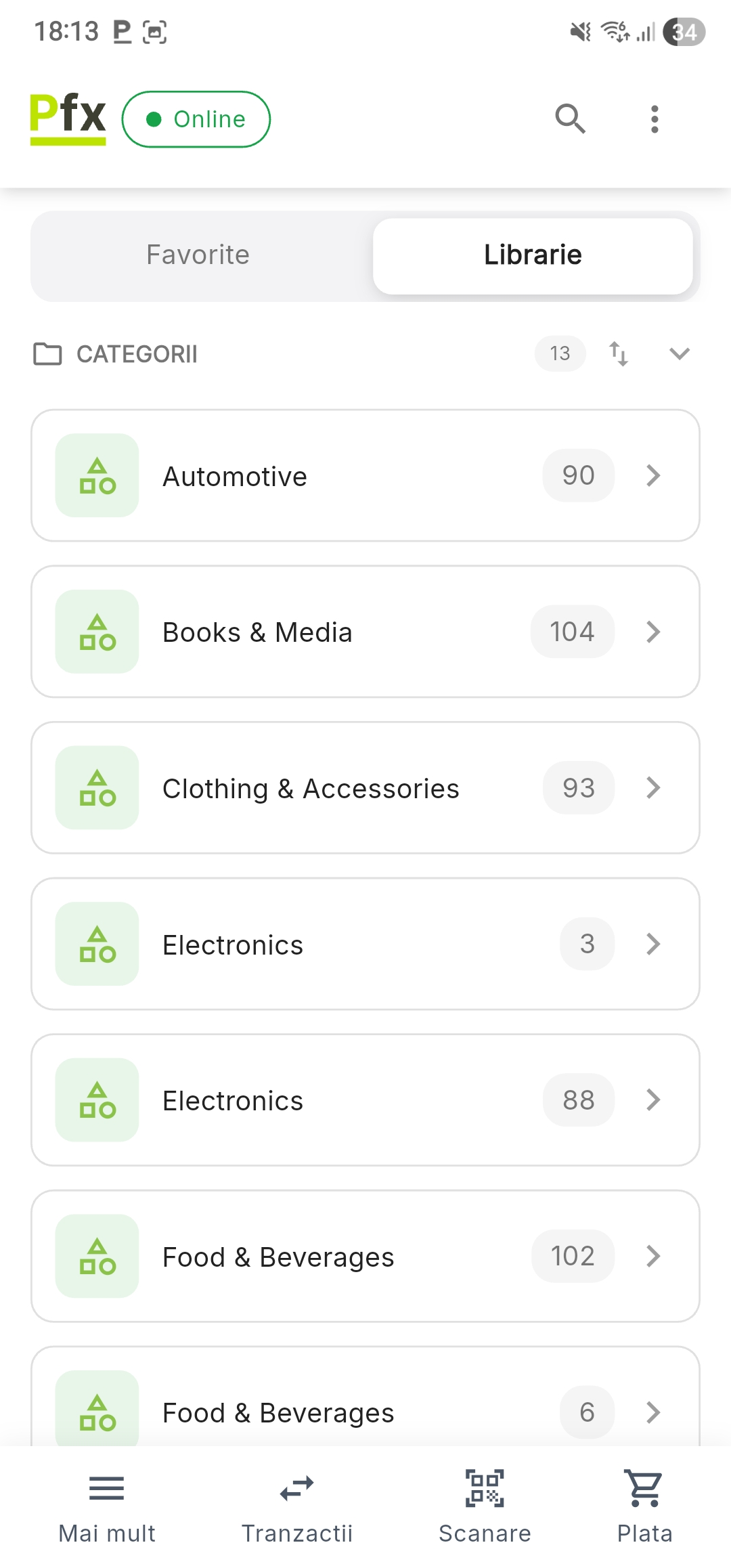
The application intentionally blocks receipt generation in Non fiscal mode to comply with the fiscal legislation of the Republic of Moldova.
User Roles
| Role | Permissions |
|---|---|
| Cashier | Sales, payments, fiscal reports |
| Administrator | Cashier role + product management, categories, VAT, settings |
The user role determines which functionalities are accessible. The cashier has limited access, while the administrator has full control over the system.
Switching Users
To switch users during a session:
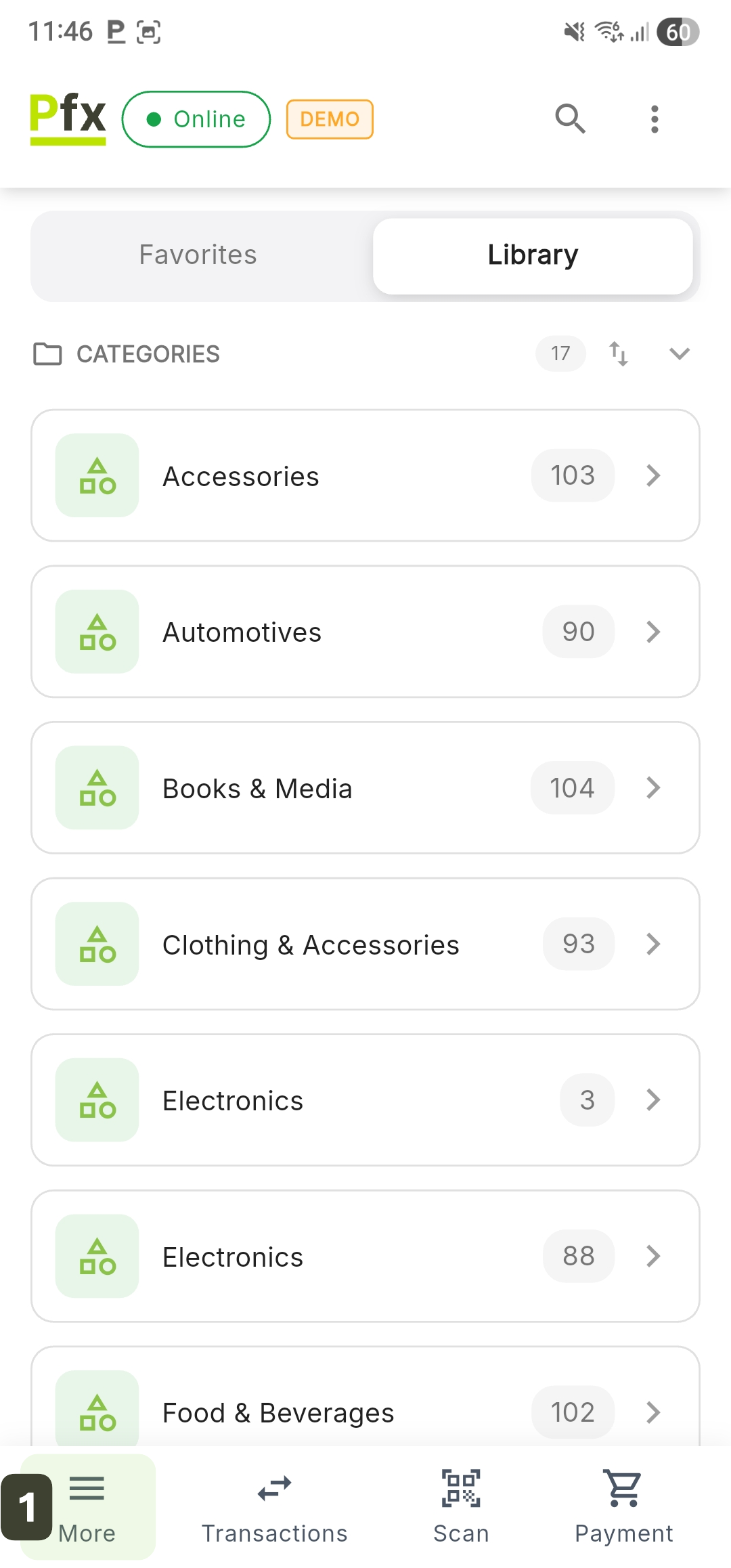
- Press the More button in the bottom navigation bar
- Swipe down to the ACCOUNT section and press the Logout button
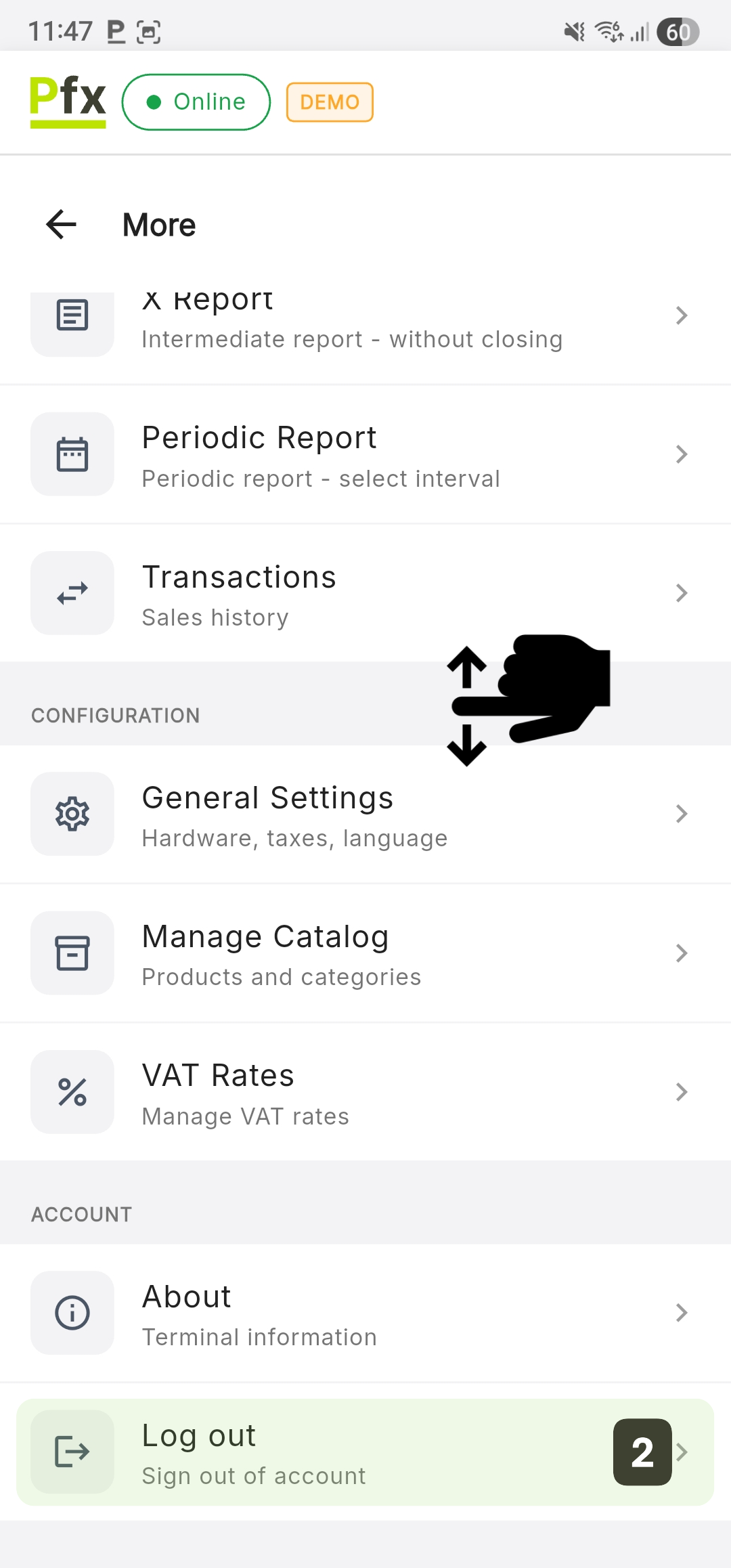
- Confirm the action by pressing Logout again in the pop-up window
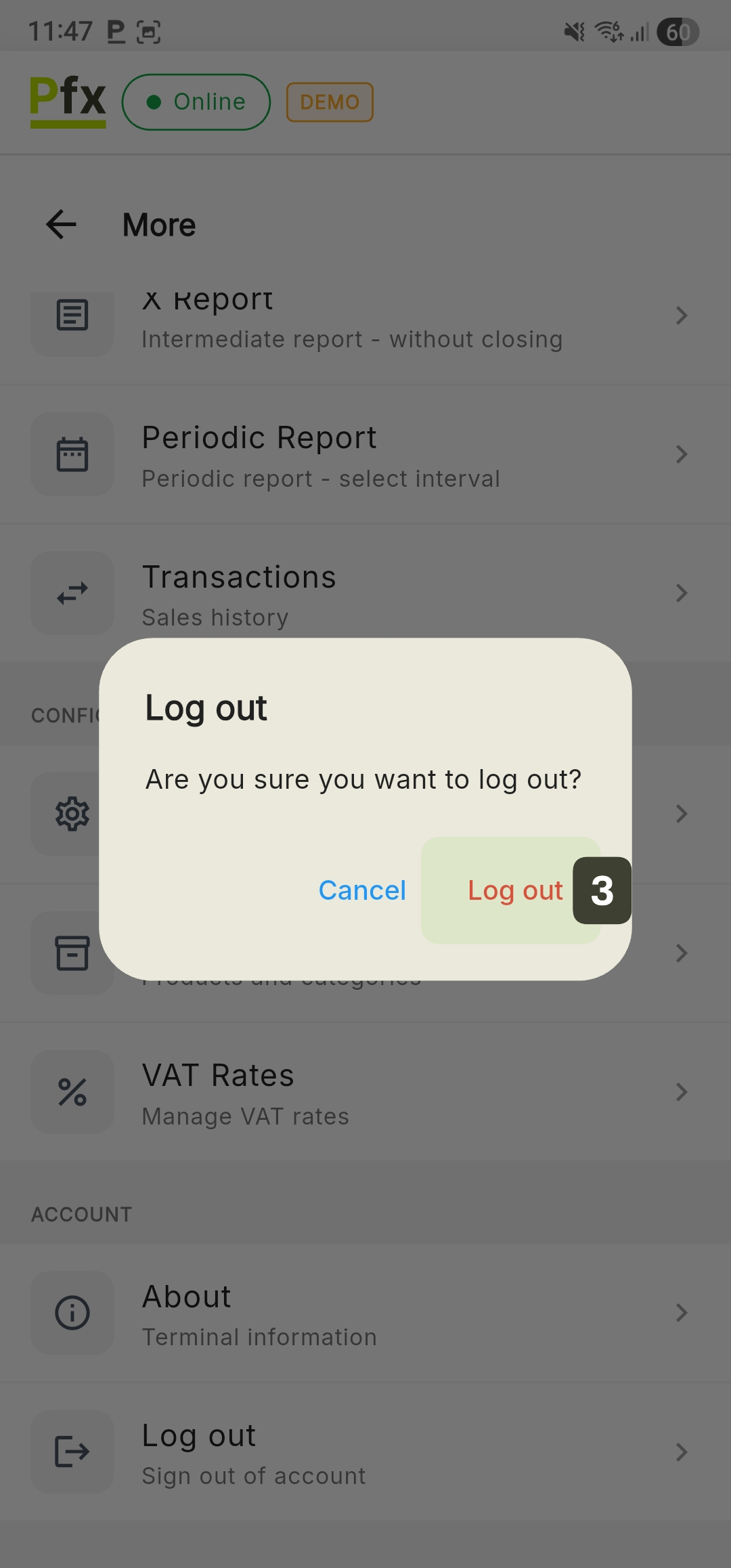
Once logout is confirmed, the system automatically returns to the user identification screen (Login), ready for a new PIN code entry.
Authentication Issues
| Issue | Solution |
|---|---|
| Forgotten PIN | Contact the manager for a reset |
| Non-existent user | Check the connection and synchronize |
| Authentication error | Verify that the PIN is correct |