Clients
On the Clients screen you quickly find one of the company's clients and, if you have the right, add a new one without going through the cart. An existing client isn't changed from here — that's done in the panel, under Partners, which is also where the client added at the register ends up.
Where to find it: More → Clients.
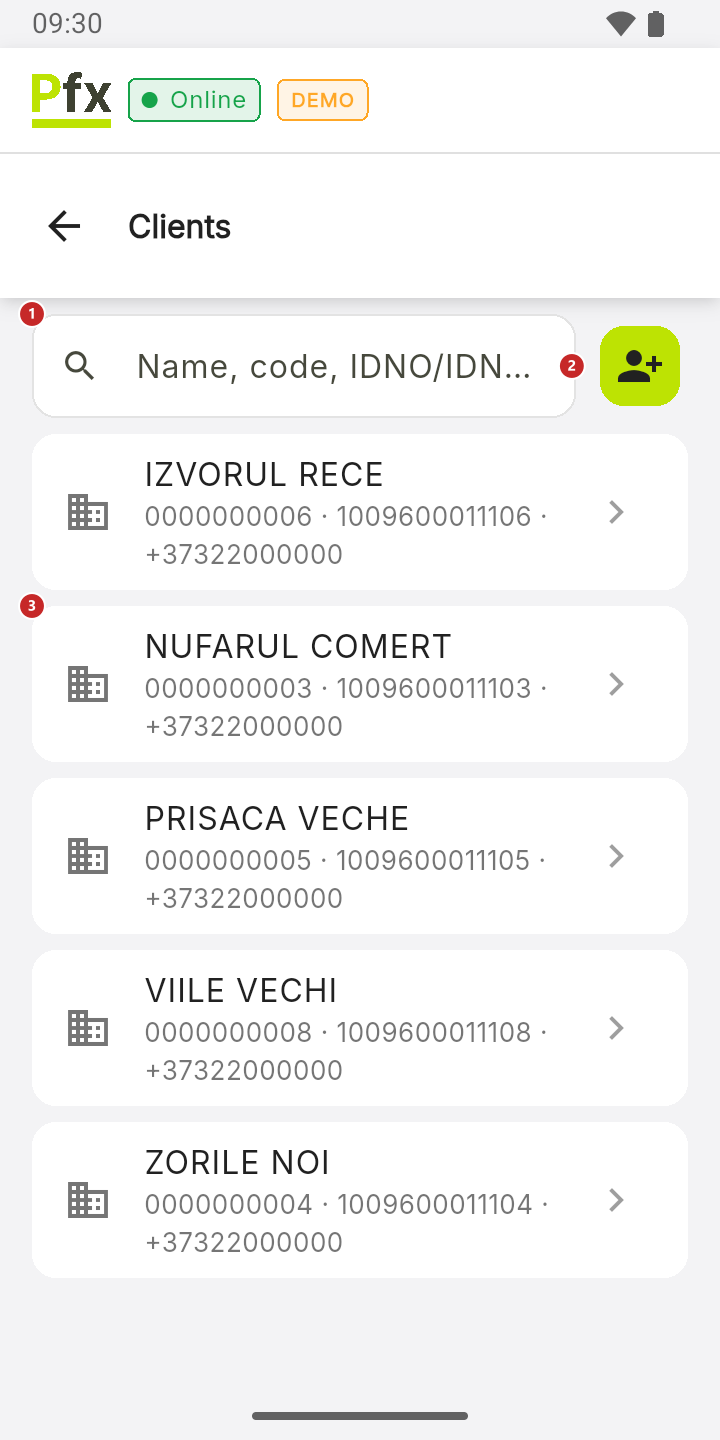
1 search by name, code, IDNO/IDNP or phone — the IDNO and the phone are found after 3 digits typed · 2 add a new client · 3 a client — tap it to see their details
The list works without internet too. A client added in the panel in the meantime appears after you pull the list down.
A client's details
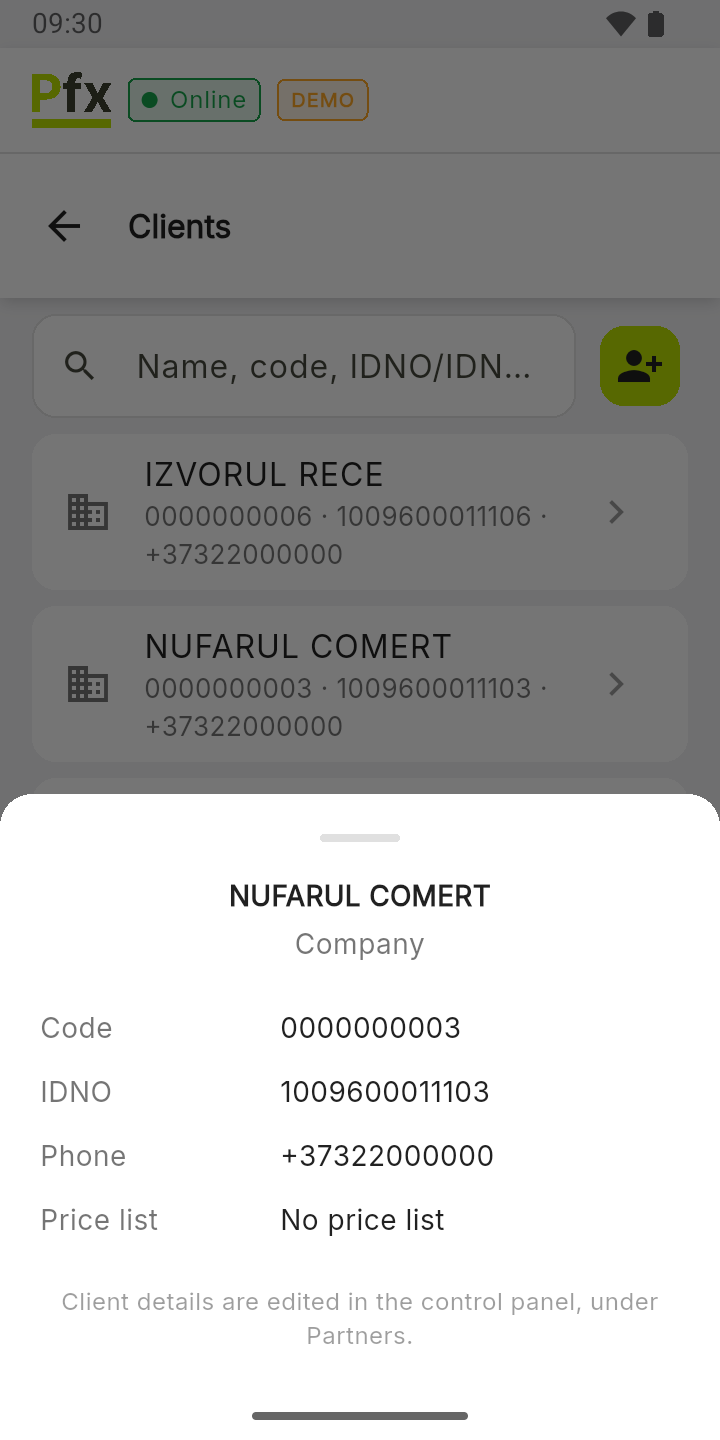
The record shows the kind of client, the code, the IDNO, the phone and the price list they have. On the register the record is read-only: the client's details are changed from the panel, under Partners.
To add a client
A new client can only be added with internet: it goes to the panel right away.
- Tap New client.
- Choose Individual or Company.
- Fill in the details and, if you like, the client's price list.
- Tap Save client.
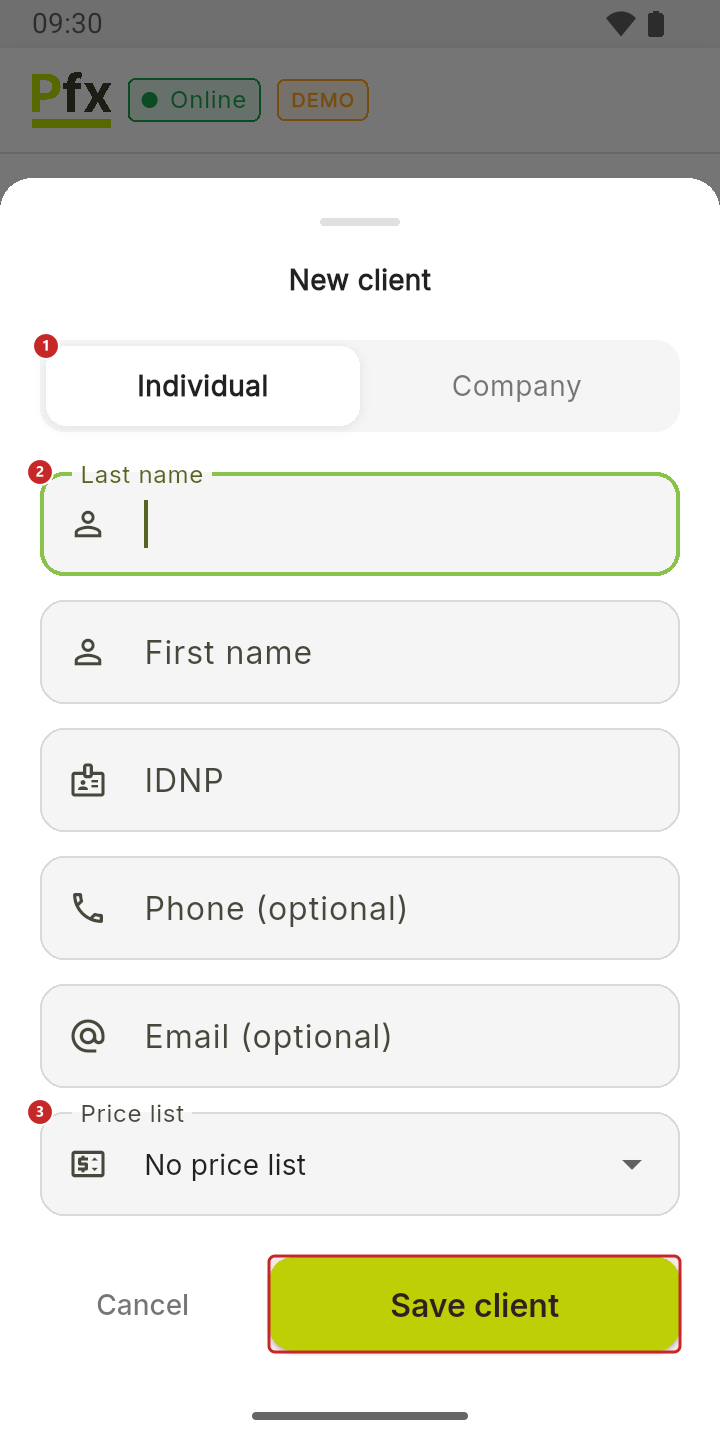
Individual (first screenshot): 1 the kind of client · 2 the last name, then the first name and the IDNP (13 digits); the phone and the email are optional · 3 the client's price list.
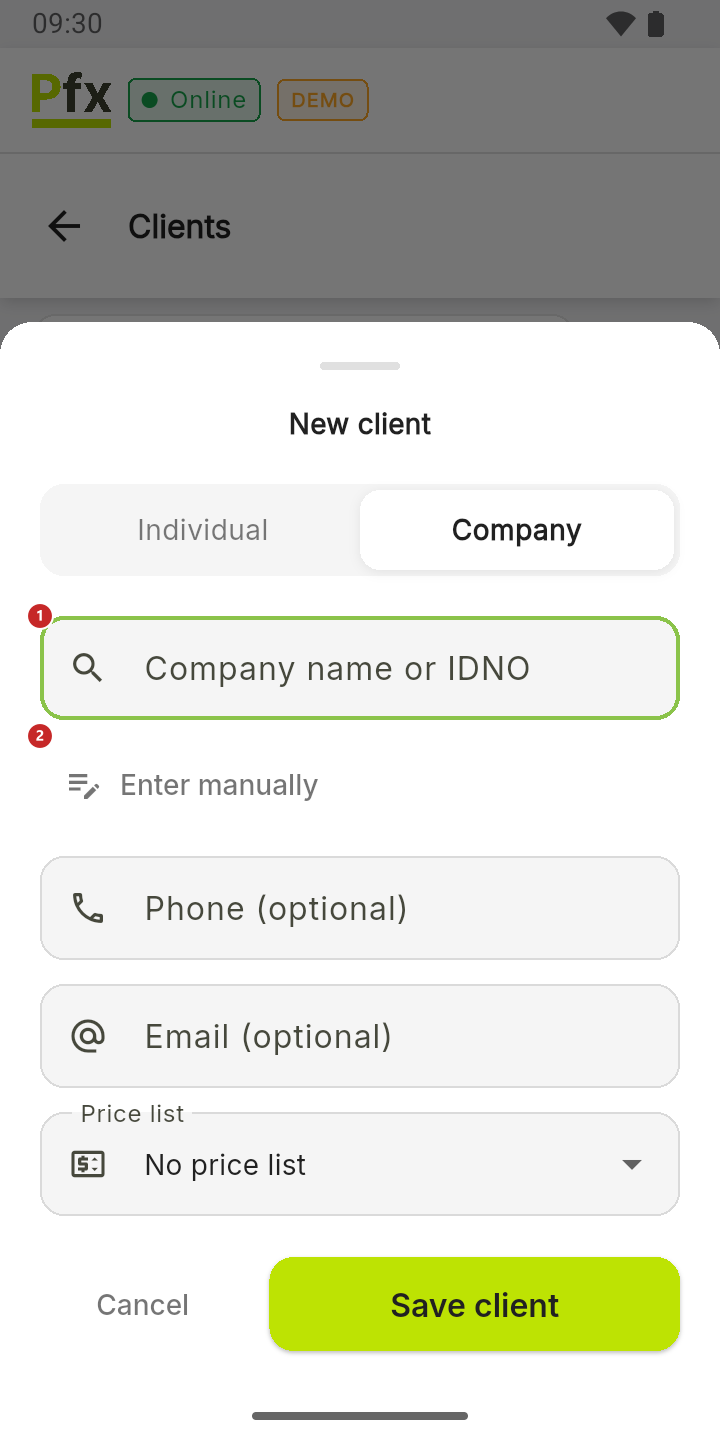
Company (second screenshot): 1 search for the company in the registry by name or IDNO · 2 if you can't find it, type it by hand with Enter manually. Tap the company found: the register brings in its name, IDNO and address, and Change takes you back to the search. Companies marked Inactive can't be chosen. Enter manually gives you two fields, Company name and IDNO; Search the registry takes you back.
The price list you choose is written on the client's record in the panel, under Price list, and also applies to documents made there, not only at the register — that's why the form starts from No price list. When you add the client from the cart (Counterparty → New client), the choice doesn't appear: the client gets the list chosen above and comes out selected on the receipt directly.
What can trip you up
I don't see the New client button. Adding requires the Catalogue management right — the same one used to add products at the register. The company's administrator grants it, from the panel.
“This client already existed: … It is now selected.” A client with the same IDNP or IDNO was already in the panel. The register doesn't create a second one; it shows you the existing one.
“Pick the company from the registry or enter it manually”. You tapped Save client without choosing the company. Tap a result or use Enter manually.
“No connection. New clients can only be added online.” Wait for the internet to come back (Online shows at the top) and save again.
“The registry is not responding”. Searching the registry doesn't work right now. Try again, or type the company with Enter manually.
“Invalid … — check the 13 digits”. The IDNP or IDNO has 13 digits. Check it against the document.
Related pages
- The cart — choosing the client and the price list on the receipt.
- Partner register — clients in the panel.