Cash Register Operations
PosFix operates as a cash register and control device (ECC), fiscally recording all transactions in accordance with SFS Moldova requirements and electronically transmitting receipts through the MEV system.
Recording Sales via the Cash Register
The PosFix system supports multiple payment methods. This section guides the operator through the process of finalizing a transaction, explaining how to use each available payment method.
Cash Payment
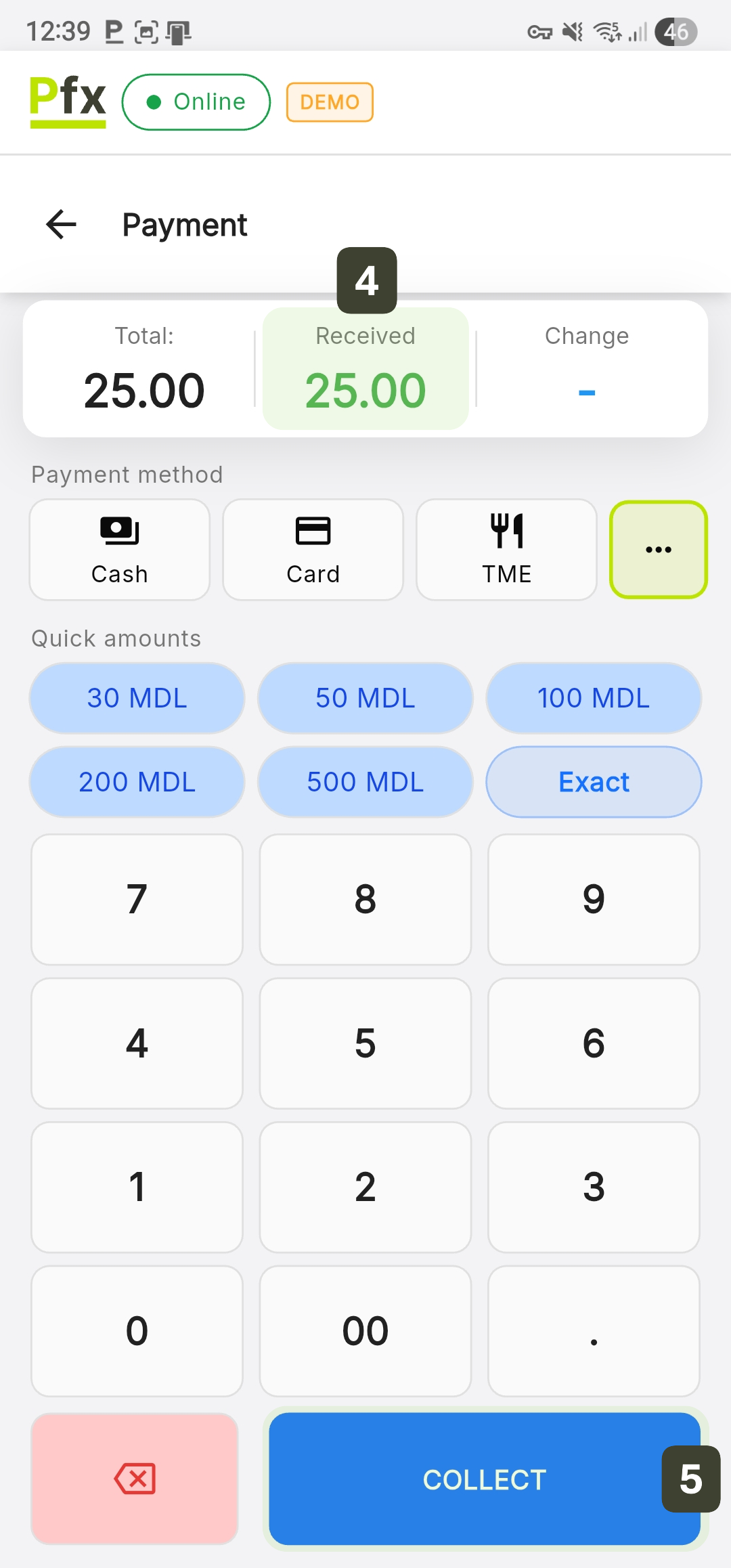
Cash payment is integrated with a change calculation system and adaptive quick amount buttons:
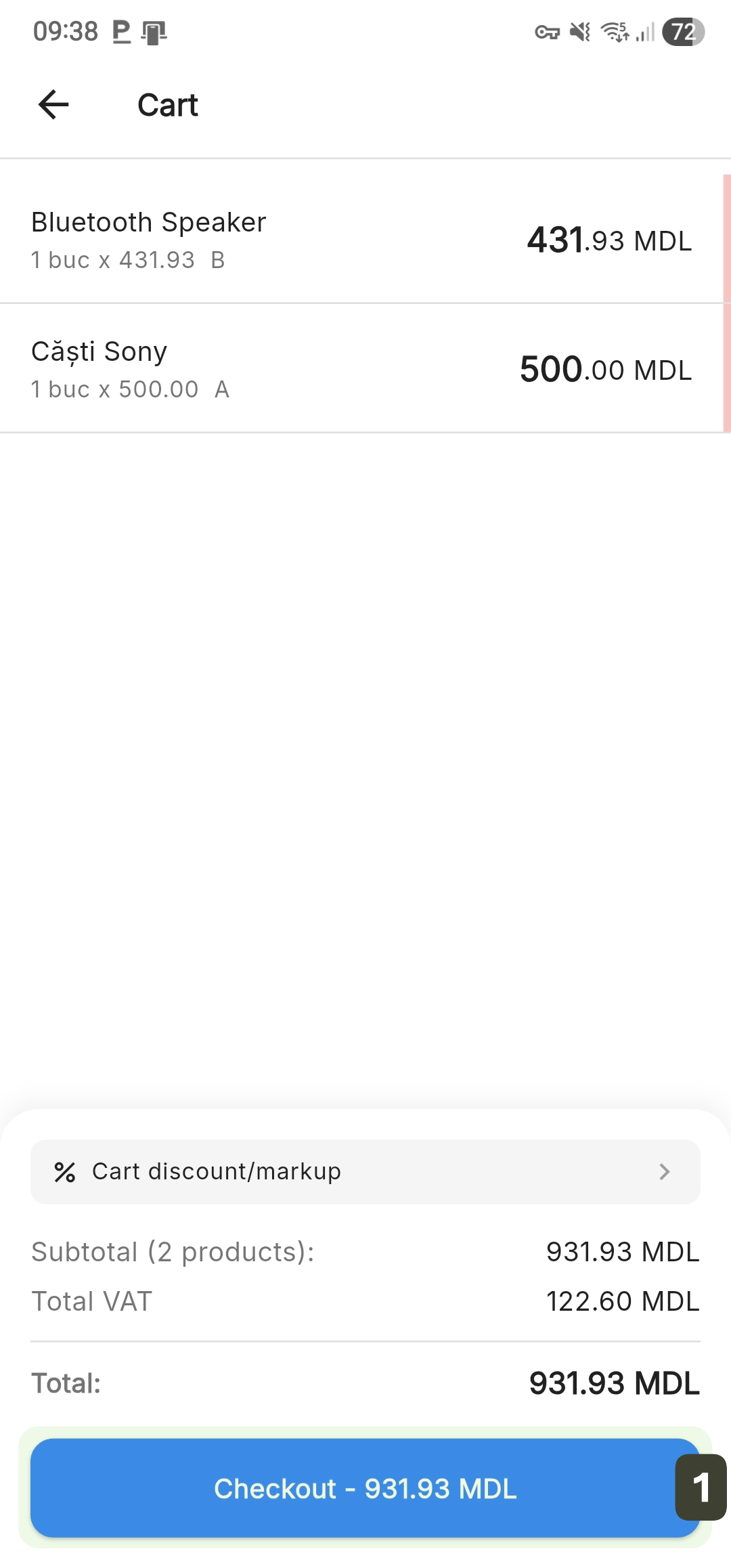
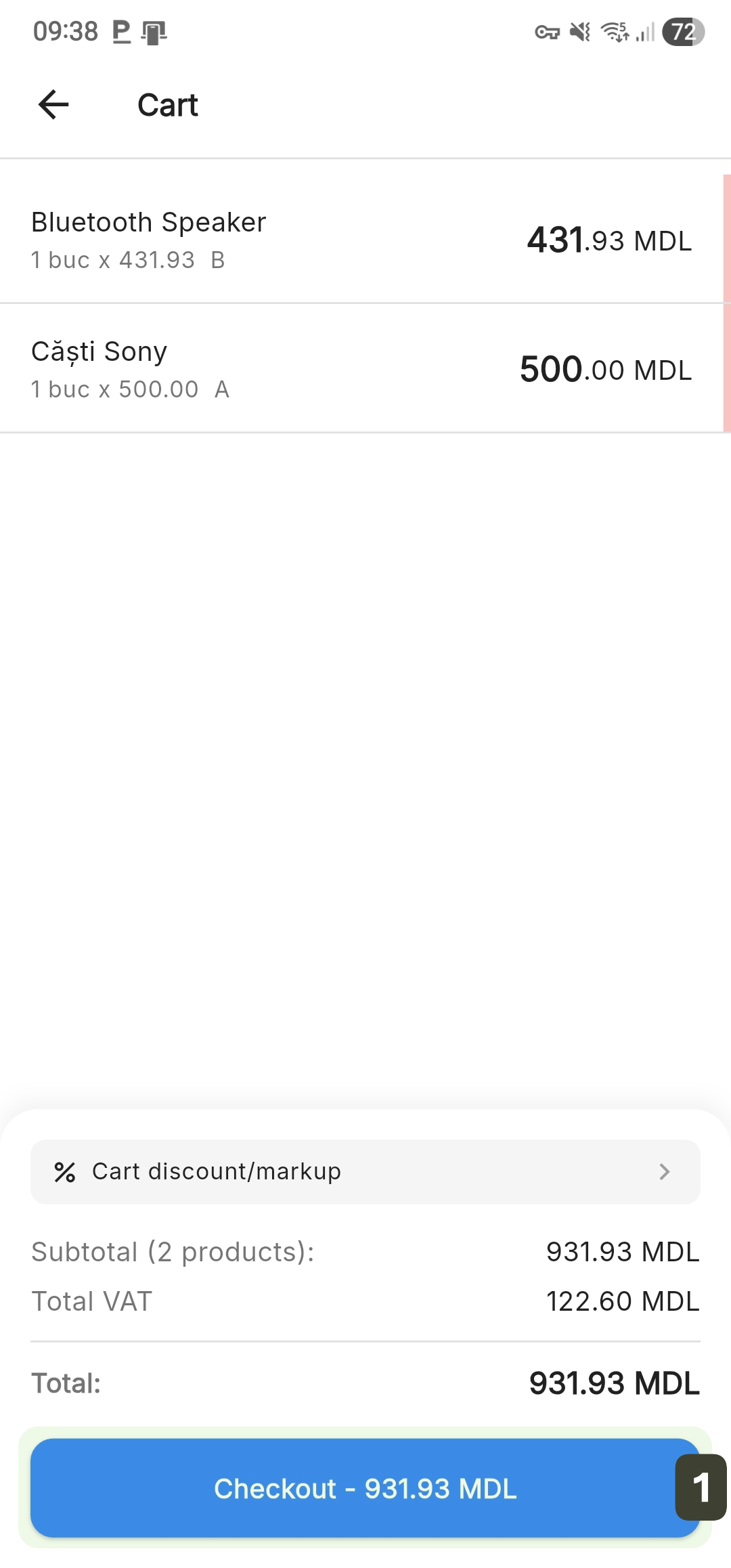
- From the cart screen, press the Checkout button
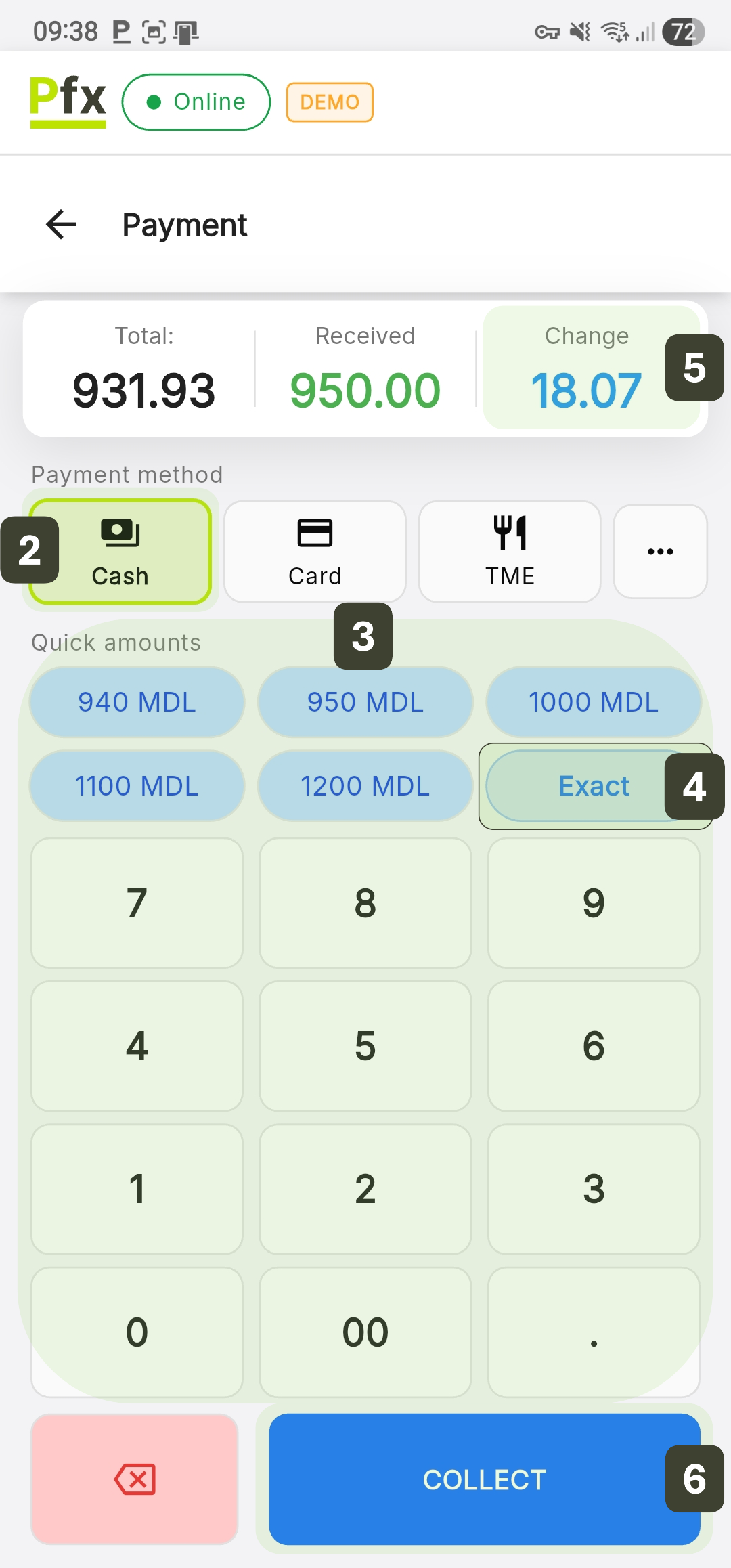
- In the payment screen, select the Cash option
- Enter the amount received using the numeric keypad or the interactive Quick amounts buttons
- Alternatively, press the Exact button if the customer has provided the exact amount
- Check the Change field - it is calculated automatically
- Press COLLECT to issue the fiscal receipt
Carefully verify the amount entered before pressing the COLLECT button. Once the fiscal receipt has been issued, the transaction is recorded and can no longer be cancelled from the sales interface.
If the customer offers the exact amount (no change needed), always use the Exact button. This reduces the transaction time.
Card Payment
- From the cart screen, press the Checkout button
- On the payment screen, select the Card option
- The Received field is automatically filled by the system with the exact Total value
Ask the customer to tap their card/phone - After the transaction has been approved by the bank, press the COLLECT button to issue the fiscal receipt
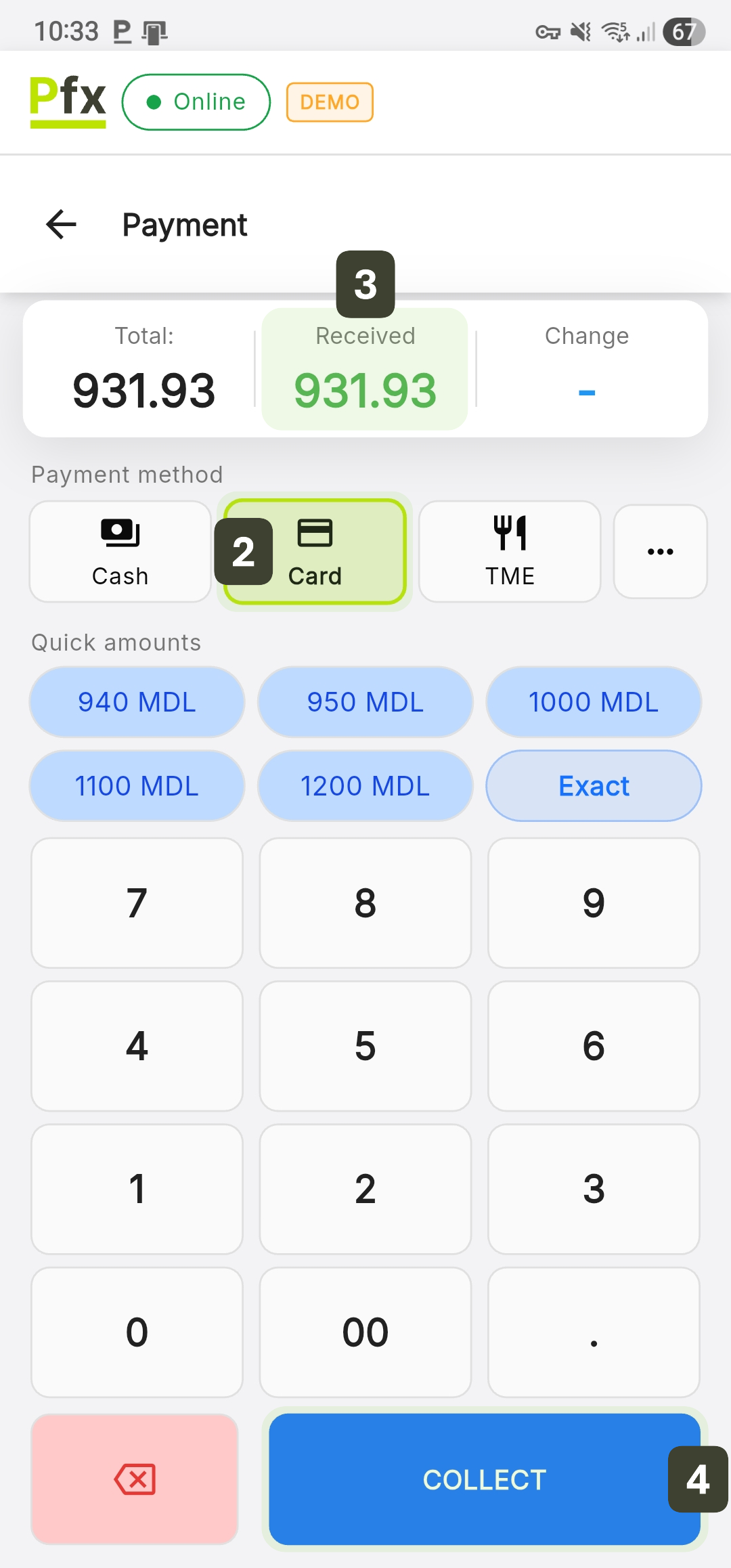
Two Receipts: The customer typically receives two documents: the Bank Receipt (card payment confirmation) and the Fiscal Receipt (issued by PosFix).
Meal Ticket Payment (TME)
Payment with Electronic Meal Tickets is intended exclusively for food products.
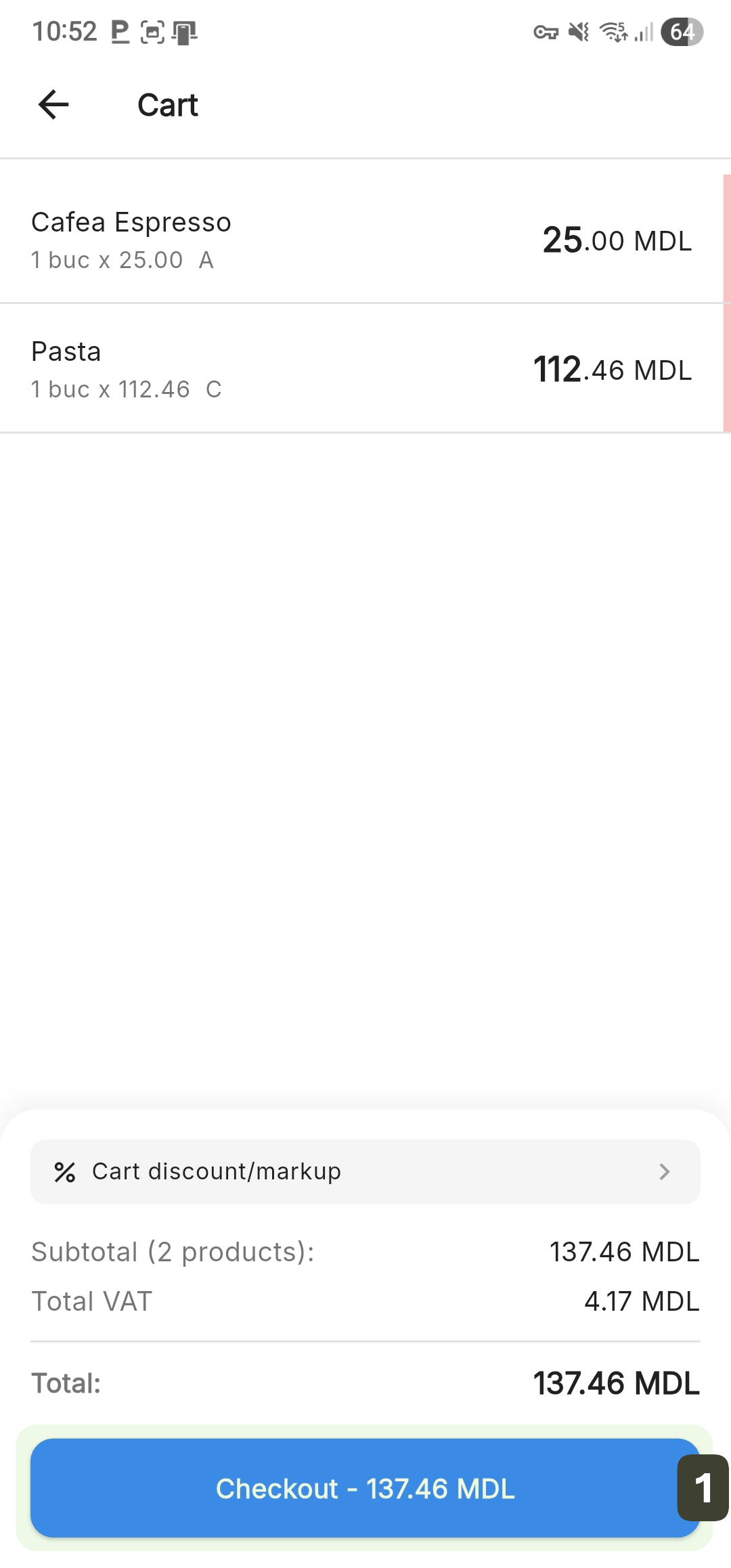
- From the cart screen, press the Checkout button
- On the payment screen, select the TME option
- The Received field is automatically filled by the system with the exact Total value
Ask the customer to tap their card - After the transaction has been approved by the bank, press the COLLECT button to issue the fiscal receipt
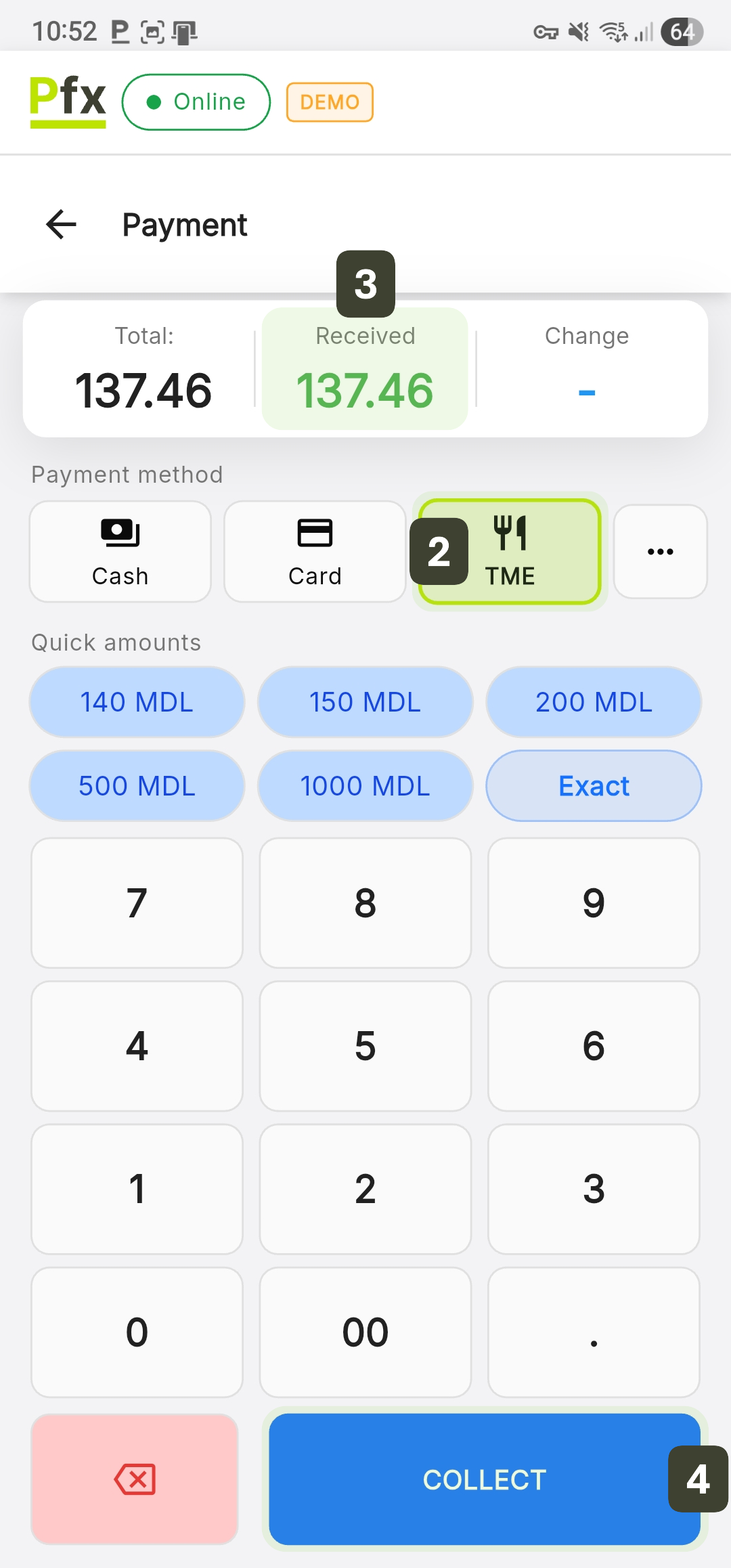
According to the law, no cash change is provided for meal ticket payments.
If the meal card does not have sufficient funds, use Mixed Payment.
Mixed Payment (Combined)
Mixed payment is used when the customer wishes to pay using multiple methods simultaneously (e.g., part Cash and the rest by Card).
- From the cart screen, press the Checkout button
- On the payment screen, select the first method Cash
- Enter the partial amount received and press the COLLECT button
A label will appear at the top of the screen confirming the payment made, and the Total field will automatically update, displaying only the remaining amount to be paid
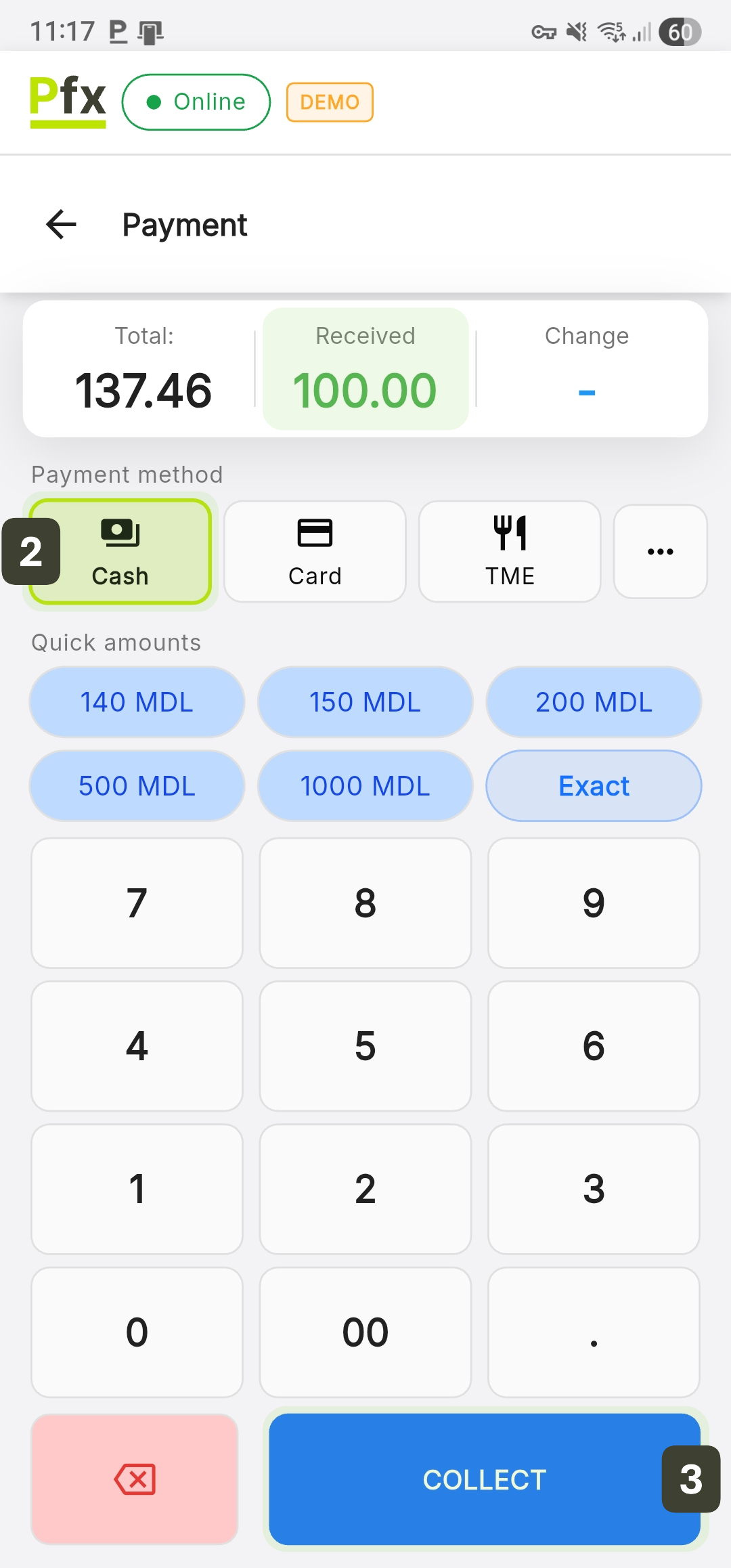
- Select the next payment method Card
The system will automatically fill the Received field with the remaining amount balance. Ask the customer to tap their card/phone - After the transaction has been approved by the bank, press the COLLECT button to issue the fiscal receipt
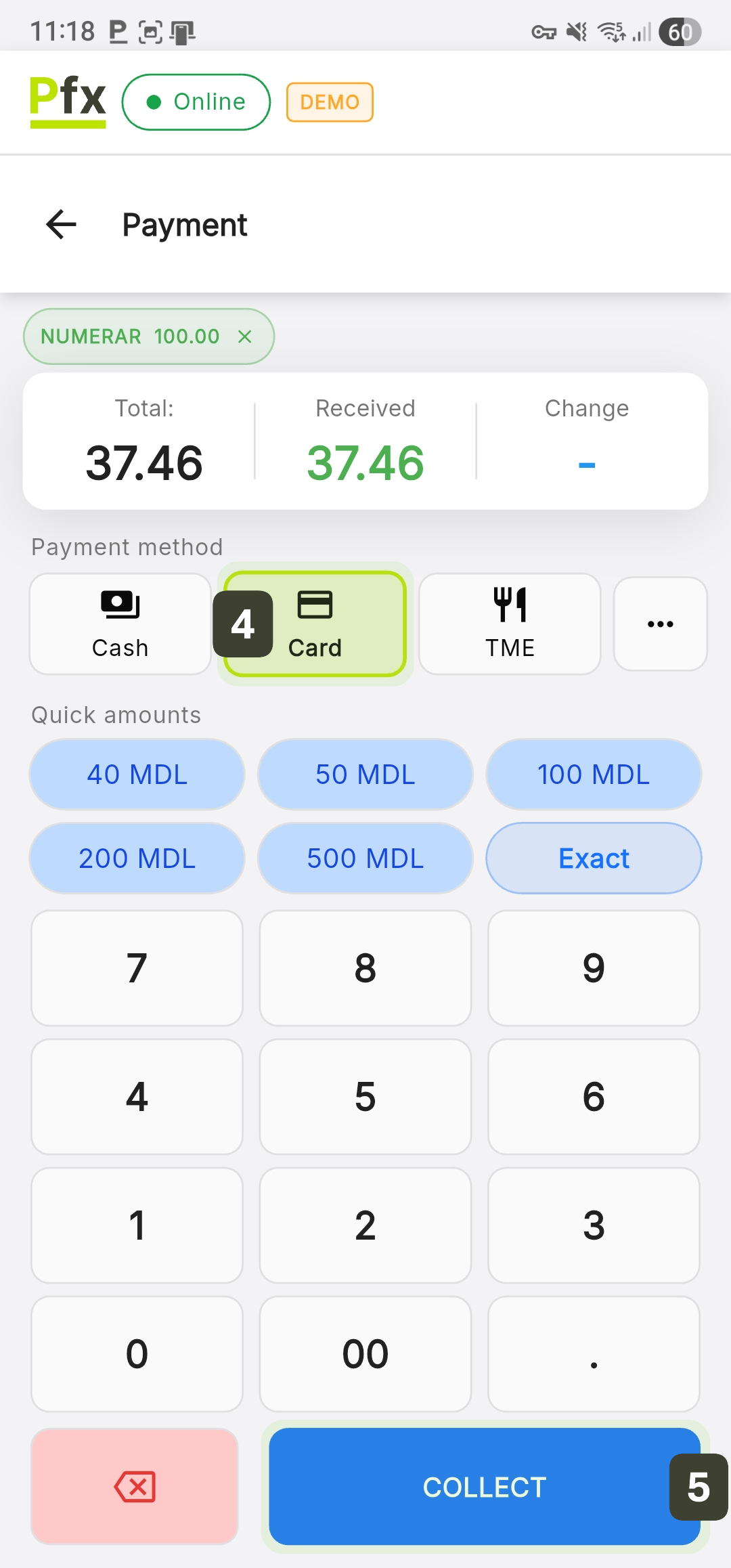
If for the final payment method the customer offers a banknote larger than the remaining balance, the system calculates the change as usual.
Voucher Payment
This method is used for payments via prepaid instruments (Gift Certificates, Discount Vouchers).
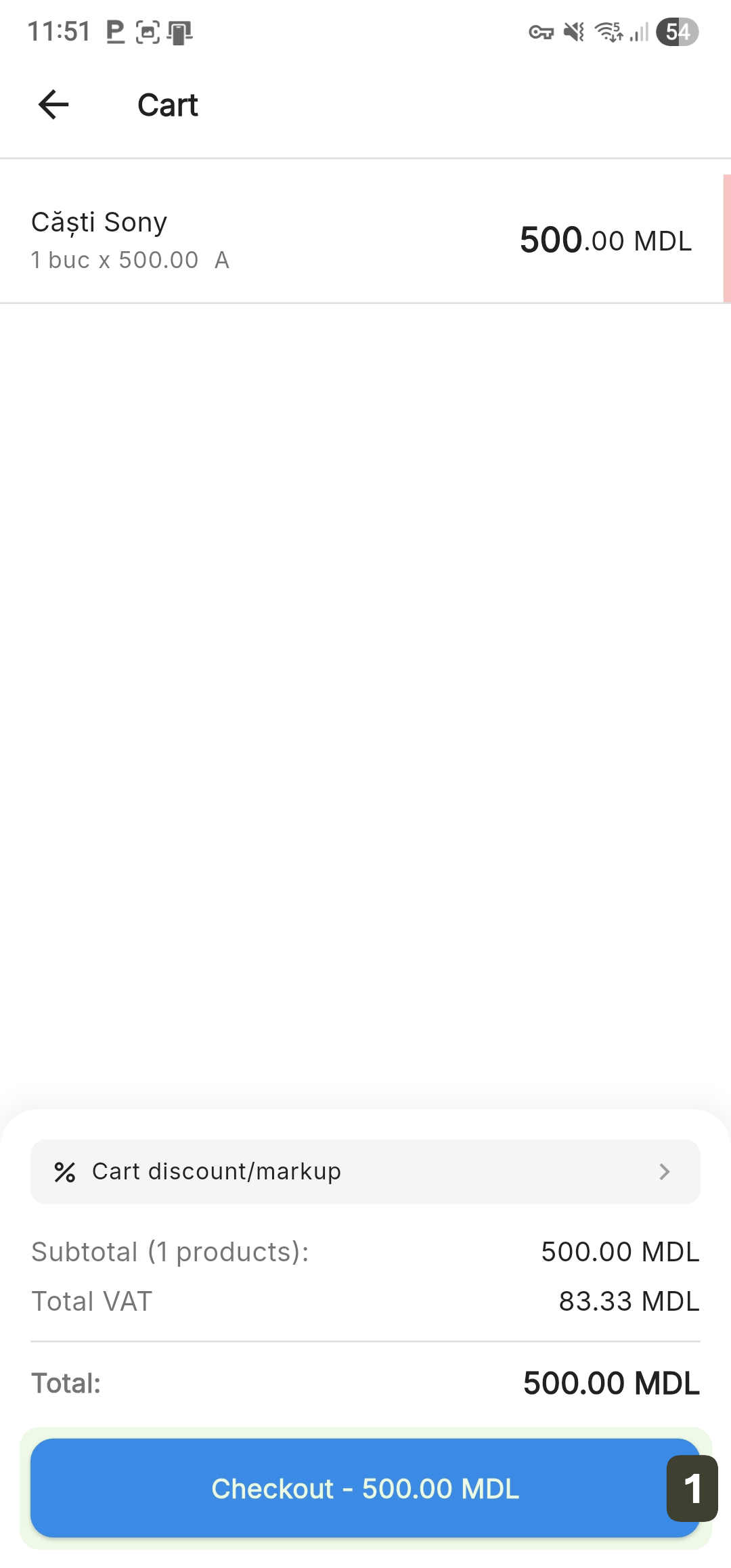
- From the cart screen, press the Checkout button
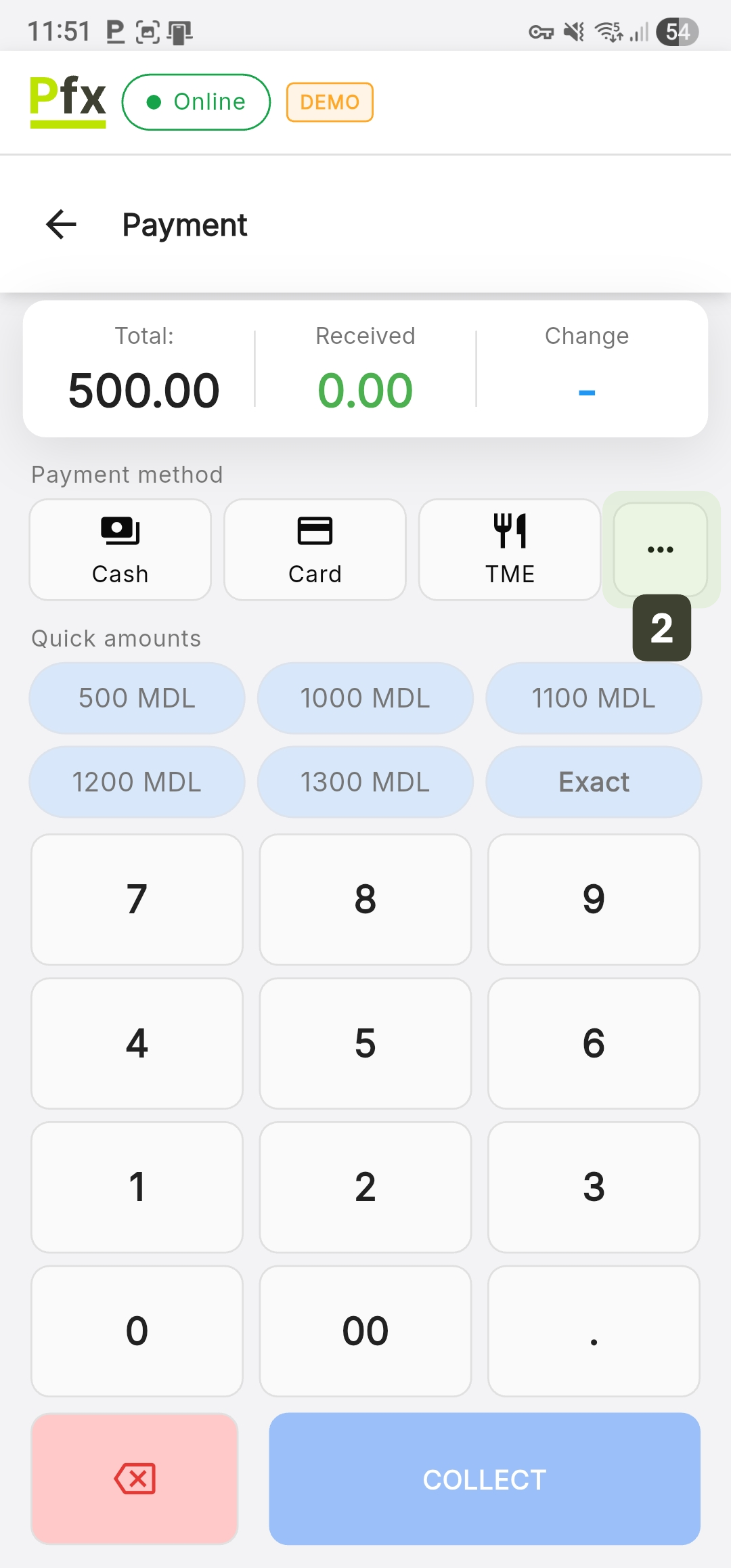
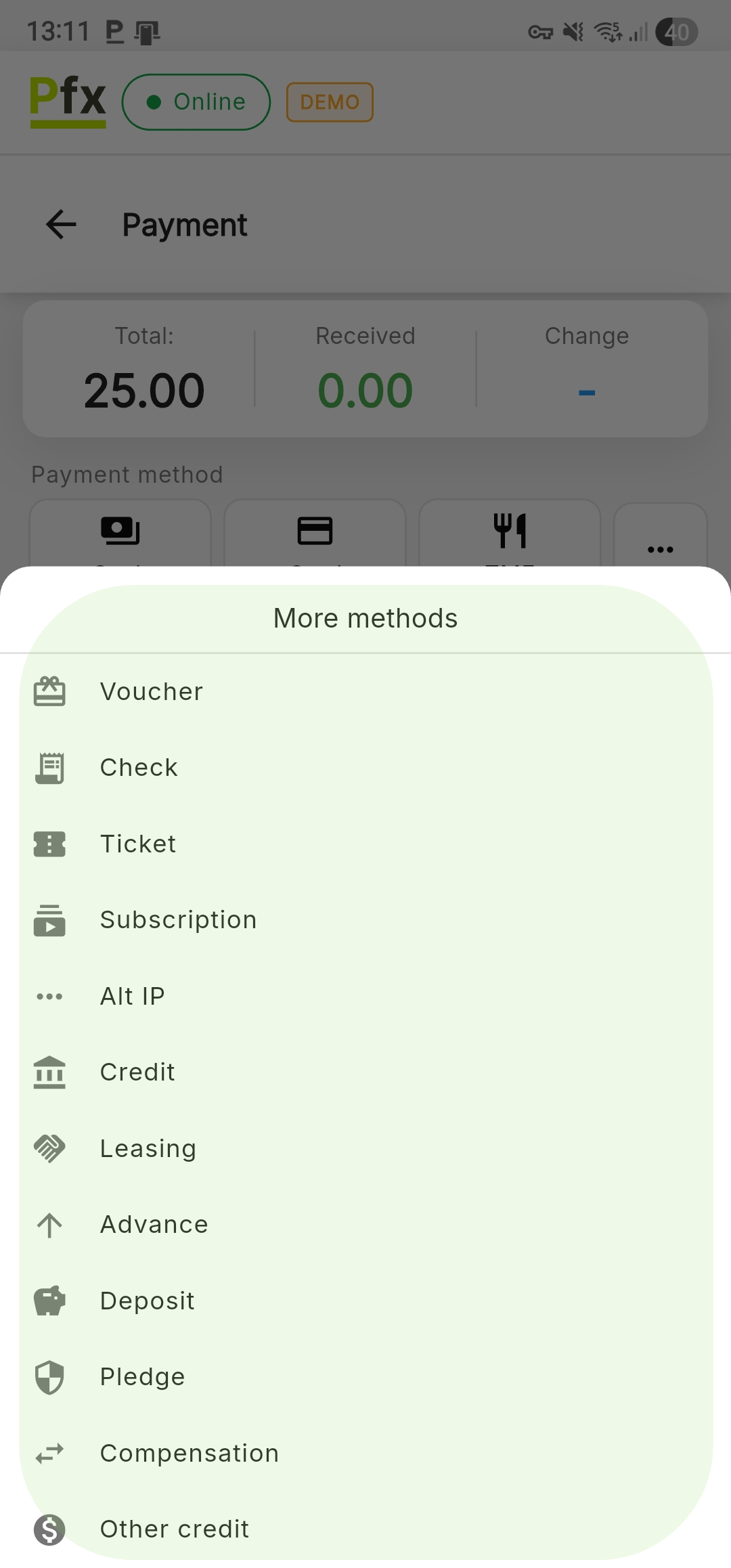
- On the payment screen, press the three-dot button [...]
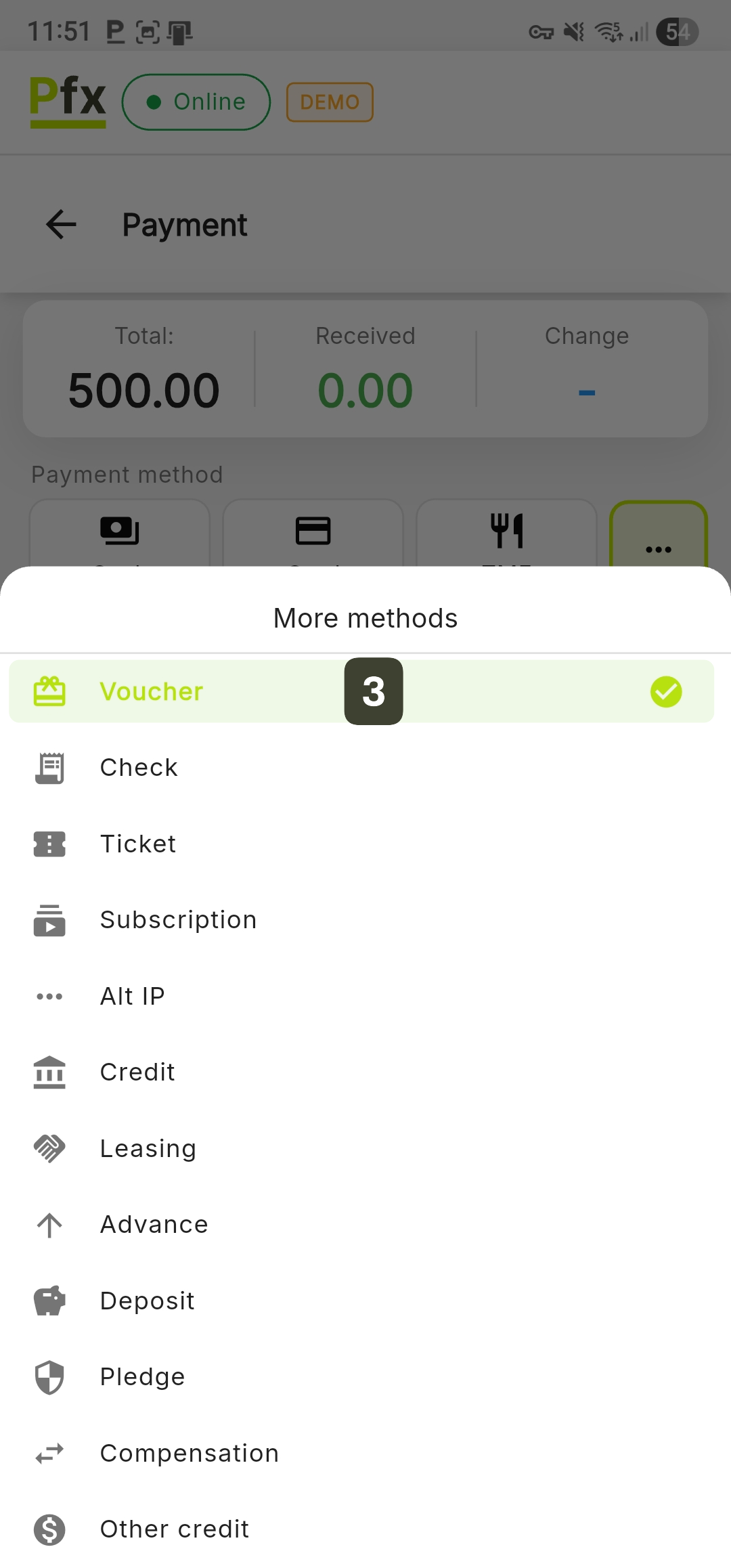
- From the More methods menu, select the Voucher option
- Enter the voucher value
Depending on the store configuration, you may be asked to scan the customer's voucher for validation. - Press the COLLECT button to issue the fiscal receipt
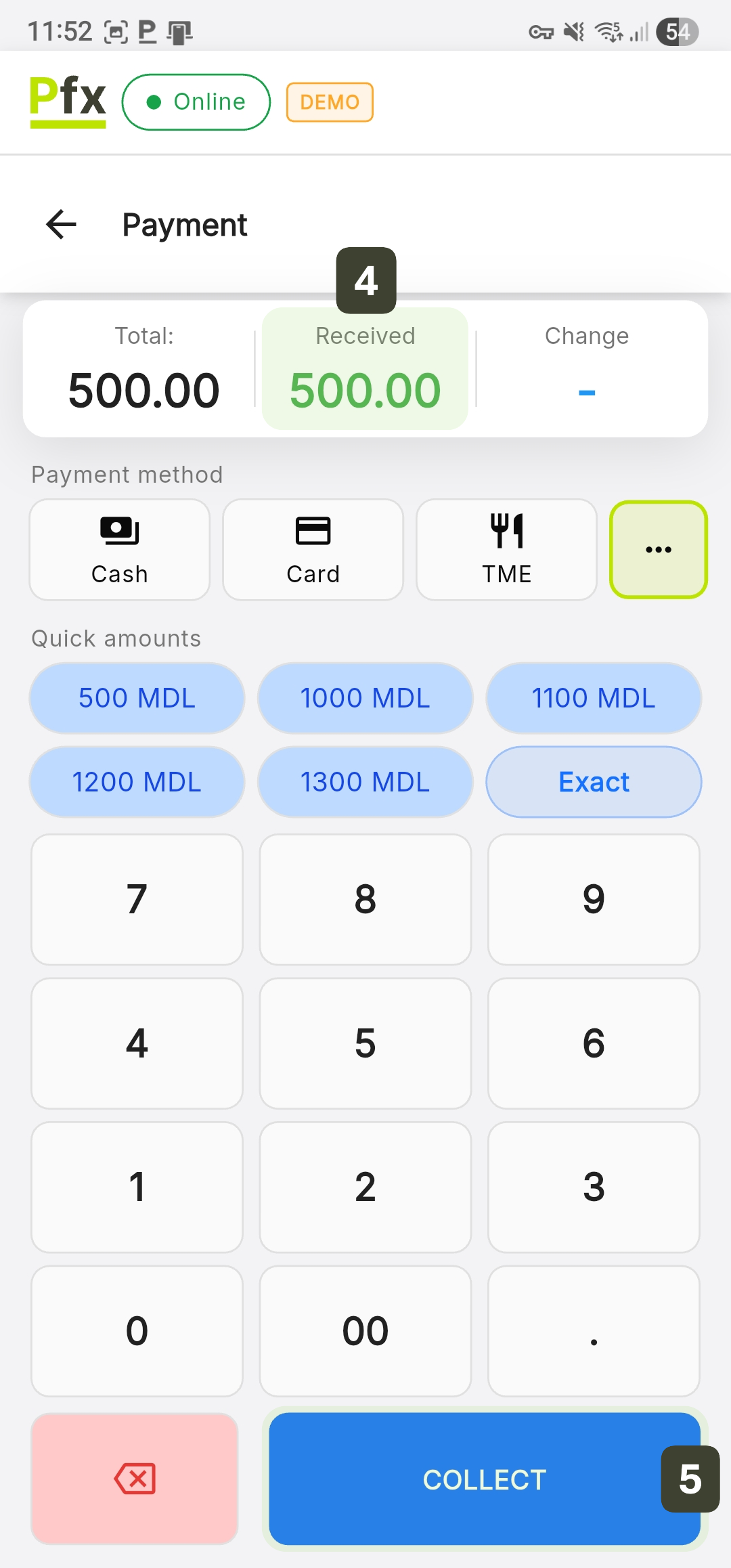
According to legislation, it is prohibited to provide cash change for payments made with vouchers.
Subscription Payment
This method is used for loyal customers who hold an active subscription. Use this option to deduct the product value from a customer's existing subscription, without collecting cash at the time of sale.
- From the cart screen, press the Checkout button
- On the payment screen, press the three-dot button [...]
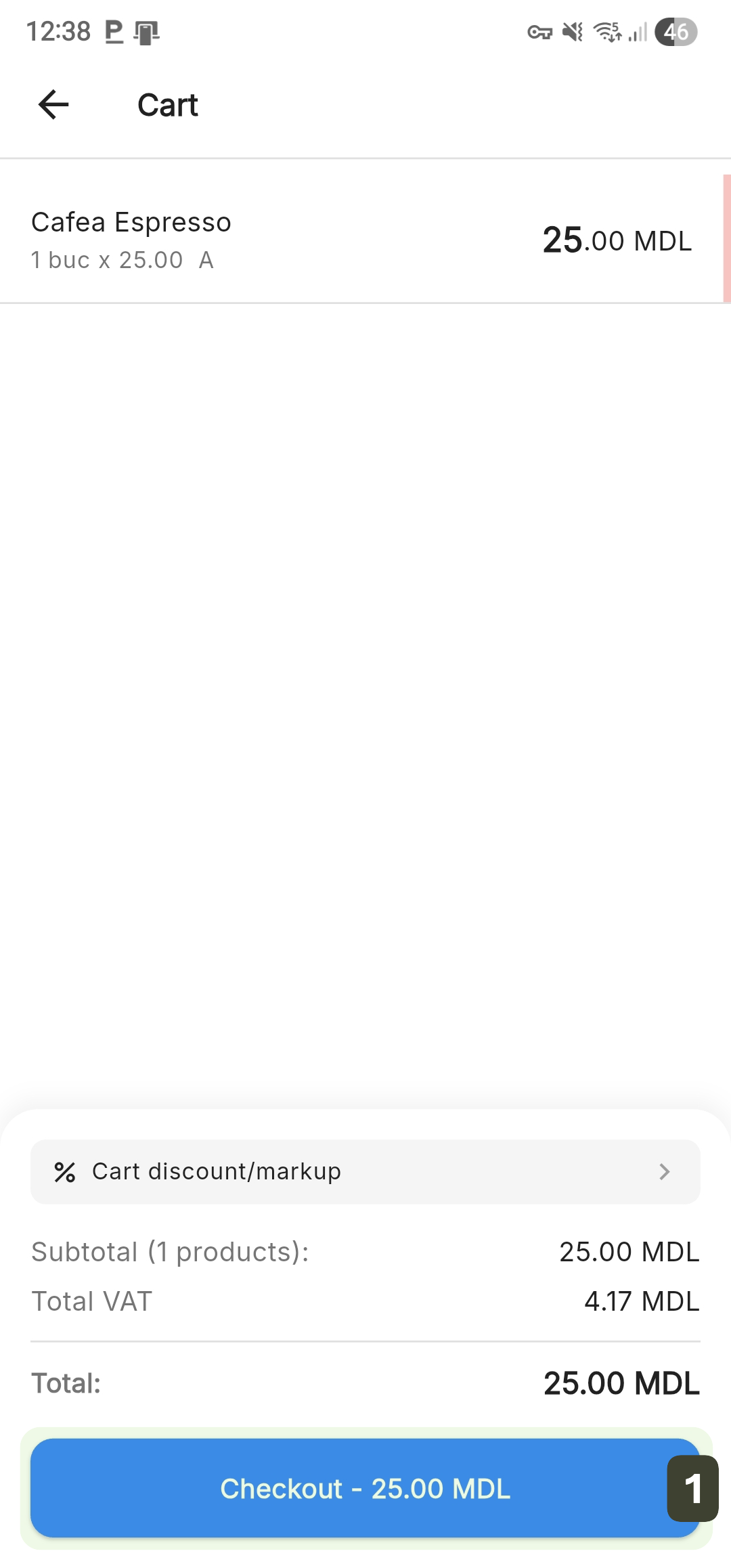
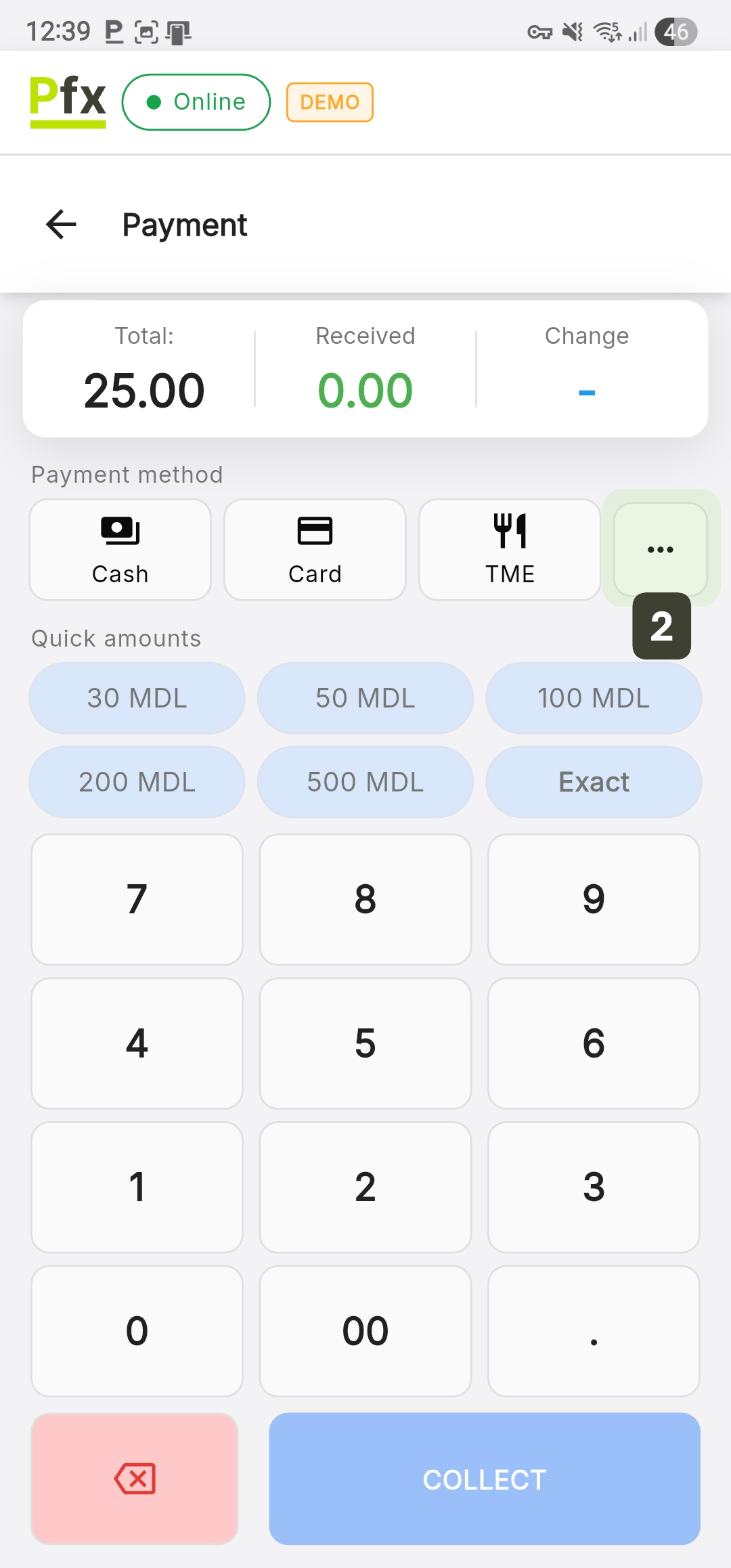
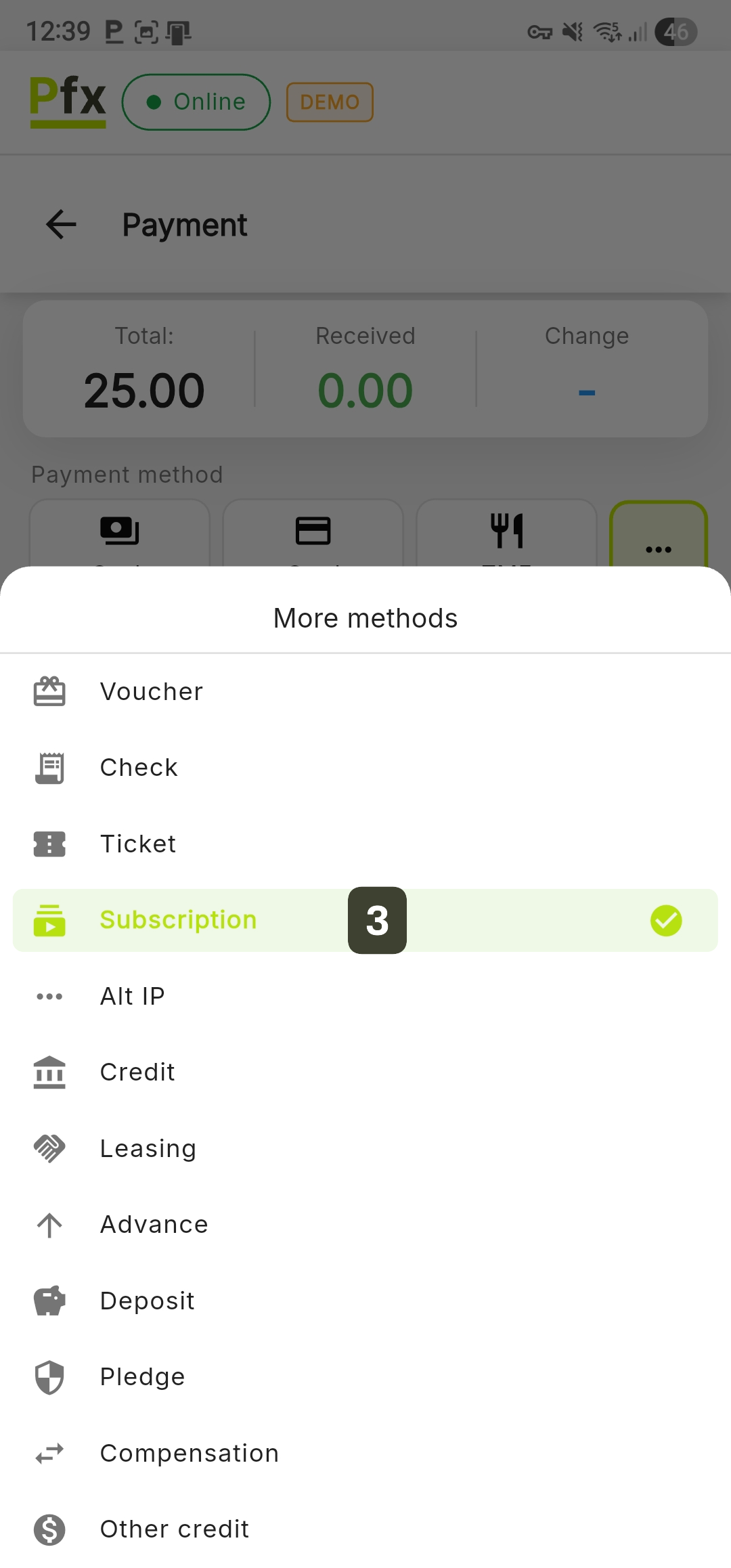
- From the More methods menu, select the Subscription option
- Enter the subscription value
Depending on the store configuration, you may be asked to scan the customer's subscription for validation. - Press the COLLECT button to issue the fiscal receipt
1. Balance Verification: Before payment, make sure the customer's subscription is active and has a sufficient balance to cover the purchase.
2. Identification: If the subscription is nominative, ask the customer for an identification document or physical membership card.
It is important to mention that, from an accounting perspective, the actual cash collection (and the issuance of the fiscal receipt with VAT) usually takes place at the time of subscription sale. Using the Subscription button at the time of consumption serves as an inventory management record (deducts stock), but the payment value at that moment is zero.
Other Payment Methods
PosFix allows the recording of complex payment forms, typically used in business-to-business relationships (companies) or for specific financial operations.
By accessing the three-dot button [...] on the payment screen, you have access to an extended list of additional options:
| Method | Description |
|---|---|
| Check | Payment instruments like checks or certificates with a fixed nominal value |
| Ticket | Payment with paper meal vouchers (if the store accepts them) |
| Other Type | Custom payment categories that do not fit the system's standard selections |
| Credit | Recording a sale on commercial credit, where payment will be collected later |
| Leasing | Payment method used for transactions financed through leasing companies |
| Advance | Collection of a partial amount before delivery of the product or final provision of the service |
| Deposit | Amount paid by the customer as confirmation and guarantee of an order |
| Pledge | Settlement guaranteed by establishing a pledge on goods |
| Compensation | Settling the payment obligation through exchange of goods or services between parties |
| Other credit | Any other unspecified payment method agreed upon between merchant and customer |
Finalizing the Sale
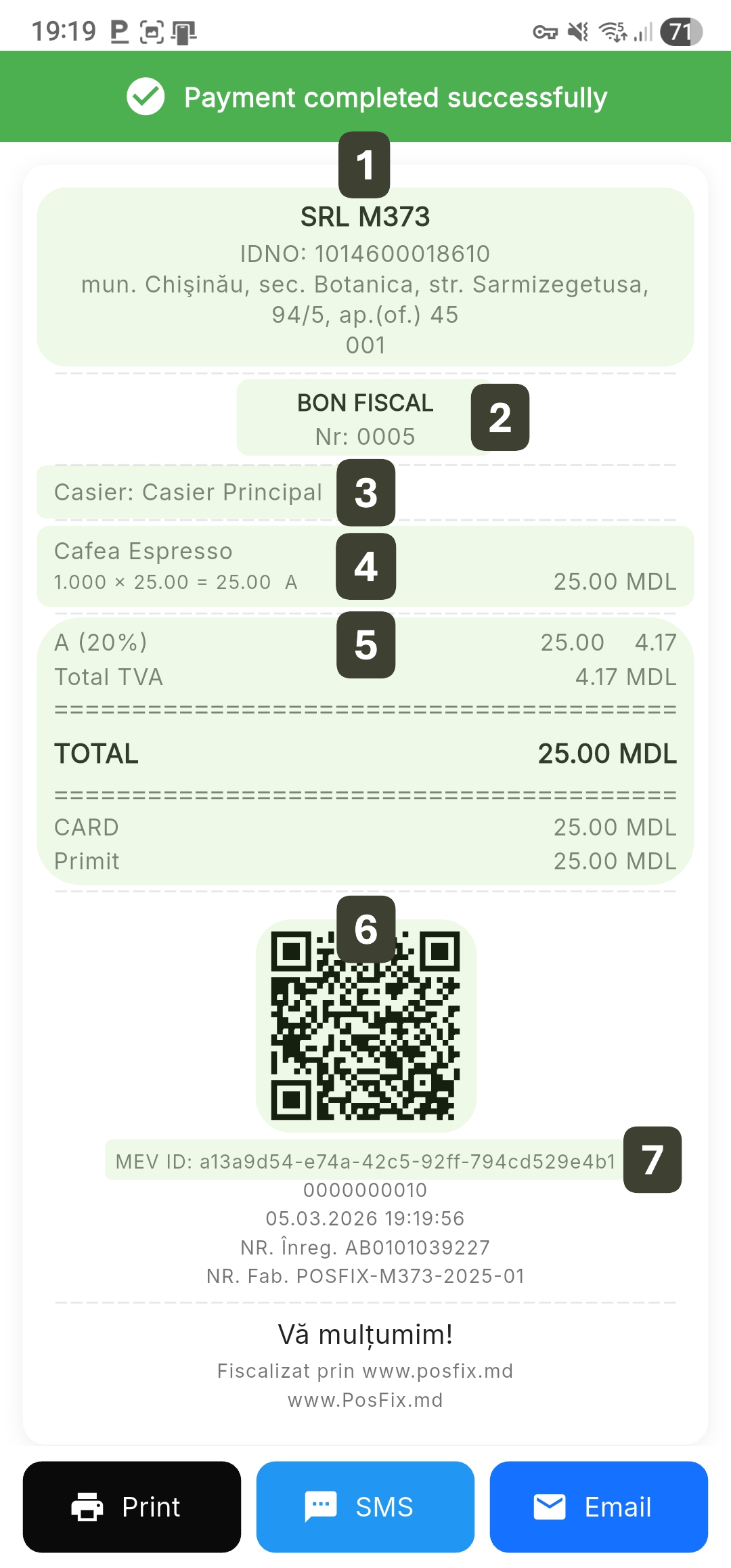
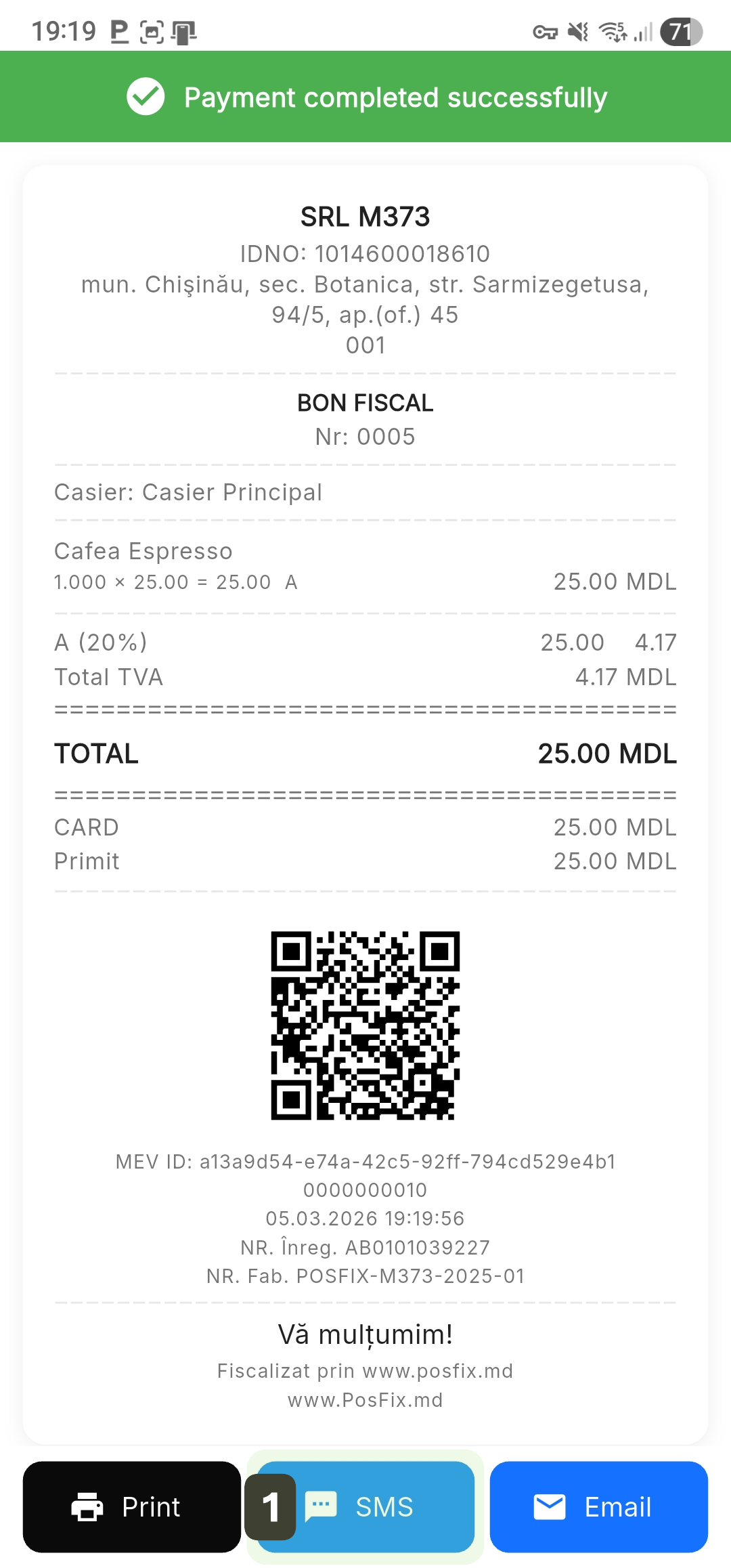
Immediately after pressing the COLLECT button, the system displays the Payment completed successfully screen. This confirms that the transaction has been recorded and transmitted to MEV.
Fiscal Receipt Details Displayed
| Information | Description |
|---|---|
| 1. Merchant Details | Legal entity name, unique identification code (IDNO), address |
| 2. Document Identification | Unique receipt number |
| 3. Operator Identification | Cashier who performed the sale |
| 4. Content | List of products sold, quantity, unit price, and applied VAT rate |
| 5. Totalizer | Total amount, payment method (Cash/Card), amount received, and calculated change |
| 6. QR Code | Code for the customer to verify the authenticity of the receipt |
| 7. MEV ID | Unique Fiscal Identifier |
Post-Sale Options
At the bottom of the screen, you have three quick actions available to provide the document to the customer.
Print Receipt
After the screen confirms that the payment was completed successfully, you can generate the document on paper using the printer.
Press the Print button to issue the physical receipt on the thermal printer.
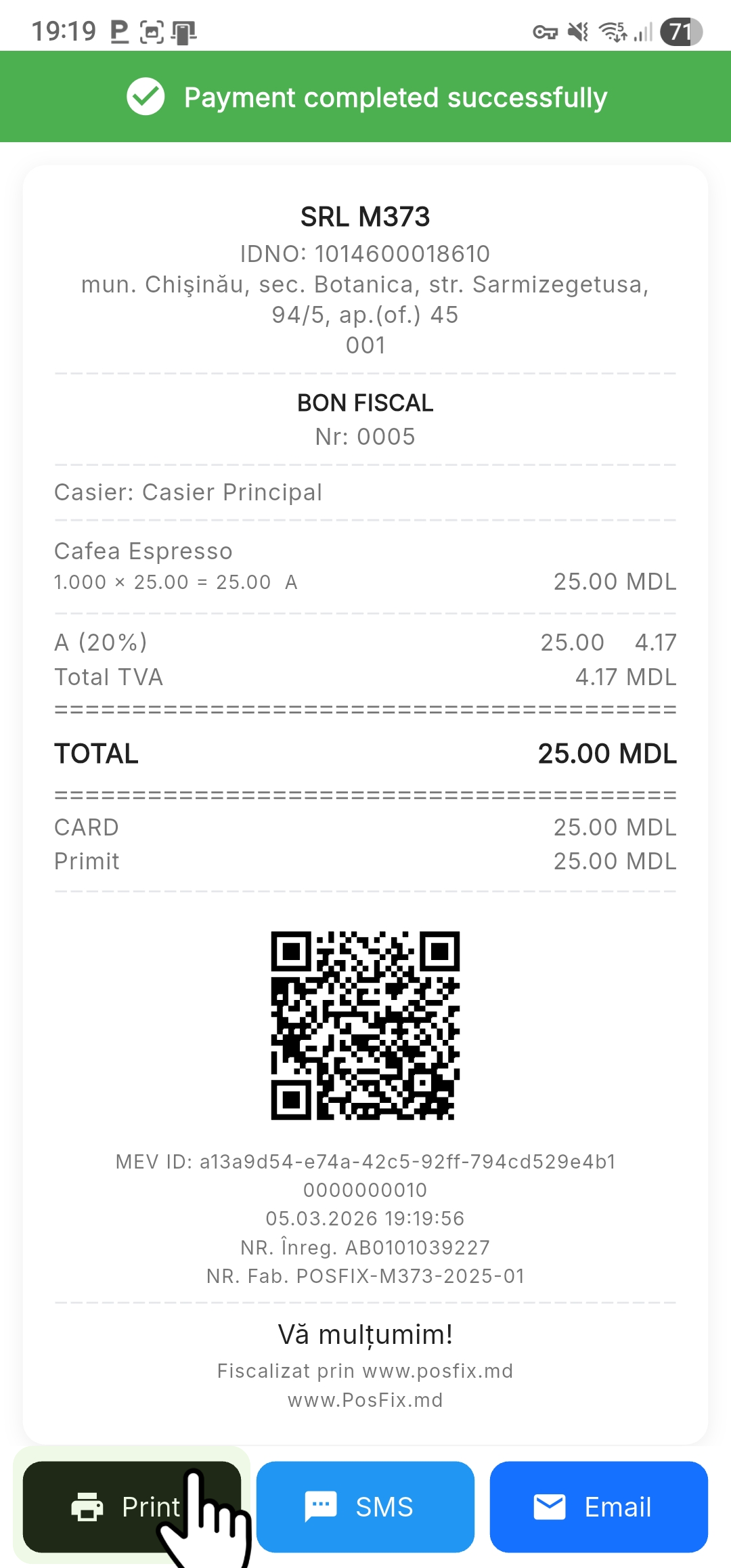
If you closed the success screen without printing, you can always find the transaction in the Transaction History section (the Transactions button in the main menu) and press the Print button next to the specific receipt.
Send via SMS
This feature allows sending a digital copy of the fiscal receipt directly to the customer's mobile phone, as an eco-friendly and quick alternative to the printed version.
- From the payment success screen, press the SMS button
- Enter the customer's phone number
- Press Send SMS
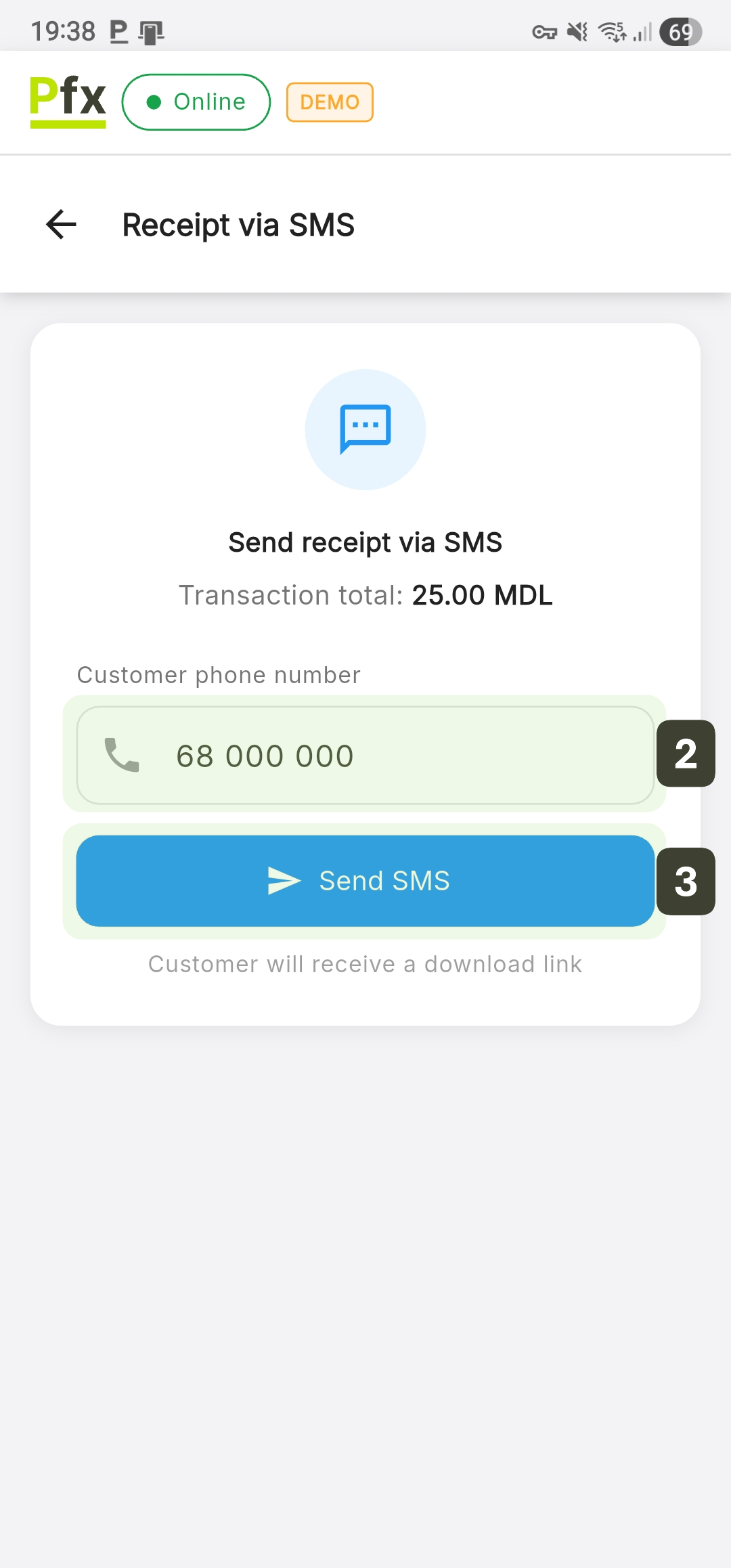
Enter only the 8 digits of the mobile number, without the leading zero. Start directly with digit 6 or 7.
The SMS contains a link to the electronic receipt on the fiscal portal. To view the details, click the link.
Send via Email
- From the payment success screen, press the Email button
- Enter the recipient's email address
- Press Send receipt
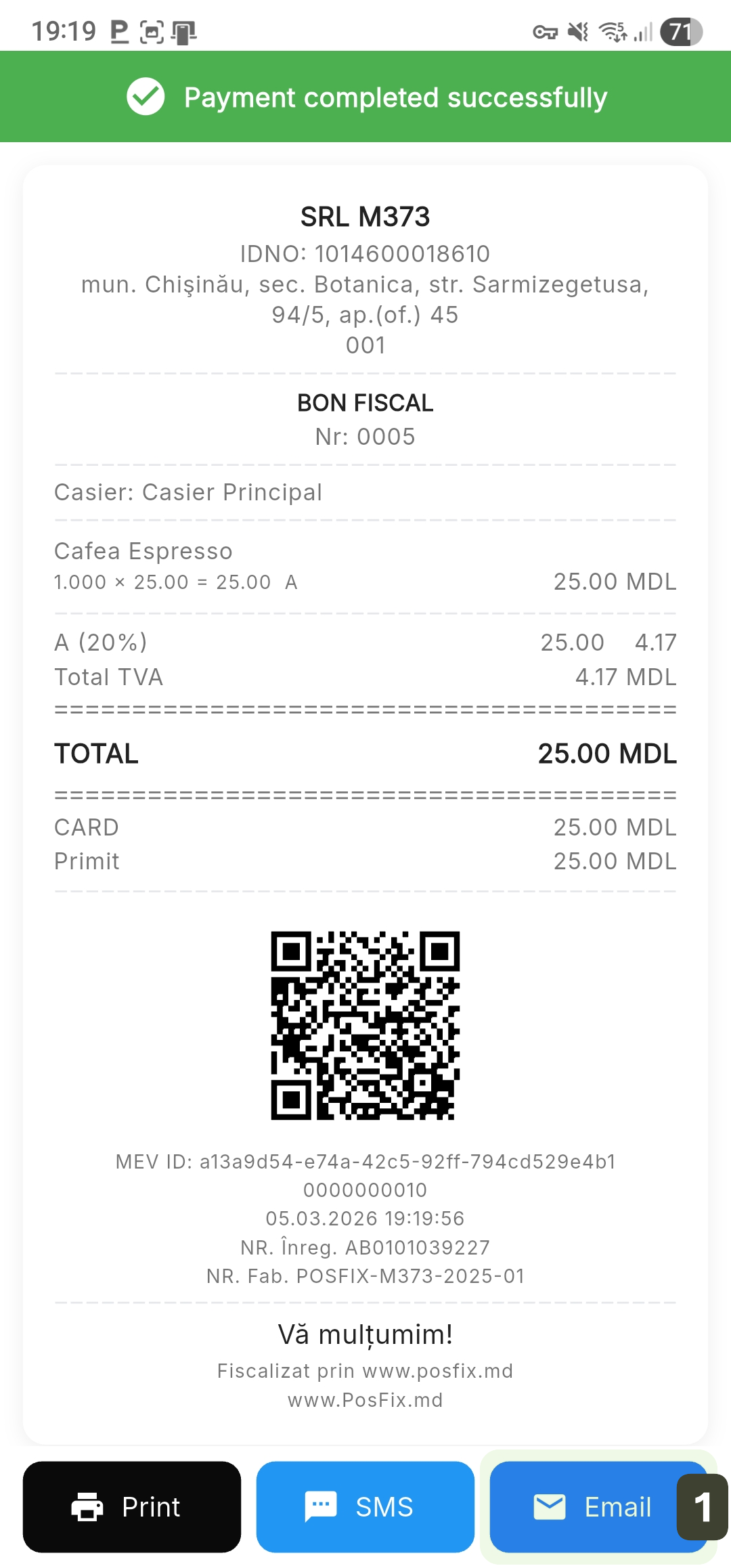
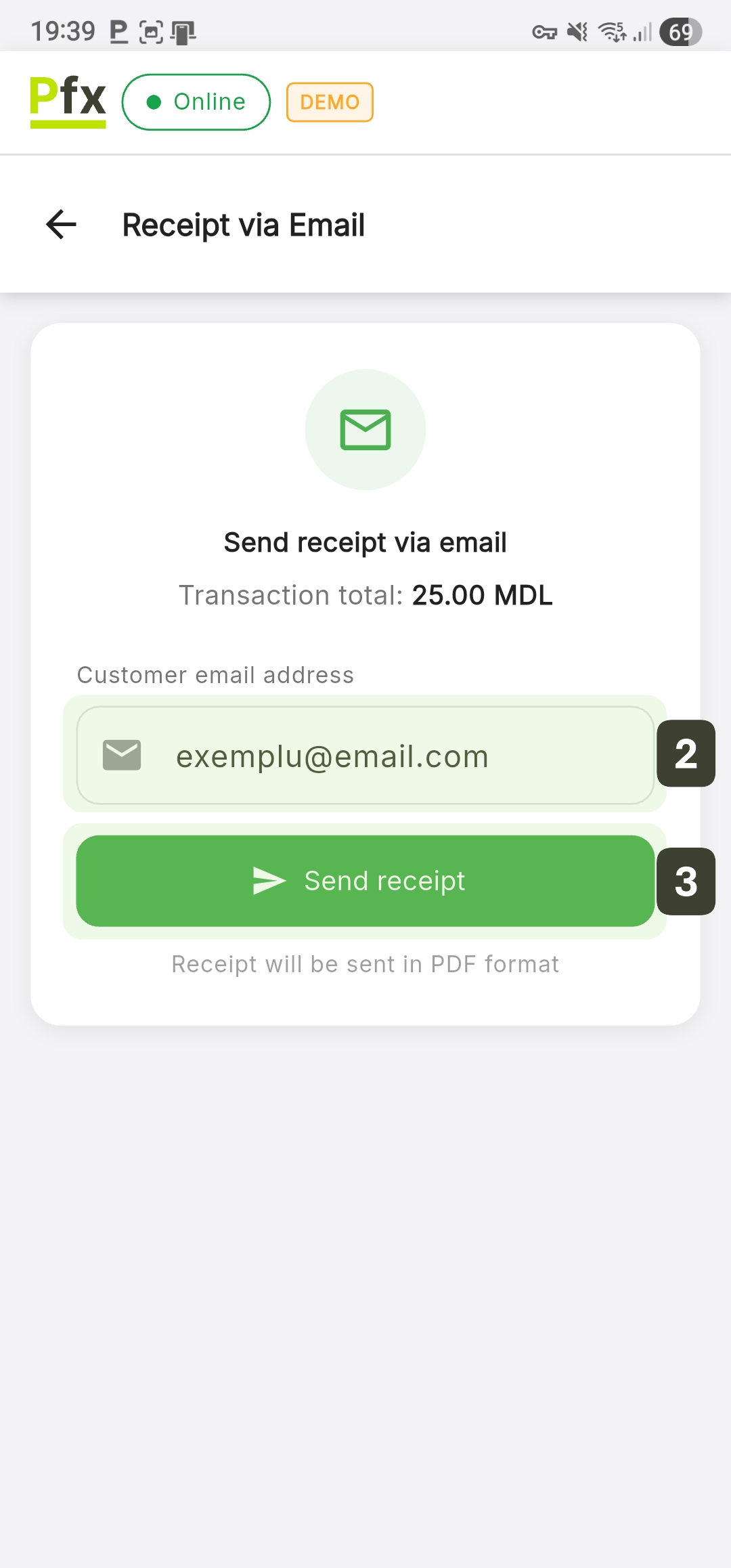
The fiscal receipt will be automatically sent as a PDF file, which can be viewed or downloaded from any device.
Remind customers to check their Spam/Junk folder if they do not receive the receipt within a few minutes.
MEV Compliance
Upon finalizing each sale, the system automatically transmits the fiscal data to MEV (Electronic Sales Monitoring):
- Online: Instant transmission with confirmation
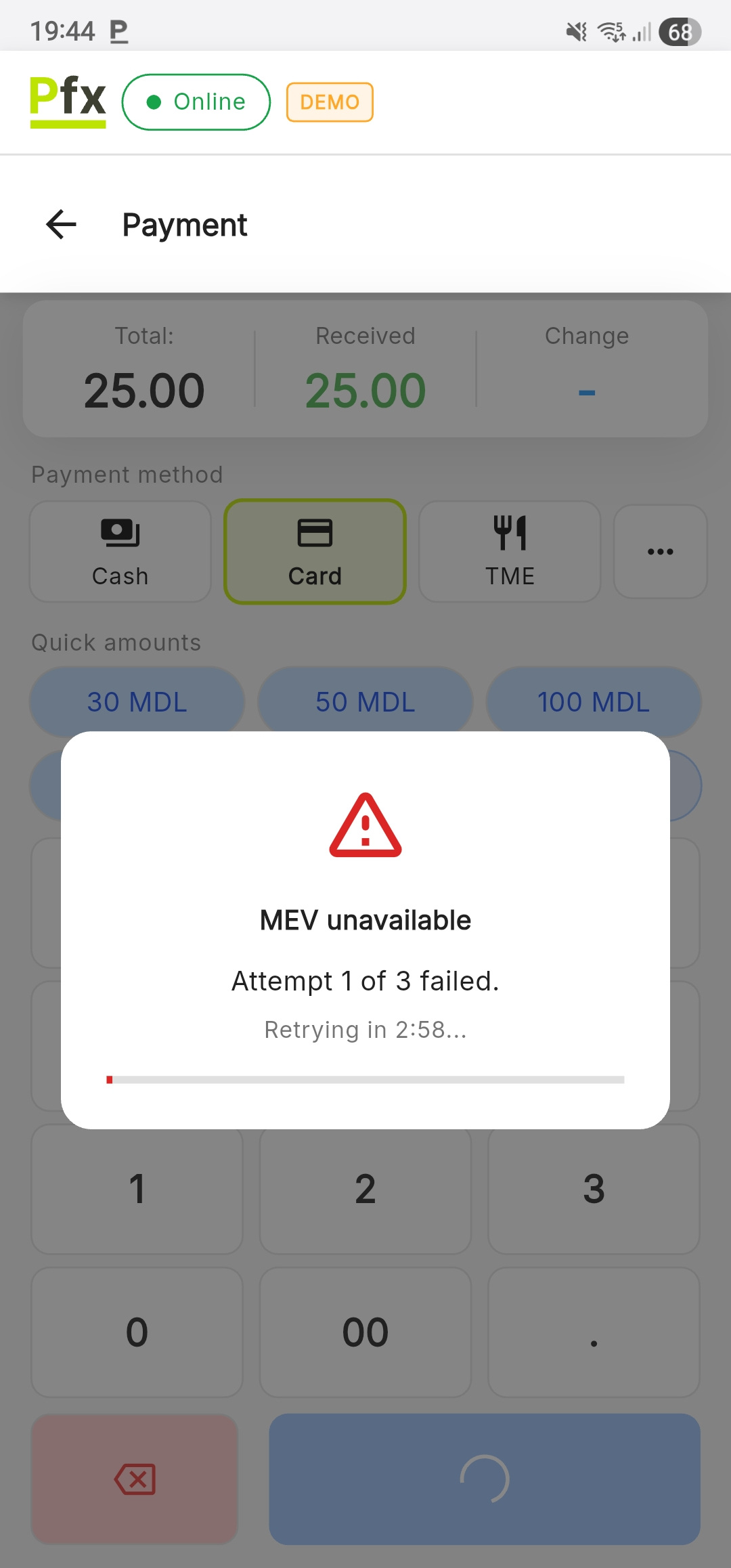
- Retry: In case of failure, the system automatically retries (up to 3 attempts in 3 minutes)
- Visual Indicator: A waiting timer appears on screen during retries