Working with Products and Prices
Adding Products to the Cart
The PosFix system offers flexible methods for adding products, adapted for speed and precision.
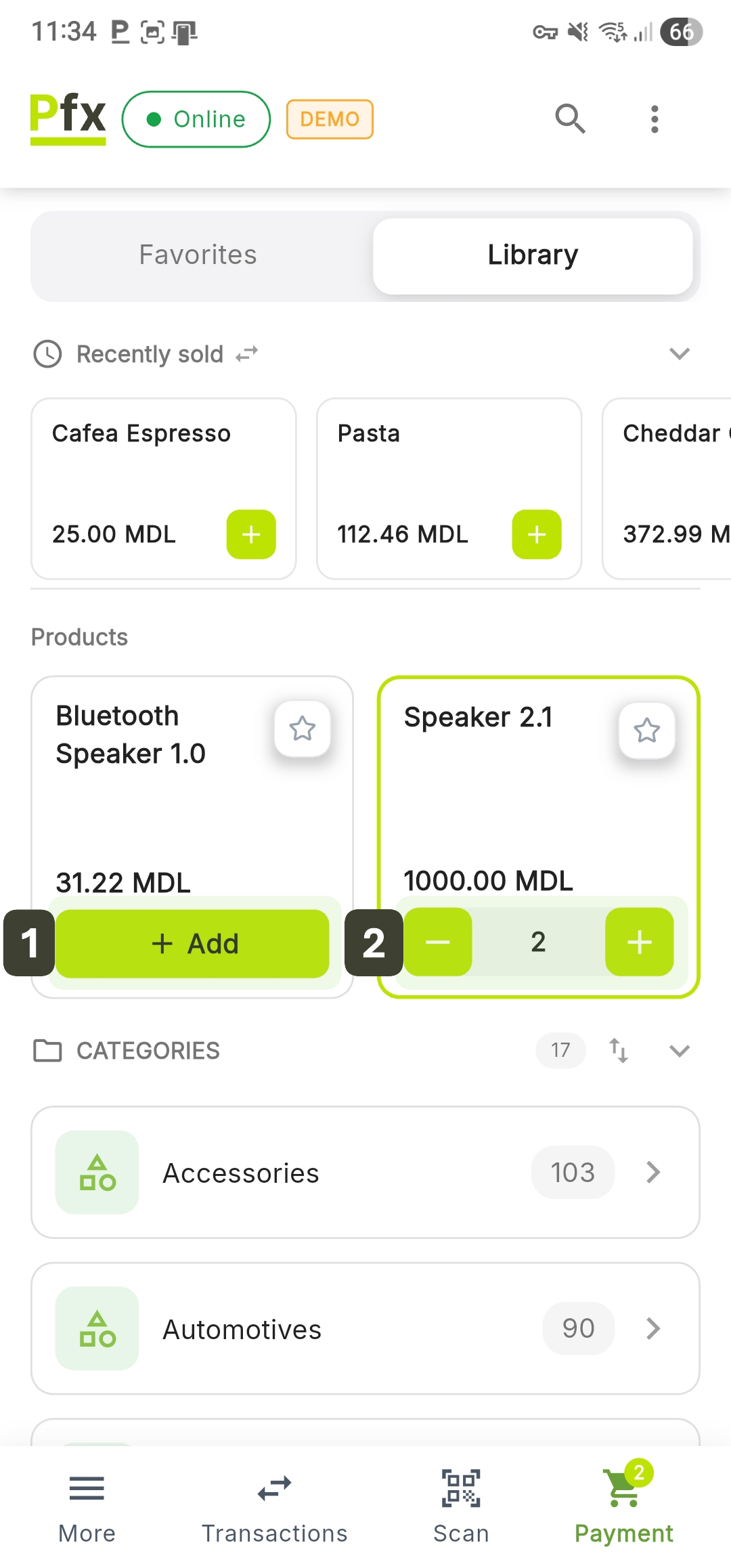
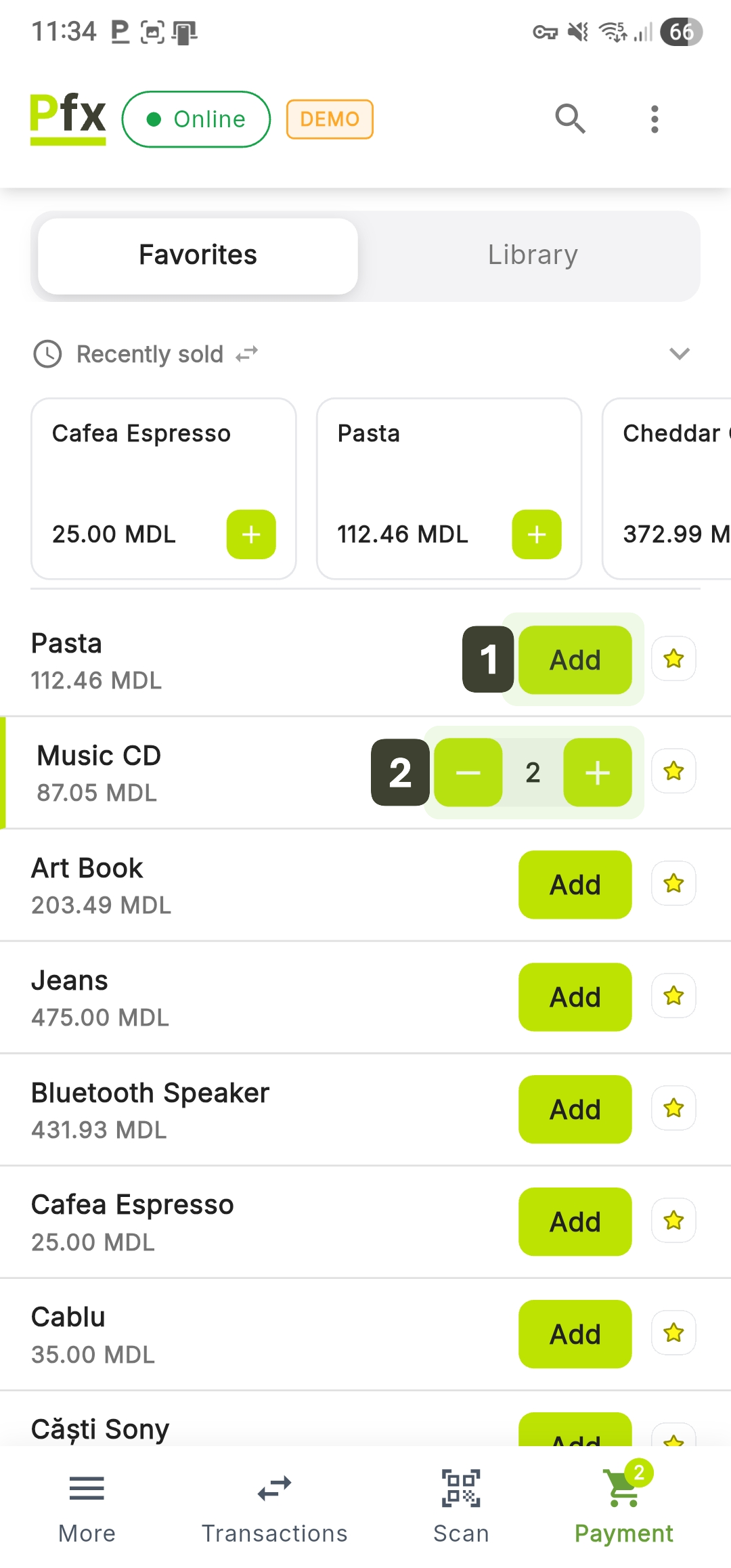
Adding via touch interaction from Library or Favorites:
This method is ideal for products without barcodes or for best-selling items grouped in the quick access sections.
- Adding: Identify the desired product, then press Add
After the first press, the Add button automatically transforms into a quantity selector, allowing immediate adjustments. - Quick Adjustment: Use the [+] or [-] buttons to modify the number of units desired
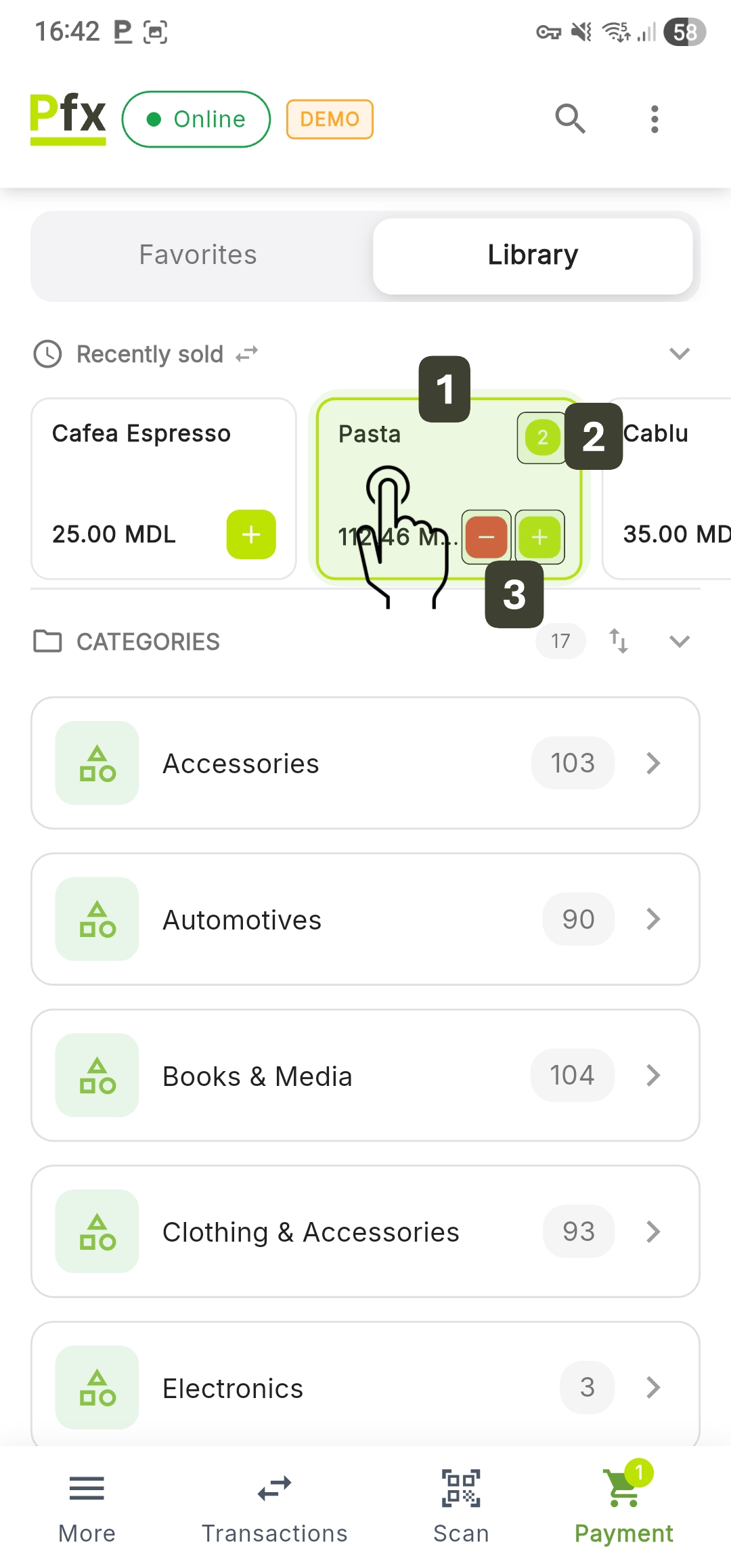
Adding via touch interaction from the "Recently Sold" section:
- Adding: Tap once anywhere on the product card to add the first unit
After the first press, the Add button automatically transforms into a quantity selector, allowing immediate adjustments. - Viewing the Quantity: Once added, a circular indicator (badge) will appear in the upper right corner of the card displaying the current quantity
- Quick Adjustment: Use the [+] or [-] buttons to modify the number of units desired
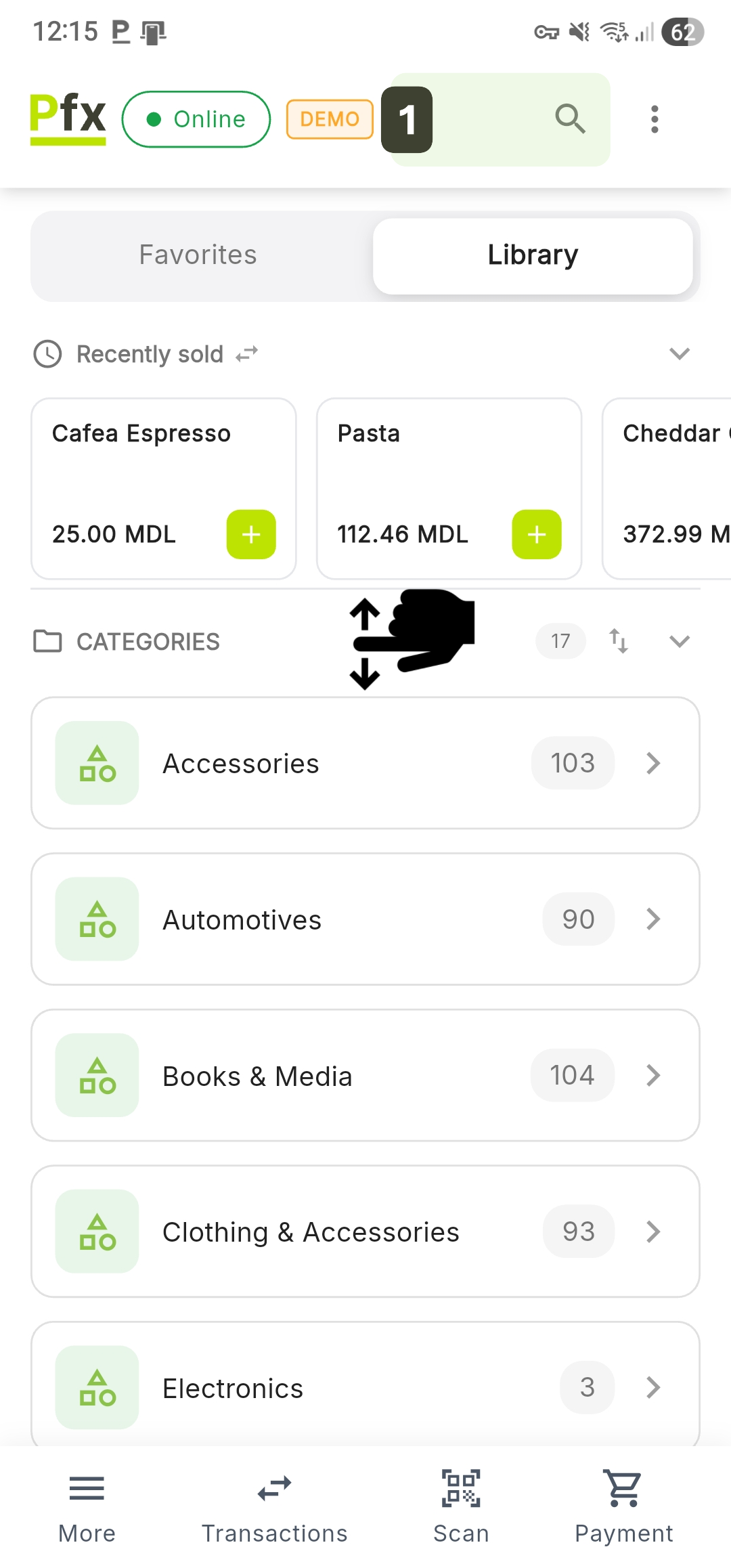
Search and Quick Add (by Name or Code)
This method is the most efficient for managing a large inventory, allowing instant product location without navigating through categories.
- Pull the screen down (pull-down) or tap the search icon (magnifying glass)
- Enter the first letters of the name or product code
- Identify the product from the filtered results and press the Add button
Once added, the button transforms into a selector; use [+] or [-] to set the exact number of units.
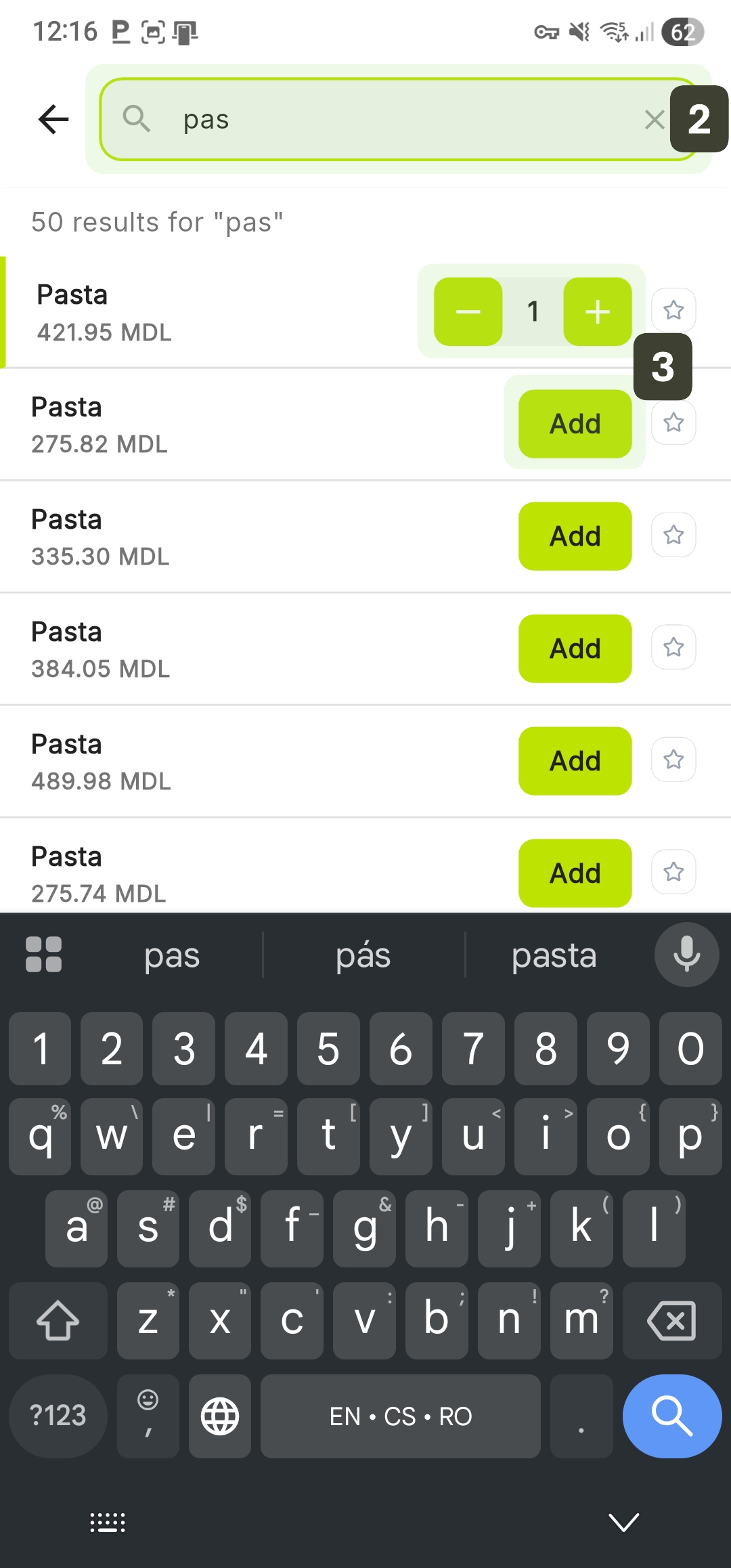
Each result displays the unit price directly below the name, helping you choose the correct product when there are items with similar names.
Navigating through Categories and Subcategories
This method allows finding products by exploring the inventory in a structured way, ideal when you want to view all available options within a specific product group.
- Select the Library tab
- Scroll through the CATEGORIES list and tap on the desired product group
- Within the chosen category, you can tap on a Subcategory to narrow down the results
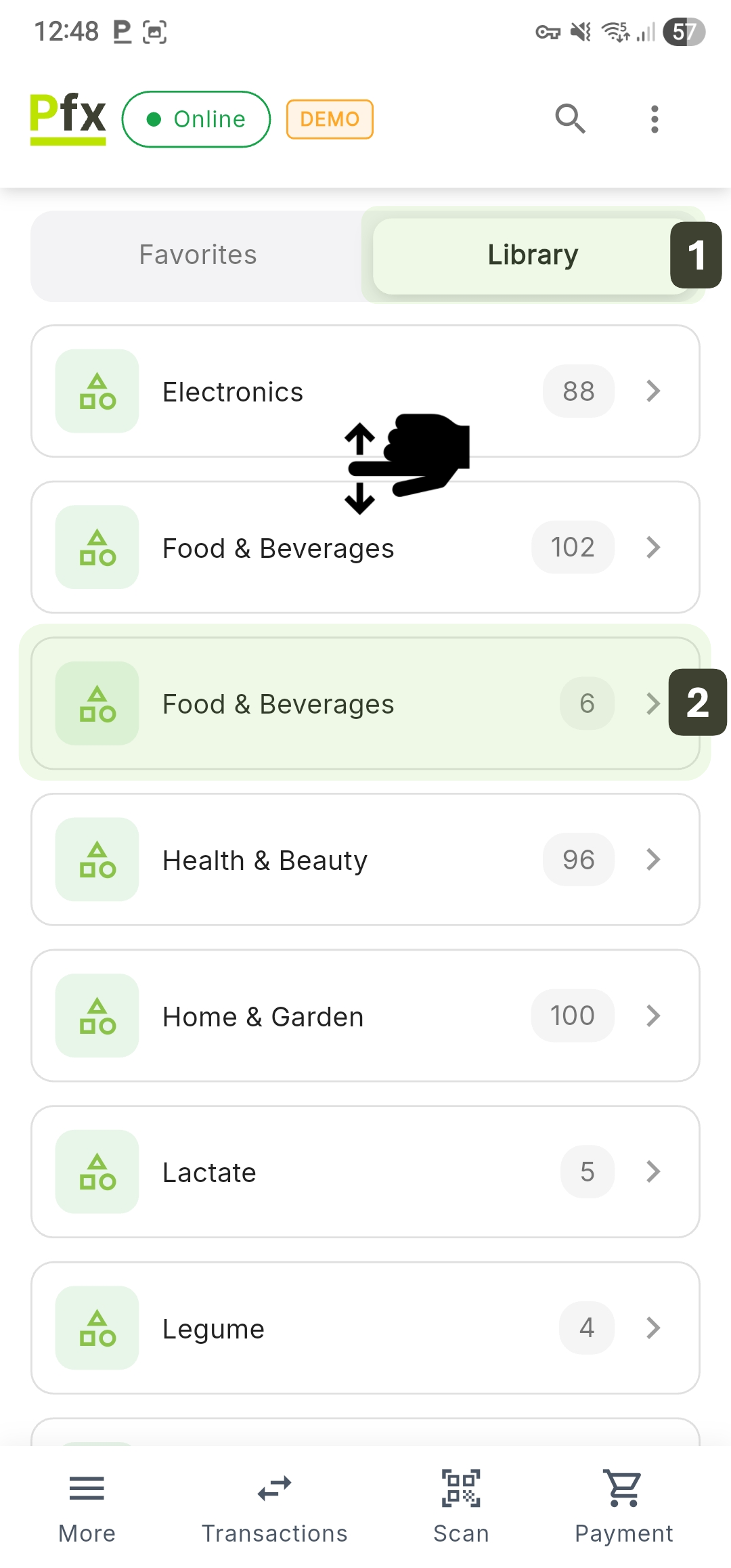
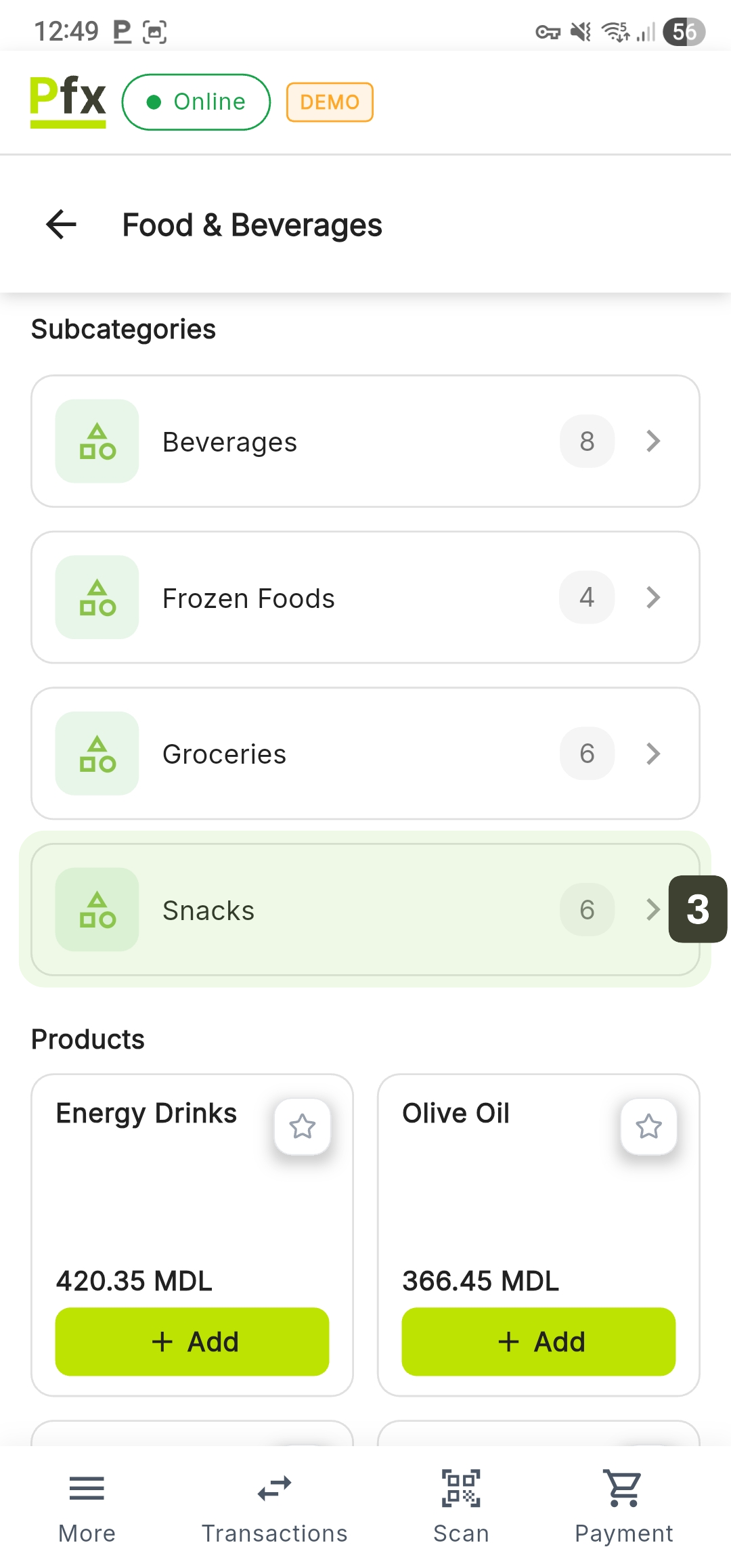
- Under the subcategory list, locate the desired item and press the Add button
Once added, the button transforms into a selector; use [+] or [-] to set the exact number of units.
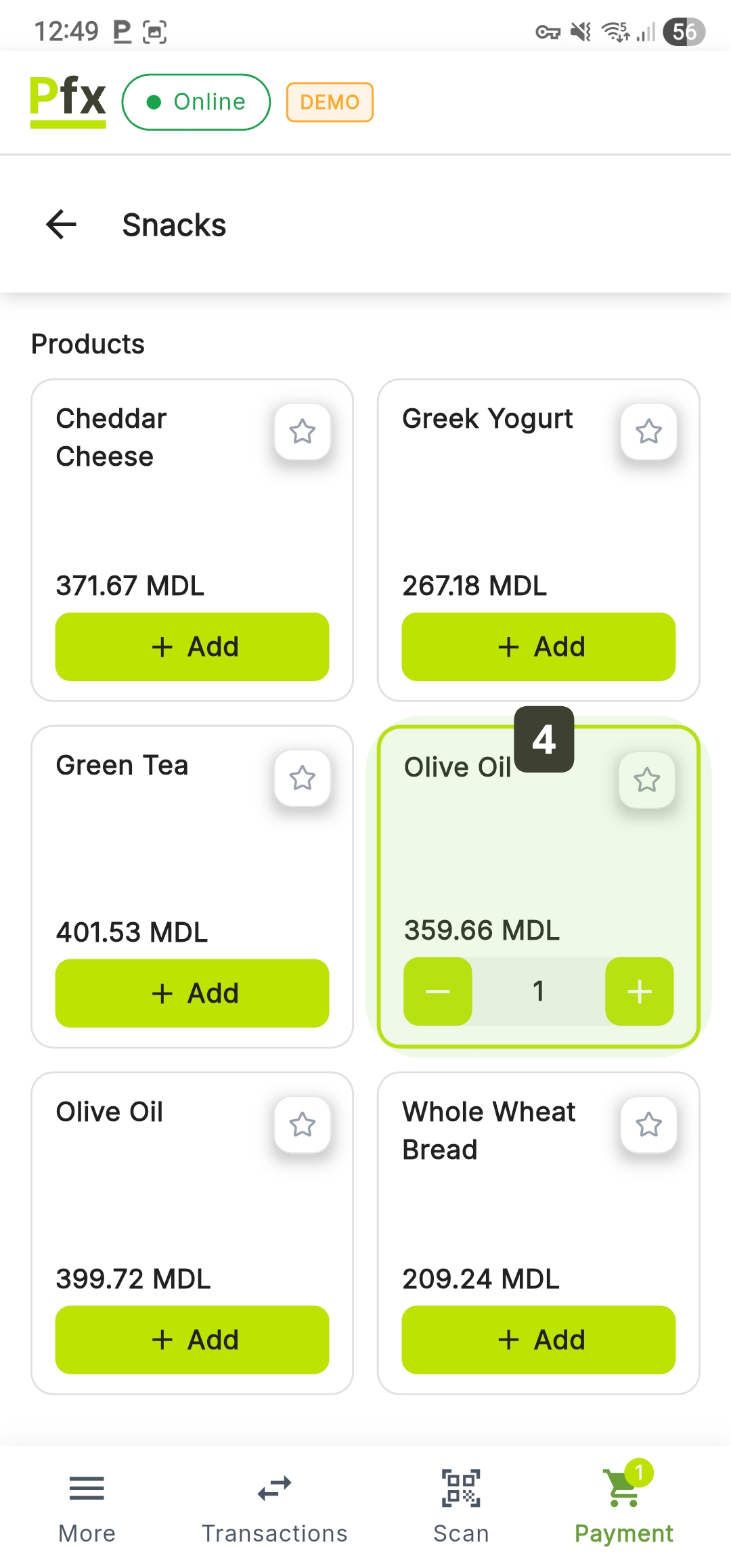
If a product from categories is frequently sold, tap the star (☆) icon on the product card to add it to the Favorites tab, ensuring instant access to it in the future.
Barcode Scanning
To scan barcodes:
- Press the Scan button in the bottom navigation bar
- Point the camera at the barcode/QR code
- The product is identified and added automatically
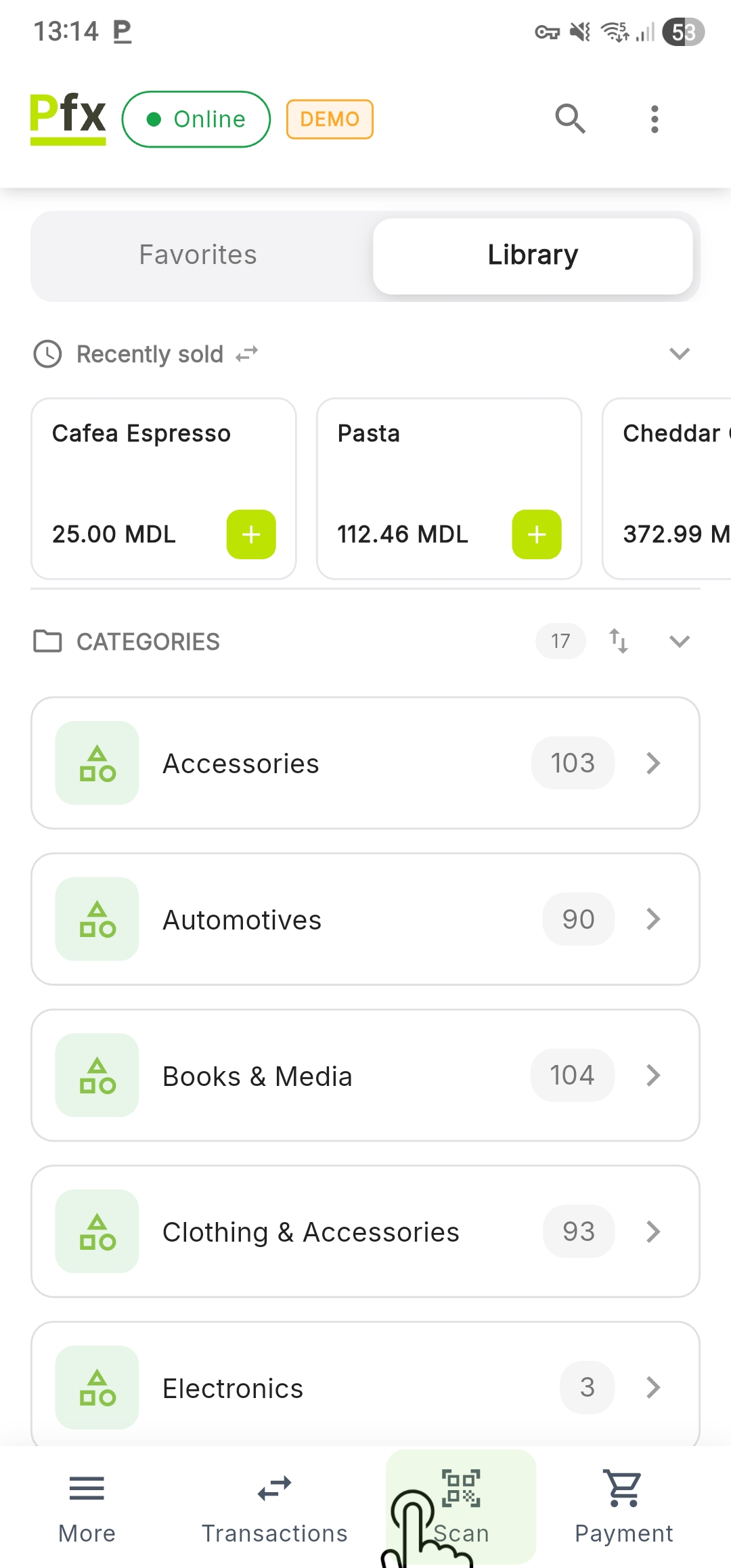
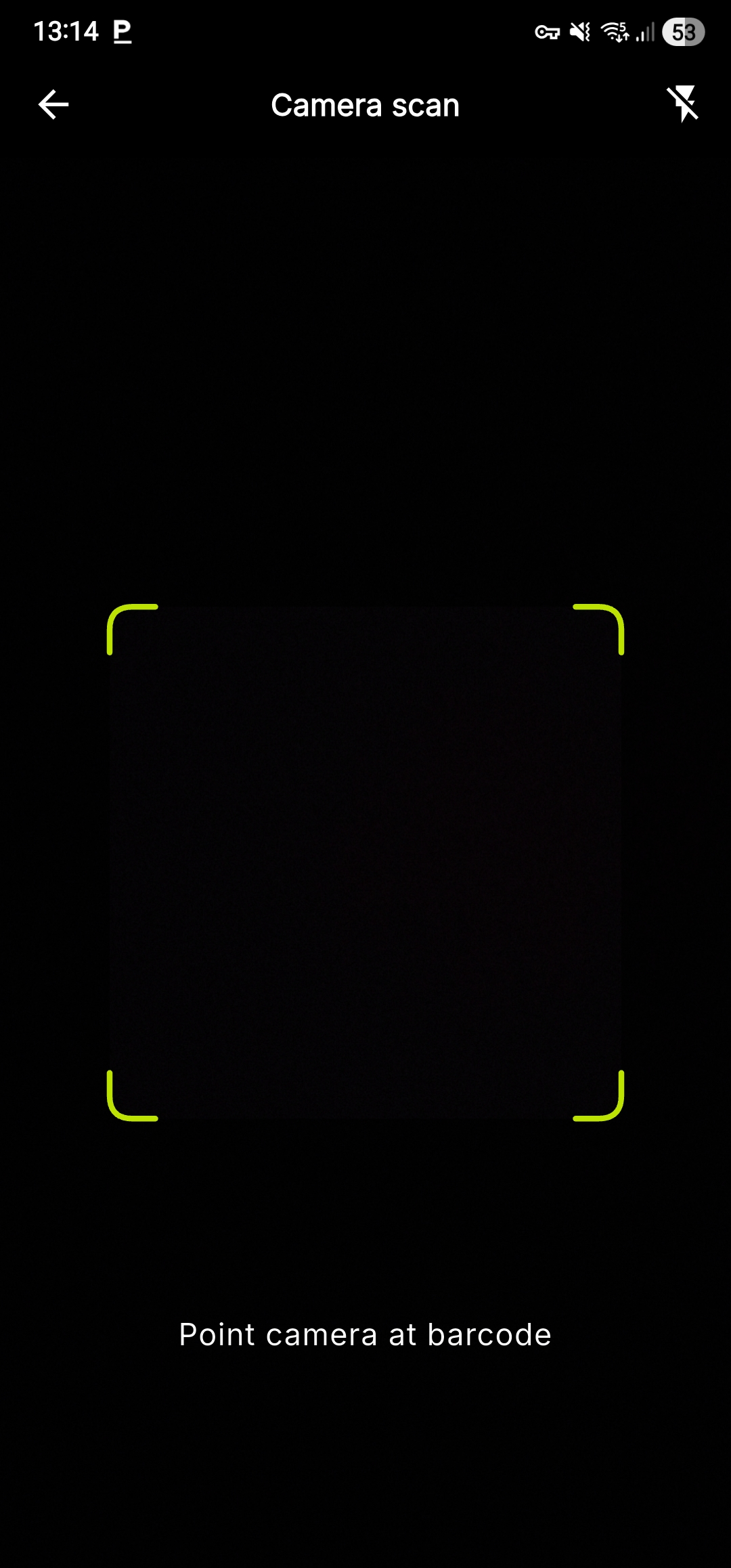
After each addition, the operator can confirm the success of the operation through two indicators:
Product Indicator: Appears on the card or next to the product, displaying the selected quantity.
General Indicator (Payment): The number on the cart icon automatically updates with the total number of items in the transaction.
Editing a Product in the Cart
For modifying the quantity, price, or applying a discount/markup on a single item:
- Tap on the desired item in the list
- The editing window opens with options:
- Unit price - Change the price
- Quantity - Enter the exact value
- Discount - Apply a discount on the item
- Markup - Apply a surcharge on the item
- Press Save to update the cart
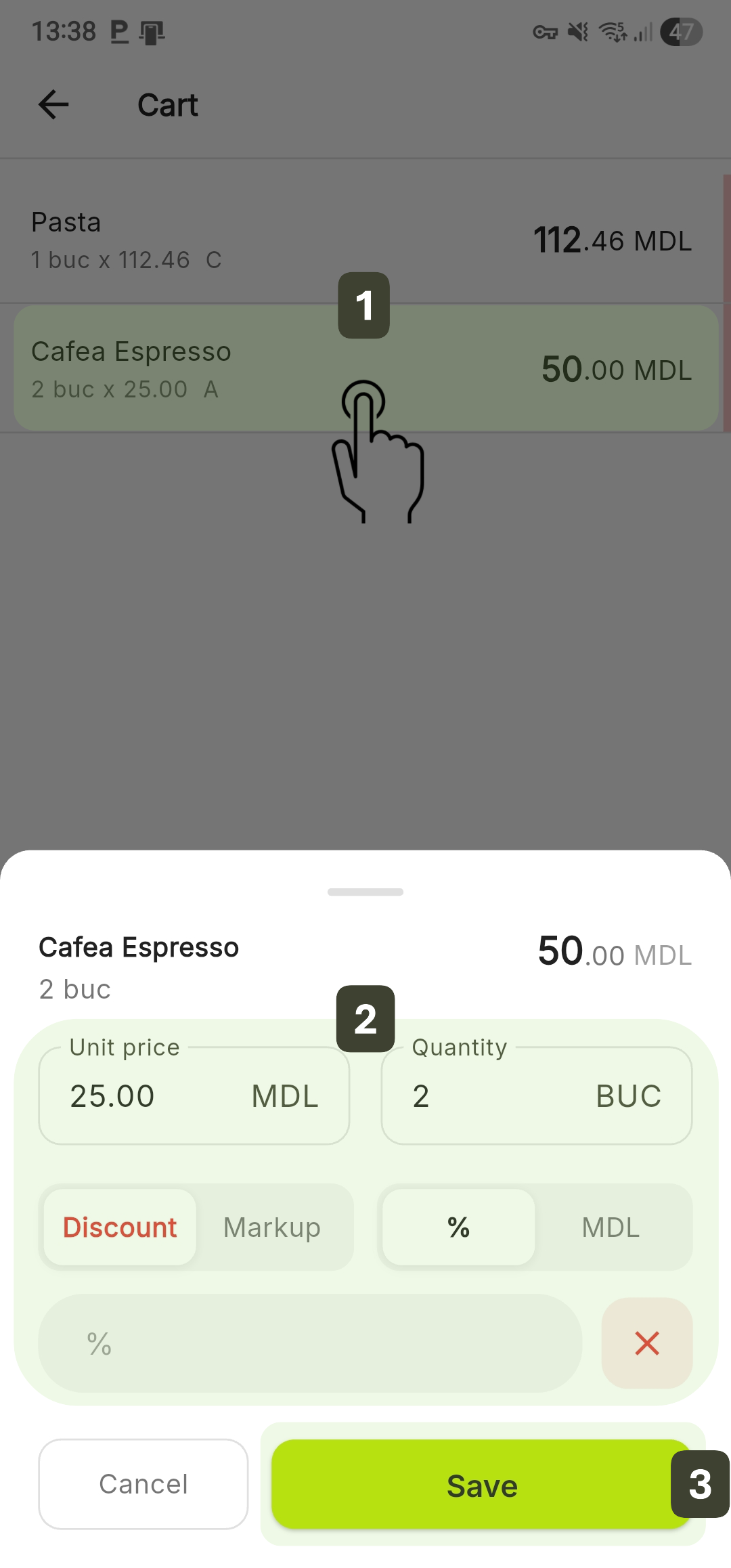
Fractional Quantities
Products sold by weight (kilogram), length (meter), or volume (liter) require quantities with decimals. The system supports up to 3 decimal places (e.g.: 1.500 kg or 0.450 m).
- Use the on-screen numeric keypad to enter the measured quantity in the Quantity field
Example: For a piece of cheese weighing 359 grams, type 0.359 - Press the Save button to add the product with the new quantity to the cart
The system instantly calculates the selling price correlated with the weight
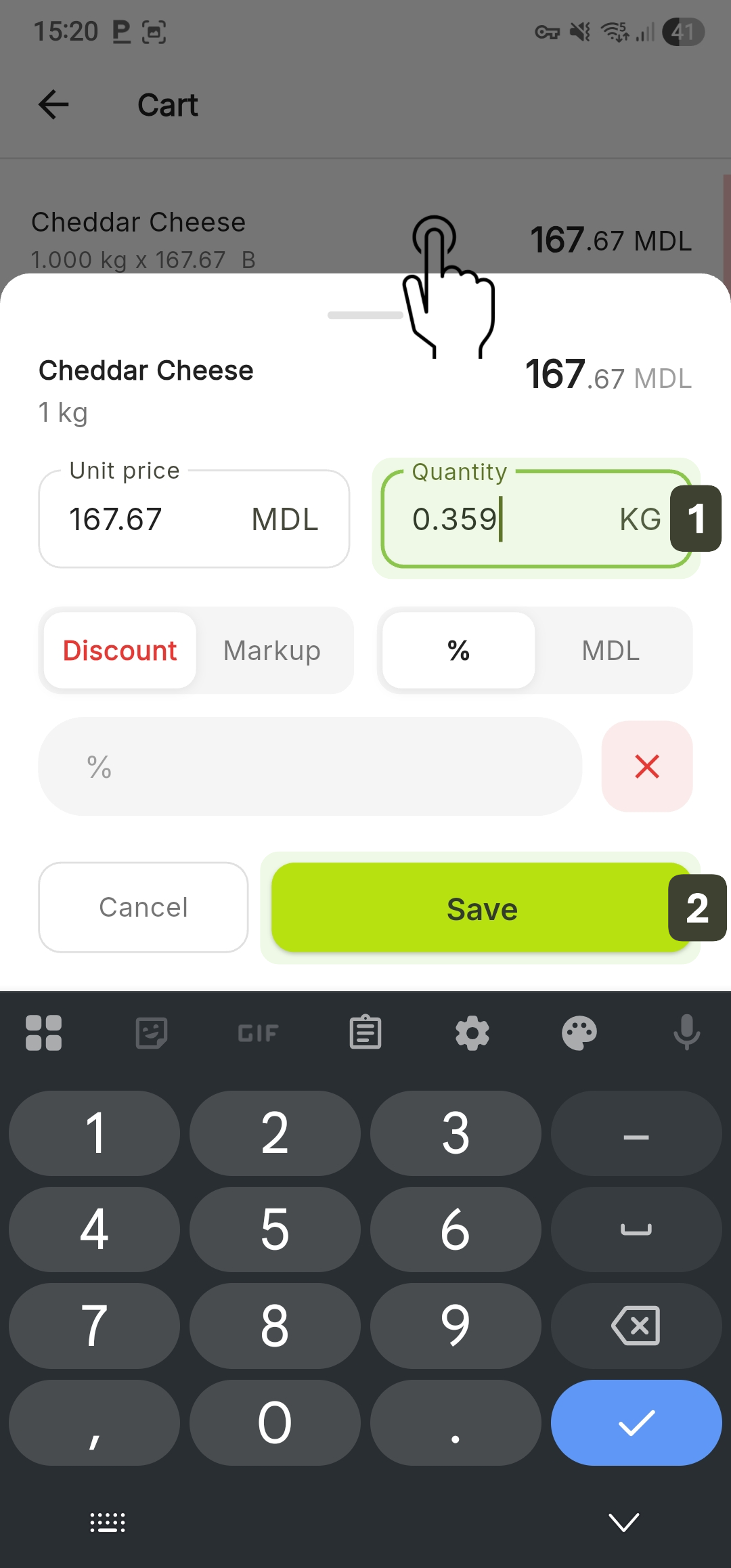
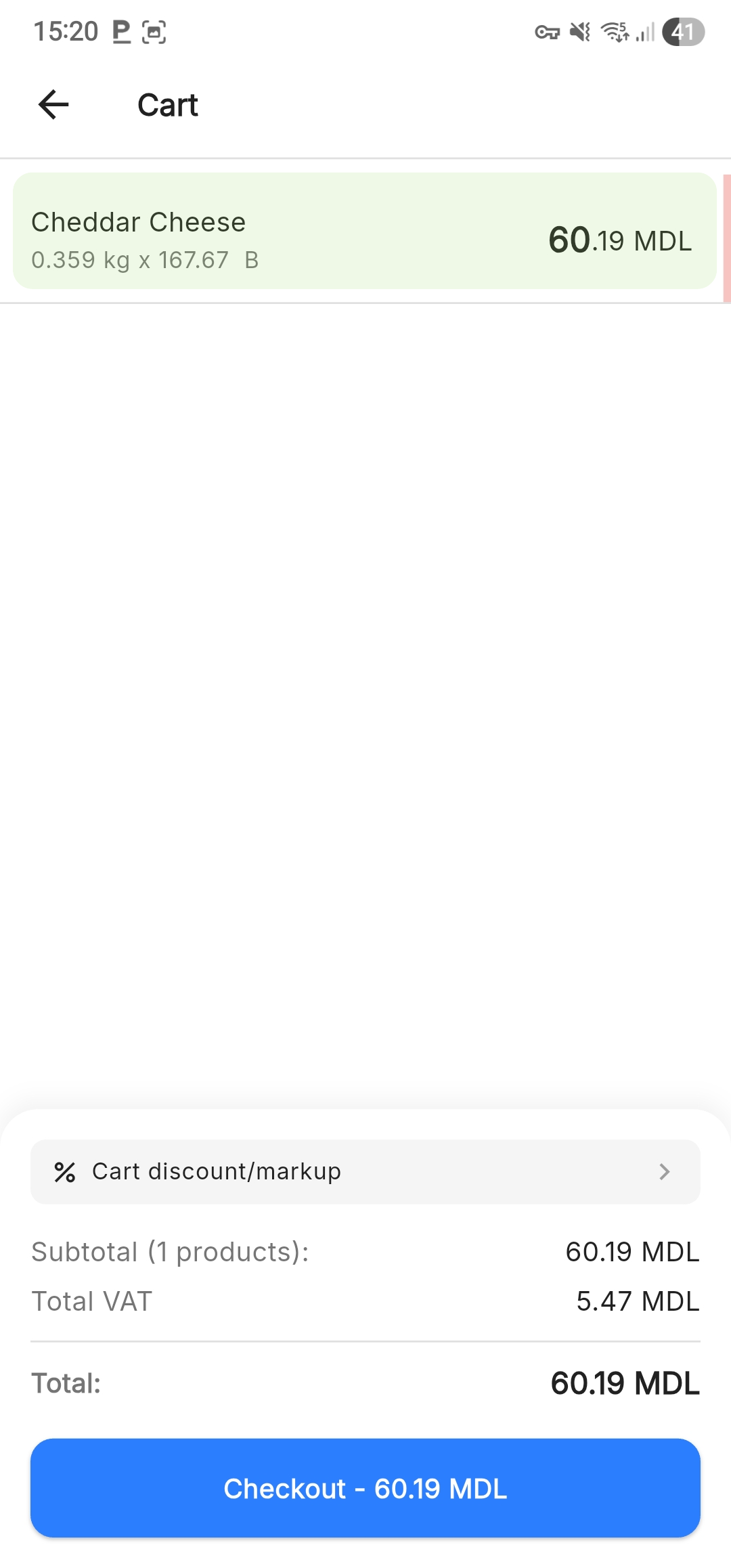
Subsequent Modification: If you entered the wrong quantity, tap the product in the cart and modify the value.
Calculation Examples:
| Product | Price/kg | Quantity | Total |
|---|---|---|---|
| Apples | 15.00 lei | 1.500 kg | 22.50 lei |
| Cheese | 85.00 lei | 0.350 kg | 29.75 lei |
| Meat | 120.00 lei | 2.175 kg | 261.00 lei |
Applying Discounts
You can offer discounts on a specific product directly from the cart.
Item Discount
- Tap on the item in the cart
- Select Discount
- Choose the type:
- Percent (%) - Enter the discount percentage
- MDL (Fixed Amount) - Enter the fixed value
- Press Save
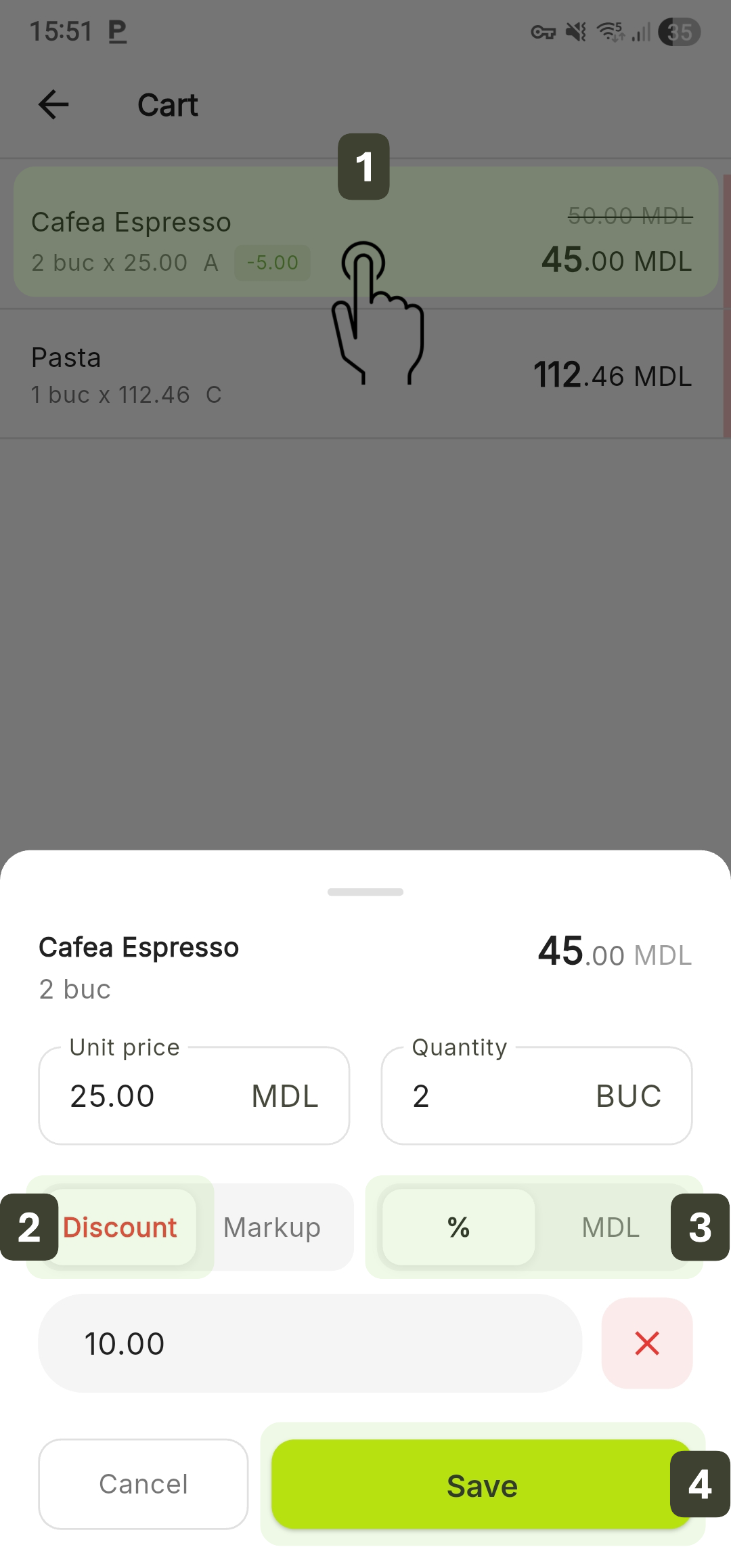
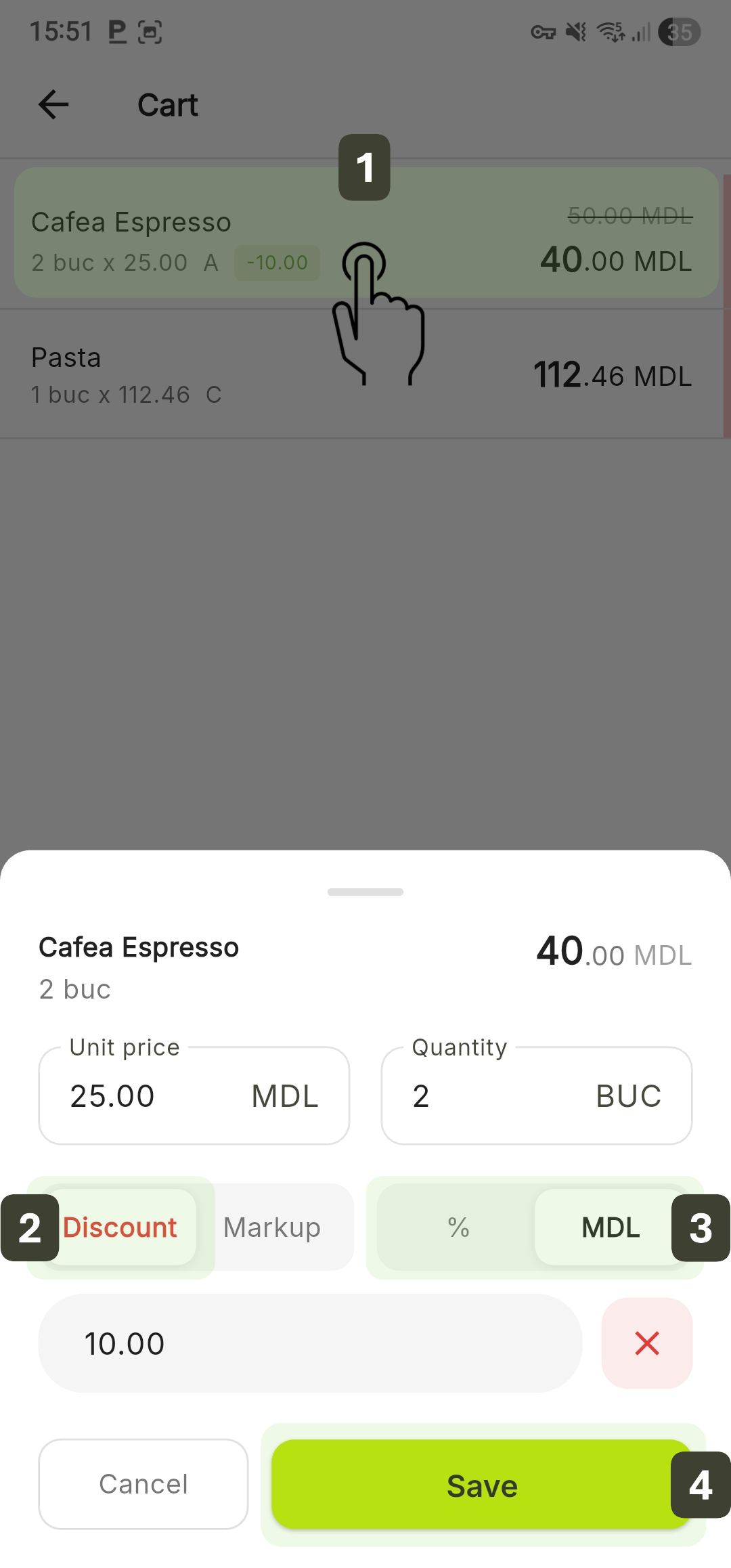
Formula:
Discount = Price × Percent / 100
Final Price = Price - Discount
Example: Product of 100 lei with 15% discount
- Discount = 100 × 15 / 100 = 15 lei
- Final Price = 85 lei
Applying Markup
This feature allows increasing the price of a product by a certain value.
Item Markup
- Tap on the item in the cart
- Select Markup
- Choose the type:
- Percent (%) - Enter the surcharge percentage
- MDL (Fixed Amount) - Enter the fixed value
- Press Save
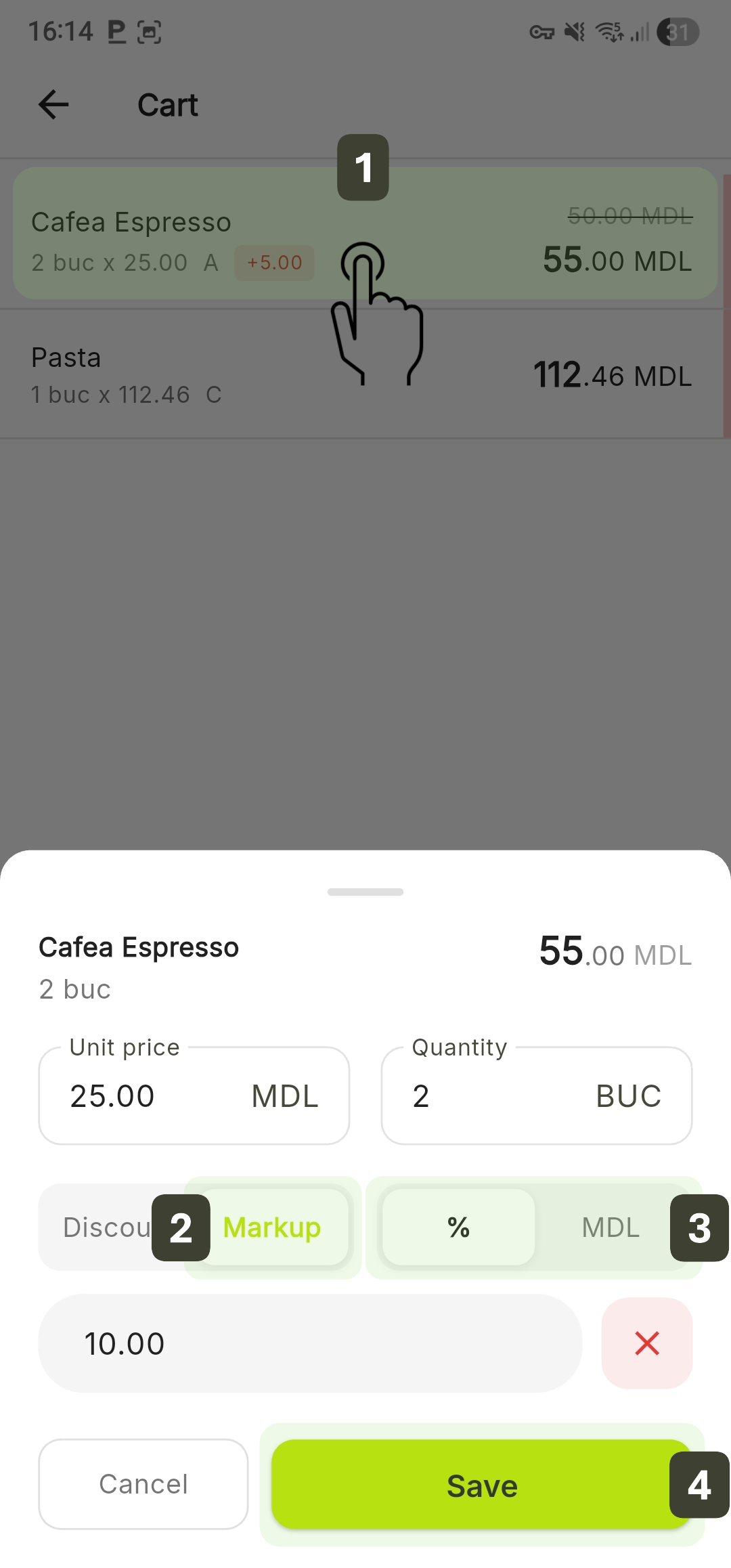
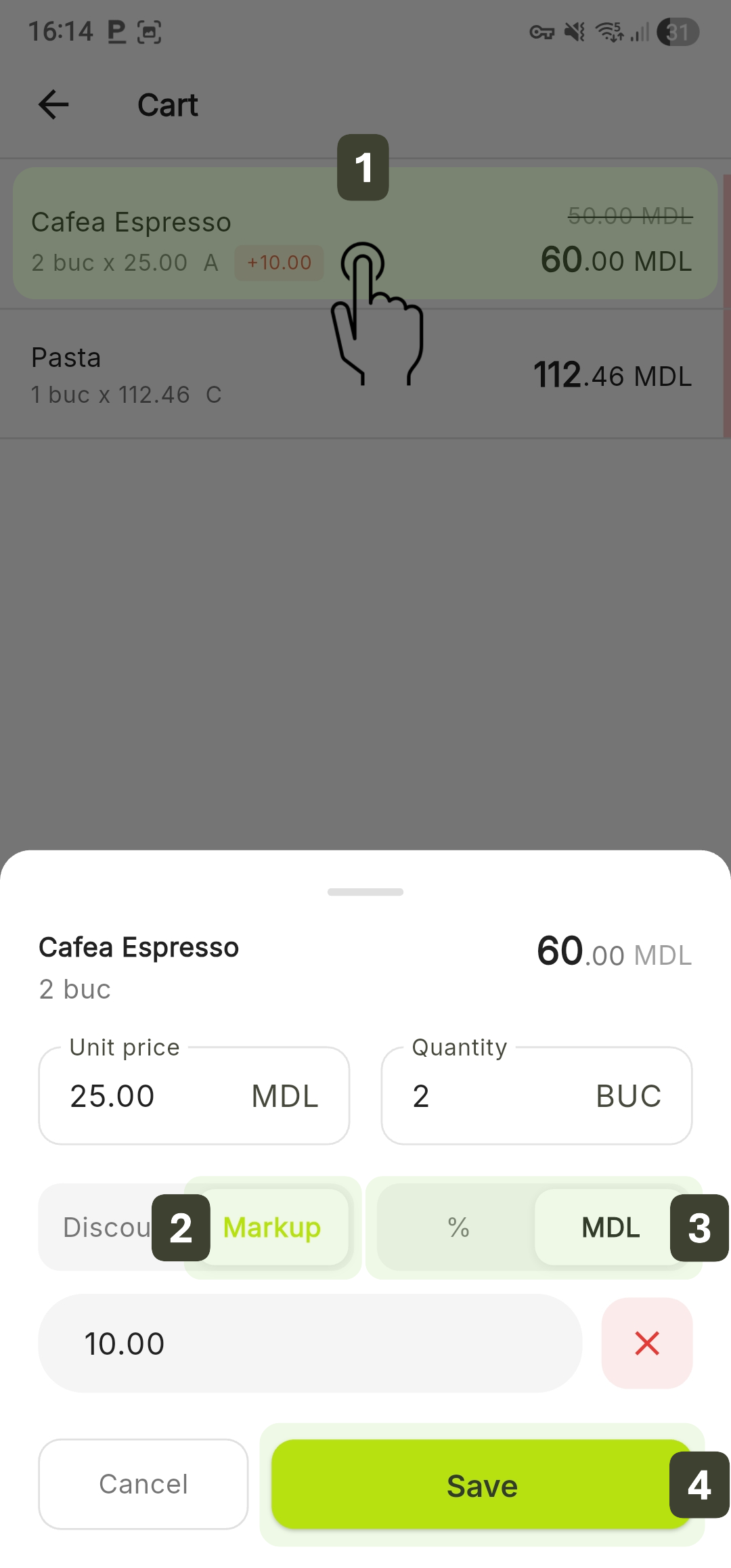
Formula:
Surcharge = Price × Percent / 100
Final Price = Price + Surcharge
Full Order Adjustments
This function allows applying a value adjustment to the entire transaction. The system automatically and proportionally distributes the entered value across each product line in the cart, ensuring the compliance of fiscal calculations.
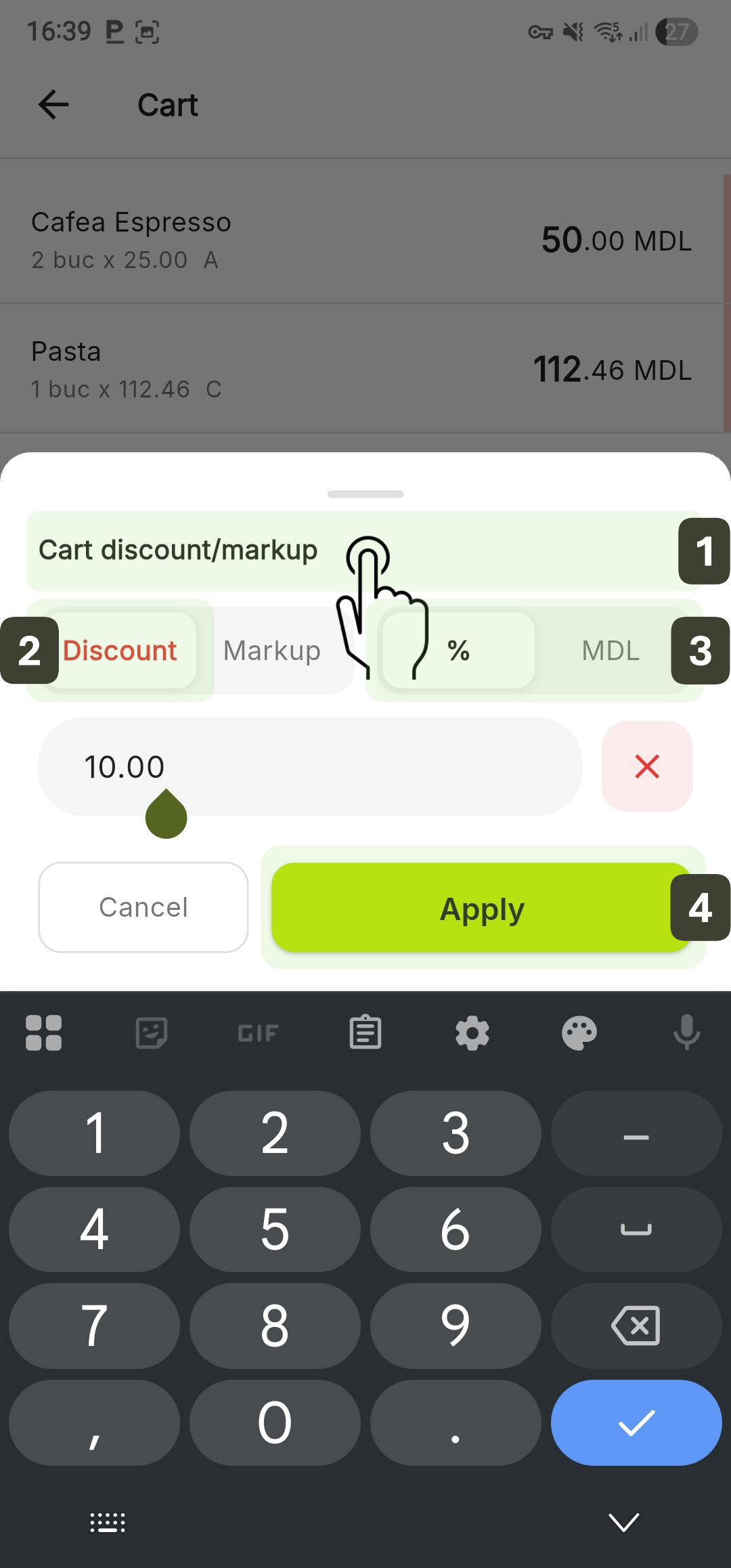
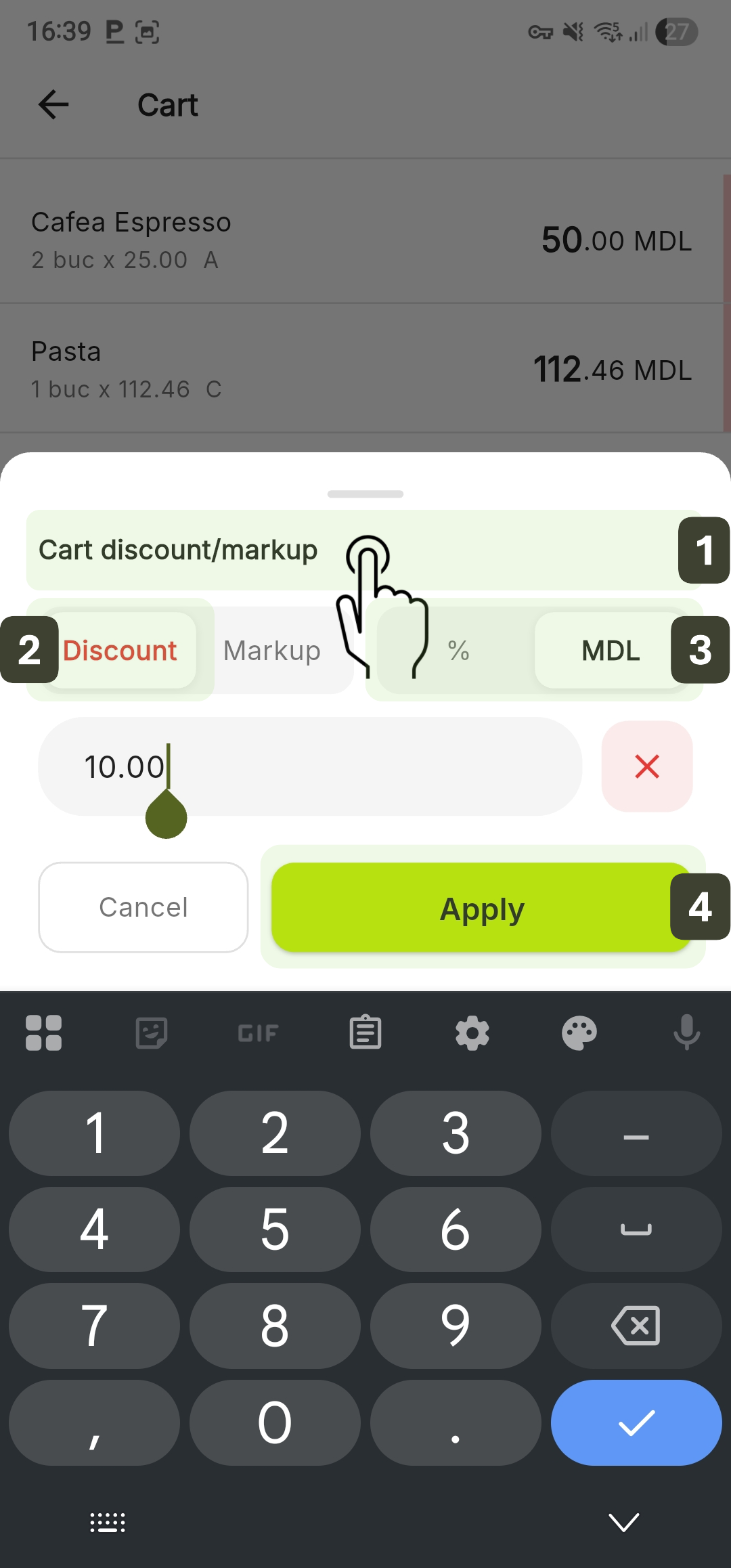
Cart Discount
- From the cart screen, press the Cart discount/markup button
- Select Discount
- Choose the type:
- Percent (%) - Enter the discount percentage
- MDL (Fixed Amount) - Enter the fixed value
- Press Apply
Cart Markup
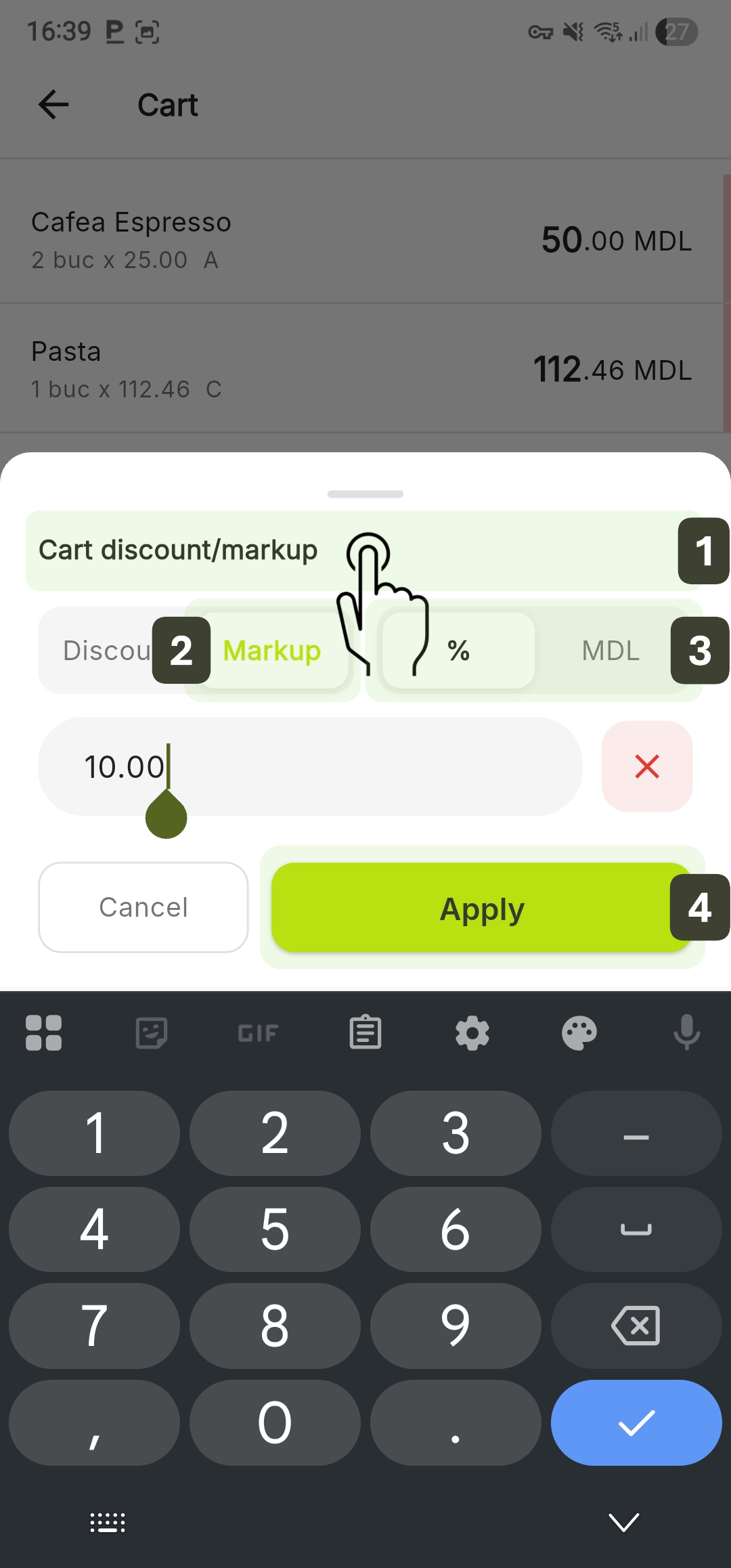
- From the cart screen, press the Cart discount/markup button
- Select Markup
- Choose the type:
- Percent (%) - Enter the surcharge percentage
- MDL (Fixed Amount) - Enter the fixed value
- Press Apply
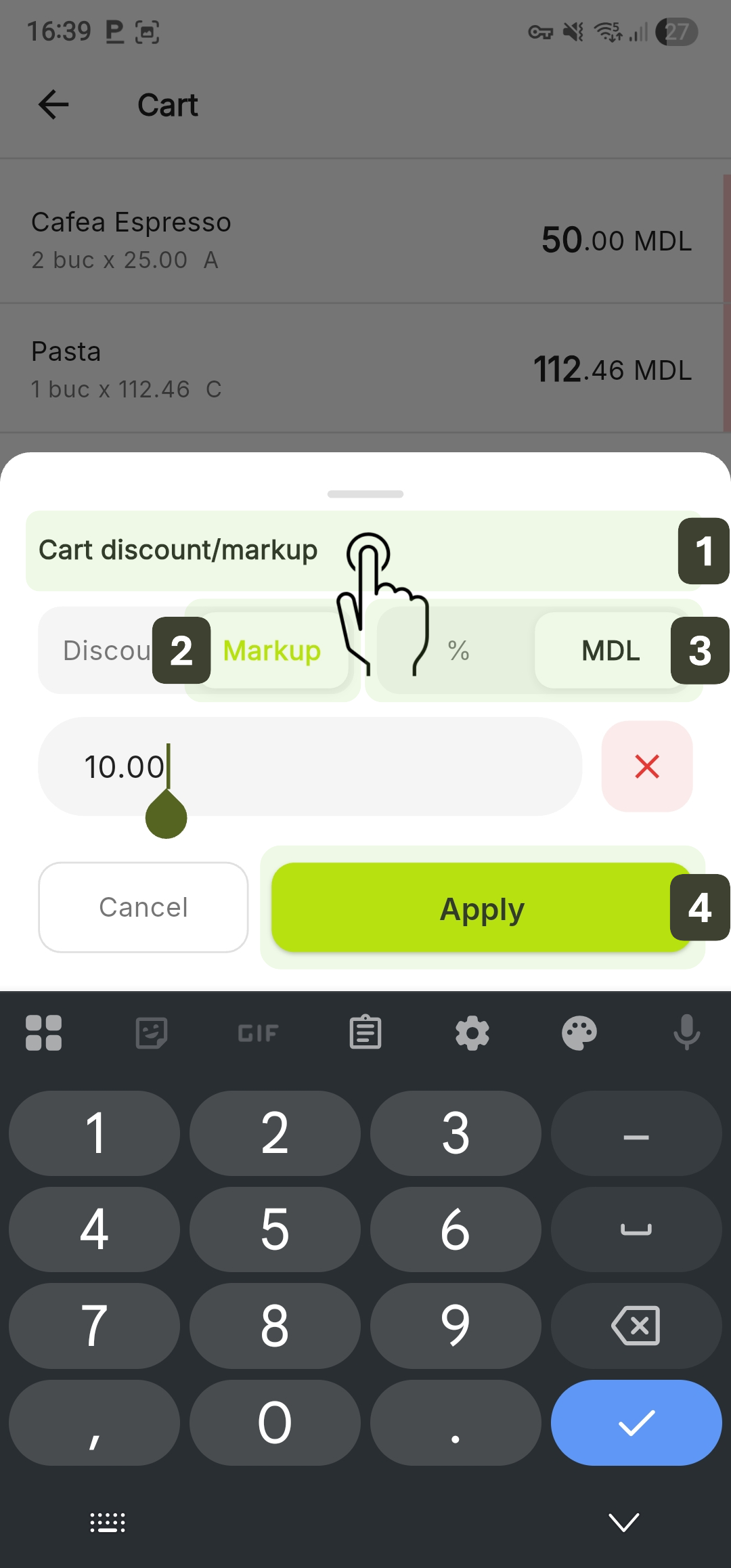
The full order adjustment is distributed proportionally across all items in the cart.
Immediately after applying, check the Total field at the bottom of the cart to make sure the final amount matches the customer's expectations.