Courier deliveries
On the route, you take the register with you. You don't create the deliveries: the office assigns them to you from the panel and they appear on the register by themselves. At the customer's you open the delivery, hand over the goods and take payment on the spot, with a fiscal receipt.
When a delivery arrives
The register rings, vibrates and shows the Livrare nouă (“New delivery”) banner at the top, with the customer and the address. Tap Vezi (“View”) to open it.
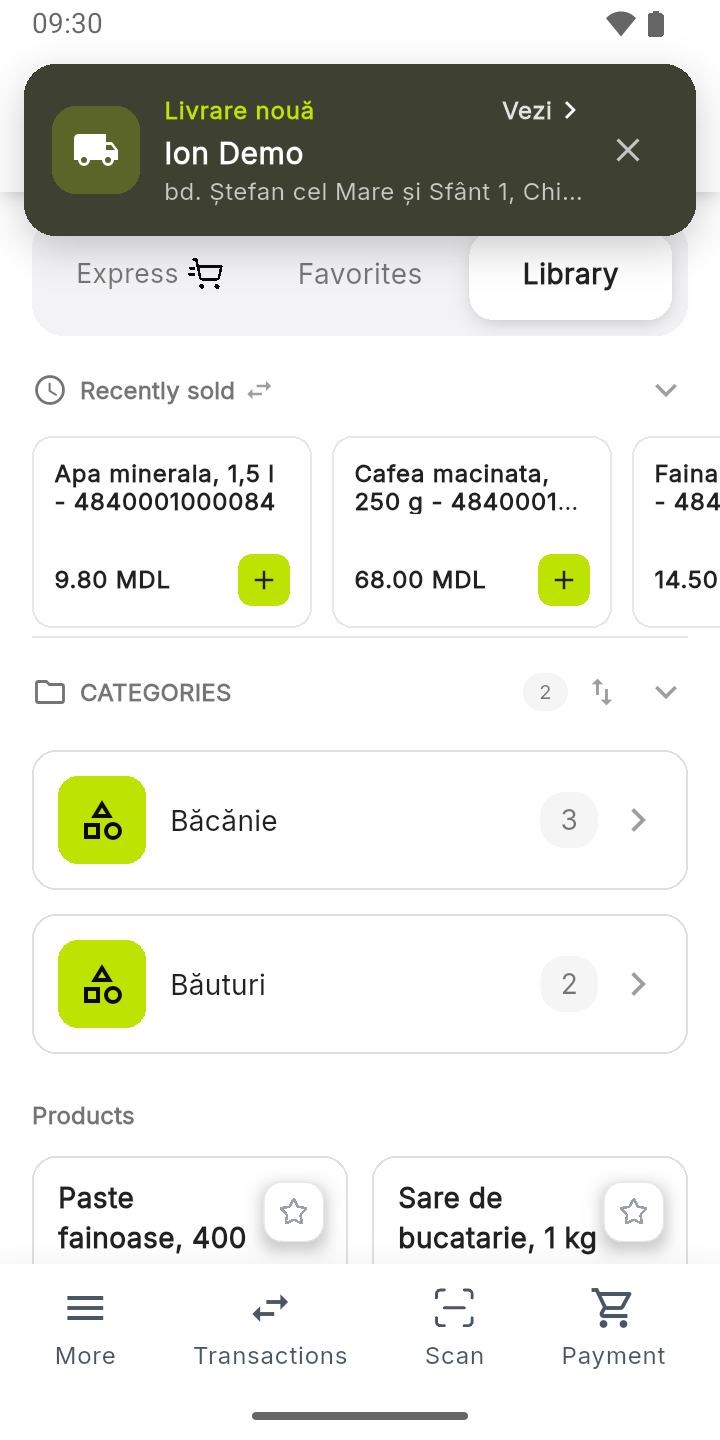
If the banner has gone, the deliveries are waiting for you behind the truck button in the header, or in More → Courier deliveries.
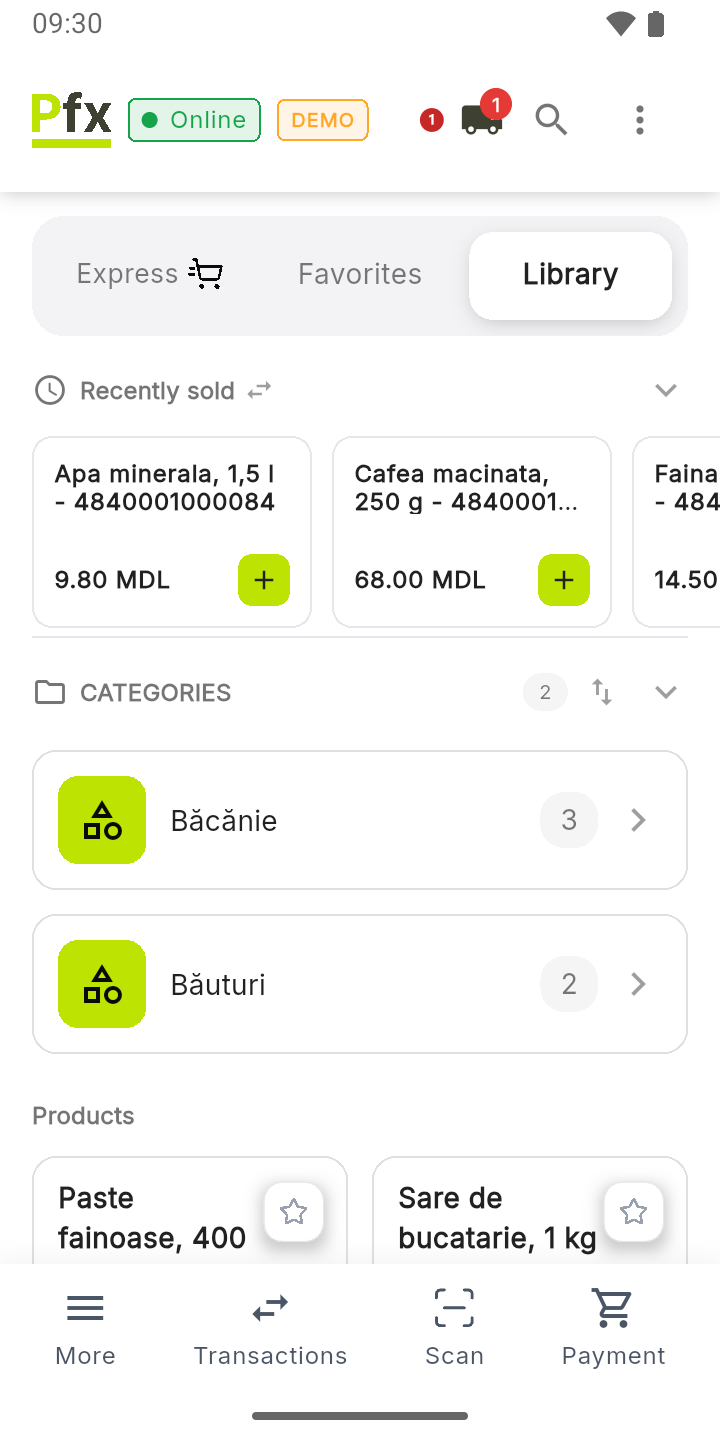
1 the truck button; the red number on it is how many deliveries you have to make
If the register is off or without internet at the moment of assignment, the delivery appears when the register reconnects. The office holds it for the register for a few hours; after that it has to be assigned again.
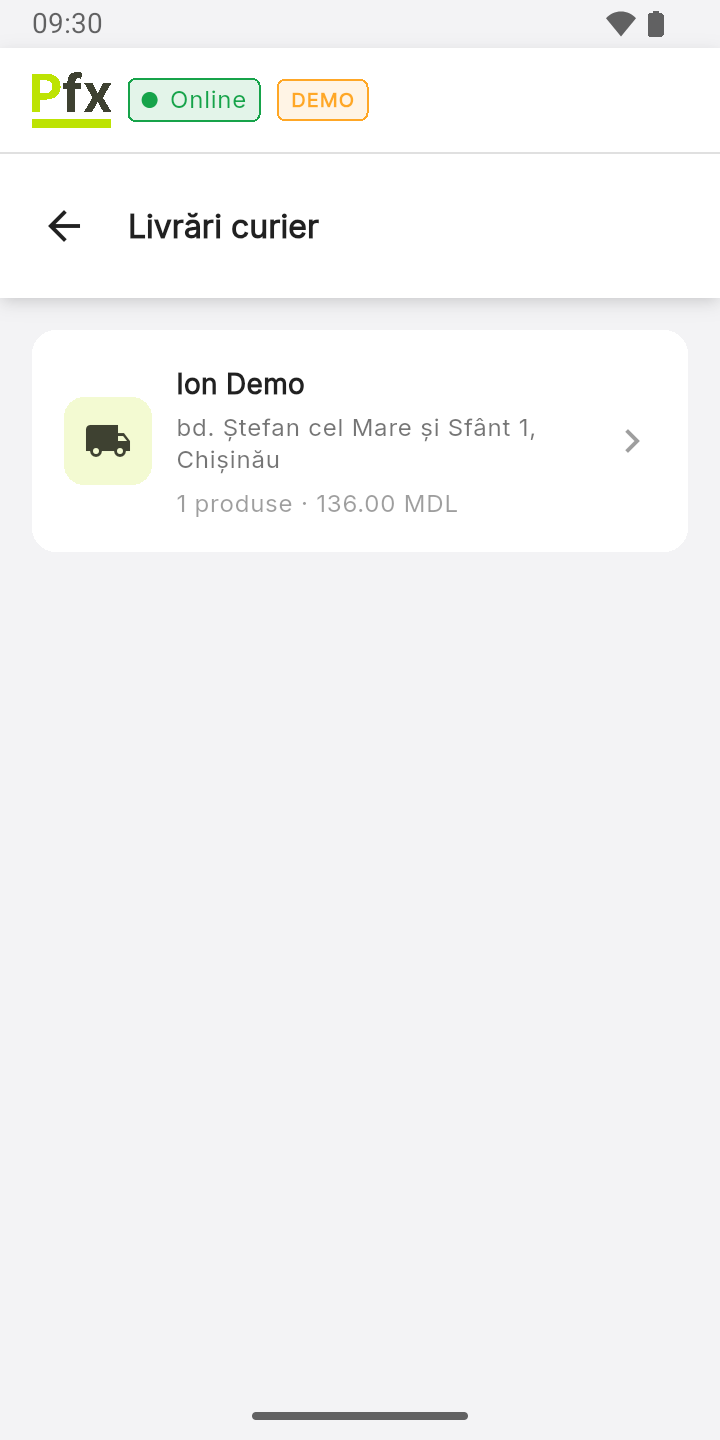
Each delivery shows the customer, the address, how many items it has and the amount to collect. Tap it to open it.
To deliver and take payment
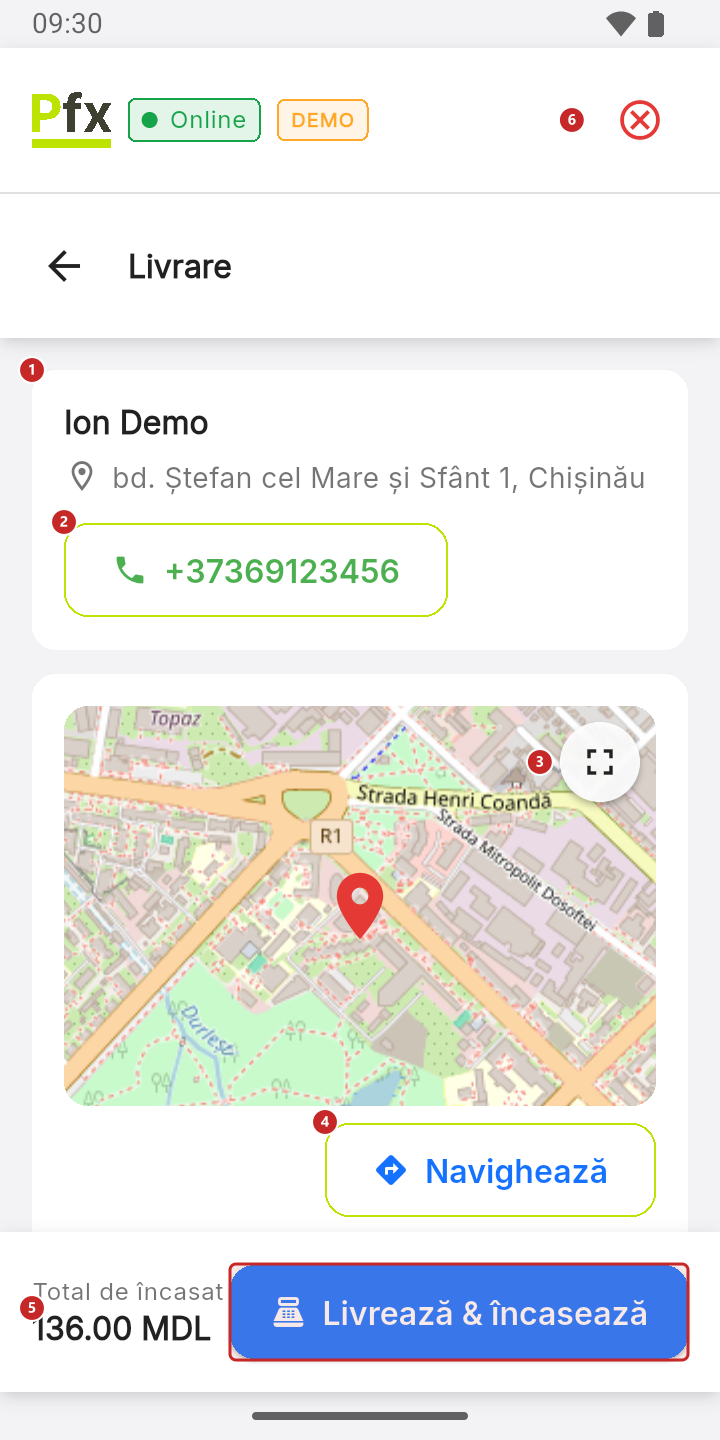
1 the customer and the address · 2 call the customer · 3 enlarge the map · 4 start navigation to the address · 5 the amount to collect · 6 cancel the delivery
Navighează (“Navigate”) opens the device's maps app. The pin on the map is found from the written address and can be approximate: if it doesn't match the street, call the customer.
Further down the record, under Produse (“Products”), you set what the customer actually receives:
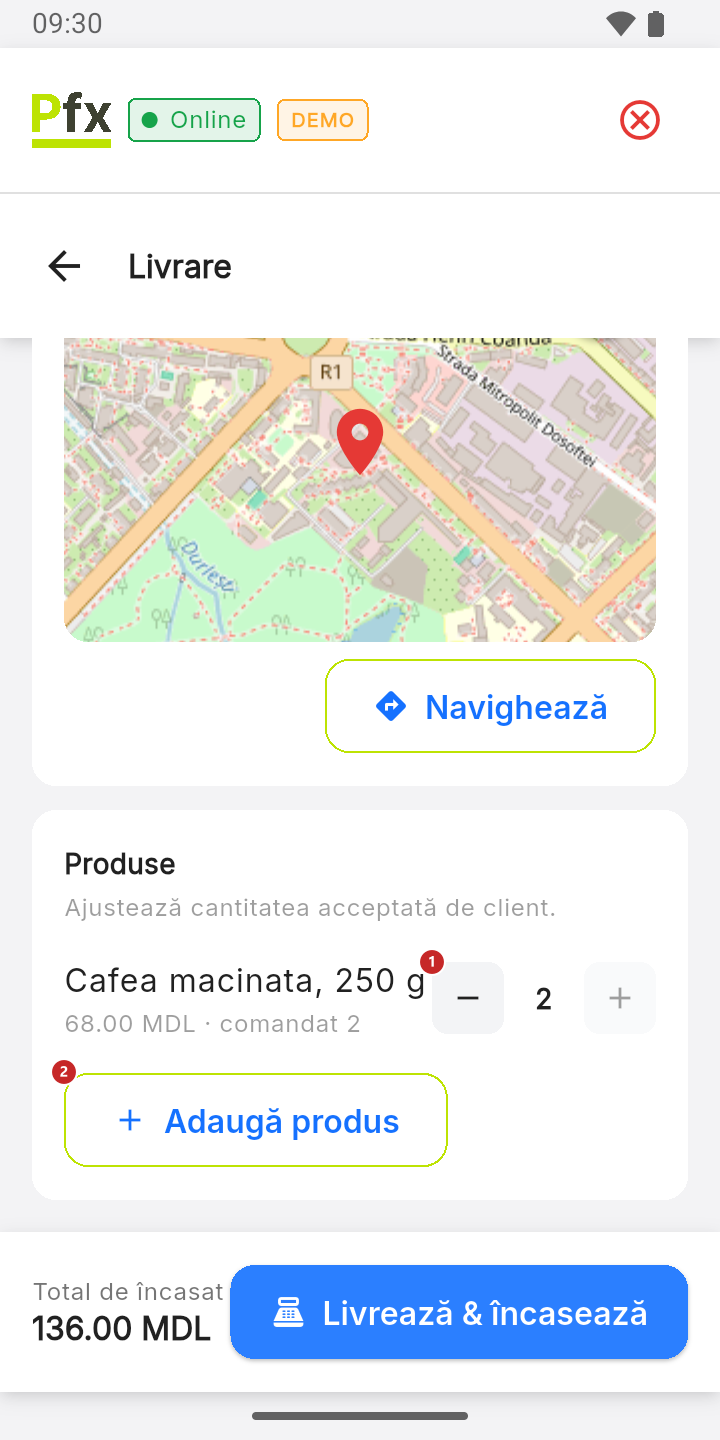
1 lower the quantity, or raise it back up to what was ordered; at 0, the product doesn't go on the receipt · 2 add a product the customer also asks for
The amount to collect recalculates on the spot. Then:
- Tap Livrează & încasează (“Deliver & collect”). The cart fills with the delivery's products, with the chosen quantities.
- Tap Checkout and take payment as for an ordinary sale — see Payment and receipt.
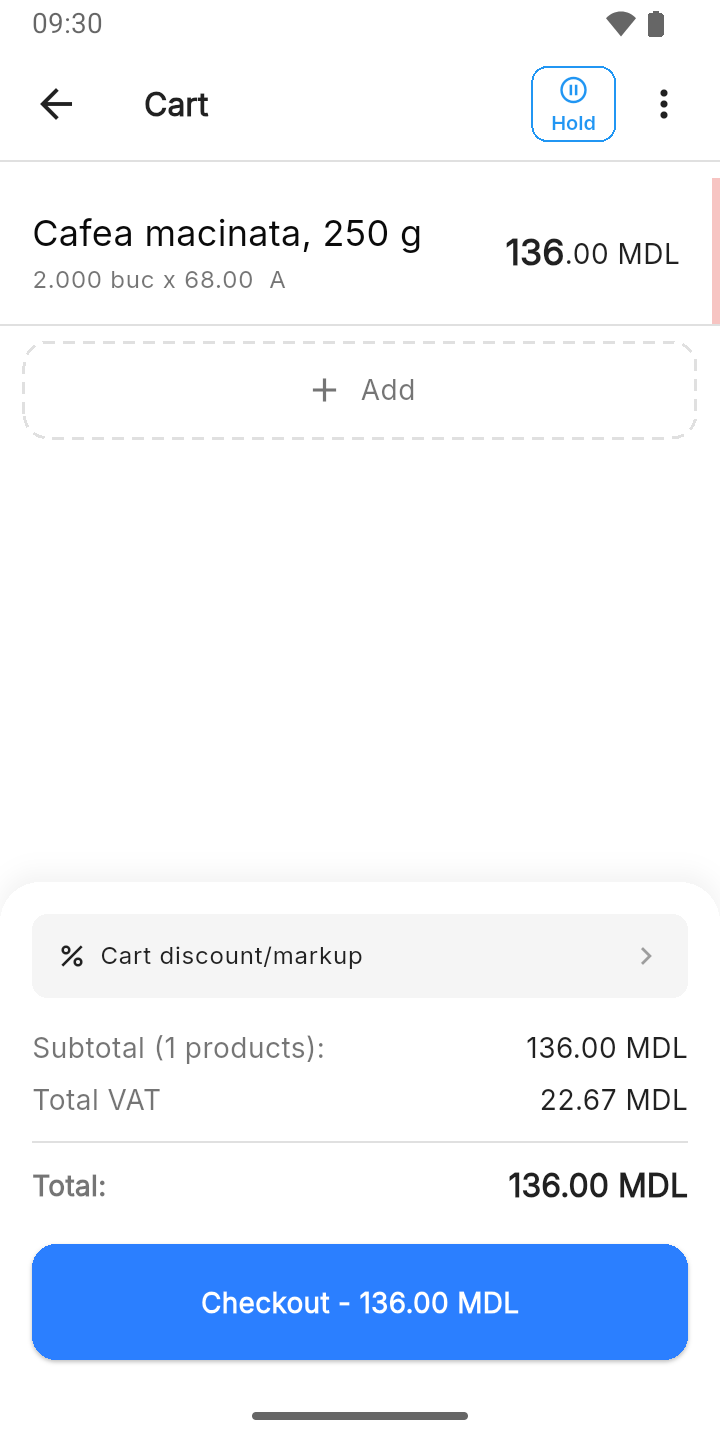
Here the customer took only one of the two bags of coffee: only what they accepted goes on the receipt.
After payment, the delivery disappears from the list, and the office sees it as completed.
To cancel a delivery
If the customer refuses all the goods, tap the button in the corner (6 on the record). The register asks you to confirm, and the goods reserved for the delivery are released in the warehouse. If they refuse only part, don't cancel: lower the quantities under Produse (“Products”).
What can trip you up
„Nicio livrare în așteptare” (“No deliveries waiting”). The office hasn't assigned any delivery to your register yet, or the register stayed off for more than a few hours after the assignment.
A delivery disappeared from the list without my taking payment. The office cancelled it from the panel.
Related pages
- Payment and receipt — taking payment at the customer's.
- The cart — the cart the delivery loads into.