Ads on the customer screen
You can put your own pictures on the customer screen: an offer, a new product, the shop's opening hours. They appear in two places — on the whole screen while the register waits, and on the band on the left during a sale.
Ads are set on the register, not in the control panel, and they stay on the register's computer. If you have several registers with a customer screen, each one keeps its own pictures.
Where to find it: the register → the gear button Settings (bottom right) → Settings; in the Register settings window, the Devices group → Customer screen → Advertising

1 the devices connected to the register · 2 the customer screen and its status · 3 the button that opens the ads
To add pictures
- Press Advertising. The Ads on the customer's screen window opens.
- In the place you want — Between receipts or During the sale — press Add images.
- Choose one or more pictures on the computer and confirm.
- The pictures appear under the place, and the customer screen picks them up right away. New ones go next to the old ones.
- Press Done.
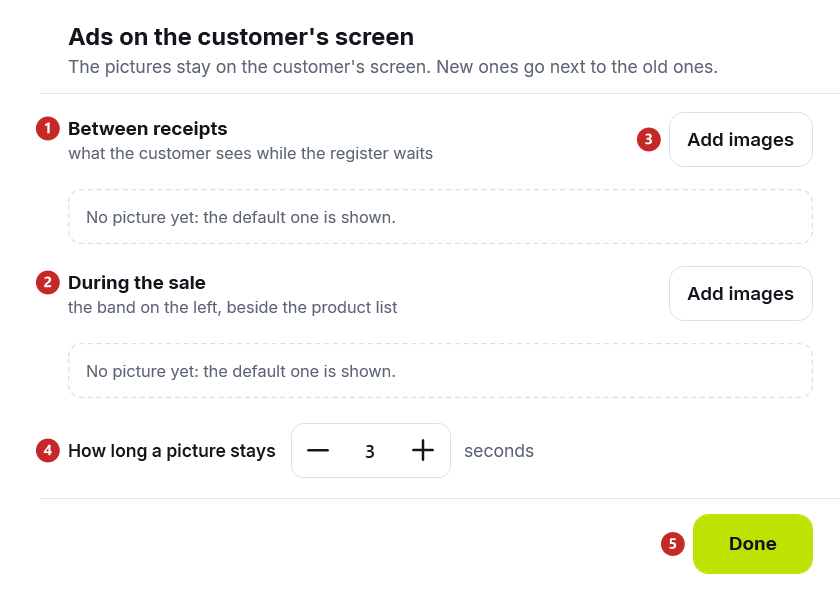
1 the full-screen pictures, between receipts · 2 the band pictures, during the sale · 3 add pictures · 4 how many seconds each picture stays · 5 close the window
While a place has no picture, the screen shows the default POSfix picture there.
To remove a picture
Press the × in the picture's corner. It disappears from the customer screen right away.
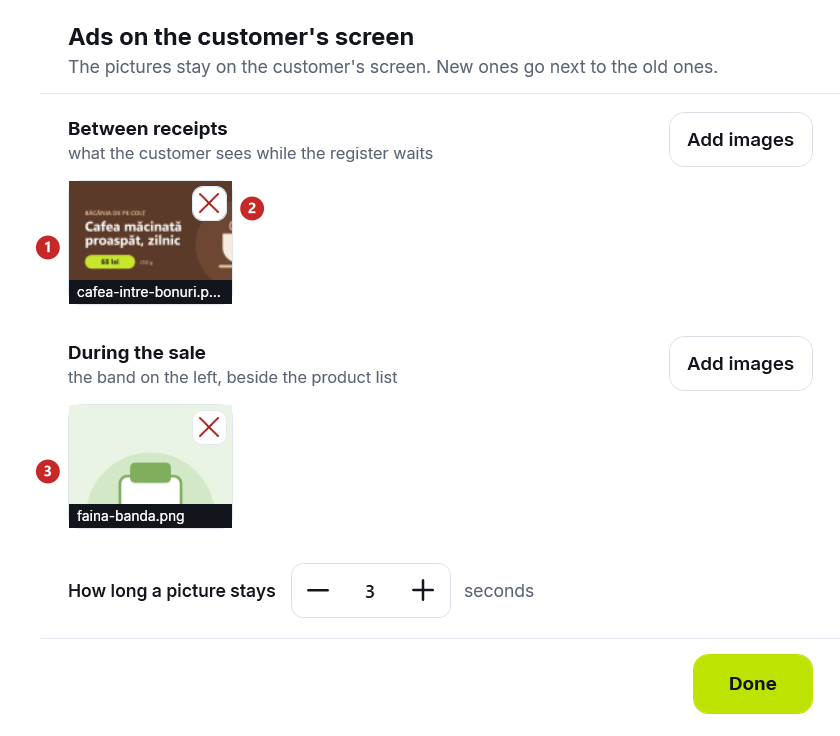
1 the picture between receipts · 2 the button that removes it · 3 the band picture
How long a picture stays
When a place has several pictures, they change by themselves, one after another. How long a picture stays sets how many seconds each one remains on the screen, from 1 to 60. The value is the same for both places and is saved immediately.
Which picture fits
- Between receipts — landscape, the size of the screen: 1920 × 1080 for a usual Full HD monitor.
- During the sale — portrait, about twice as tall as it is wide, for example 480 × 1000. The band takes a quarter of the screen's width.
- The picture fills the whole place. If its proportions differ, its edges are cut off, so keep important text towards the middle.
- JPG or PNG files.
What can trip you up
The Advertising button is grey, and under Customer screen it says “Not answering · the ads can be changed once it is back”. The register cannot find the customer screen on the computer: it is stopped or not installed. Close the register, start it from the Launcher with Start the register and open Register settings again. If the screen's row in the Launcher says to install, install it first — see Customer screen.
The window says “The client display is not responding — check that the app is running.” Same thing: the screen stopped while the window was open. Close the window and follow the steps above.
I added ads on one register, and they do not show on the other. Each register keeps its own pictures. Add them on the other register too.
Related pages
- What the customer sees — where the pictures appear on the screen.
- Customer screen — installation and the status in the Launcher.