Passkey
A passkey lets you sign in to POSfix Dashboard with your fingerprint, your face or the phone's PIN, without typing the password. You add it once, from the phone you work on.
The password does not go away. It stays valid, and you can always sign in with it, from any device.
Where to find it: the user menu (the circle with your initial, top right) → Security
To add a passkey on the phone
While you have no passkey, the panel offers one in a band under the header.
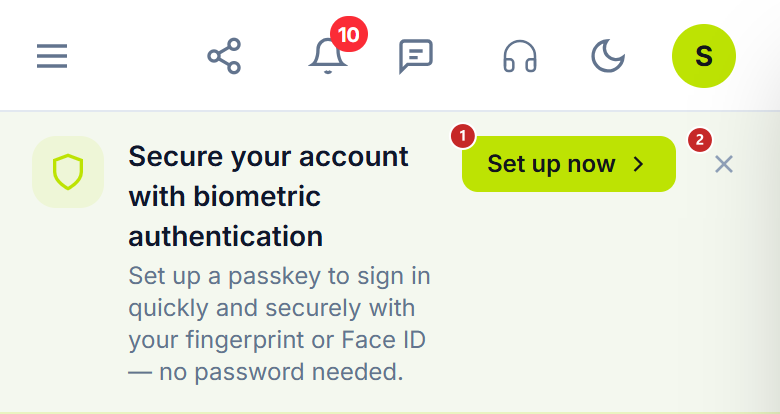
1 takes you to the passkeys page · 2 hides the band for 14 days
If you closed the band, you reach the same page from the user menu.
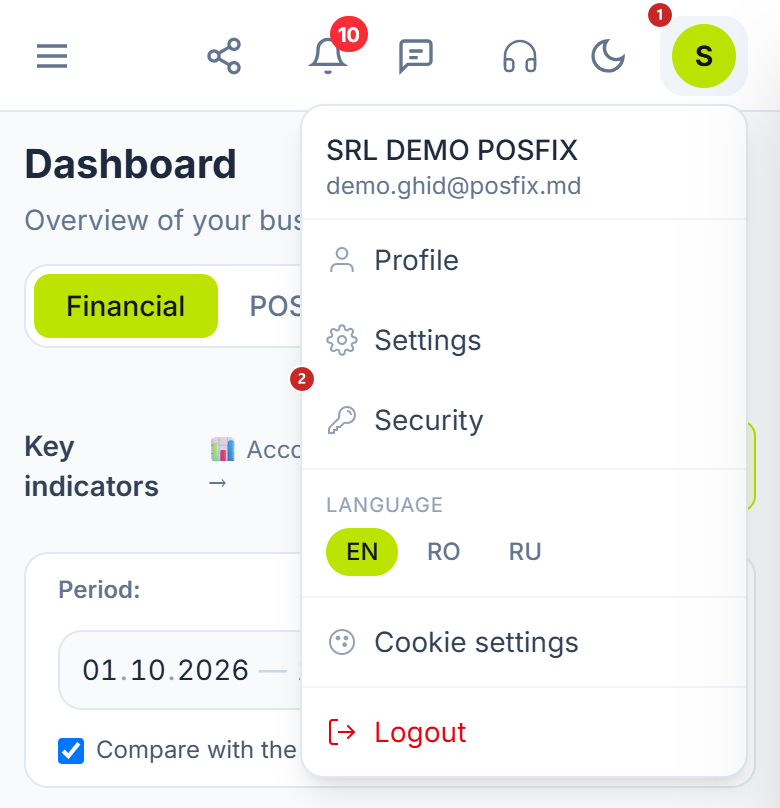
1 the user menu · 2 Security, the passkeys page
On the Passkeys page:
- Tap Add a passkey.
- Give the passkey a name you will recognise, for example the phone's name.
- Tap Add a passkey again, in the window.
- The phone asks for your fingerprint, your face or the PIN. Confirm.
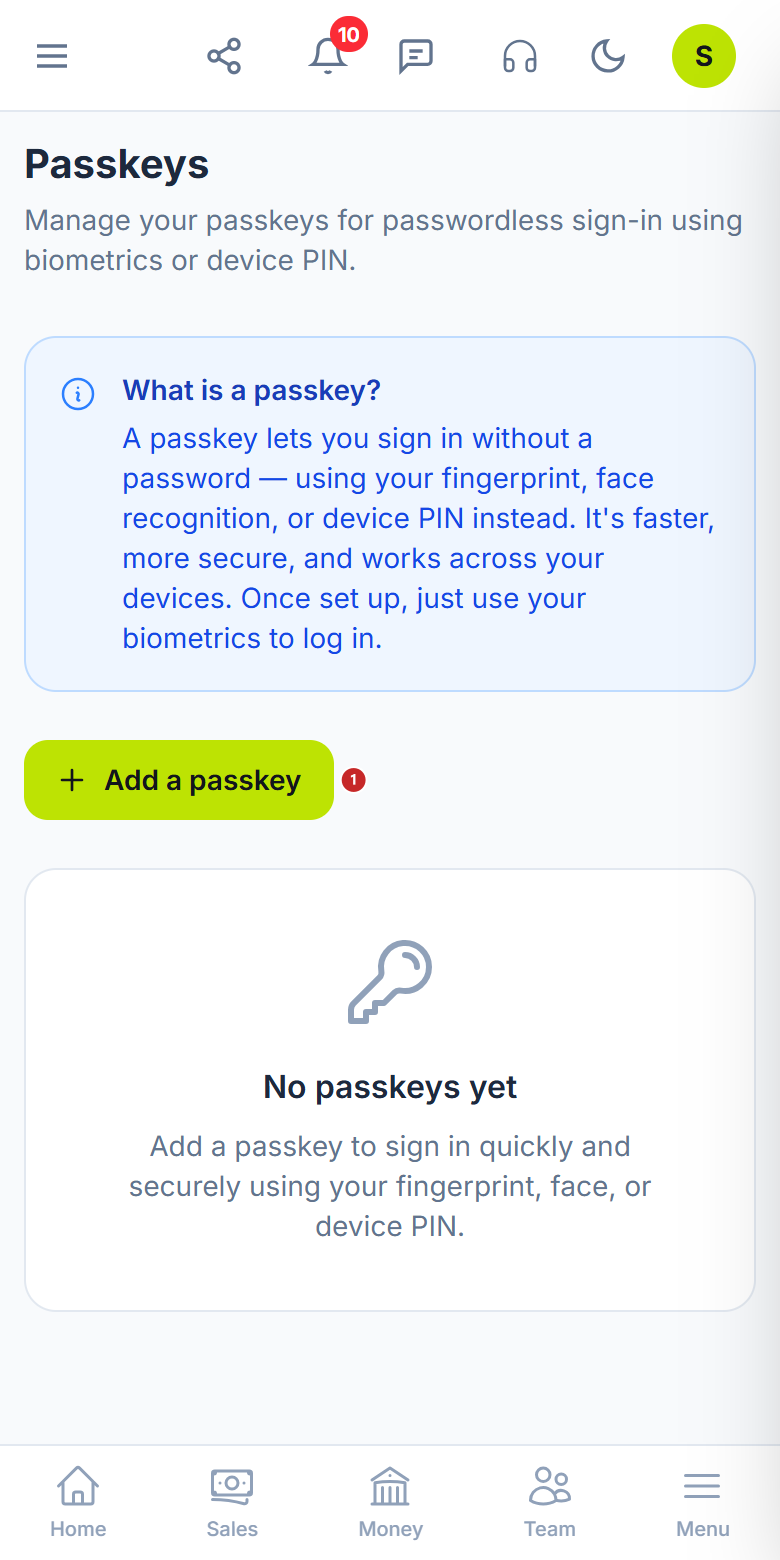
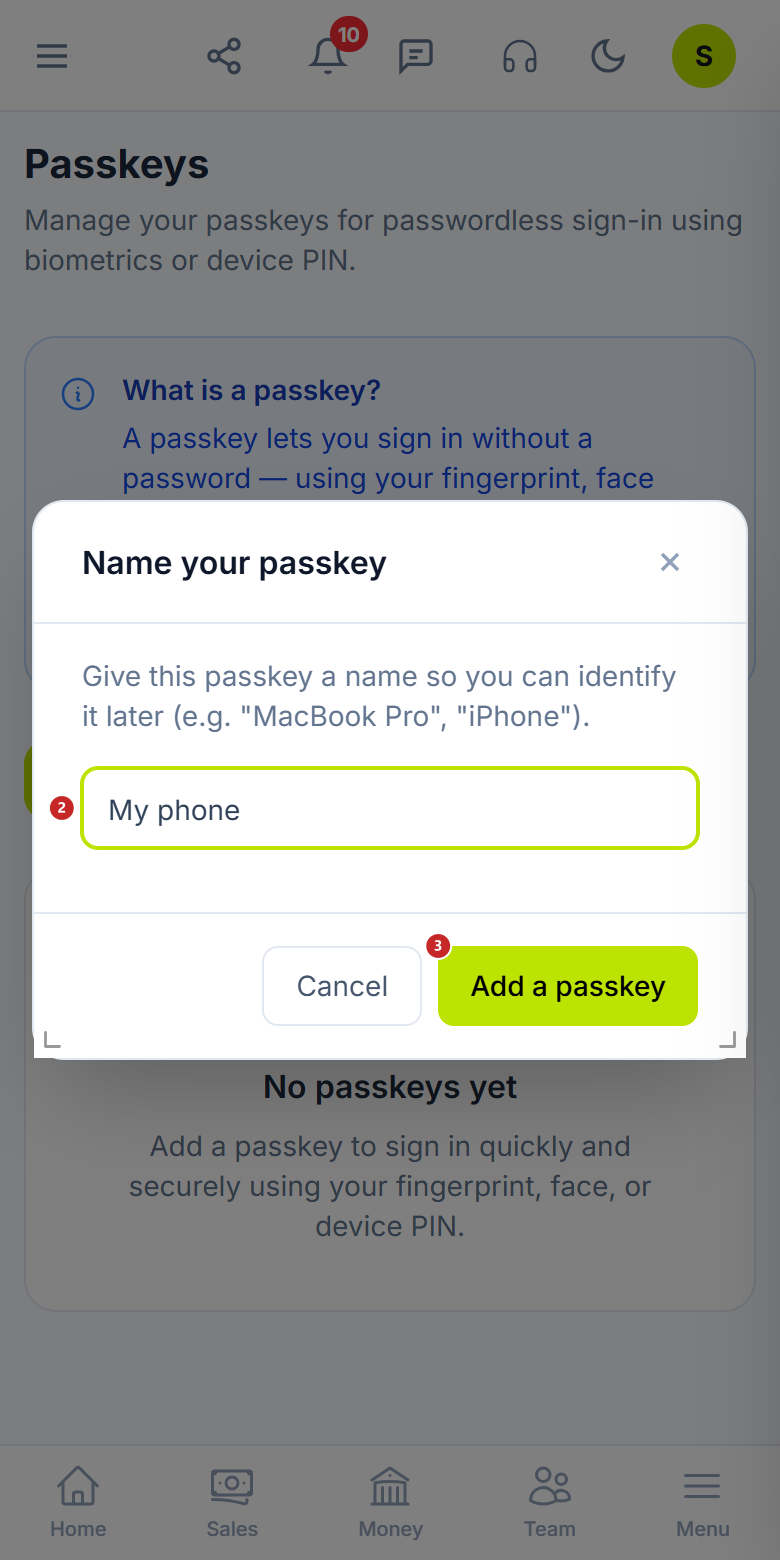
1 starts adding · 2 the passkey name · 3 the step to the fingerprint
The panel confirms with "Passkey registered successfully!", and the passkey shows up in the list. From now on, the band under the header no longer appears.
To sign in with the passkey
- On the sign-in screen, tap Sign in with a passkey. You no longer type the email and password.
- The phone shows the passkey saved for POSfix. If it has several, pick your account.
- Confirm with your fingerprint, your face or the PIN.
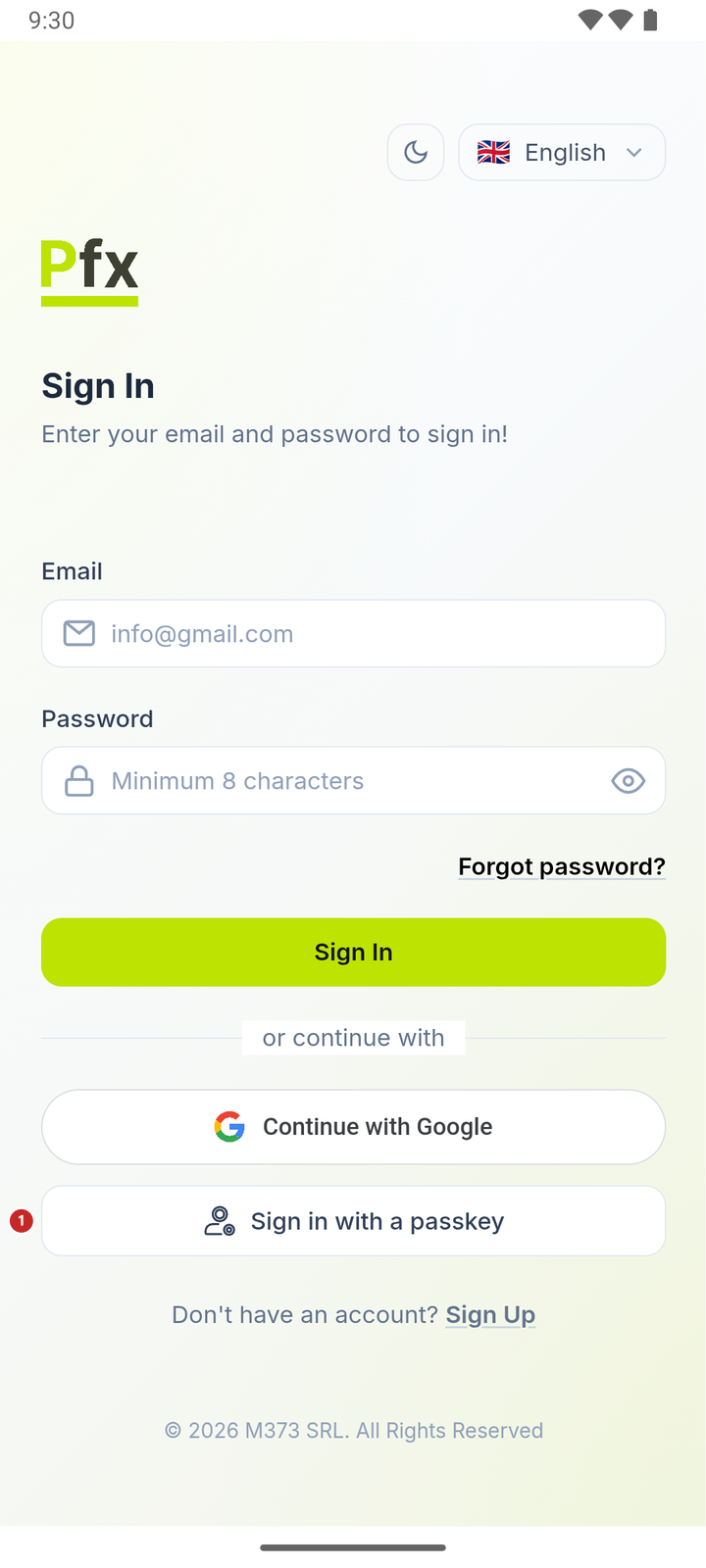
1 sign in with a passkey
What the label under the name means
Under each passkey in the list, a label tells you where the passkey is kept.
- Synced — the passkey is saved in the phone's account, usually the Google account. You have it on any other phone linked to the same account too.
- Backup eligible — the passkey can be saved in the phone's account, but it is not yet.
- Device-bound — the passkey lives only on the phone where you created it. On a new phone, you add a new passkey.
To delete a passkey
When you lose or change the phone, delete its passkey. Once it is deleted, whoever has the phone can no longer sign in to your account with it.
- Sign in to the panel with your password, from the browser or from another phone.
- User menu → Security.
- Tap the bin next to the passkey and confirm with Delete.
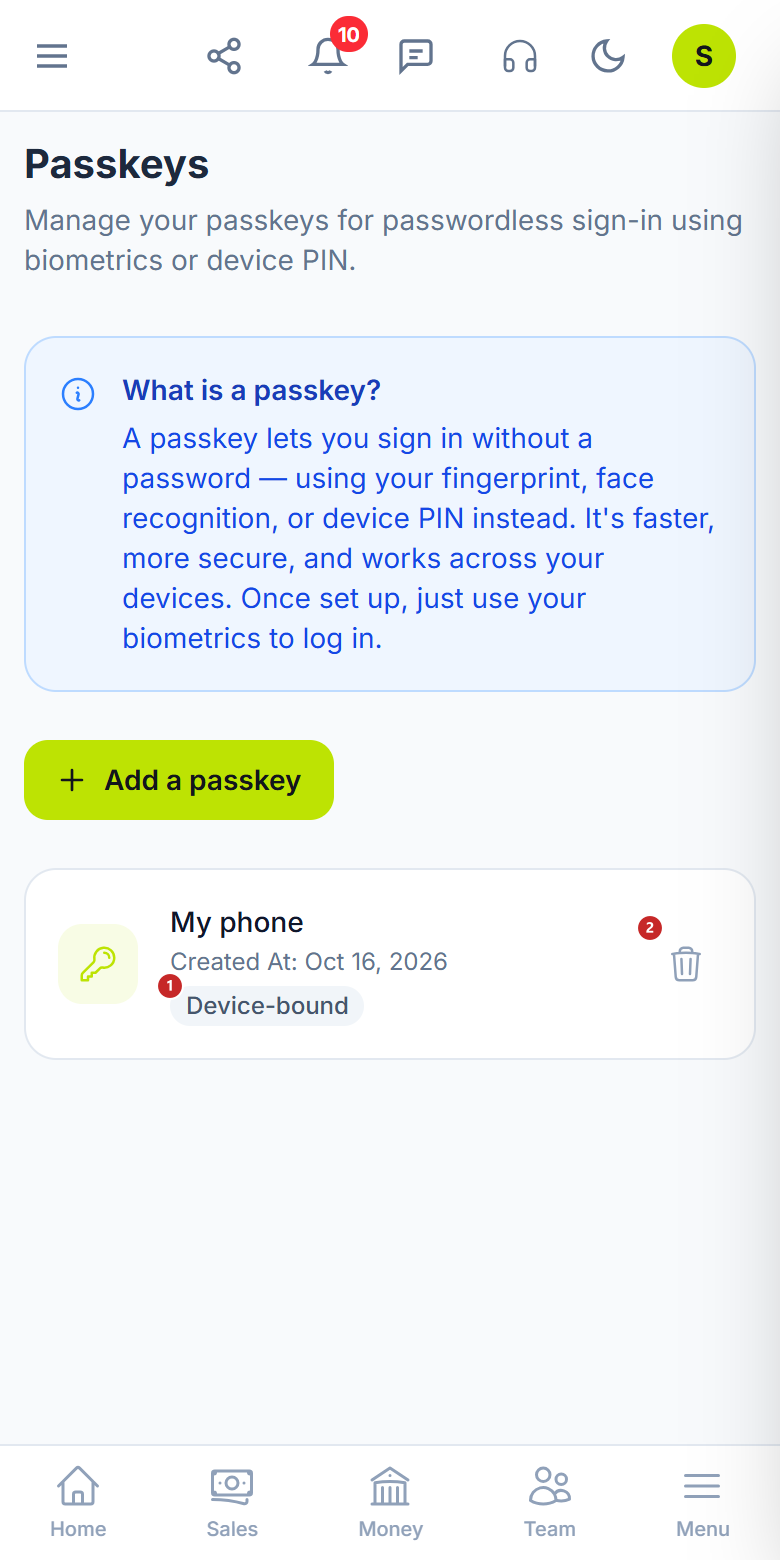
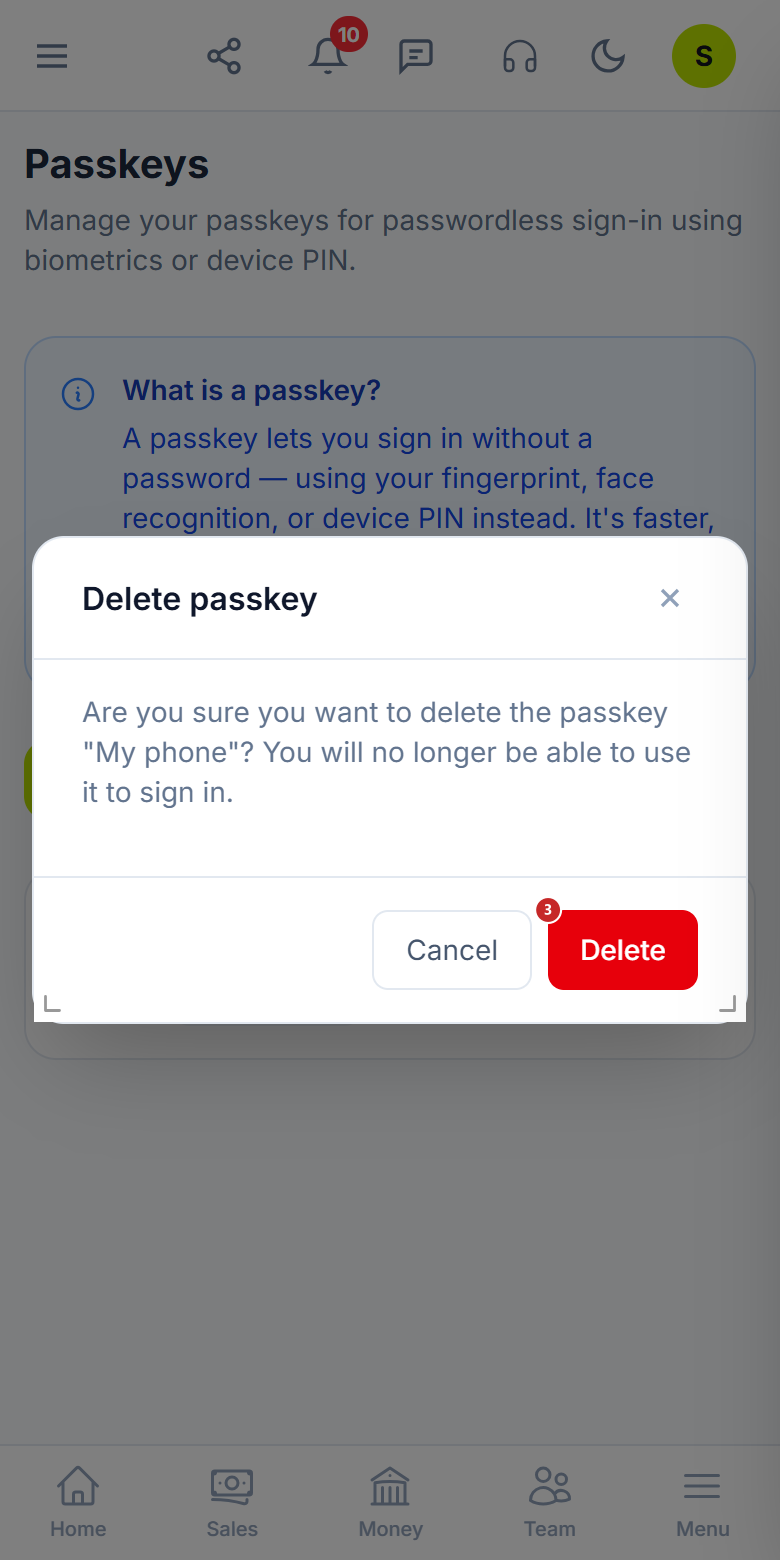
1 where the passkey is kept · 2 delete · 3 confirm
What can trip you up
- The "Sign in with a passkey" button is missing. The phone runs an Android older than 9, which does not work with passkeys. Sign in with your password.
- "Passkey authentication failed. Please try again." Try once more. If it still fails, sign in with your password, delete the old passkey from the list and add a new one.
- "Failed to register passkey. Please try again." Look at the list: usually the phone already has a passkey for your account. If it is not there, check that the phone has a screen lock turned on (PIN, pattern or fingerprint) and try again.
Related pages
- Installation and first sign-in — where to get the app and how to sign in the first time.
- Moving around the interface — signing in with a passkey works the same in the browser.