Transport orders
A transport order is where a carrier keeps a job it has sold: who ordered it, what cargo, on which route, with which truck and for how much. From it you issue, at the right moment, the two documents the customer is waiting for — the invoice and the act.
The order posts nothing itself. The journal entries belong to the invoice and the act, which are created in Sales and behave there like any other document.
The whole Cargo chapter is available only if the Cargo module is in your contract. It covers the tabs Transport orders, Trips, Vehicles, Drivers, Documents and Document types. Without the module the menu entry stays visible, but locked.
Where to find it: Sidebar → Cargo → the Transport orders tab
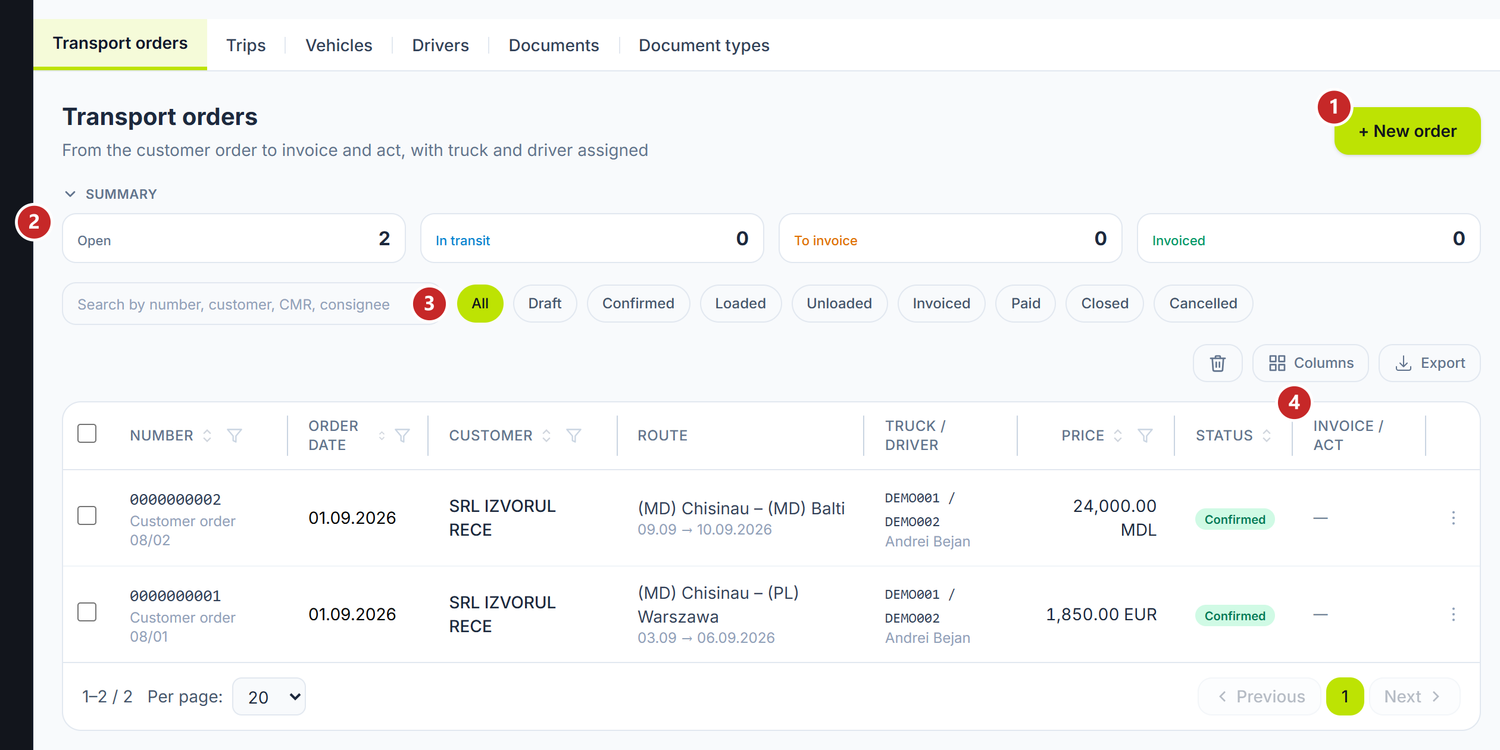
1 new order · 2 the counters at the top, by state · 3 the status filter · 4 the invoice and act already issued
The four cards at the top give you the day at a glance: how many orders are Open, how many are In transit, how many are waiting To invoice and how many are already Invoiced.
To register an order
- Cargo → the Transport orders tab → New order.
- Pick the Customer and set the Order date.
- Leave Execution on Own fleet if you are driving it yourself; choose the truck and the driver.
- Fill in the cargo, the price and the Service from catalog. Tick Dangerous goods (ADR) when it applies — it stays on the order, for the driver and for the road documents.
- Add the route legs — at least one loading and one unloading.
- Save, then Confirm order.
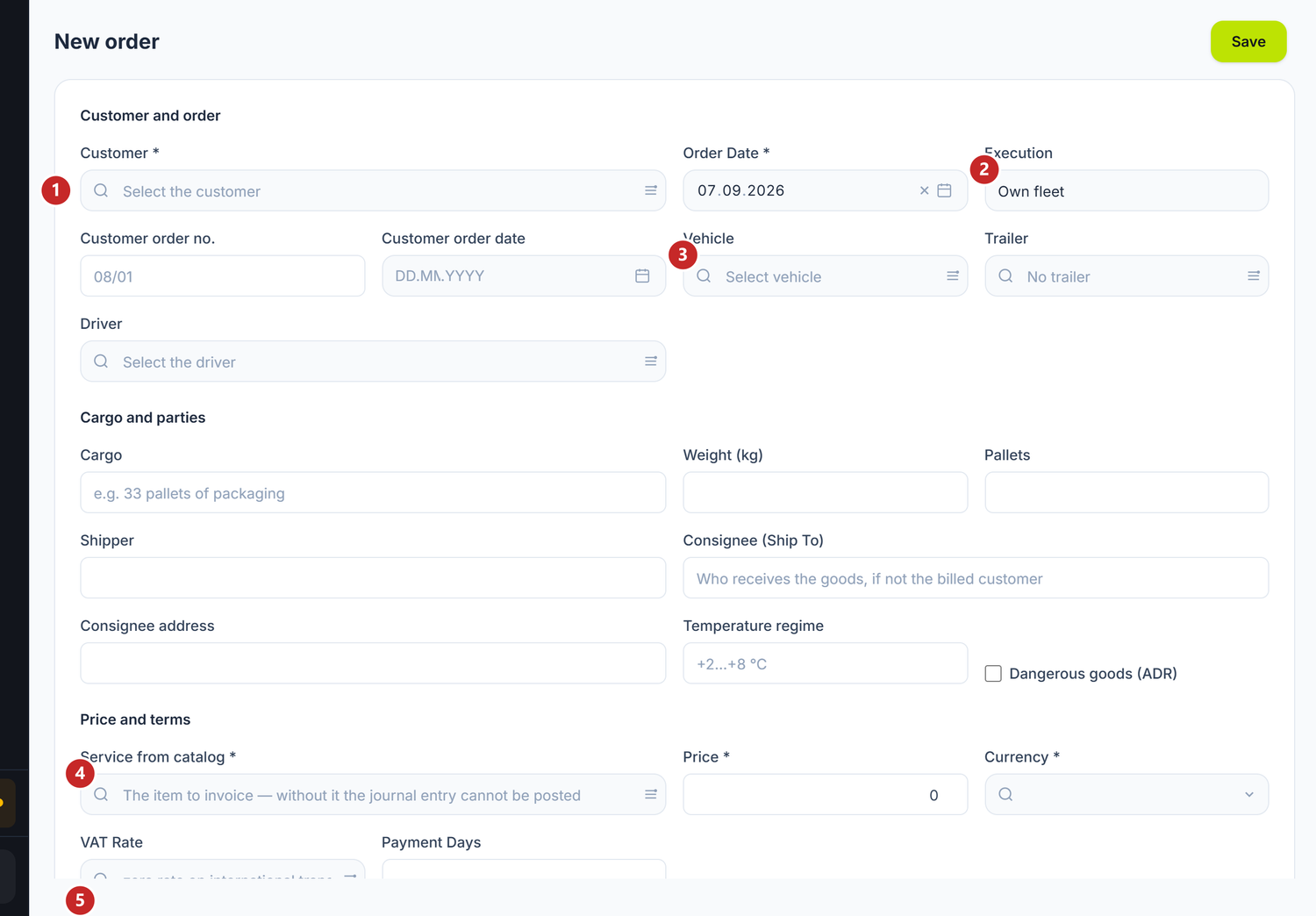
1 the customer · 2 the execution — it decides what appears below · 3 the truck and the driver · 4 the service from catalog · 5 the route legs
Execution: own fleet or subcontracted
This is the first choice that reshapes the form, so make it before the rest.
| Switch | What changes when you turn it on | If you leave the default |
|---|---|---|
| Execution: Subcontracted | The truck and driver are replaced by the Subcontracted carrier, and the order can no longer go on a trip | Own fleet: you pick the truck, trailer and driver from your own fleet, and the order can join a trip |
With subcontracting, the carrier's cost reaches you as their invoice, like any supplier's. The order only holds the commercial side with your customer.
Payment terms and the customer's order
Payment days sets the invoice due date: it counts from the invoice date, so an invoice dated 12 September with 30 days falls due on 12 October. Payment terms is free text, for conditions that don't fit in a number — "after receiving the original CMR", for instance.
Customer order no. and its date are not just bookkeeping: the number is printed in the invoice description, so the customer's accountant recognises it.
Route legs
Each stop is a row: the sequence number, whether it is a loading or an unloading, the country, the city, the address, who is waiting at the ramp, the planned date and the time window.
The printed route comes from them: the first loading and the last unloading. The other stops stay on the order, for the driver.
Service from catalog
A draft saves without it, but Issue invoice requires it: the invoice is issued on it. Without a catalog item the sales document has nothing to bill and cannot be posted.
The VAT rate is chosen here too, and the amount on the invoice is computed from it. While the field is empty, the hint below reads "zero rate on international transport" — it is a reminder, not a choice the panel makes for you. You set the rate.
The order's journey
The order's state is driven from the action bar, in the natural order of a job:
- Confirm order — from Draft to Confirmed.
- Goods loaded — asks you for the moment (date and time) and moves the order to Loaded.
- Issue invoice — creates the invoice, dated on the loading day.
- Goods unloaded — the same moment dialog; the order moves to Unloaded.
- Issue act — creates the act of service, dated on the unloading day.
- Close order — after the money is in.
The moment is asked every time, with date and hour, because the button is rarely pressed at that exact instant. Unloading cannot precede loading.
Loading requires an assigned truck and driver, and both must be available: the truck with status Active (not in repair, not inactive, not disposed) and the driver not deactivated. Schedule overlaps are not checked — the same truck can be marked loaded on two orders on the same day, so the dispatcher remains the one keeping count.
The Invoiced and Paid states are not yours to set: they arrive on their own from the sales documents, as they are issued and collected.
What can still be edited, and when
Until loading, the order is yours: customer, route, price, truck, cargo — all of it changes.
From loading onwards the commercial side freezes. The invoice was issued on it, and a price changed after the invoice would mean two different truths. Only the road documents stay open — CMR, TIR carnet, T1, the UIT code — and the notes. Exactly the ones filled in along the way.
Cancelling asks for a reason and works until the order turns Invoiced — that is, until the act is issued. Careful: if you have already issued the invoice, the order can still be cancelled, but the invoice stays alive in Sales. Deal with it there first, then cancel the order.
Deleting only works on orders in Draft, Confirmed or Cancelled. What you delete goes to the bin and can be brought back.
What can trip you up
The "Issue invoice" button isn't there — either the order isn't loaded yet, or the invoice is already issued. You'll see its number on the cards at the top.
The "Issue act" button isn't there — the act is made from the invoice, so that one has to be issued first, and the order has to be unloaded.
The act won't be issued, the panel says the rate is missing — on an order in foreign currency, the act takes the BNM rate of the unloading day, not the one from the invoice day. If no rate is published for that day, the act is not issued with a guessed figure. Add the day's rate in Accounting → Classifiers → the Exchange rates tab, then press Issue act again.
I can't find the e-Invoice button — the gate is not the route, it is who pays. For a non-resident customer the document is an export of services and the electronic invoice is not transmitted, so the button isn't drawn. For a resident forwarder, even if the goods went to Poland, the button is where it should be, on the document in Sales.
Related pages
- Trips — how several orders are tied to one truck and driver
- Vehicles — the fleet you pick the truck from
- Drivers — the drivers and their licences
- Customer invoices — the invoice issued at loading
- Sales documents — the act issued at unloading