Production orders
Any organization in Moldova that manufactures products — bread, furniture or wine — starts from a production order. The document tells the system: "I want to produce X units of product Y, using components Z".
The order is a planning and tracking document: it reserves the intent, keeps track of the quantity produced and groups the costs on the [Production orders] subconto. The accounting and the stock movement are done by the other document — the production report.
Where to find it: Sidebar → Production → the Production Orders tab
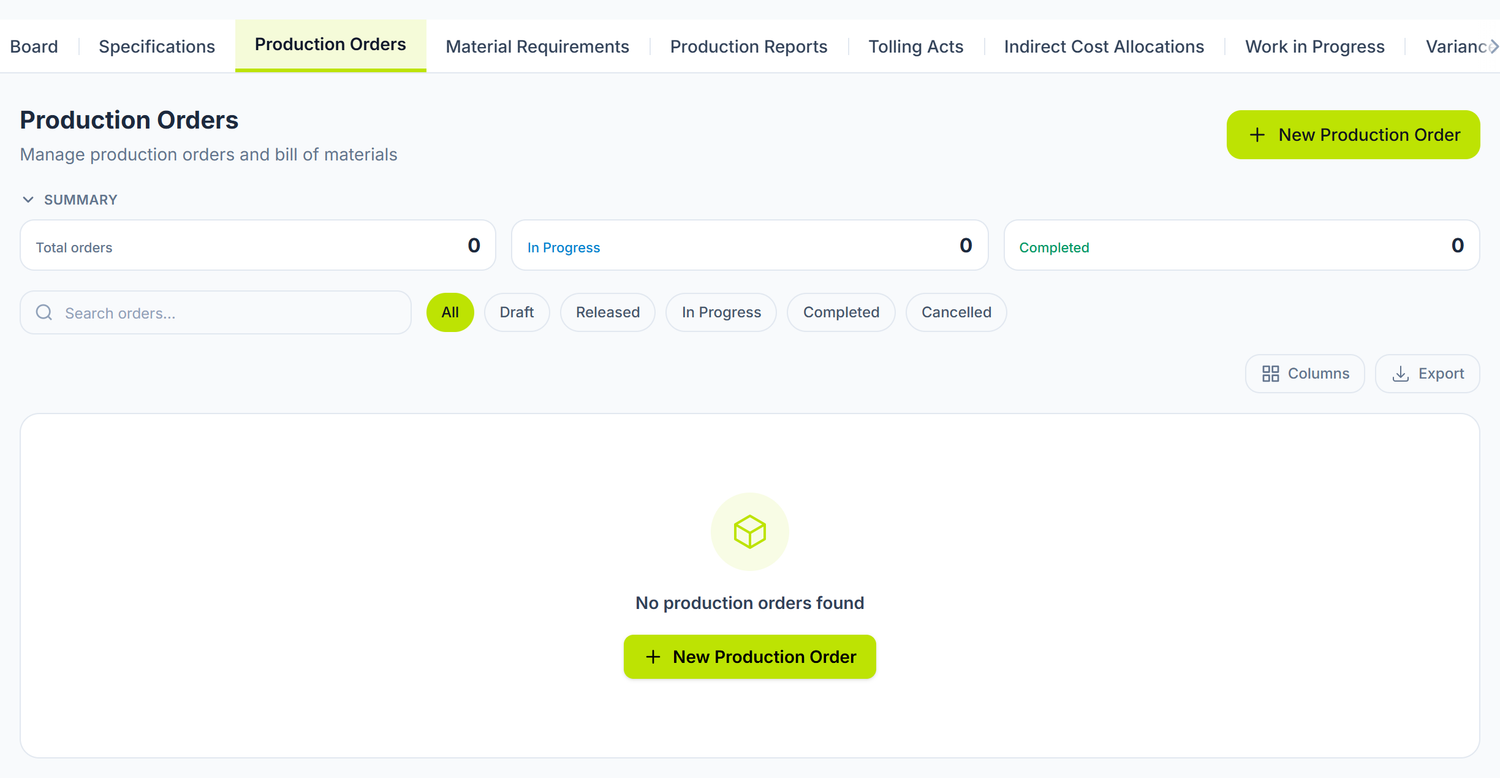
The bills of materials — the recipes you produce by — sit in the neighbouring tab:
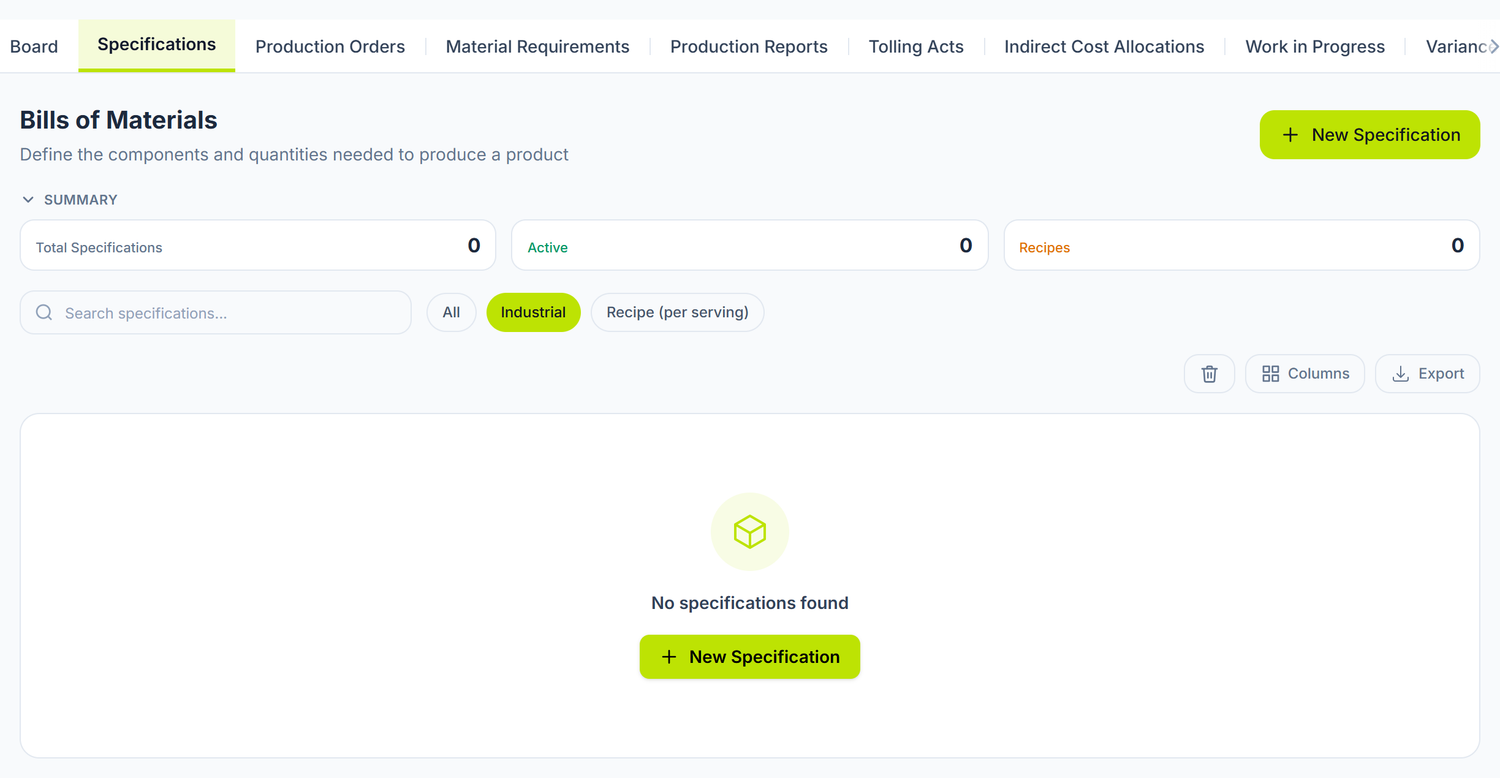
The production order is not posted and does not reduce stock. It has no "Post", "Unpost" or "Delete" buttons — it only has Start, Complete and Cancel Order. The material consumption, the entry of the finished product into stock and the journal entry happen only when the production report is posted.
The whole Production chapter is available only if the Production module is in your contract. It includes the Board, Specifications, Production Orders, Material Requirements, Production Reports, Tolling Acts, Indirect Cost Allocations, Work in Progress, Variance Analysis, Costing & Analytics and My approvals tabs. Without the module, the menu entry stays visible but locked.
When you use production orders
The production order is useful if your organization transforms raw materials into finished products:
- Food production — a bakery makes bread from flour, yeast and salt
- Wine production — a winery produces wine from grapes, sugar, oenological yeast
- Industrial production — furniture, garments, metal parts
- Assembly — a finished product from purchased components
- Packaging — reconfiguring products (10 bottles into a case, a gift set)
Ad-hoc production needs no order. The order is optional on the production report. A trial batch or the remake of a reject is reported directly, without inventing an order just to pass validation. The order stays useful when you want planning, actual-versus-planned tracking and variance analysis.
What you fill in the header
Four fields are mandatory: Order Date, Product, Planned Qty and UM. Materials Warehouse, Planned Start, Planned End and Description are planning values and can stay empty.
The field that does the most work is Bill of Materials. Its list is filtered on the chosen product, and choosing it fills the components table below. Along with the components it also brings the output unit, Materials Warehouse, Output Warehouse, Department and Production Type — but only into the fields you left empty, so that it does not step over what you chose.
If the components table already has rows, changing the bill of materials does nothing. You get neither a message nor a confirmation. To switch to another recipe, delete the component lines first.
The Description field stays the safest place for the details that have no field of their own — the section that does the work, the shift, any note that has to travel with the order until it is completed.
The materials warehouse in the header is a planning value. The actual consumption picks the warehouse on each line, in the production report.
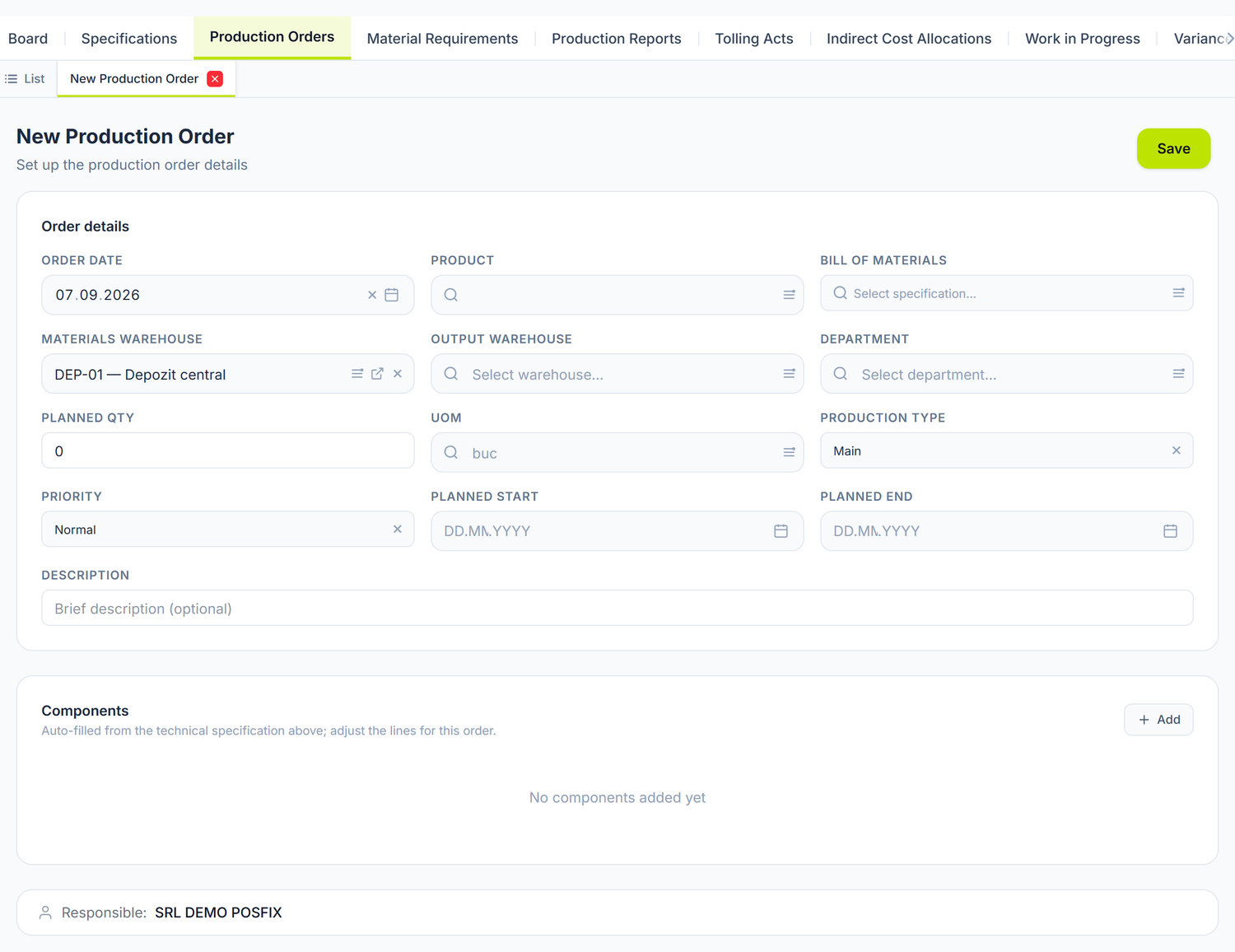
The order in which you fill it in matters: you pick the Product first, because only then does the Bill of Materials list filter down to its recipes. Materials Warehouse already comes filled in with the company's default warehouse — change it if this batch is made from another warehouse.
The Components table at the bottom stays empty until you pick the bill of materials. Do not add rows to it beforehand: on a table that already has lines, the automatic filling no longer runs, and nobody will tell you — you are left with your row and without the rest of the recipe.
At the bottom of the form you find Manager — the user who created the document. The field is read-only; reassignment can be done only by the organization owner or an administrator.
Components — the order's list of materials
The Components table is this order's actual list of materials. It is filled from the Bill of Materials chosen in the header, and then you can adjust it point by point, without modifying the reference bill.
On every line you pick the product and the unit, then you write Qty per Unit — how many units of the component go into one unit of finished product. Total Required is calculated on its own: the quantity per unit times the planned quantity.
Stock coverage is not checked from this table, but with Stock Check per Order, in the Material Requirements tab: there you see, for every component, how much you have and how much you are short. Details below.
A practical example — a batch of 500 loaves
The bill of materials "White bread 0,5 kg" defines the quantities for one loaf; the order multiplies them by 500:
| Component | Qty per Unit | Total Required |
|---|---|---|
| Premium wheat flour | 0,35 kg | 175 kg |
| Fresh yeast | 0,01 kg | 5 kg |
| Salt | 0,008 kg | 4 kg |
| Sugar | 0,005 kg | 2,5 kg |
| Sunflower oil | 0,005 l | 2,5 l |
| Packaging (bag) | 1 pcs | 500 pcs |
The order contains no cost columns: the cost is formed when the report is posted, from the actual costs of the materials consumed.
Bills of materials live in their own tab
The recipe is not written from scratch in every order. Bills of materials are separate, reusable documents.
Where to find it: Sidebar → Production → the Specifications tab
A bill of materials has an automatically generated code, a name, an output product, an output quantity and unit, a department, a source warehouse and an output warehouse, a standard cost, a production type, the Active toggle and the list of components. The type of the bill can be:
| Type | When you use it |
|---|---|
| Industrial | A recipe expressed against the total output quantity |
| Recipe (per serving) | HoReCa — the quantities are expressed for one serving |
| Combo menu | A fixed package whose components are themselves recipes |
When you pick the Recipe (per serving) type, the HoReCa Details card opens below the components: serving size, serving unit, preparation time, preparation method, nutritional information and allergens. On the other two types the card does not appear at all.
Gross, Waste % and Net
The bill of materials component grid has three quantity columns: Gross, Waste % and Net. The net is calculated on its own — gross × (1 − waste%) — and cannot be typed.
The waste percentage is display only. What is consumed from stock is the gross quantity, not the net. If you set 5% waste, the net drops on the screen, but the consumption and the cost stay at gross. The column tells you how much actually ends up in the product, not how much leaves the warehouse.
Substitutes
Every component can declare Substitutes — products that take its place when the main raw material is out of stock. You edit them from the button on the line, in the Substitutes column: the button shows how many there are (2 subst.) or Add if the line has none. A window opens where you pick the product, the conversion coefficient and the priority.
Substitutes are proposed on the production report and are applied only if the operator confirms.
Copy and Delete
The Copy button in the bill's header creates a new variant and opens it in a tab. It is the natural way to make "Bread 0,5 kg" out of "Bread 1 kg" — you copy, you change the quantities, you save.
Delete sits in the ⋯ menu and asks for confirmation. A deleted bill no longer appears in the form; you restore it from the bin of the specifications list.
The order's lifecycle
Draft → Released → In Progress → Completed
                              ↘ Cancelled
| Status | What it means | What you can do |
|---|---|---|
| Draft | The order exists, nothing has been started | You freely edit the product, the bill, the quantities, the components. The Start button takes it straight into work |
| Released | The order is released to production, but not yet started | You see it as a stage on the Board and as a filter in the list. The panel has no button that takes an order there: Start crosses it in a single step |
| In Progress | Production has begun; the component requirement is marked as released | You edit, you report the production, then Complete or Cancel Order |
| Completed | The order is closed | The document becomes read-only |
| Cancelled | The order was abandoned | The document becomes read-only |
The buttons in the form header follow the states exactly: Save (while the document is editable), Start (on Draft), Complete (on In Progress) and Cancel Order in the ⋯ menu (on Draft or In Progress, with a confirmation).
An order that has reached Released has no way of moving on from the panel. Start appears only on Draft, Complete only on In Progress, and Cancel Order only on Draft and In Progress. From the list you can still create a production report on it.
From the list, straight into the report
Right-clicking an order in the list opens the actions menu. Create production report opens a new report already linked to the order, with the product and the quantity left to produce pre-filled — you have nothing to copy by hand. The action appears on orders in Draft, Released and In Progress.
From that same menu you can also do Start, Complete and Cancel, without opening the document. The same state rules apply as in the form.
The quantity and the cost achieved are not edited on the order: they are the projection of the posted production reports linked to the order. The order list shows Planned Qty next to Actual Qty, and the two figures come from different sources — one from you, the other from posted documents.
The order can also be completed partially: if out of 100 planned units 80 have been reported and you are not continuing, you close it as it is. An abandoned order is cancelled, not deleted — there is no deletion on this document.
Checking the materials before production
Where to find it: Sidebar → Production → the Material Requirements tab
The screen has two independent blocks. The lower one, Stock Check per Order, is the one you will use.
Stock Check per Order
To find out whether an order has what it needs to start:
- Production → the Material Requirements tab → scroll down to Stock Check per Order.
- Pick the order from the list. The selector shows only the orders In Progress.
- Check Stock.
The table gives you, for every component, the required quantity, the amount available in the warehouse, the shortfall and a Sufficient or Insufficient pill. Under an insufficient line, if the bill declares substitutes, the Coverable with substitutes row appears: every alternative comes with its equivalent quantity and its own stock. The green ones cover the shortfall, the grey ones only move it.
Material Requirements
The upper block gathers the components of all open orders and compares them with the stock. It does not load by itself — you press Load Requirements.
You cannot choose the period. The window is fixed: from today until a month from now. Orders planned further out stay outside it, without any warning.
Every row shows the material, how much the planned production requires, how much you have in stock and the difference. The rows with a shortfall are coloured, and above the table you see how many items are not covered by the current stock.
For a single order, Stock Check per Order gives the same answer, but limited to its components.
Procuring the missing materials is done through supplier invoices or stock movements.
Approvals before production
If your organization has an approval route active on the production order, the workflow panel appears in the form, and the actions unlock as the signatures are given.
- Routes are configured in: Sidebar → Settings → the Approval routes tab
- The documents waiting for you are in: Sidebar → Production → the My approvals tab
Without an active route, the document works directly, with no extra steps.
The link with other documents
| Document | The relationship |
|---|---|
| Production report | The document that consumes the materials, brings the finished product into stock and emits the journal entry |
| Supplier invoices | The procurement of raw materials |
| Products | The nomenclature of components and finished products |
| Warehouses | The storage locations of materials and products |
| Stock movements | Transfer of materials between warehouses |
| Chart of accounts | The accounts involved in production |
| Journal register | The entries generated by the production reports |
Frequently asked questions
Does the production order reduce the stock of raw materials?
No. At Start, the system marks the components as "released" — an indicator of intent, not a warehouse movement. The stock actually changes only when the production report is posted.
Does the order generate journal entries?
No. The order has no posting action. All the accounting formulas of production are emitted from the production report.
Can I produce several finished products from a single order?
The order has one output product, so that you can track actual against planned on it. The production report, on the other hand, accepts several output lines — useful when the same batch gives several nomenclature items.
What happens if I produce less than I planned?
You report the actual quantity on the production report. The order shows Actual Qty lower than Planned Qty, and you can Complete it anyway — a partially produced order does not stay stuck "in progress".
Can I modify the components after starting?
Yes, while the order is in Draft, Released or In Progress. The document becomes read-only only in the Completed and Cancelled states. Bear in mind that the actual consumption list is the one on the production report, not the one on the order.
How do I delete a wrong order?
It is not deleted — it is cancelled, from the ⋯ menu → Cancel Order. The panel asks only for a yes/no confirmation.
Cancelling does not ask you for a reason, does not keep one, and wipes whatever was in the Description. The field is replaced with the text Cancelled:. If you need a trace of the decision, write it somewhere else before you cancel.
Do I absolutely have to create a bill of materials?
No. You can fill the components by hand, straight on the order. The bill becomes useful when you produce the same item repeatedly: you define it once, then you pick it in the header and the components table fills itself.
How do I record the consumption of electricity and gas in production?
Not on the order — the order form has no account field at all. The invoice is recorded as a supplier invoice, type Purchase of services, on your indirect cost account.
To carry it onto a particular batch, you add a cost line on the production report, in the same month. Details on the report page.
Can I consume materials from different warehouses?
Yes, but the choice is made on the production report, where every material line has its own warehouse. On the order, the warehouse is a planning value, at header level.
What is the difference between a production order and a stock movement?
A stock movement transfers an existing product between warehouses, without transforming it, and takes effect on the warehouse immediately. The production order does not touch the warehouse: it describes the intent to transform several components into a new product.