Fixed asset inventory
The accounting records of the assets and the physical reality in the organization do not always match. Equipment moves between offices, machines break down, laptops disappear without anyone updating the register. The inventory is the process by which you physically check every asset and restore the correspondence between what the accounts show and what actually exists.
Where to find it: Sidebar → Accounting → Assets → the Asset Inventories tab
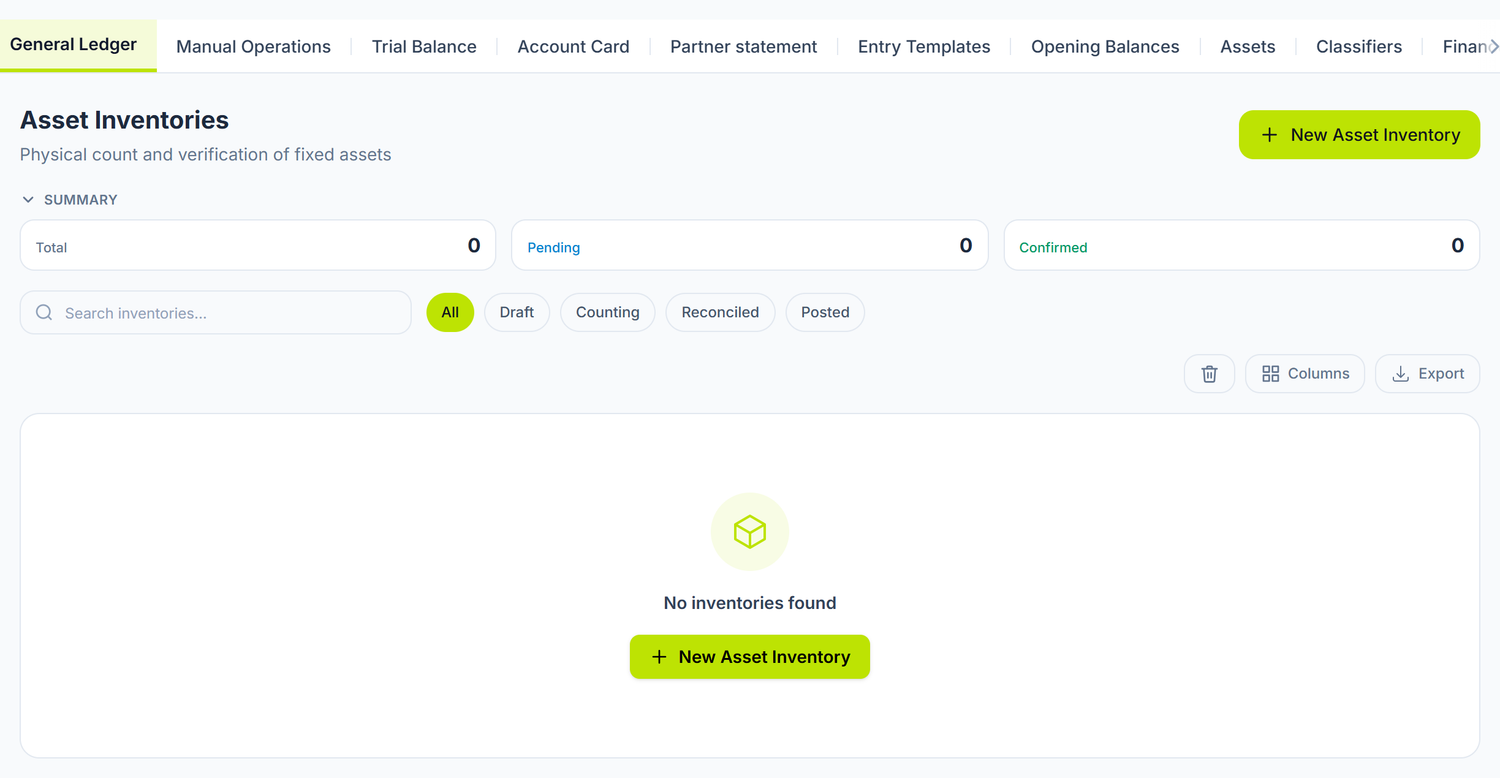
One document for both kinds of asset. The screen is called Asset Inventories because it covers fixed assets and intangible assets alike. Every line carries a badge: MF for fixed assets, NMA for intangible assets.
How the document is created
You press New Inventory Count and fill in the header:
| Field | Description | Mandatory |
|---|---|---|
| Date | The date the physical check takes place | Yes |
| Department | The department being inventoried. Left empty → the assets of the whole organization are taken | No |
| Notes | General observations | No |
| Commission Members | A separate table: employee + the President checkbox, added with the Add member button | No |
On save, POSfix automatically populates the lines with every fixed asset in the "In Operation" state — filtered on the department you chose, if you filled it in. If you change the department later, the lines already generated stay the initial ones. Choose the department before the first save.
Intangible assets are not added automatically. You enter them one by one, with the Add Asset button.
The golden rule: the person materially responsible for the department being inventoried should not be a member of the commission for their own department.
The inventory lines
| Column | Description | Editable |
|---|---|---|
| Asset Name | The name of the asset, with the MF or NMA badge | No |
| Inv. Number | The unique identification code | No |
| Book Value | The book value taken from the card | No |
| Book Location | The location from the asset card | No |
| Actual Location | Where the asset was actually found | Yes |
| Condition | Good · Damaged · Idle · Deficit · Surplus | Yes |
| Found | Checkbox | Yes |
| Action Required | An individual note per asset | Yes |
Above the table you have the live Found and Deficit counters, plus Total Book Value. The Surplus counter appears only once there is at least one surplus line. Every row has a coloured band on the left — green for found, red for not found.
The condition and the "Found" checkbox stay in sync. When you choose the Deficit condition, the Found checkbox is cleared automatically. When you choose Good, Damaged, Idle or Surplus, the checkbox goes back on. You do not have to keep them in agreement by hand.
What each condition means
| Condition | What it means | What you do |
|---|---|---|
| Good | The asset is where it should be and works normally | No action |
| Damaged | The asset exists but shows significant deterioration | Repair or a proposal to write off |
| Idle | The asset exists but is not being used | Note it in "Action Required" |
| Deficit | The asset was not found at the check | Investigation → write-off or recovery from the person responsible |
| Surplus | An asset found physically but not on record | Register it |
The "Add Asset" button is not just for intangibles. The picker it opens lists any asset not already on the lines — fixed assets and intangible assets alike. That is also how you register a fixed asset found in surplus: you pick it from the list, and the line comes in with the Surplus condition and the Found checkbox on.
Document the missing assets. For every asset marked Deficit, note in "Action Required" the last person responsible, the last known location and the circumstances of the disappearance. That is where the conversation with the person in charge starts from.
Confirmation
The Confirm button sits at the top of the document, in green, and disappears once the document is confirmed. A dialog warns you first: the document will be locked and can no longer be edited. On confirmation:
- the document moves to the Confirmed state, and the header, the lines and the commission become read-only
- every fixed asset marked as not found moves to the Disposed state, with its book value brought to zero
Confirmation generates no journal entry. The inventory is a finding document: it records the result of the count and changes the state of the missing assets, and that is all.
Confirmation moves the assets not found to the Disposed state, and the Asset Disposals document accepts only assets In Operation. If you confirm first, the value stays on the long-term asset accounts even though the card already shows zero, and the fixed asset register and the trial balance start showing different figures, with no warning at all.
The correct order: you record the shortages → you issue and post the Asset Disposals document → only then do you press Confirm on the inventory.
What you can do on a confirmed document
The document's action menu changes its content after confirmation. What appears there depends on what you have on the lines:
| Action | When it appears | What it does |
|---|---|---|
| Create Commissioning (Surplus) | you have at least one fixed asset in the Surplus condition | Opens a commissioning document with the Surplus method and the assets already on the lines |
| Create Disposal (Missing) | you have at least one fixed asset not found | Opens a disposal document — but with no lines, because the assets are already Disposed and the picker offers only assets in operation |
| Unconfirm | on a Confirmed document | It does not work. It calls an address the asset service does not have, so it ends in an error |
In other words, the only action you can rely on after confirmation is the surplus one. For shortages, either you issue the write-off before confirming, or you record it by hand, from Accounting → Manual Operations.
Settling the differences
Assets in surplus — found but not on record
If the asset found has no card, you create one, then you commission it.
Where to find it: Sidebar → Accounting → Assets → the Asset Commissions tab
You choose Receipt Method = Surplus. The header then opens the Income Article field, and the Source Account (Credit) is the surplus revenue account, which you choose yourself. On a confirmed document, the Create Commissioning (Surplus) action gives you the document ready-filled.
Missing assets — on record but not found
Where to find it: Sidebar → Accounting → Assets → the Asset Disposals tab
You create a document with Disposal Type = Write-off, add the missing assets on the lines and choose the Expense GL Account suited to the reason. Do it before you confirm the inventory — see the warning above.
The document writes off the accumulated depreciation and moves the remaining value onto the chosen expense account.
Writing off and charging the loss are two different things. The disposal document only takes the asset out of the books. If you decide to recover the loss from someone, you record the receivable separately, from Sidebar → Accounting → the Manual Operations tab. The number and date of the internal order by which the decision was made go on the disposal document.
Damaged assets
For assets with significant deterioration you have two workable paths:
- Repair — the cost is recorded as an expense, from the service supplier's invoice
- Write-off — if the asset can no longer be used, you take it off the books from the Asset Disposals tab, and the recoverable parts go into the Salvaged Materials section of the same document
The inventory commission
| Role | Who | Responsibility |
|---|---|---|
| President | The manager or the chief accountant, ticked in the members table | Coordinates the process, signs the minutes |
| Member | The person in charge of the department | Takes part in the physical check |
| Independent member | From another department | Ensures the objectivity of the findings |
The members are chosen from the organization's employee list, and their names stay on the document as the trace of the check.
Good practice
- Check the inventory labels — compare the physical numbers on the assets against the ones in the register; if the label is missing or damaged, apply a new one
- Photograph the damaged assets — visual documentation helps with the later assessment
- Inventory by department — one document per department, not the whole organization in a single one; it lets each person in charge be held accountable
- Close the month before the inventory — the book values on the lines have to include the depreciation to date
- Issue the write-offs before confirmation — after confirmation the missing assets can no longer go onto an Asset Disposals document
- Do not put off the surpluses — create the commissioning document for the assets found straight after confirmation
How it connects to other documents
| Document / Module | The connection |
|---|---|
| Fixed asset records | The register the inventory lines are populated from |
| Depreciation | Depreciation has to be recorded up to date before the inventory |
| Intangible assets | Added by hand on the document, with the NMA badge |
| Journal register | The settlement entries, generated by the commissioning and disposal documents |
| Trial balance | Checking the long-term asset balances after settlement |
| Chart of accounts | The accounts you choose at settlement |
Frequently asked questions
Do I have to inventory the fully depreciated assets too?
Yes. A fully depreciated asset physically exists in the organization and has to be checked. It is in the In Operation state, so it appears automatically on the document lines, like any other asset.
Can I inventory several departments at once?
You create one document per department. If you leave the Department field empty, the document takes every asset in operation across the organization. The advantage of separate documents: each person in charge takes responsibility for their own assets.
What do I do with assets found in a department other than the one on record?
You mark them Good and note the real location in the Actual Location column. This is not an inventory difference but a location-record problem — you correct it on the asset card, in the Location field.
Does the inventory include intangible assets?
Yes, but not automatically. You add them by hand with the Add Asset button; they appear on the lines with the NMA badge. Checking them is not a physical count but a validity control: is the licence active? Has the patent not expired? Is the right of use still in force?
What exactly happens to the missing assets on confirmation?
Every fixed asset with the Found checkbox cleared moves to the Disposed state, and its book value becomes zero. No journal entry is generated.
Watch out for the consequence: the card shows zero, but the balances on the long-term asset accounts stay untouched, so the fixed asset register and the trial balance no longer match. And the asset, being now Disposed, can no longer go onto an Asset Disposals document. That is why the disposal document is issued before confirmation.
I confirmed the inventory without issuing the write-off. What do I do?
The Create Disposal (Missing) action in the confirmed document's menu opens an empty document — the assets are already Disposed, and the line picker offers only assets in operation. Unconfirming does not work either. What is left is recording it by hand, from Accounting → Manual Operations: one entry for the accumulated depreciation, one for the remaining value.
You will not get the amounts from the card any more — after confirmation, its book value is zero. You find them in the Trial balance or on the Account card of the fixed asset account, with the analytical dimension per asset.
Who signs the minutes?
All the commission members plus the person in charge of the department being inventoried. If that person refuses to sign, the refusal is recorded, in the presence of at least two witnesses. The commission members are recorded on the document, in the Commission Members table.
An asset declared missing was found later. What do I do?
If you have already posted the write-off, unpost the disposal document from the Asset Disposals tab — the entry is deleted and the values are restored. Then you check the state and the book value on the asset card.
Related pages
- Fixed asset records — the complete asset register
- Depreciation — depreciation up to date before the inventory
- Intangible assets — the intangible assets
- Chart of accounts — the accounts used at settlement
- Journal register — viewing the settlement entries